
9 Canva Alternatives for 2026: Free and Paid Tools Compared
Nine Canva alternatives compared on pricing checked today, free tiers and AI features, plus a one-brief test you can repeat in Figma, Express and LazyKiwi.
 Marcus Tan 10 min read
The best Canva alternatives in 2026 split by what you export: Figma for shared design systems, Adobe Express for template-led social posts, Affinity for print files, Visme for decks, and an AI image generator such as LazyKiwi when the visual itself is the hard part rather than the layout. I checked every free tier and price on the vendors' own pricing pages on 5 September 2026, then ran one poster brief through three of the tools and kept the screenshots. Where a site blocked the check (Canva and VistaCreate both did) I say so instead of quoting a number from memory.
What are the best Canva alternatives in 2026?
Nine Canva alternatives made the cut because each one replaces a specific Canva job rather than the whole product. The table is ordered by how close each tool sits to the Canva workflow; the source for every figure is linked in the one-by-one reviews further down.
| Tool | Free tier (verified 2026-09-05) | Paid entry point | Best for |
|---|---|---|---|
| Adobe Express | Free plan with limited daily AI generations | Premium, US$9.99 a month | Template-led social posts and short promos |
| Figma | Starter, free, 150 AI credits a day | Professional full seat, $16 a month | Shared components and multiplayer editing |
| VistaCreate | Site blocked the check; a free Starter plan is advertised | Not verified today | Fast social graphics and animated posts |
| Kittl | Free forever, 100 one-time AI tokens, personal use only | Pro, $14 a month per editor billed annually | Merch, logos and vector artwork |
| Pixlr | Free browser editors, no account needed | Plus, $2.49 a month | Layer-based photo edits and quick AI fills |
| Fotor | Basic, free forever, watermarked exports | Pro (price loads in-app) | Collages, photo effects and simple templates |
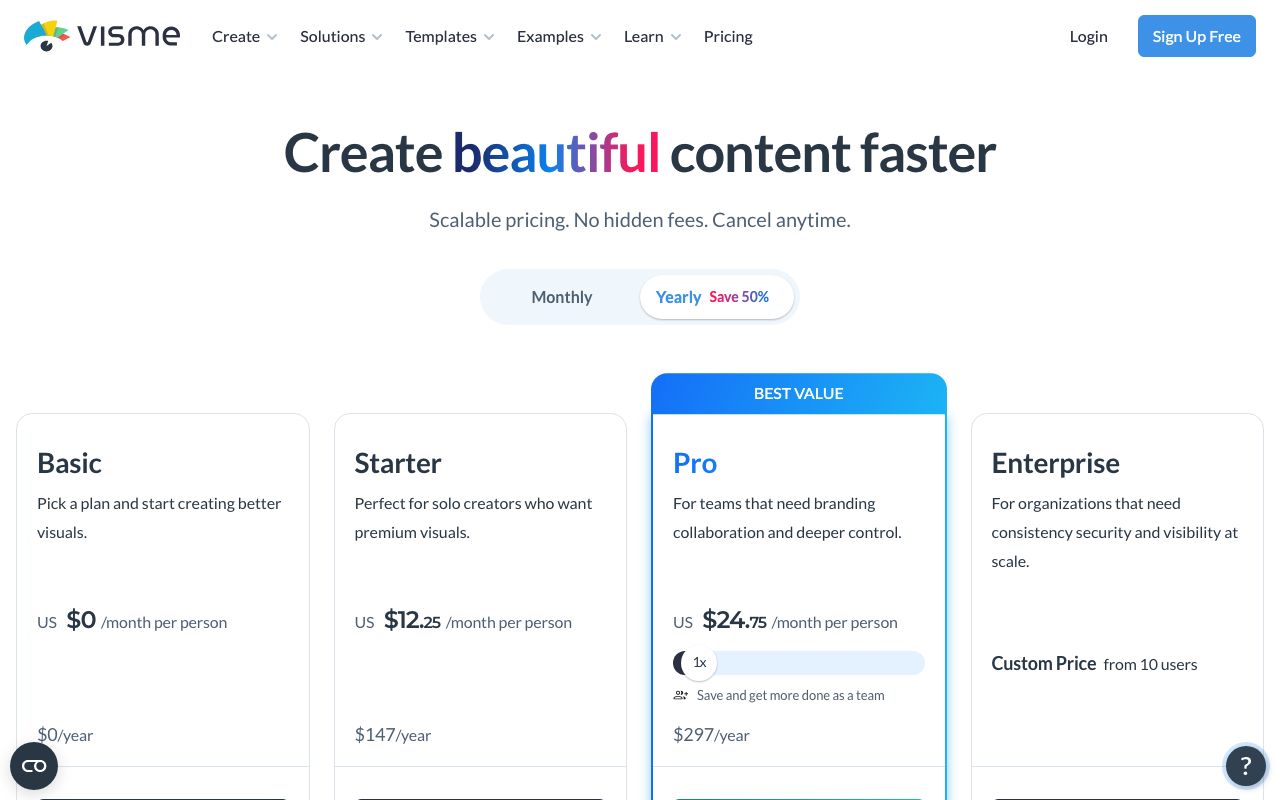
| Visme | Basic, free, 500 MB storage | Starter, $12.25 a month billed annually | Presentations, reports and infographics |
| Microsoft Designer | Browser app; no plan table on the product page | Not listed | Prompt-to-layout social graphics |
| LazyKiwi | Free plan, 40 credits a month | Starter, $14 a month for 4,500 credits | AI posters, thumbnails and source imagery |
Two names are missing on purpose. Snappa and Affinity solve narrower jobs than the nine above, but both show up in the free section below because their free tiers are unusually easy to describe.
Why look for an alternative to Canva?
Canva's pricing page sat behind a Cloudflare verification screen when I opened it on 5 September 2026, so this section sticks to reasons you can confirm inside your own Canva account rather than prices I could not read today.
- Per-seat billing. Teams pay per person, which is the same model Figma uses on its Professional plan per Figma pricing (2026), and the reason small teams go looking for one editor with one bill.
- Metered AI. Every editor in this list rations image generation through credits, tokens or daily allowances. If most of your visuals start from a prompt, a credit-based generator prices better than a layout tool with AI bolted on.
- Licensing detail. Kittl's free plan is for personal use only and its Pro and Expert plans carry a commercial licence for up to 500,000 copies, per Kittl pricing (2026). Canva's rules vary by element, and checking each one is the step people skip.
- Print and offline work. A browser editor cannot open a CMYK file on a train. Affinity's desktop apps are free for individuals with no export restrictions, per Affinity (2026), which closes that gap.
- Owning the source file. Figma and Affinity hand you an editable file. Template editors keep the project inside their cloud, and moving it out later is rarely clean.
If none of those apply, stay where you are. Switching costs a week of rebuilding brand kits and templates, and the tools below earn that week only when a specific limit is costing you time every month.
Canva alternatives reviewed one by one: 9 tools in 2026
Each review is what I could verify on 5 September 2026 plus what I noticed using the free tier on a poster brief. Competitor links go to pricing or product pages, never to trial funnels.
Adobe Express
The closest like-for-like swap. Adobe lists a Free plan and a Premium plan at US$9.99 a month with 250 generative credits, and the free tier includes access to 100,000+ templates and 4,000+ fonts, per the Adobe Express pricing page (2026). In use it feels like Canva with Adobe fonts and a tighter link to Photoshop; the template library is smaller, and premium stock is gated.
Figma
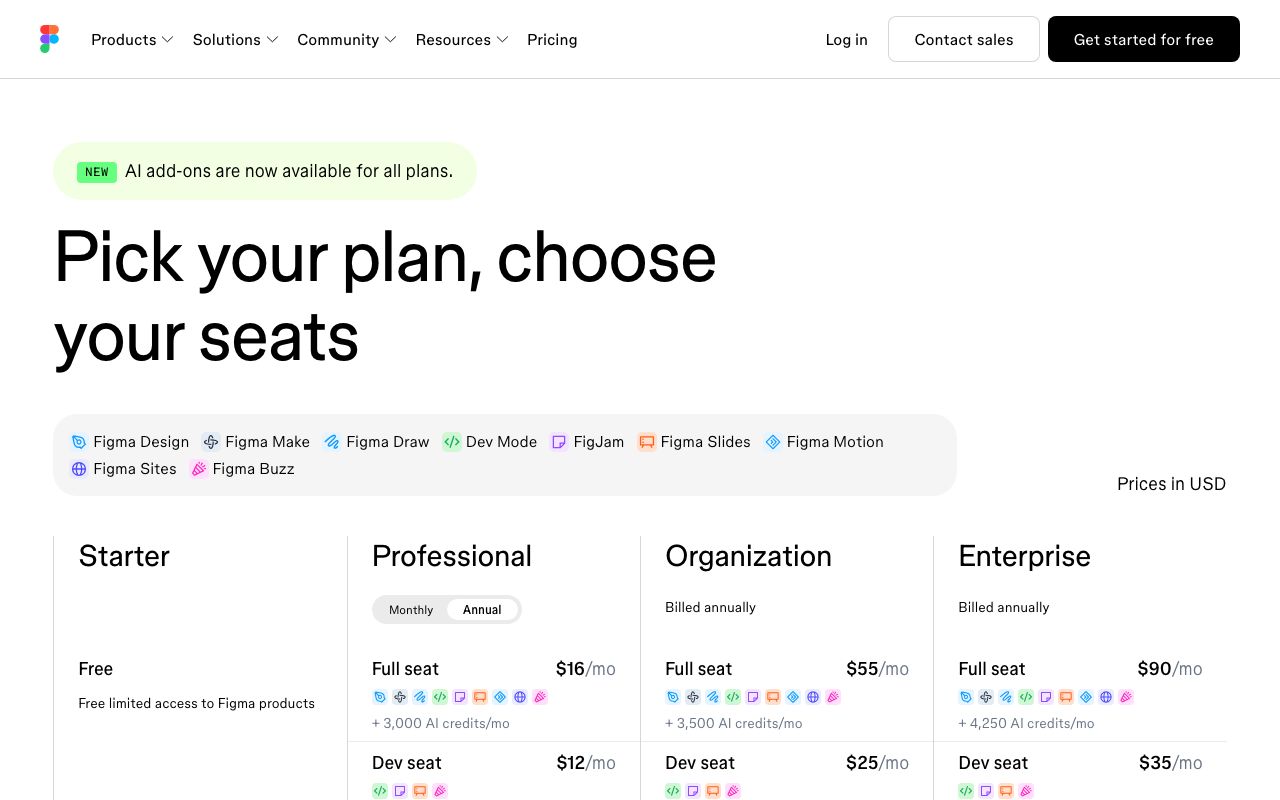
Starter is free with 150 AI credits a day, and a Professional full seat costs $16 a month with 3,000 AI credits, per Figma pricing (2026). Pick Figma when several people edit one file: components, auto layout and comments are built for that. It is slow for one-off social posts unless you keep a personal template file and duplicate frames.
VistaCreate
The VistaCreate site returned a 403 to every check I ran today, so there are no figures here. It advertises a free Starter plan and animated templates in social sizes, and it is the most Canva-like editor of the group after Express. Verify the export list in your own account before relying on it for a client.
Kittl
Kittl's plan table shows Free at $0 with 100 one-time AI tokens and 5 projects, Pro at $14 a month per editor billed annually, and Expert at $39, per Kittl pricing (2026). The editor is strongest for merch, logos and vector text effects, and every AI action spends tokens. The free plan is personal use only, which rules it out for shop listings until you pay.
Pixlr
Pixlr's editors run free in the browser without an account, and paid plans start at Plus for $2.49 a month with 80 AI credits, per Pixlr pricing (2026). It is a photo editor first: layers, masks and generative fill. Templates exist but are thin next to Express, and a promotional overlay appeared on the pricing page when I opened it.
Fotor
Fotor Basic is free forever with watermarked JPG, PNG and PDF exports and limited free credits, per Fotor pricing (2026). Paid prices load dynamically on that page, so I am not quoting them. Fotor is good for collages and one-tap photo effects and weak for typography, which is most of what a poster is.
Visme
Visme's Basic plan is free with 500 MB storage, JPG, PNG and PDF downloads and up to 50 slides per project; Starter is $12.25 a month per person billed annually, per Visme pricing (2026). It beats Canva for charts, data widgets and long reports. For a single Instagram post it is heavier than it needs to be.
Microsoft Designer
A browser app that builds layouts from a written prompt, per Microsoft Designer (2026). The product page shows no plan table, so treat generation limits as something to check after signing in with a Microsoft account. It is useful for a first draft of an announcement; the manual editor underneath is shallow, so finishing work moves elsewhere.
LazyKiwi
LazyKiwi is not a layout editor. It is an AI image generator with seven image models, image tools and templates, and the Free plan lists 40 credits a month with Starter at $14 a month for 4,500 credits, per LazyKiwi pricing (2026). Its design tools cover posters, product shots, thumbnails, interior design and virtual staging. What it does not do is set live type, so the workflow is generator plus a layout tool.
What is the best free Canva alternative?
Searches for Canva alternatives free usually mean one of four things: no watermark, no download cap, enough storage, or enough AI credits. Every free tier below fails on a different one of those, so the best free Canva alternative is the one whose limit you will not hit.
| Free tier | What you get (verified 2026-09-05) | First limit you hit |
|---|---|---|
| Figma Starter | Layout editor, 150 AI credits a day | Team features and file organisation |
| Affinity | Vector, Pixel and Layout studios, no export limits | No templates; you build from zero |
| Pixlr free | Browser photo editors without an account | Ads and AI credits |
| Fotor Basic | Editing, collages, limited free credits | Watermarked exports |
| Visme Basic | Most templates, JPG/PNG/PDF downloads | 500 MB storage, 50 slides per project |
| Snappa Starter | 6,000+ templates, stock photos | 3 downloads a month |
| LazyKiwi Free | Image generator, tools and templates | 40 credits a month |
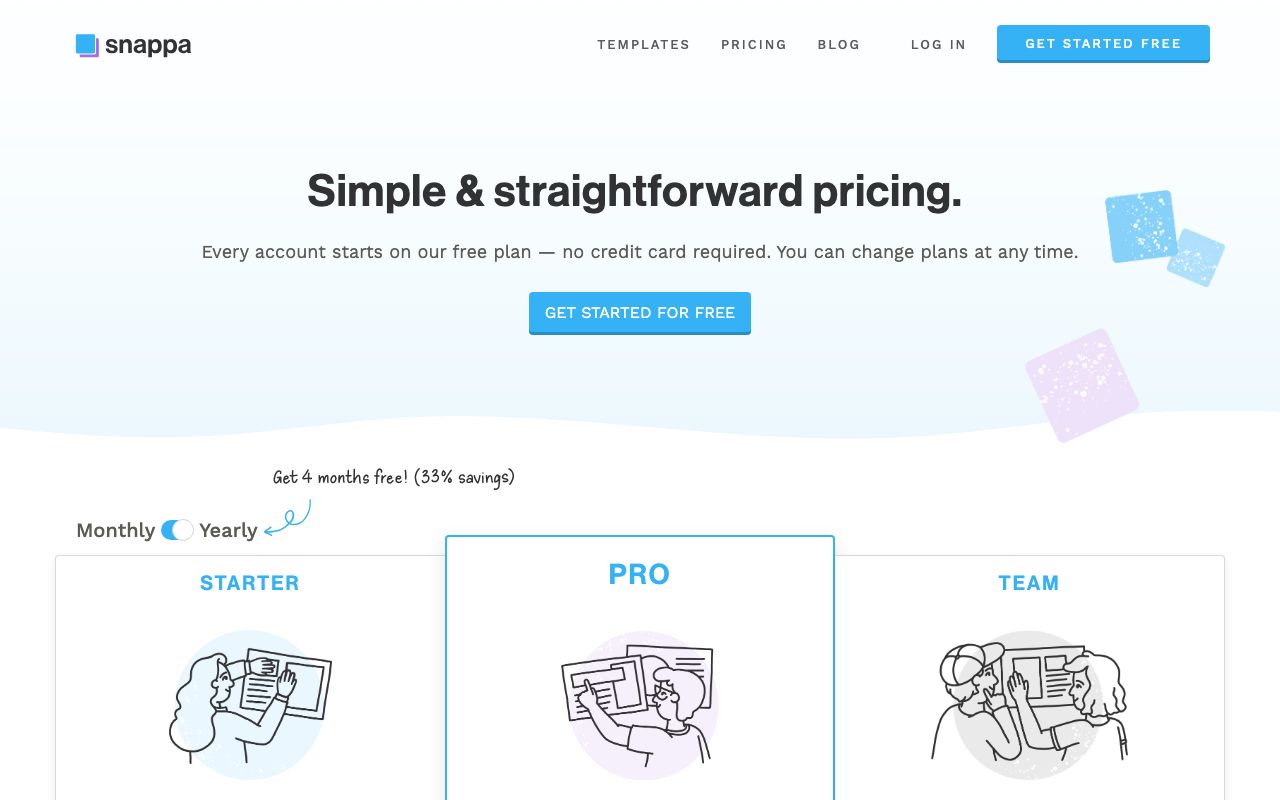
Snappa is the clearest example of a download cap: its Starter plan is free with 3 downloads a month and 6,000+ templates, per Snappa pricing (2026). That is enough for a weekly post and nothing more. Affinity is the outlier in the other direction: no watermark, no cap and no subscription, which makes it the free pick for print if you can live without templates.
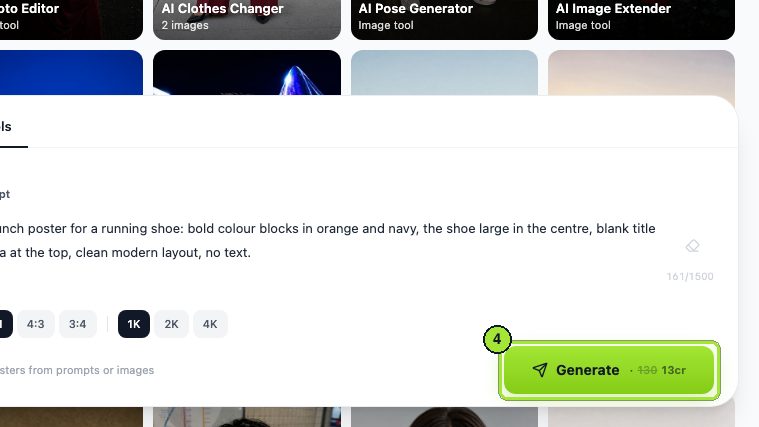
On LazyKiwi the Free plan shows 40 credits a month that refresh monthly (the pricing page is linked in the review above). In the workbench the poster generator displayed its credit cost next to the Generate button, so you can see before rendering how many runs the free allowance covers. Heavy use needs the Starter plan.
Export before you build
Watermarks are the trap. Fotor Basic exports carry one; Snappa and Figma exports do not but are capped by count or features. Make one test export on a free tier before you build the whole campaign in it.
How to test Canva alternatives with one real brief
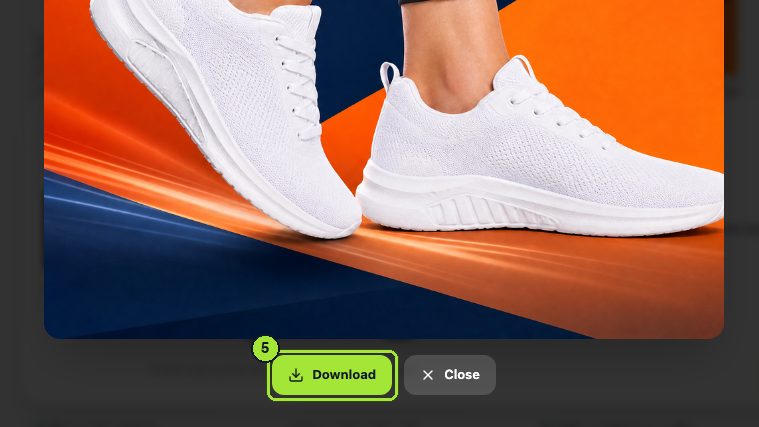
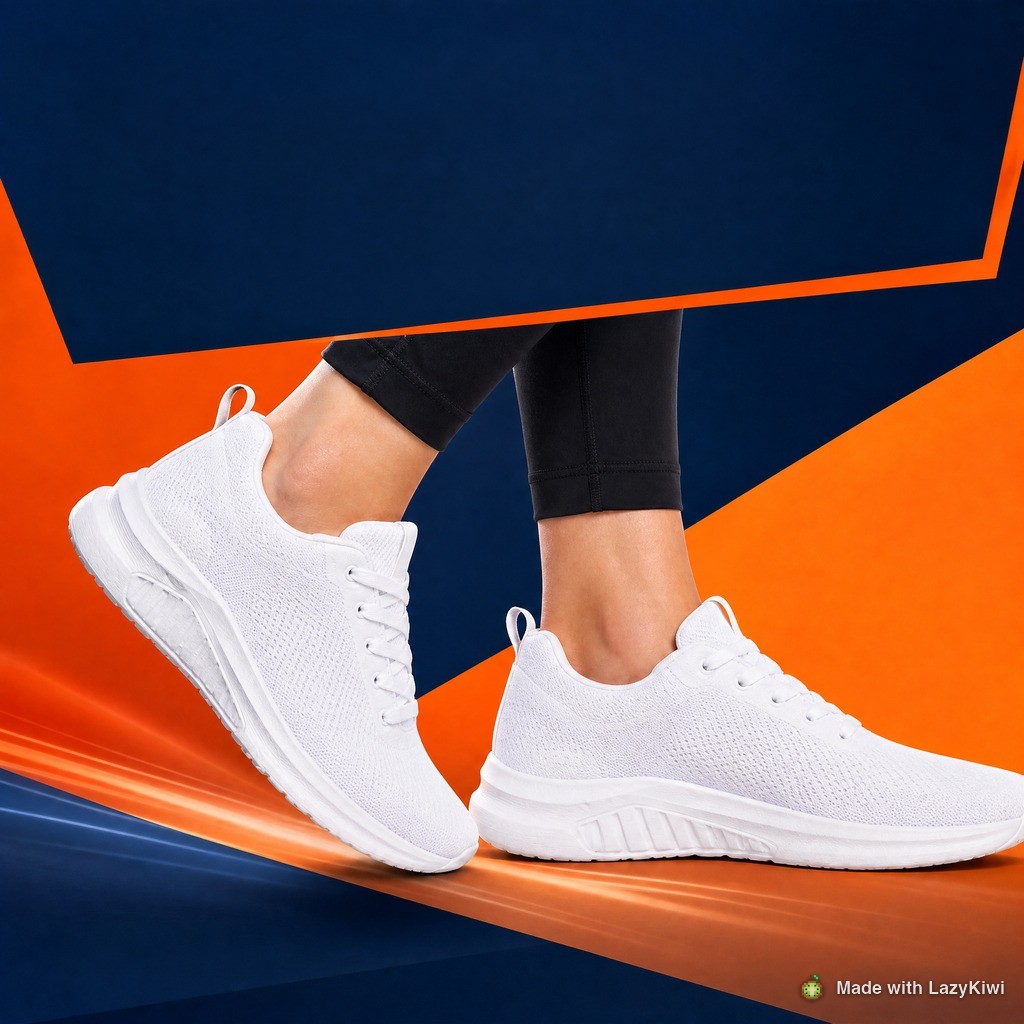
The brief: a portrait poster and a square feed post for a Saturday ceramics workshop, same headline, same photo, same two brand colours. I built it in Adobe Express, Figma and LazyKiwi's poster generator. Below is the LazyKiwi leg with screenshots; the other two are mentioned where they differed.
- 1
Write the brief once
Headline, date, one photo, two hex colours and the two output sizes. Paste the same text into every tool so the comparison stays fair, and keep the photo at its original resolution.
- 2
Generate the poster base
Open the AI poster generator in the workbench, upload the photo and describe the poster. Ask for empty space where the headline will go; the tool page itself warns that AI-rendered type is not always exact, so plan to set the words yourself.
- 3
Cut the social version
Run the same photo through the AI thumbnail maker with a prompt like 'high-contrast layout, title space on the left'. It exports 1280x720 for YouTube and a 9:16 variant for stories, so one render covers the feed and the story slot.
- 4
Add the type in a layout tool
Drop both renders into Express or Figma and set the headline as live text. This is the step a generator does not replace. Express was faster for the square post; Figma gave the cleaner print export.
- 5
Animate the headline for stories
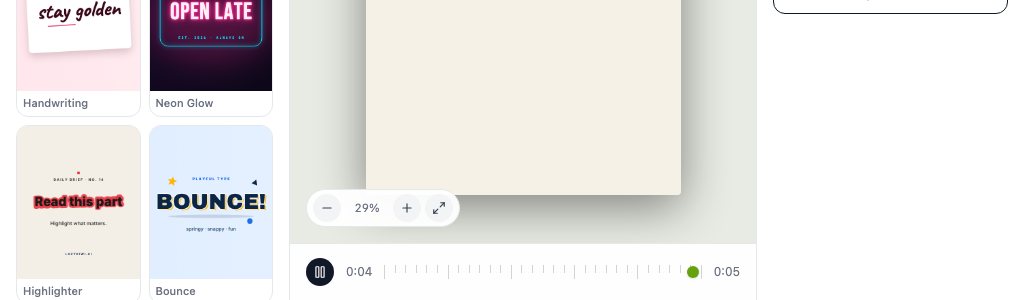
In the text animation tool shown below, pick a preset, paste the headline and export 720p free or 1080p for credits. The free counter sits in the top right of the panel so you know what is left before you click.
- 6
Score the three outputs
Count manual fixes: misspelt type, wrong crop, missing brand colour. In my run Express needed the fewest fixes on the post, Figma produced the best print file, and LazyKiwi made the only background I would not have found in a template library.
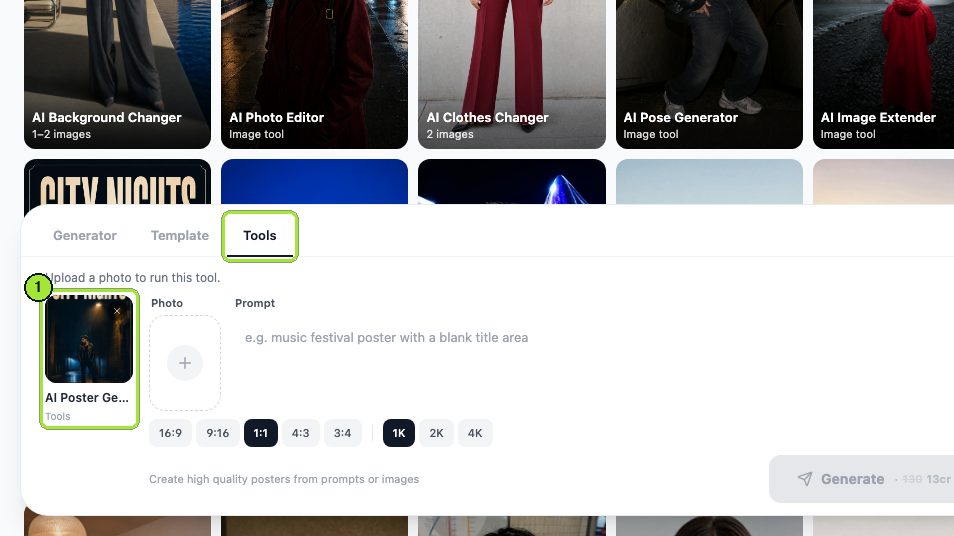
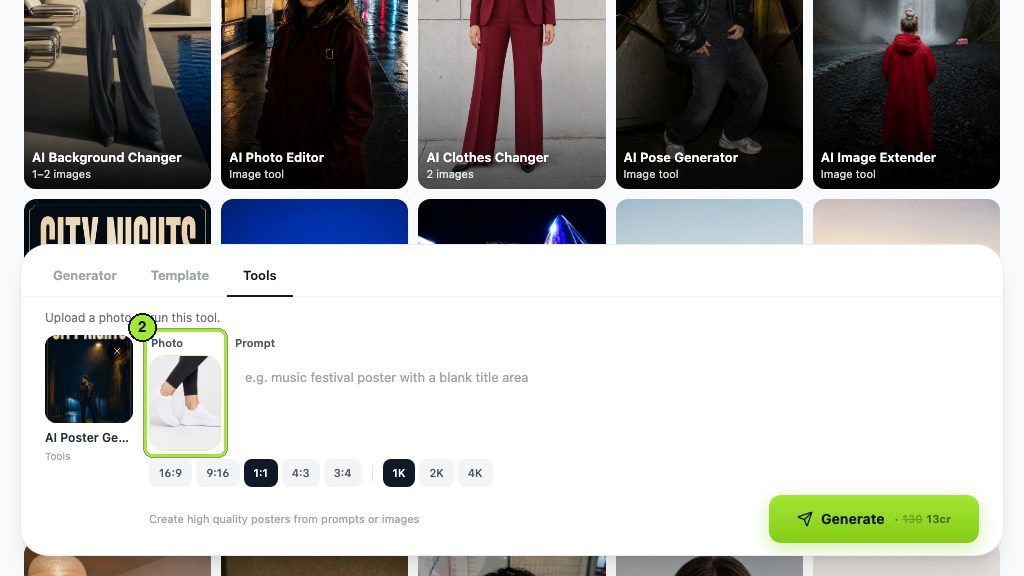
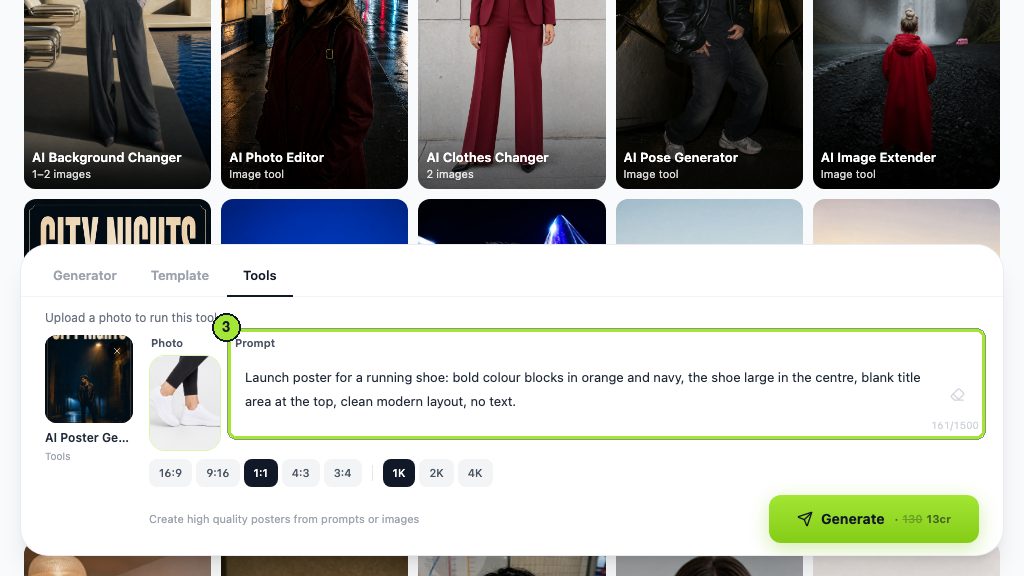
Save the prompt next to the export. When the next workshop comes round you rerun the render instead of rebuilding the poster from a template.
Which Canva competitor should you choose?
The short decision guide, one line per situation.
- Same workflow with Adobe fonts and a Photoshop link: Adobe Express.
- Several people editing one file: Figma.
- Print and vector without a subscription: Affinity, or Kittl when you need the commercial licence.
- Charts and long reports: Visme.
- Photo edits: Pixlr; collages and quick effects: Fotor.
- The image is the deliverable: LazyKiwi's poster generator, thumbnail maker and image models, with the type finished in a layout tool.
Among the Canva competitors above, none replaces all of Canva, and that is fine. Pair one layout editor with one generator and you cover more ground than Canva does alone. Alternatives to Canva pay off only when a specific limit, a watermark, a seat price or a credit cap, is costing you time every week; if it is not, the switch is a hobby.
Key takeaways
- Figma Starter (free, 150 AI credits a day) and Adobe Express Free are the two closest replacements, for teams and for solo social posting respectively.
- Affinity is free for individuals with no export limits and is the strongest print and vector option; Kittl's paid plans add a commercial licence.
- Free tiers fail on different limits: Fotor watermarks exports, Snappa caps downloads at 3 a month, Visme caps storage at 500 MB.
- LazyKiwi's Free plan lists 40 credits a month; its poster generator, thumbnail maker and text animation cover the visual, not the typesetting.
- Test any shortlist with one brief in two sizes and count the manual fixes; that settles the choice faster than a feature grid.
Tools & Reviews Editor
Marcus Tan
I open every competitor's pricing page myself before writing a comparison, and I say plainly when another tool is the better pick.
FAQ
Common questions
Is there a free alternative to Canva?
Yes, several. Affinity is free for individuals with no export limits and covers print and vector work. Figma Starter is free for layout and collaboration. Pixlr and Fotor have free photo editors, though Fotor watermarks exports. LazyKiwi's Free plan includes 40 credits a month for AI posters and thumbnails. Pick by the limit you hit first: watermark, downloads, storage or credits.
Is Adobe Express better than Canva?
It is the closest like-for-like swap. Express Free includes templates, a selection of Adobe Stock and thousands of fonts, and Premium adds generative credits for a monthly fee. It wins if you already pay for Creative Cloud or want Adobe fonts; Canva keeps the larger template library and more integrations. Build the same post in both before deciding.
What is the closest app to Canva?
Adobe Express and VistaCreate match the template-first, drag-and-drop approach most closely, with Microsoft Designer a step behind because its manual editor is shallow. Figma is close on capability but not on workflow; it rewards setup. Most people comparing apps like Canva should test Express first, then Designer if they want prompt-generated layouts.
Which Canva alternative is best for teams?
Figma. Its Professional plan is priced per seat and everything about it assumes several people in one file: components, comments and version history. Adobe Express Teams is the template-led option if your team makes social posts rather than product screens. Visme suits teams that mostly produce decks and reports and want brand controls on them.
Can AI image generators replace Canva?
Not fully. A generator such as LazyKiwi produces the poster background, product shot or thumbnail, and GPT Image 2 reaches 2K resolution, but exact typography still belongs in a layout editor because generated text is not always accurate. The practical setup is a generator for the visual plus Express, Figma or Affinity for the type and the export.
Make the visual, then lay it out
Render a poster background, a thumbnail or a product shot in the LazyKiwi image generator on the free plan, and finish the type in the editor you already use.
Keep reading
AI Thumbnail Maker Guide for Better YouTube Thumbnails
Learn how to choose an AI thumbnail maker, write composition-aware prompts, generate useful variants, add readable text, and test YouTube thumbnails at feed size.
8 min read
How to Use an AI Sticker Generator for Custom Sticker Packs
Learn how to use an AI sticker generator to create a consistent sticker pack, remove backgrounds, add clean outlines, export transparent files, and prepare stickers for WhatsApp, Telegram, and iMessage.
8 min read
How to Use an AI Coloring Page Generator for Better Printables
Create original coloring sheets for children, classrooms, gifts, and seasonal activities with a practical AI workflow that starts with a clear prompt.
8 min read
How to Use an AI Wallpaper Generator for Desktop and Mobile
Learn how to use an ai wallpaper generator with reliable prompt formulas, device-specific layouts, refinement tips, and ready-to-try creative ideas.
8 min read