
How to Make a YouTube Thumbnail With AI (Step by Step, 2026)
How to make a YouTube thumbnail with AI in six steps: pick the frame, generate with title space, add text, export to YouTube's spec and A/B test the result.
 Priya Sharma 7 min read
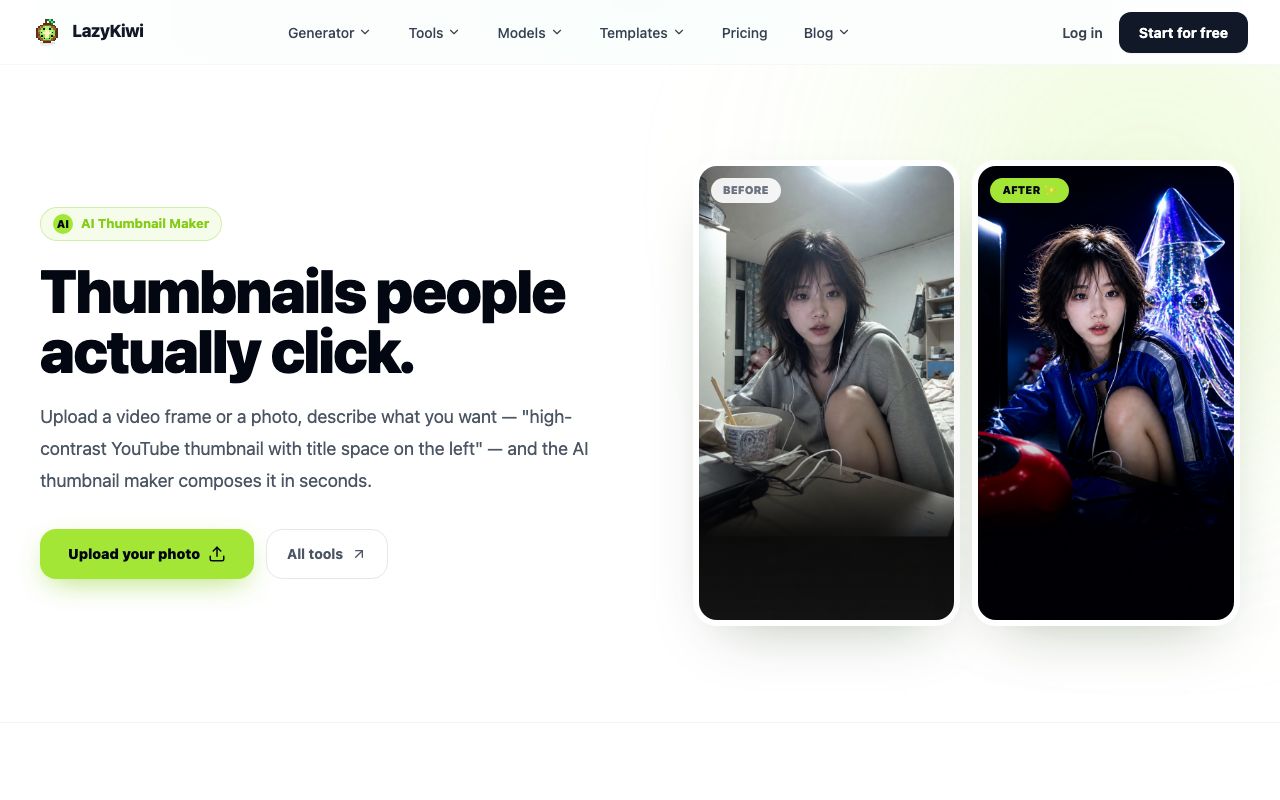
How to make a YouTube thumbnail with AI, in one paragraph: take one frame from the video, run it through the AI thumbnail maker with a prompt that reserves space for a title, add two or three words of text in your editor, export a 16:9 JPG or PNG, and test it against a second version. On September 6, 2026 one run of the tool showed 13 credits, so the free plan's 40 monthly credits cover three thumbnails. The rest of this guide gives the spec from YouTube's own help page, ideas by video type, a verified tool comparison and the prompts that keep the subject clear at feed size.
What makes a YouTube thumbnail get clicks?
A thumbnail is viewed at roughly the size of a postage stamp, next to a dozen others, for less than a second. What survives that is a single subject with a clear expression or object, contrast between subject and background, and at most three words of text large enough to read on a phone. Everything else is decoration.
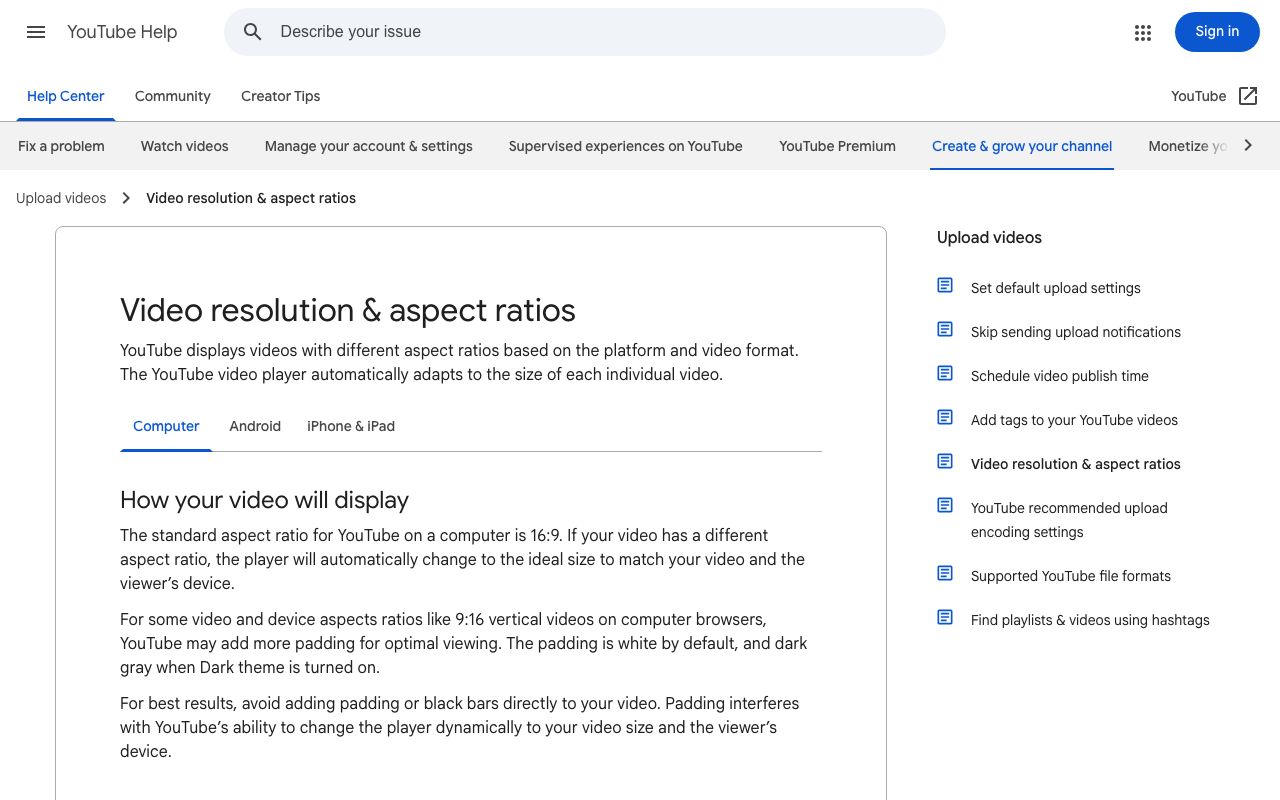
The technical side is fixed by YouTube. Its help page says custom thumbnails can be uploaded at up to 3840 by 2160 pixels for videos with a minimum width of 640 pixels, in JPG or PNG, at a 16:9 aspect ratio for videos and 9:16 for Shorts, and that file limits depend on the upload device, with 2 MB for video thumbnails on mobile and 50 MB on desktop, per YouTube Help (2026). The same page notes that vertical videos with 16:9 custom thumbnails get an auto-generated 4:5 thumbnail on the home and subscriptions feeds.
Which size should you export?
1280 by 720 pixels remains the working size most guides recommend, per Hootsuite (2026), and it is what the LazyKiwi tool produces at its 1K setting. Export larger only if the image has fine detail that matters; YouTube compresses everything anyway.
How to make a YouTube thumbnail with AI step by step
This is the workflow I use for a talking-head or tutorial video, and it is the shortest honest answer to how to make a YouTube thumbnail that people click. It takes about ten minutes and one tool run.
- 1
Pull one frame
Scrub to the moment with the strongest expression or the clearest view of the object. Export a still at the video's full resolution; a blurry frame stays blurry.
- 2
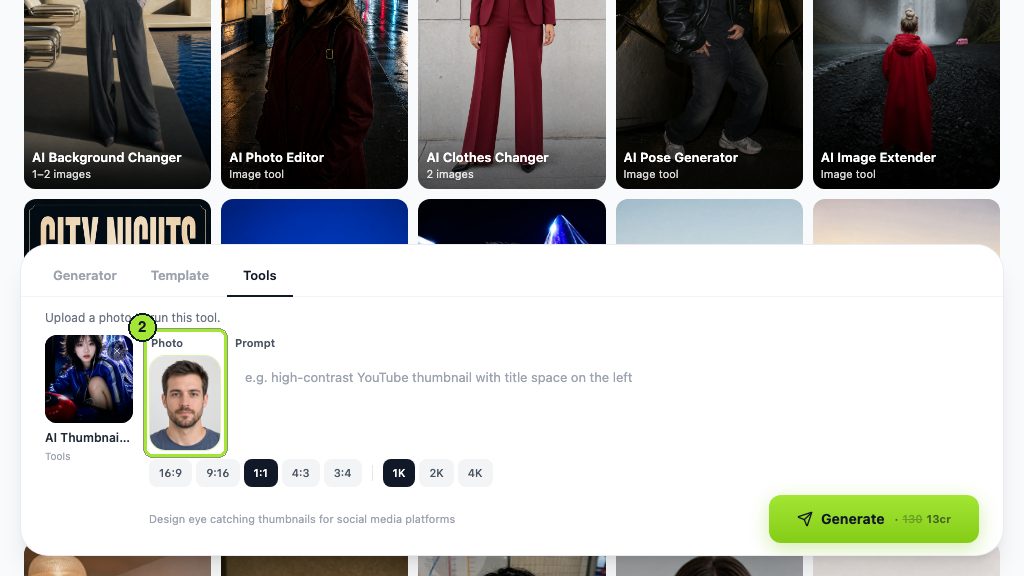
Open the thumbnail tool
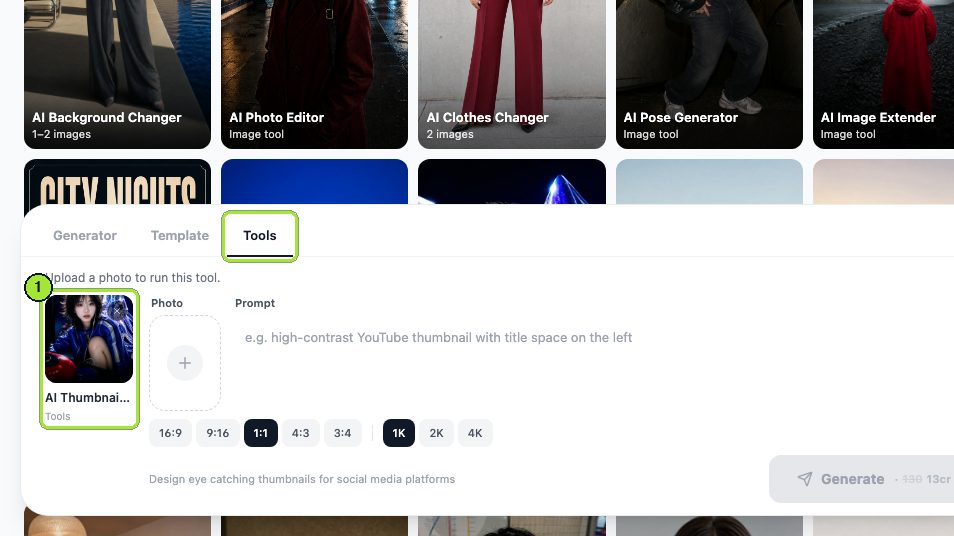
Go to the AI thumbnail maker, upload the frame and set 16:9. Leave the size at 1K for a first pass.
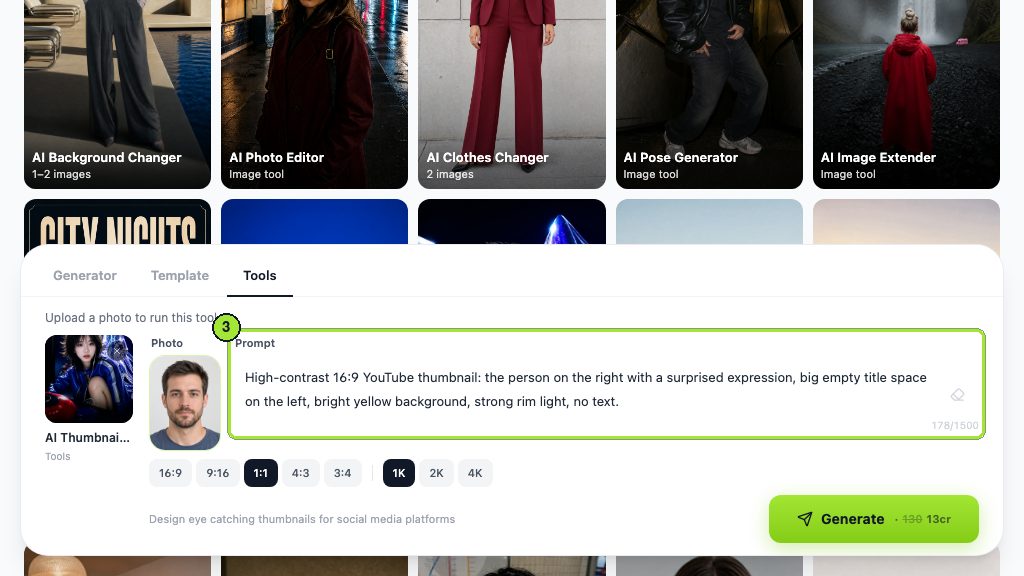
- 3
Reserve the title space in the prompt
Write where the subject goes and where the empty area is: 'subject on the right, dark clean area on the left for a title, high contrast, no text'. The tool lifts the subject off the background and raises contrast.
- 4
Swap the background if the room is dull
For a flat home-office frame, run the AI background changer first with a prompt such as 'deep blue studio backdrop, soft rim light', then feed that result into the thumbnail tool.
- 5
Add the words in your editor
Keep text out of generation. Add two or three words at a height of at least one fifth of the frame, in a heavy typeface with a stroke or a solid box behind it.
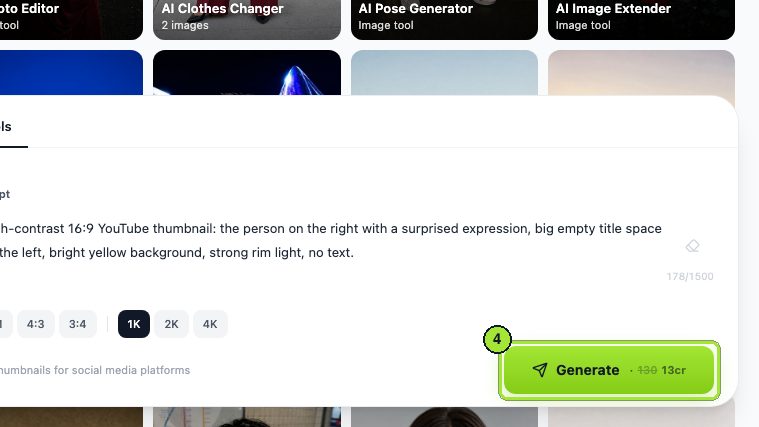
- 6
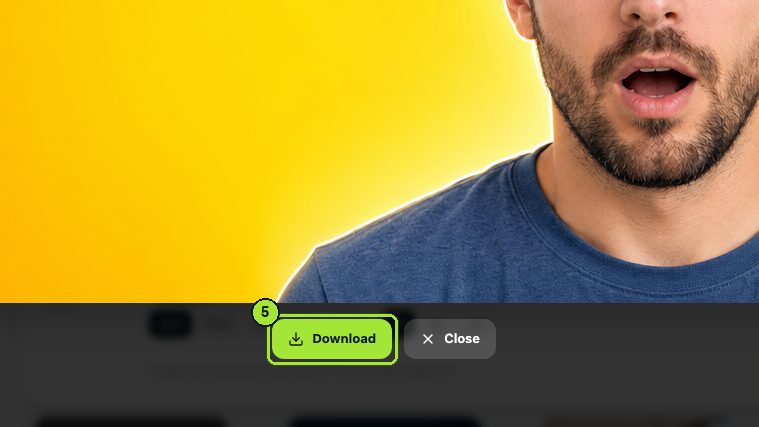
Export and test
Save as PNG or JPG at 1280 by 720 or larger, upload, and run YouTube's built-in thumbnail test against a second version for at least a week before you decide.

Shrink it before you judge it
Zoom the finished thumbnail down to about 10 percent on screen. If you cannot tell what the subject is at that size, the feed will not either.
What are good YouTube thumbnail ideas by video type?
YouTube thumbnail ideas are cheap; matching the idea to the video type is the skill. The table gives one reliable composition per format and the prompt fragment that produces it.
| Video type | Composition | Prompt fragment |
|---|---|---|
| Tutorial | Creator on one side, the finished result on the other | split frame, subject left, result right, clean gap between |
| Vlog | Face close-up with the location behind | tight face crop, expressive, location softly blurred behind |
| Reaction | Two panels: the thing and the reaction | two-panel layout, source on the left, surprised face on the right |
| Listicle | Three objects fanned out with a number space | three items in a row, empty top-left corner for a number |
| Product review | Product held toward the camera, face behind it | product in foreground, sharp, face behind slightly out of focus |
| Comparison | Two products facing each other on a split background | left half warm color, right half cool color, one product each side |
| Challenge | Timer or scale next to a tired face | large clock element, exhausted expression, dramatic side light |
| Explainer | One large icon or diagram, no face | single bold symbol centered, plain dark background, no text |
| Gaming | Character mid-action over a blurred level | character sharp, motion blur behind, saturated colors |
| Story time | Face in shadow with one lit detail | moody portrait, one object lit, deep shadow elsewhere |
Keep one composition per series. Viewers learn to spot your videos by layout before they read a word, and the thumbnail tool makes it cheap to repeat a layout across uploads.
Which AI thumbnail generator tools compare best?
An AI thumbnail generator falls into one of three groups: image tools that compose from your frame, template editors that lay out text and shapes, and channel-analytics suites that add A/B testing. Prices below were read from each vendor's page on September 6, 2026; where a page could not be opened, the cell says so.
| Tool | Type | Price or free tier (checked 2026-09-06) | Text tools | A/B test |
|---|---|---|---|---|
| LazyKiwi thumbnail tool | Image from your frame | 13 credits per run; 40 free credits a month | No; add in your editor | No; use YouTube's |
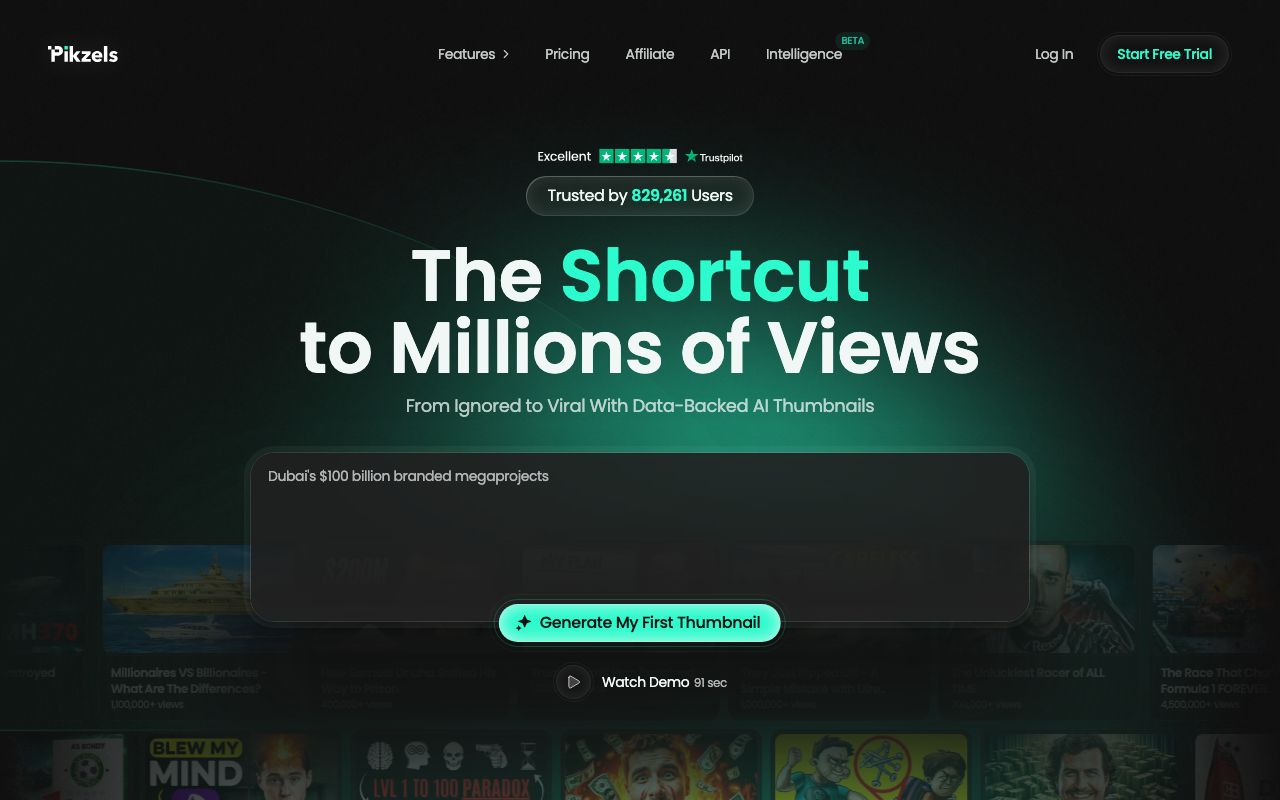
| Pikzels | Thumbnail generator | Premium 28 USD a month billed annually (336 USD a year), Ultimate 56 USD a month annually; ten to twenty credits per thumbnail; free trial | Yes | No |
| Fotor | Photo editor with thumbnail maker | Free tier; page requires sign-in for details | Yes | No |
| Canva | Template editor | Page blocked at check time; see canva.com pricing | Yes | No |
| Adobe Express | Template editor | Page unreachable at check time; see adobe.com | Yes | No |
Pikzels lists its plans, credit costs and a free trial on its pricing page, per Pikzels (2026), and positions itself around data-backed thumbnails for large channels. Fotor bundles a YouTube thumbnail maker into its editor, per Fotor (2026). Canva's template page returned an access error when I checked, per Canva (2026), so I am not quoting a price for it.
When is a thumbnail maker AI tool the wrong choice?
When you need the exact frame. A face swap or a fully generated person can drift from what the video shows, and a thumbnail that promises something the video does not deliver is a misleading-content problem. YouTube's disclosure rules for realistic altered or synthetic content apply, per YouTube Help (2026). Compose from a real frame and let the model handle background and contrast.
Is there a free AI thumbnail maker?
Yes, for a few thumbnails a month. New LazyKiwi accounts get 40 credits a month with no card, per the pricing page, and the thumbnail tool showed 13 credits per run on September 6, 2026, so a free thumbnail maker AI route in practice means three runs a month, or two runs plus one background swap. For a weekly channel that is enough to test the workflow, not enough to run it.
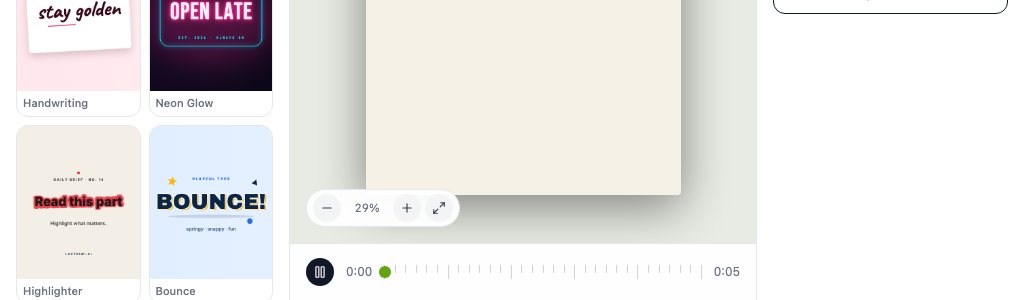
Two other free routes inside LazyKiwi: the AI image generator with GPT Image 2, which accepts a reference image and showed 13 credits at 1K, for thumbnails that need a generated object next to your face; and the animated text generator, which renders type animations for Shorts and exports at 720p free, with three free exports a day shown in the workbench. Pikzels offers a free trial; Fotor and the template editors have free tiers with their own limits. In LazyKiwi's workbench data (August 2026), GPT Image 2 was the model behind 127 of 181 external generations, so the generated-object route is well used; the same data shows the content-safety filter as the most common failure reason for image jobs, with 49 blocks in 30 days, which is worth knowing before you prompt a shocked face with anything graphic.
How to write prompts for AI thumbnails
The prompt describes the picture, not the video title, and it is where most people asking how to make a YouTube thumbnail with AI go wrong. Four elements in this order: subject and expression, subject placement, the empty area, and the contrast or color note. Then the exclusions.
The person from the photo, shocked expression, positioned on the right third, dark clean area on the left for a title, strong rim light, saturated teal and orange, no text, no logo.
The product from the photo held toward the camera, sharp and large, person behind slightly blurred, bright solid yellow background, empty top-left corner, no text.
One glowing lock icon centered on a deep navy background, thin light rays behind it, plenty of empty space on both sides, no text, no people.
Which words cause problems?
Anything that asks for text, a logo or a number. Models render lettering unreliably, and a misspelled word on a thumbnail costs more clicks than no word at all. Also avoid 'viral', 'clickbait' and 'best', which describe an outcome rather than an image; they change nothing except the model's guess. If you want a YouTube thumbnail maker AI prompt to land, say what is in the frame and where.
What thumbnail mistakes hurt click-through rate?
Click-through rate falls for reasons that are visible on the thumbnail itself; the fixes are mechanical.
- Tiny text. Anything under a fifth of the frame height vanishes on a phone. Cut words until the remaining ones can be large.
- A cluttered frame. Two faces, a product and a logo compete; pick one subject and let the model blur or remove the rest.
- Low contrast. A dark subject on a dark room reads as a gray rectangle. Ask for a rim light or swap the background.
- Misleading images. A generated scene that is not in the video breaks trust and can fall under YouTube's misleading-content rules; compose from a real frame.
- Ignoring the corner. YouTube overlays the duration in the bottom right; keep the subject and text out of it.
- Never testing. Upload two versions and let YouTube's test run for a week; a guess that feels right is still a guess.
Social image size guides such as Sprout Social's list the current display sizes across platforms if you reuse the same artwork for community posts or shorts covers, per Sprout Social (2026). YouTube's own blog is the place to watch for changes to how thumbnails are shown, per YouTube Official Blog (2026). Check both before a redesign, then keep the layout stable for a season.
Key takeaways
- YouTube accepts custom thumbnails up to 3840 by 2160 pixels in JPG or PNG at 16:9, with a 2 MB limit on mobile uploads and 50 MB on desktop, per its help page on September 6, 2026.
- The LazyKiwi thumbnail tool composes from a real video frame for 13 credits a run, so the free plan's 40 monthly credits cover three thumbnails.
- Prompt for layout, not words: subject on one side, an empty area for the title, high contrast, and 'no text' every time; add the two or three words in your editor.
- Pikzels charges 28 USD a month on its annual Premium plan with ten to twenty credits per thumbnail; Canva and Adobe Express pages could not be opened for a price check.
- Shrink every thumbnail to about 10 percent before judging it, and run YouTube's built-in test between two versions for at least a week.
Creator Growth Editor
Priya Sharma
I study what makes short-form content spread, then turn the pattern into something you can repeat on a Tuesday afternoon without a studio.
FAQ
Common questions
Can AI make YouTube thumbnails?
Yes, and the reliable way is to start from a real frame. The LazyKiwi thumbnail tool takes a still or a photo, separates the subject from the background, raises contrast and leaves a clear area for a title according to your prompt, for 13 credits a run on September 6, 2026. Add the words yourself afterwards, because generated lettering is often misspelled or distorted.
What size is a YouTube thumbnail?
YouTube's help page says video thumbnails can be up to 3840 by 2160 pixels with a minimum width of 640 pixels, in JPG or PNG, at a 16:9 aspect ratio; Shorts use 9:16 and podcast playlists 1:1. File limits are 2 MB for video thumbnails uploaded from mobile and 50 MB from desktop. Most creators export at 1280 by 720, which is the size the LazyKiwi tool produces at its 1K setting.
How do I make AI thumbnails for free?
Sign up for LazyKiwi, which grants 40 credits a month with no card, and run the thumbnail tool at 13 credits per thumbnail; that is three free thumbnails a month, or two plus one background swap. Use the same frame for both A/B versions and change only the background or the crop, so the free credits produce a real test rather than two unrelated images.
Do AI thumbnails violate YouTube rules?
Not by themselves. Thumbnails must follow YouTube's Community Guidelines and must not mislead viewers about what the video contains, and YouTube asks creators to disclose realistic altered or synthetic content. A thumbnail composed from a real frame with a generated background is fine; a fully synthetic scene that promises something the video does not show is the risk.
How do I test which thumbnail performs better?
Make two versions that differ in one thing, such as the background color or the expression, upload both through YouTube's built-in thumbnail test in YouTube Studio, and let it run for at least a week so the result covers weekday and weekend traffic. Keep the winner's layout for the next videos in the series and test the next single variable, rather than redesigning from scratch each time.
Make your next thumbnail from a real frame
Open the LazyKiwi thumbnail tool, upload a still from your video, describe where the title should go, and export a 16:9 image ready for YouTube.
Keep reading
9 Canva Alternatives for 2026: Free and Paid Tools Compared
Nine Canva alternatives compared on pricing checked today, free tiers and AI features, plus a one-brief test you can repeat in Figma, Express and LazyKiwi.
10 min read
25 Faceless YouTube Channel Ideas That Still Work in 2026
25 faceless YouTube channel ideas grouped by production load, with the format, tool stack and policy risk for each, plus YouTube's 2026 rules on AI content.
10 min read
25 YouTube Shorts Ideas Without Showing Your Face (2026)
YouTube Shorts ideas you can make without a face: 25 formats built on loops, remixes and series, each with a template or tool, plus specs and free options.
9 min read
AI Sticker Generator: WhatsApp, Telegram and iMessage Packs
Build a matching sticker pack with an AI sticker generator, then hit the real WhatsApp, Telegram and iMessage specs: 512 px, WebP or PNG, tight file limits.
10 min read