
AI Lip Sync: How to Make a Talking Video Look Natural
AI lip sync from phonemes to export: the portrait and audio that work, a step-by-step LazyKiwi walkthrough, tool prices checked in 2026 and artifact fixes.
 Daniel Okafor 9 min read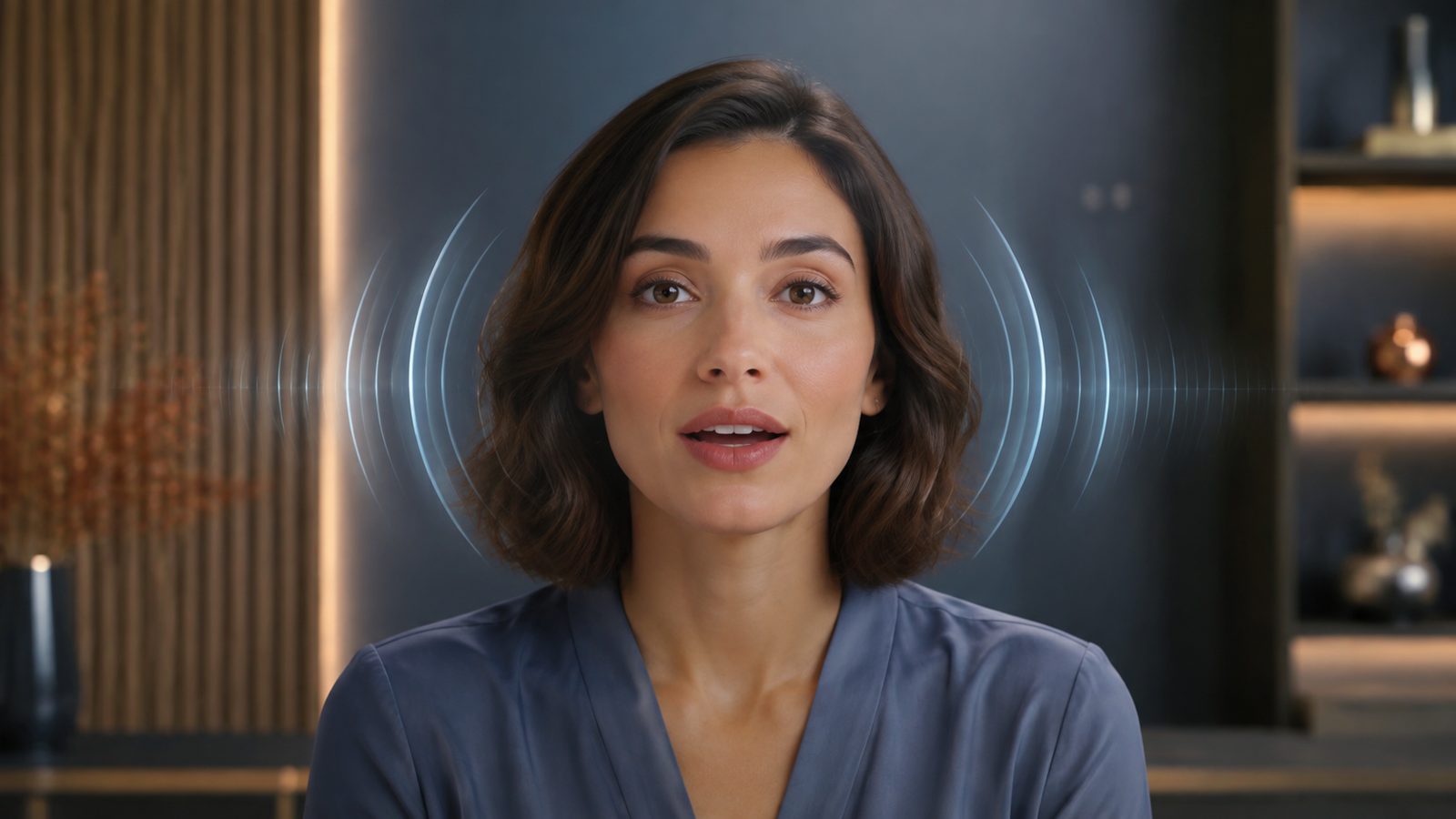
Lip sync AI takes speech (a recording or text read by a synthetic voice) and reshapes the mouth in a photo or a video so it moves with each sound. Done well, a single headshot becomes a presenter; done badly, the jaw floats and the teeth flicker. This guide covers how the models map sounds to mouth shapes, the exact steps in the LazyKiwi Avatar Talking flow, which source images and audio behave, the lip sync AI tools worth a test with prices read on 5 September 2026, the free options, the fixes for the usual artifacts, and the disclosure rules on YouTube, TikTok and Meta.
What is AI lip sync and how does it work?
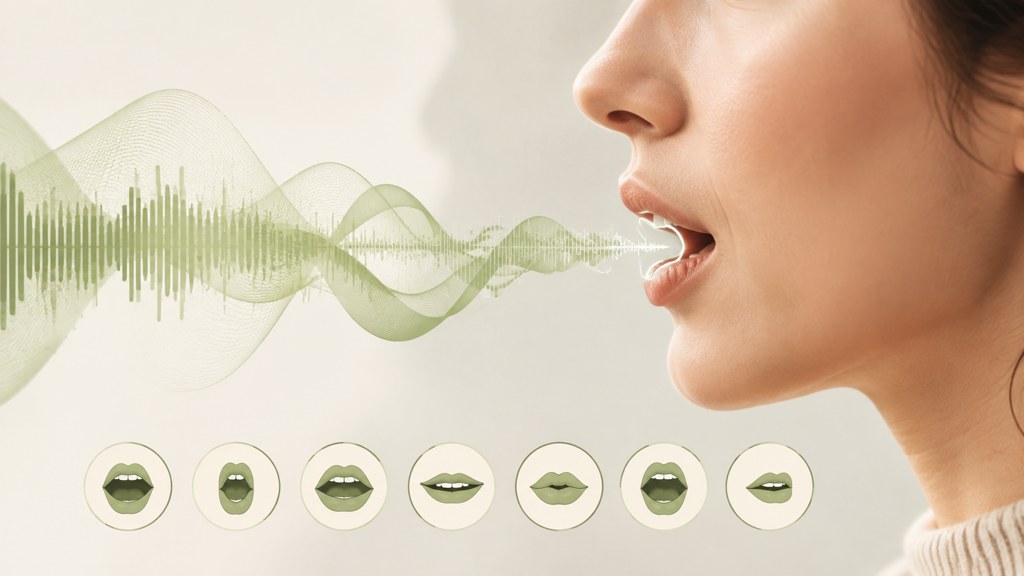
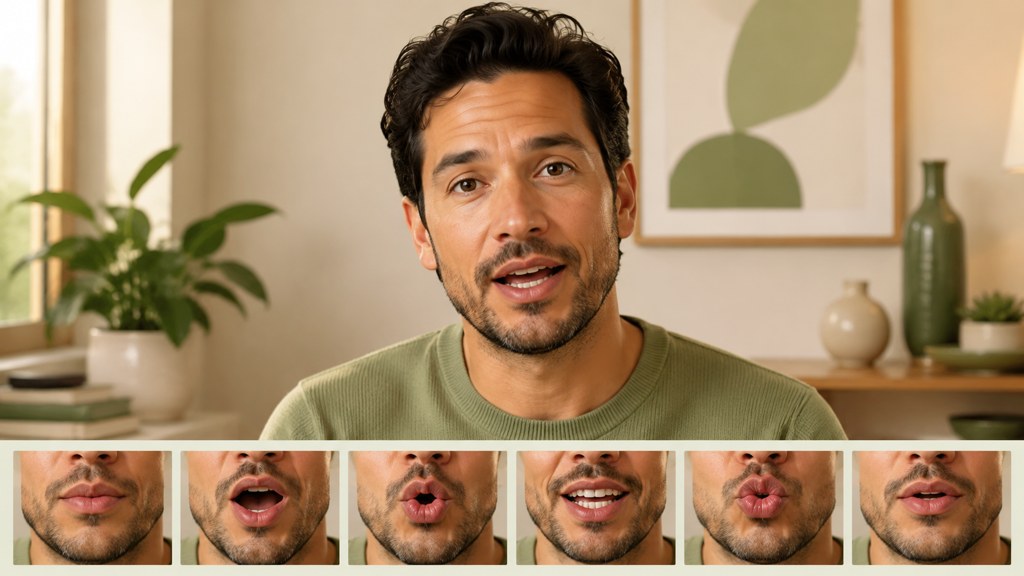
Speech is a stream of phonemes (the sounds), and every phoneme maps to a viseme (the mouth shape that makes it). The model listens to the audio, predicts the viseme sequence, and paints the lower face to match, frame by frame, while keeping the rest of the head as it was.
Why did older models drift out of time?
The research turning point was Wav2Lip, published as 'A Lip Sync Expert Is All You Need for Speech to Lip Generation In The Wild' by Prajwal, Mukhopadhyay, Namboodiri and Jawahar; the authors trained the generator against a dedicated lip-sync discriminator and reported accuracy 'almost as good as real synced videos', per the arXiv abstract (2020). Earlier approaches optimised for a pretty frame rather than for timing, which is why the mouth in old face-swap clips lags the audio by a few frames.
Which failures does the model still make?
Three remain common. Plosives (p, b, m) need a fully closed mouth for a frame or two, and weak models skip the closure. Sustained vowels stretch the jaw open longer than a human would. And silence is hard: the model has to decide whether a pause is a closed mouth or a relaxed open one, and it often keeps chewing. Commercial vendors now ship separate speed and precision modes for this reason; HeyGen's API, for example, lists 'Lipsync - Speed' and 'Lipsync - Precision' as distinct endpoints in its developer docs (2026).
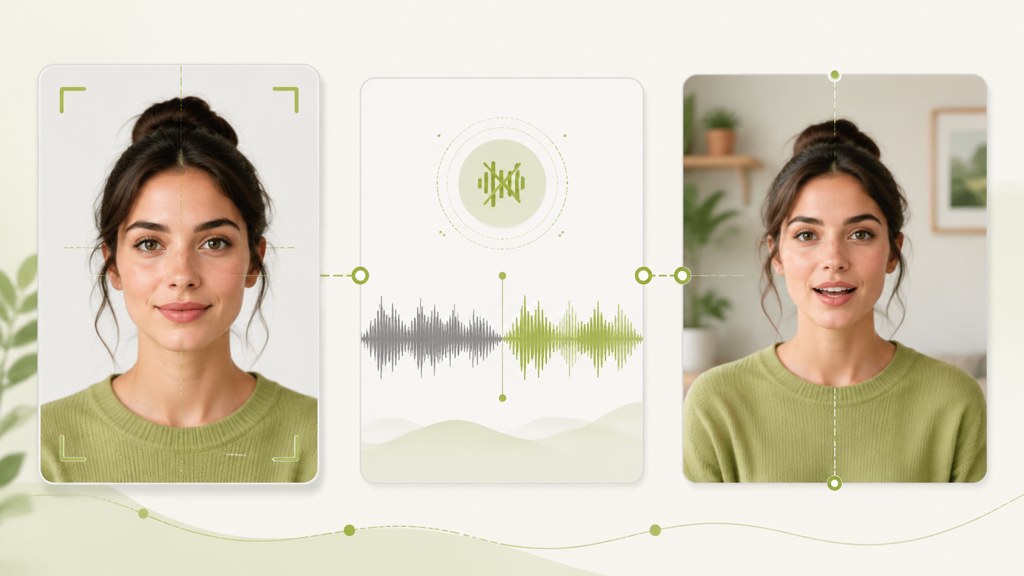
Photo-based systems add a second stage: they first animate the still (blink, head turn) and then sync the mouth. That is what the LazyKiwi Avatar Talking page does with a headshot and a typed script, and what the AI video generator does not do on its own, since its models produce silent motion.
How to make an AI lip sync video step by step
The Avatar Talking flow in LazyKiwi is text-driven: you type the lines and pick a voice; there is no audio upload on the page. The following steps are the ones on screen on 5 September 2026.
- 1
Drop in a headshot
Use Upload avatar. A straight-on face with the lips visible and no hand, microphone or mug in front of the chin gives the model a clean mouth region to repaint.
- 2
Write for the mouth, not the eye
Keep lines short and end them with full stops. Spell numbers as words if a digit must be crisp ('twenty-nine' rather than '29'). The field accepts 1,000 characters; a 25-second clip is about 60 words.
- 3
Leave the action on Speech for a first pass
Speech is the formal, mostly still preset. Head-heavy presets (Conversation, Emotional, Singing) move the face more, which hides sync errors but also creates new ones at the mouth corners.
- 4
Pick a voice and start with Neutral emotion
The emotion setting changes how wide the mouth opens on stressed words. Neutral gives the flattest, easiest-to-check motion; switch to Happy or Serious only after the timing is right.
- 5
Generate and review at quarter speed
Scrub the result frame by frame on 'p', 'b' and 'm' sounds and on every full stop. If the lips do not close on the plosives, cut the sentence in half and run it again before touching the headshot.
- 6
Add motion and cutaways elsewhere
For a moving-camera version of the same face, run the headshot through Hailuo 2.3 Fast image-to-video for a silent 6-second turn, then cut it between talking segments.
Credits
Talking clips and image-to-video renders draw from the same balance. The free plan carries 40 credits a month, per the LazyKiwi pricing page, so keep test scripts under ten seconds until the timing is right.
Which portrait and audio give the best lip sync results?
The input decides more than the model. The table below is the order we would try sources in, from safest to riskiest.
| Source | Sync quality | What goes wrong | Use it for |
|---|---|---|---|
| Front-facing headshot, mouth closed | Best | Almost nothing; teeth are invented, so check them | Presenters, explainers |
| Three-quarter view | Good | Far corner of the mouth smears on wide vowels | Character clips with a turn |
| Smiling with teeth showing | Fair | Tooth flicker as the model repaints the smile | Short, upbeat lines only |
| Profile or tilted head | Poor | One lip hidden; the model guesses the shape | Avoid |
| Existing video of the speaker | Best with a video tool | Head motion fights the new mouth if the tool is photo-only | Dubbing, re-voicing |
What makes audio easy to sync?
Clean, dry speech with no music underneath. Synthetic voices are the easiest of all, because they never mumble; ElevenLabs, the voice most creators route through, lists 74 languages for text to speech and a $0 tier with 10k credits a month, per its pricing page (2026). If you record yourself, keep the microphone off-axis so plosives do not pop, and leave half a second of silence at both ends.
For head motion, the Hailuo route is image-only: the model has no text-to-video mode, keeps the frame shape of your upload, runs 6 to 60 seconds at 768p or 1080p, and takes prompts up to 2,000 characters, per the Hailuo model page. Prompt for 'slight nod, lips closed' so the silent clip does not fight the talking one when you intercut them.
Which lip sync AI tools are worth testing in 2026?
Seven tools cover the field, and they split by input: photo plus script, video plus audio, or performance capture. Prices are as shown on each site on 5 September 2026; where a page publishes none, the cell says so rather than guessing.
| Tool | Input | Entry price (5 September 2026) | Free tier | Best for |
|---|---|---|---|---|
| LazyKiwi Avatar Talking | Photo + typed script | Credit plans | 40 credits a month | Talking headshots without an audio file |
| Sync Labs (sync-3) | Video + audio | Hobbyist $5 a month plus $0.05 per second | Pay-per-use with watermark | Re-voicing real footage, 4K |
| HeyGen | Photo or stock avatar + script or audio | Creator $29 a month | 3 videos a month, 1 minute | Presenter videos with translation |
| D-ID | Photo + script | Lite $4.7 a month billed annually | 14-day trial, watermarked | Cheap talking photos |
| Hedra | Avatar models in a studio | Basic $15 a month, 1,500 credits | Limited watermarked generations | Character clips with other models nearby |
| Runway Act-One | Performance video + character image | Paid Runway plans | None for Act-One | Acting transfer, not dubbing |
| Kling AI | Inside the Kling app | Not stated on the public home page | Not stated | Users already generating in Kling |
Sync Labs
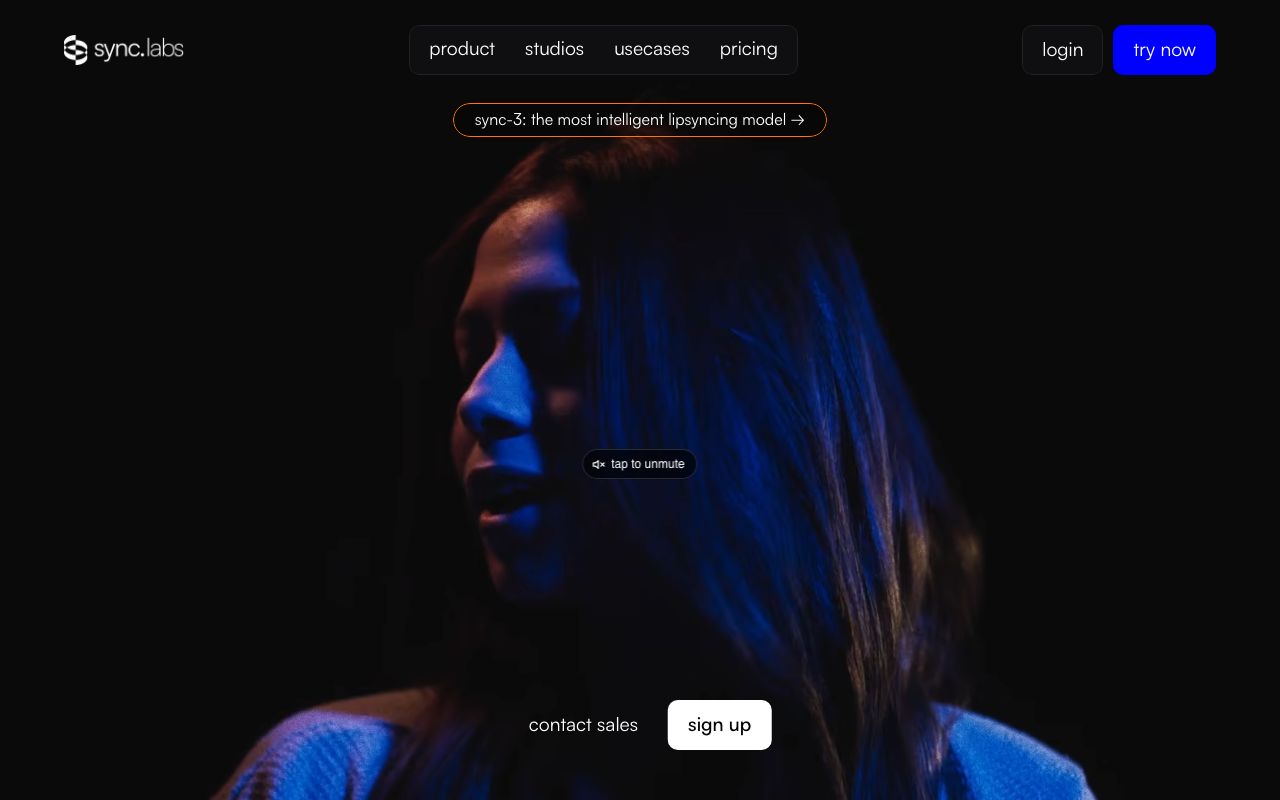
The specialist. The site leads with sync-3 as 'the most intelligent lipsyncing model', takes a video and an audio track, and handles objects blocking the face, multiple faces and 4K ProRes, per the Sync Labs site (2026). Pricing is per second generated: Hobbyist $5 a month at $0.05 per second for clips up to 1 minute, Creator $19 a month for 5-minute clips with no watermark, Growth $49, Scale $249, and a free pay-per-use tier that watermarks, per the Sync Labs pricing page (2026).
HeyGen and D-ID
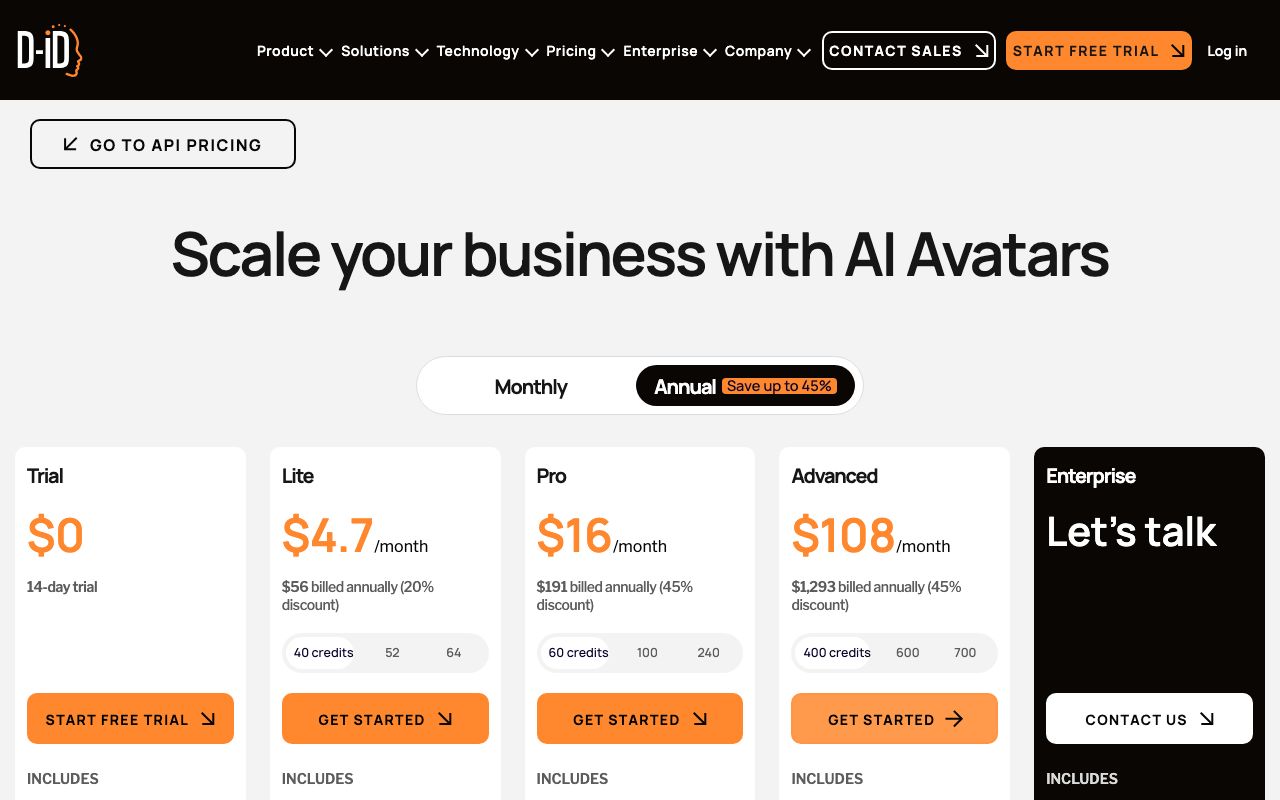
Both are avatar platforms with lip sync as a component. HeyGen's Creator plan is $29 a month and the free tier stops at three one-minute videos, per the HeyGen pricing page (2026). D-ID describes its AI Avatars as digital humans built 'from images or video for both offline videos and real-time experiences', per the D-ID site (2026), and its Studio pricing with the Annual toggle showed Lite at $4.7 a month ($56 a year) with 40 credits and a watermarked 14-day trial, per the D-ID pricing page (2026).
Hedra, Runway Act-One and Kling
Hedra sells credits (Basic $15 a month for 1,500), per its pricing page (2026), and positions avatar models inside a wider studio. Runway's Act-One is a different animal: it takes a driving performance video and a character image and transfers 'eye-lines, micro expressions, pacing and delivery', and is available on all paid plans, per Runway Research (2026). Kling AI's public site describes audio-visual synchronisation research but publishes no lip-sync spec or price on its home page, per Kling AI (2026), so evaluate it inside the app.
For the best lip sync video ai at a given budget, match input first: if you have footage, Sync Labs; if you have a photo and no audio, LazyKiwi or D-ID; if you have an actor, Act-One. A wider comparison of the avatar platforms is in our avatar generator roundup.
Is there a free lip sync AI?
Yes, with strings attached. Every free tier we checked on 5 September 2026 either watermarks (Sync Labs pay-per-use, D-ID Trial), caps length (HeyGen, one minute) or meters credits (LazyKiwi, 40 a month on the free plan). Searches for lip sync ai free and for an ai lip sync video generator free usually end at one of those three.
- LazyKiwi: 40 credits a month, no watermark step, text-driven only; enough for a handful of ten-second tests.
- Sync Labs: free pay-per-use with a watermark; the $5 Hobbyist tier removes the cap on jobs, not the watermark (Creator does).
- HeyGen: three one-minute videos a month at $0, with the custom video avatar included.
- D-ID: 14-day trial, watermarked, then Lite from $4.7 a month billed annually.
- Open source: Wav2Lip's code is public; expect to run it yourself on a GPU.
An ai lip sync generator that is free and unwatermarked and unmetered does not exist, and any page promising all three is either metering something else or reselling one of the tools above. Budget one paid month once the test clips prove the source image works.
How to fix common AI lip sync artifacts
Most artifacts trace back to the input, so the fix is usually upstream of the model.
| Artifact | What it looks like | Likely cause | Fix |
|---|---|---|---|
| Drift | Mouth runs early or late by a few frames | Music or reverb in the audio; long run-on sentence | Dry audio, shorter sentences, regenerate |
| Teeth flicker | Teeth appear and vanish between frames | Smiling source with visible teeth | Closed-mouth headshot |
| Jaw over-motion | Chin drops on every syllable | Energetic voice or Happy emotion setting | Neutral emotion, calmer voice |
| Chewing in silence | Mouth keeps moving during pauses | No silence padding; model fills gaps | Add half a second of silence, end lines with full stops |
| Corner smear | Mouth corners blur on wide vowels | Three-quarter or tilted source | Straight-on portrait |
| Head fights mouth | Neck moves against the new lips | Photo-only tool on a video source | Use a video-input tool such as Sync Labs |
Two workbench tricks help after the fact. If only the presenter is wrong, run the finished clip through AI character swap with a reference photo of the new face rather than regenerating the speech. If the whole style is wrong, video to video AI restyles the clip while keeping the mouth timing you already fixed.
Check plosives at quarter speed before you check anything else; if the lips close on 'p' and 'b', the rest of the clip is usually fine.
— LazyKiwi editorial test note, September 2026
Do lip-synced videos need an AI disclosure?
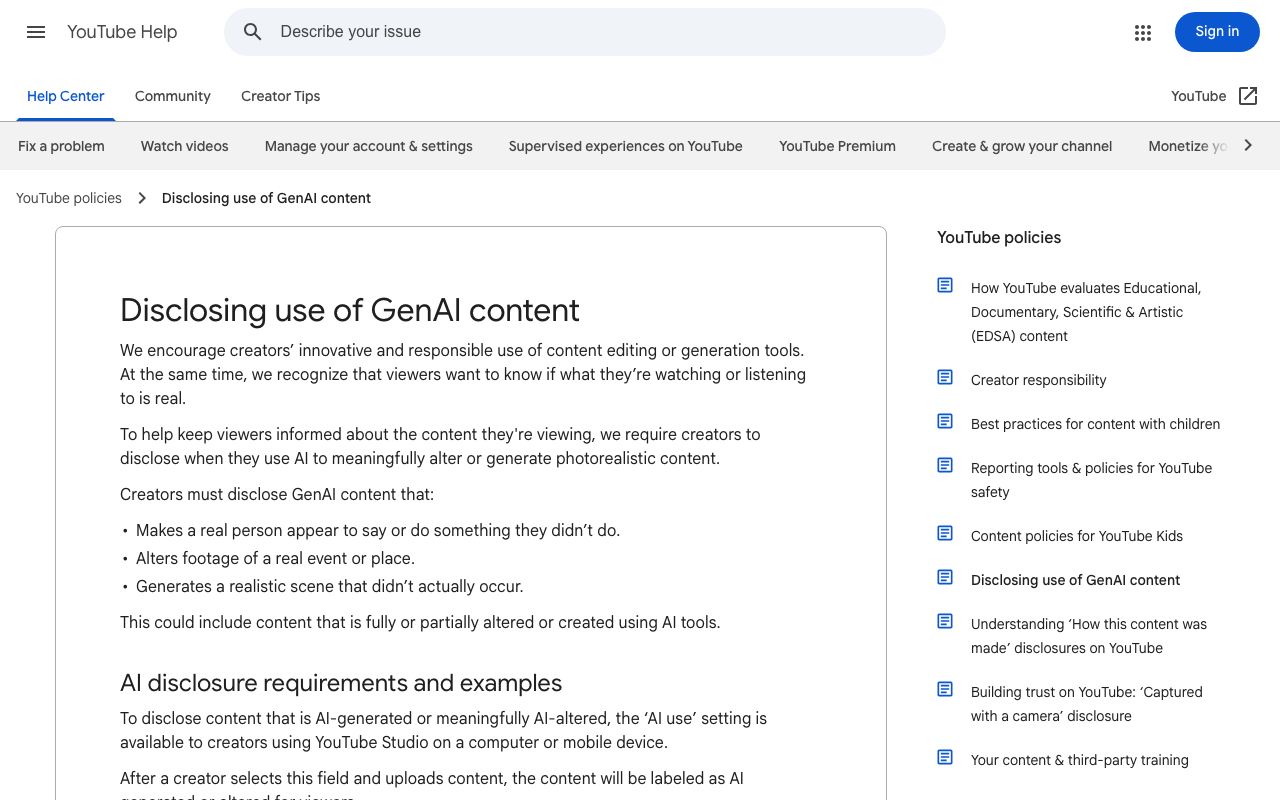
Often, yes. YouTube requires creators to disclose when they use AI to 'meaningfully alter or generate photorealistic content', and its first listed example is content that 'makes a real person appear to say or do something they didn't do'; cloning your own voice for a voice-over is listed as not requiring disclosure, per the YouTube Help policy (2026).
TikTok introduced its AI-generated content label in September 2023 and requires labels on AI content with 'realistic images, audio or video', per the TikTok Newsroom (2023). Meta began adding 'AI info' labels to video, audio and images when it detects industry-standard AI indicators or when people disclose, per the Meta Newsroom (2024).
- Your own face, your own words: label it anyway on YouTube if the result is photorealistic; it costs nothing.
- Someone else's face: written consent first, disclosure always, and no scripts they did not approve.
- Fictional or clearly stylised character: usually exempt, but a label still avoids takedowns.
- Translated versions of a real speaker: disclose the dubbing; our AI video dubbing guide covers the workflow.
Key takeaways
- Lip sync models map phonemes to visemes; Wav2Lip (2020) fixed timing with a lip-sync discriminator, and vendors now ship separate speed and precision modes.
- In LazyKiwi, Avatar Talking is text-driven (headshot plus a 1,000-character script); the free plan carries 40 credits a month.
- A straight-on, closed-mouth headshot and dry audio prevent most artifacts; teeth flicker and jaw over-motion come from smiling sources and Happy voices.
- Sync Labs is the specialist for video-plus-audio at $0.05 per second; D-ID Lite at $4.7 a month billed annually is the cheapest paid talking photo on 5 September 2026.
- YouTube, TikTok and Meta all label realistic synthetic speech; disclose whenever a real person appears to say something new.
Video Workflows Editor
Daniel Okafor
I run the same clip through every video model we ship and write down what actually changes: motion, timing, cost, and where each one falls apart.
FAQ
Common questions
How do I lip sync an AI video?
With a photo: upload a straight-on headshot to LazyKiwi Avatar Talking, type the lines, pick a voice, generate, then check plosives frame by frame. With existing footage: upload the clip and a clean audio track to a video-input tool such as Sync Labs, which repaints the mouth to the new audio. Shorter sentences and dry audio fix most timing faults.
Does Hailuo AI have lip sync?
Not in LazyKiwi. Hailuo 2.3 Fast is image-to-video only and produces silent motion at 768p or 1080p for 6 to 60 seconds. Use it for head turns and cutaways, then create the talking segment in Avatar Talking, which is the text-driven lip-sync flow, and cut the two together.
Can AI lip sync to any language?
Most tools sync to whatever audio they receive, because visemes are shared across languages; the limit is the voice. ElevenLabs lists 74 text-to-speech languages on its pricing page, and Sync Labs names English, Spanish, Hindi, French, German and Korean on its site. Check tone languages and fast speech by ear before publishing.
Why is my lip sync out of time?
The usual causes are music or reverb under the voice, a run-on sentence with no full stops, and a source image with the mouth open or teeth showing. Strip the audio to dry speech, split the script into short lines, and regenerate from a closed-mouth headshot. If you used a photo tool on a video, switch to a video-input model.
Is AI lip sync free?
Partly. On 5 September 2026 LazyKiwi's free plan gave 40 credits a month with no watermark step, Sync Labs offered watermarked pay-per-use, HeyGen allowed three one-minute videos, and D-ID a watermarked 14-day trial. Unwatermarked, unmetered output needs a paid tier; Sync Labs Creator ($19 a month) is the first without a watermark.
Make your first lip-synced clip
Upload a headshot, type the lines, pick a voice. Test on a ten-second script before you spend credits on a full one.
Keep reading
Best AI Avatar Video Generator: A Practical Guide for Creators
Find the right AI avatar workflow for explainers, social clips, onboarding videos, and experiments without choosing a tool that is too complex for the job.
8 min read
AI Video Dubbing: A Practical Creator Guide for 2026
Use ai video dubbing to translate and localize videos while preserving the speaker’s meaning, delivery, timing, and brand voice.
8 min read
7 HeyGen Alternatives for Avatars, Training, and Social Video
Compare seven HeyGen alternatives—LazyKiwi, D-ID, Synthesia, Colossyan, Elai.io, Captions, and VEED—by their talking-photo, training, localization, social editing, and team workflows.
8 min read
How to Build an AI Influencer That Feels Like a Real Creator
A practical guide to defining an AI influencer, creating a recognizable character, producing consistent content, and building audience trust.
8 min read