
AI Cartoon Generator: Turn Photos Into Cartoons and Videos
Use an AI cartoon generator to cartoonify a photo in four looks, then restyle a clip into a cartoon video. Steps, prompts, free options and fixes.
 Maya Chen 11 min read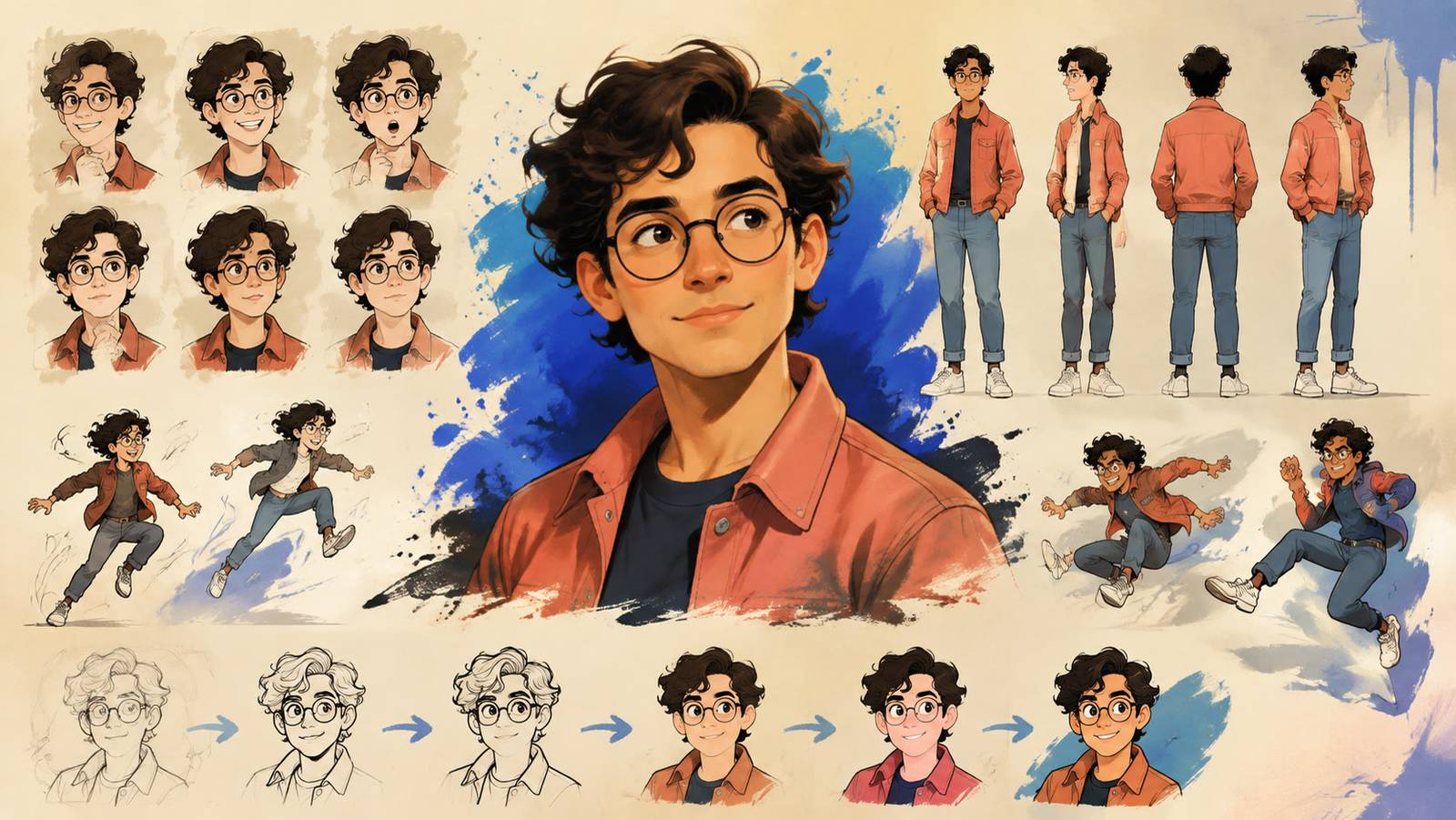
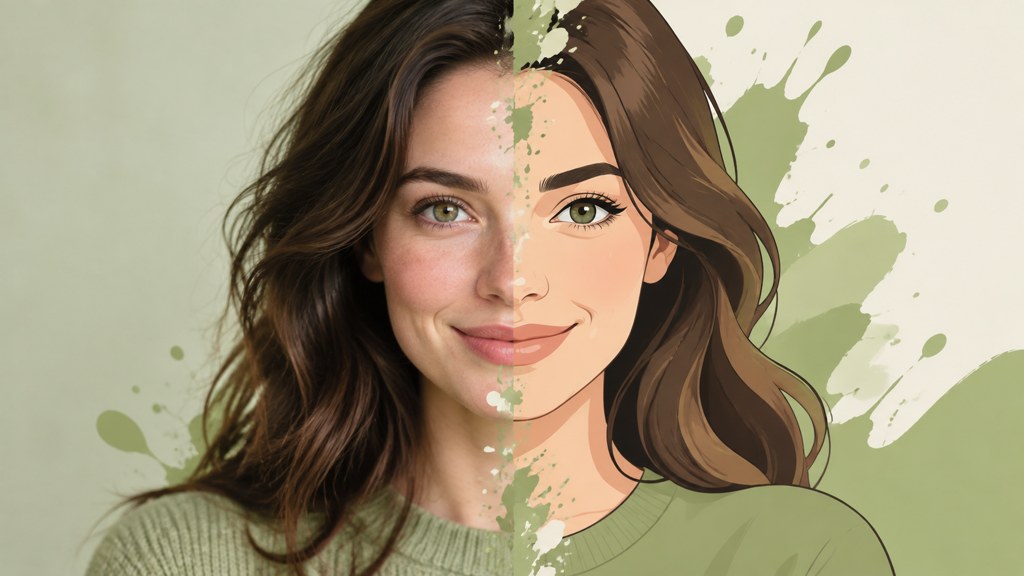
An AI cartoon generator restyles a photo, or renders a text prompt, as a cartoon: flat sitcom yellow, glossy 3D movie shading, soft painted anime, inked comic lines. The photo route is the one most people want, and it takes under a minute in the LazyKiwi AI image generator: pick a cartoon template, upload a front-facing photo, generate, upscale. The video route uses the same account to redraw a clip you already filmed. Below are the exact steps, a comparison of the four cartoon looks from the same source photo, what is free, prompt recipes, and the mistakes that make results look like a stock filter.
What can an AI cartoon generator create?
Three outputs, in rising order of effort. A photo to cartoon ai template keeps your face structure and repaints the surface in a chosen style; this is what people mean by cartoonify. A text-to-cartoon prompt invents a character or scene from words alone and is the route for mascots and comic leads. A cartoon video either animates a cartoon still or redraws real footage frame by frame while the motion stays yours.
Style families are the useful way to think about it, because each family wants a different source photo. The 3D animated-movie look needs sharp facial detail and a plain background. The flat sitcom look with bold outlines forgives soft focus but exaggerates features. The painterly anime look prefers soft, even light. The inked comic look wants contrast. The four LazyKiwi templates in this guide map to those families one to one.
What about Ghibli-style and Simpsons-style names?
Those names describe a look, and the templates that carry them imitate a look; they do not contain the studios' characters or artwork. The names themselves identify specific film studios, Studio Ghibli (2026) and, for the 3D movie look, Pixar (2026), so keep them out of anything you sell or brand, and never prompt for a named character. The FAQ below covers the copyright side.
How to turn a photo into a cartoon step by step
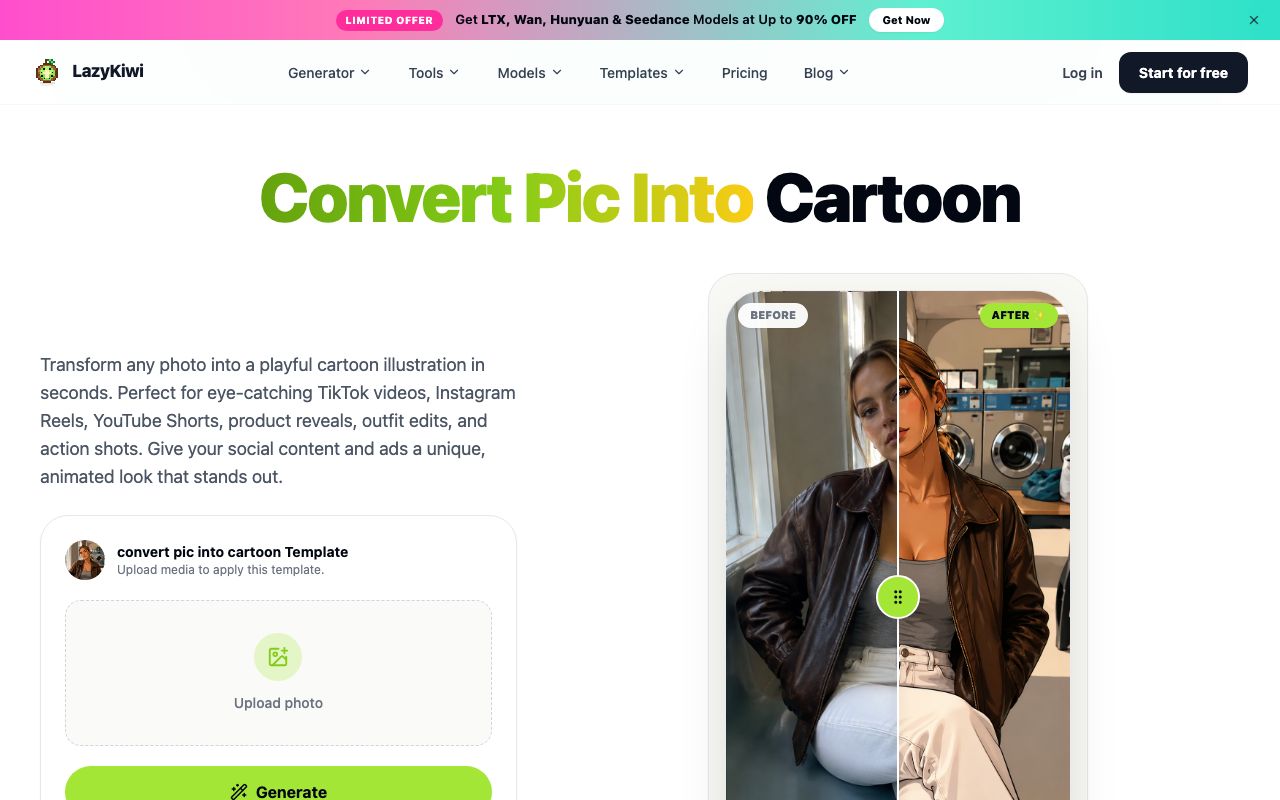
These steps use the image templates in the workbench, so there is no prompt to write unless you want to nudge the style. The source photo does most of the work: front-facing, eyes open, even light, a background you would not mind losing.
- 1
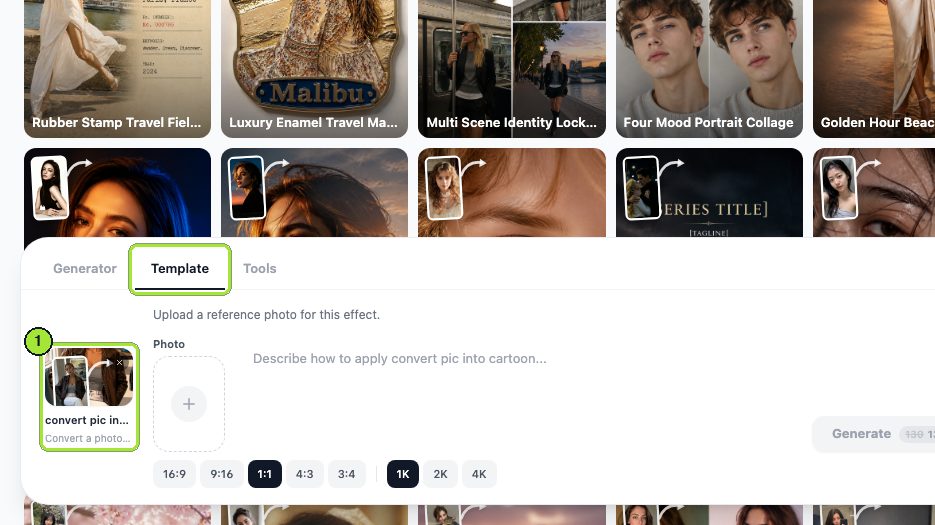
Pick the template
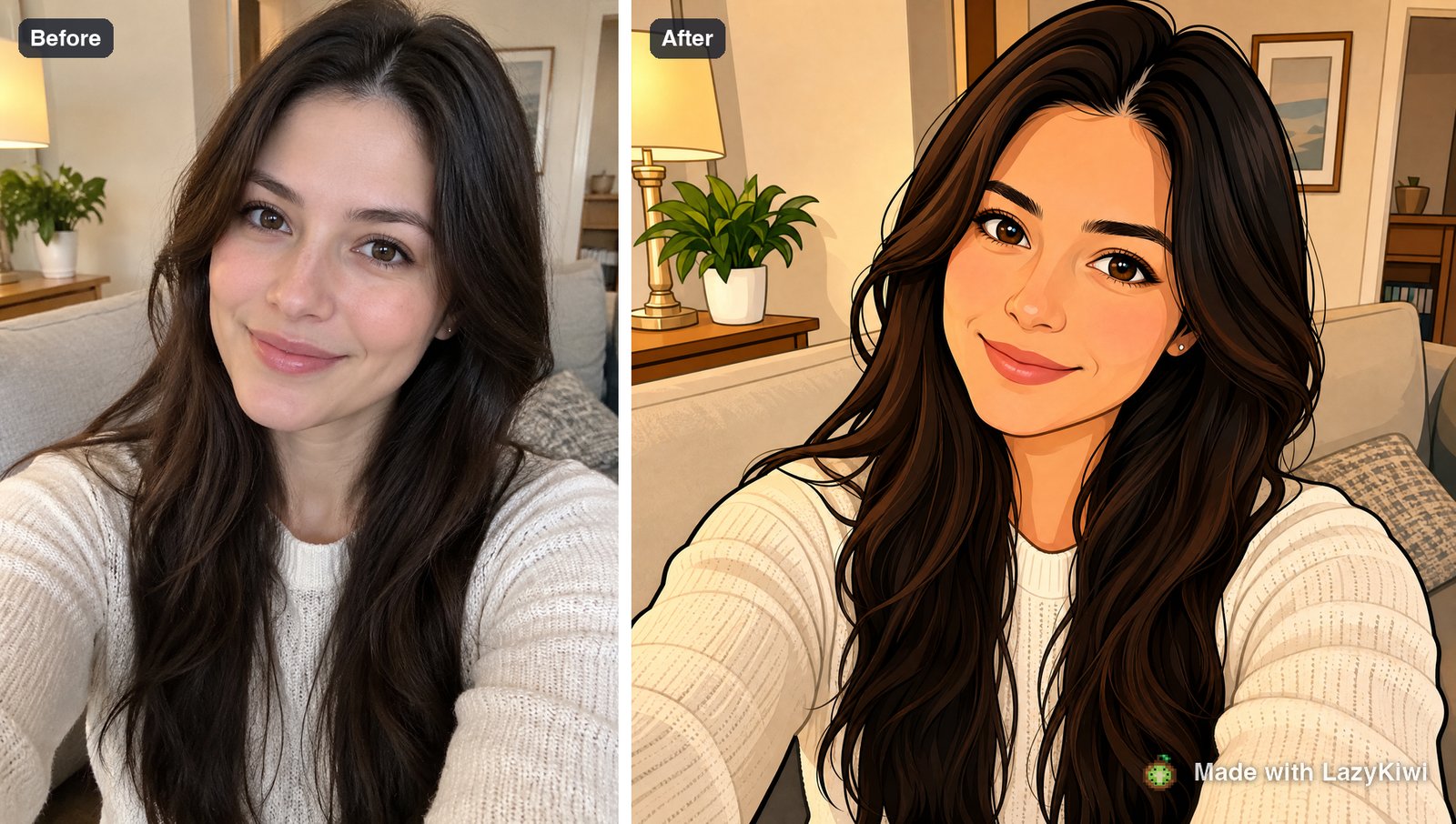
Open the convert pic into cartoon template for a hand-drawn illustration look, or jump straight to one of the three style templates in the next section. Each template page has a before and after strip, so you can judge the look before spending a credit.
- 2
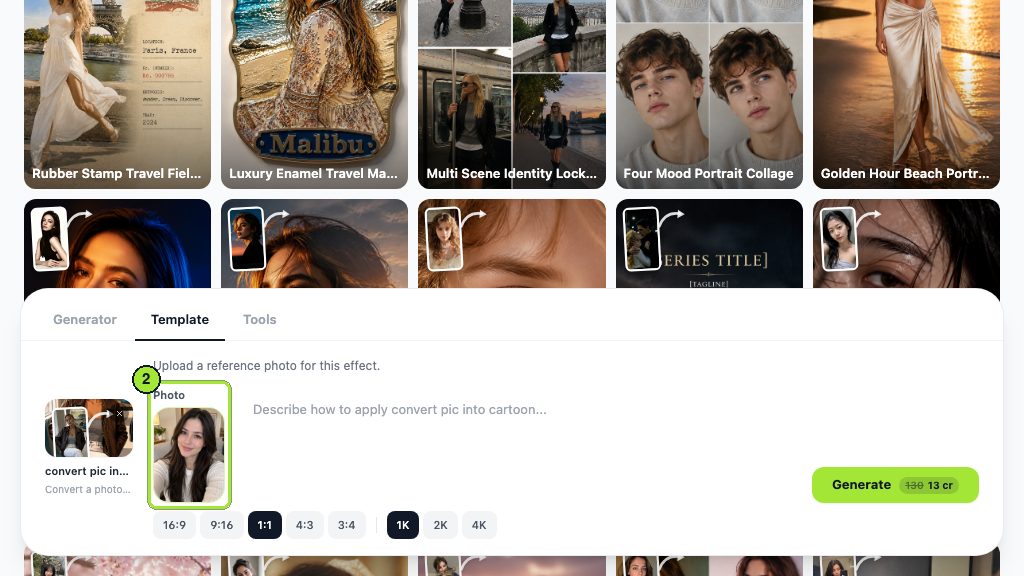
Upload one photo
One person, face filling at least a quarter of the frame, no sunglasses. Group shots work, but each face gets less resolution, so the smallest faces come back generic; see the FAQ for the workaround.
- 3
Adjust the style line if the template allows it
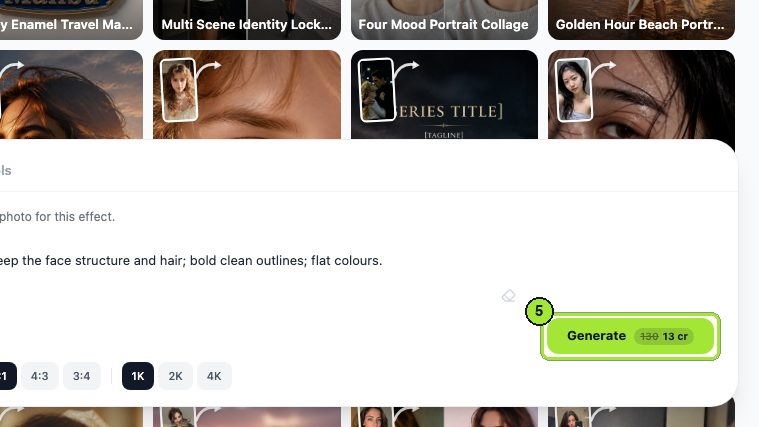
Templates carry a preset prompt. Where the workbench exposes it, add one or two concrete words about line weight or palette ('thick ink outline', 'warm pastel palette') rather than a style name.
- 4
Generate and compare
Run it, then run it once more if the first result softened the eyes or changed the hair part. Two passes are usually enough; if the third is still off, the photo is the problem, not the template.
- 5
Upscale before posting
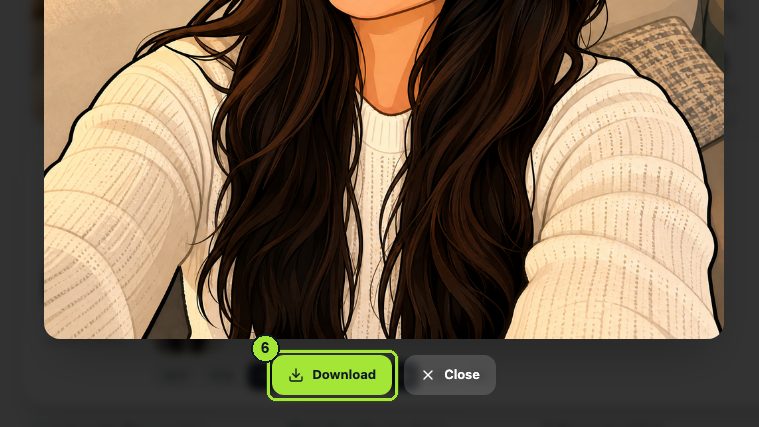
Cartoon flats show compression badly. Send the pick through the photo upscaler in the Tools tab, opened here as the AI photo upscaler, and export the larger PNG.
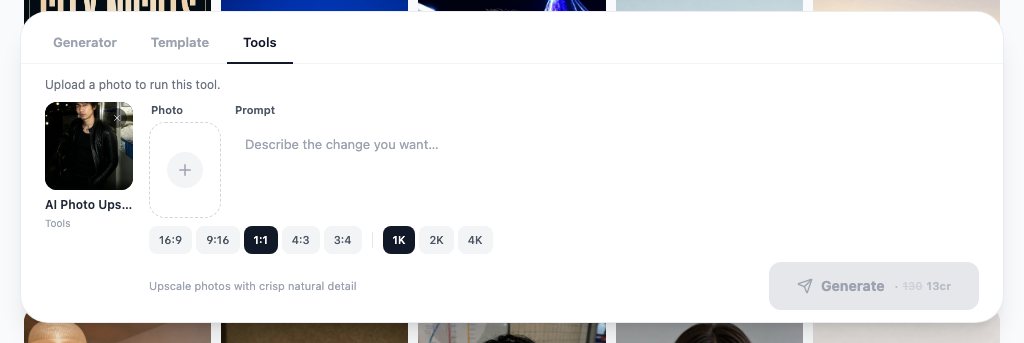
Profile-picture crop
Generate at 1:1 when the target is a profile picture. Cropping a 16:9 cartoon afterwards leaves the head too small and the outline too thin at avatar size.
How to make an AI cartoon video
There are two honest ways to get a cartoon video, and an ai cartoon video generator worth using offers both. The first is video-to-video: you upload a clip you filmed and the model redraws every frame in the style you describe, keeping the camera move and the performance. The second is image-to-video: you animate a cartoon still with a short motion prompt.
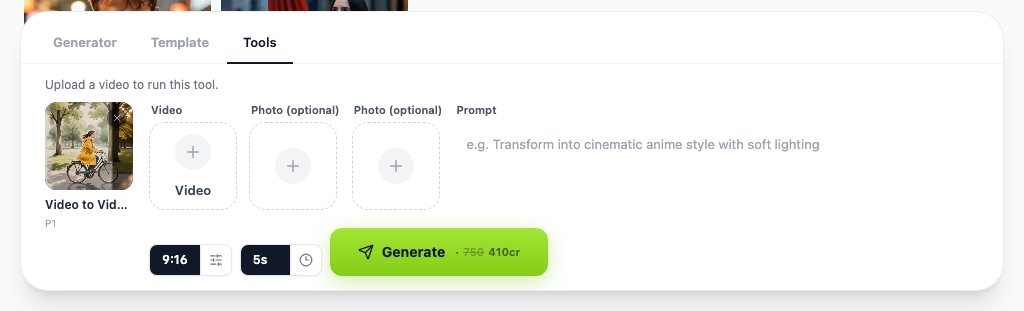
Which route should you take?
- You have footage of the person: use video to video AI. Prompt with a style phrase such as 'flat cartoon, bold black outlines, limited palette' and keep clips short with one clear subject; the tool is built to hold the style across frames rather than flicker.
- You have only a photo: cartoonify it first, then animate the still with image-to-video in the video workbench. Ask for one small motion, a blink and a head tilt, because large gestures expose the parts of the character the still never showed.
- You want the cartoon to speak: animate the still with a talking-avatar flow after the design is approved. Fix the face before it moves; every inconsistency is louder in motion.
Platform labels matter here. Meta applies an 'AI info' label to content it detects as AI-generated or that people disclose as such, per the Meta Newsroom (2024), and TikTok's policy requires people to label AI-generated content that contains realistic images, audio or video, per the TikTok Newsroom (2023). A cartoon is not realistic, but a cartoon-restyled clip of a real person is a judgment call; use the label when in doubt.
Which cartoon styles work best from a photo?
We ran the same front-facing portrait through the four templates. The table records what each look kept, what it changed, and the source photo it wants. Template descriptions are from the LazyKiwi template pages, checked on 2026-09-05.
| Template | The look | Best source photo | What changes most |
|---|---|---|---|
| Convert pic into cartoon | Hand-drawn illustration, expressive lines | Sharp, well-lit, plain backdrop | Background simplified, hair stylised |
| Pixar-style generator | Glossy 3D animated-movie shading | Sharp facial detail, neutral background | Eyes enlarged, skin smoothed |
| Simpsons-style | Flat yellow skin, bold outlines, overbite profile | Centered headshot, minimal clutter | Features exaggerated, palette fixed |
| Ghibli-style art | Soft hand-painted anime, gentle palette | Soft, even light, simple background | Lighting diffused, edges softened |
3D movie look
The Pixar-style generator template maps facial landmarks onto a soft-textured 3D character, so it rewards detail: a sharp photo, catchlights in the eyes, no motion blur. It is the most flattering of the four and the one that most changes a face, because large eyes and a smoothed jaw are part of the style.
Flat sitcom look
The Simpsons-style template uses flat shading, bold outlines and simplified features, with the overbite and four-fingered hands the style is known for. Glasses, beards and distinctive hair survive well; subtle features vanish, so it suits people with a strong silhouette.
Painted anime look
The Ghibli-style art template applies painterly texture, gentle colour and diffuse lighting. Harsh flash photos come out muddy here; window light and a calm expression come out best. If you want a crisper anime line instead of paint, the AI anime avatar generator is the better fit, and the photo-to-anime guide linked below covers that route in full.
Is there a free AI cartoon generator?
Yes, in several shapes, and the shape matters more than the word free. Credit-based tools give you a monthly or daily allowance across all their models; avatar builders are free because they assemble vector parts rather than running a model; editor suites put the cartoon effect inside an app whose free tier is set elsewhere. The table lists what we could confirm on each site on 2026-09-05.
| Tool | How it makes cartoons | Free access (checked 2026-09-05) | Notes |
|---|---|---|---|
| LazyKiwi | Photo templates, text-to-image, video-to-video | Free plan, 40 credits a month | Four cartoon templates plus image and video models in one account |
| Vidnoz | AI video generator with photo tools, including a Ghibli-style filter | 60 free credits every day, per its homepage | Avatar-first product; cartoon is a side tool |
| Cartoonify (cartoonify.de) | Avatar builder from vector parts, no photo upload | Free, PNG or SVG export | You design the character; nothing is generated from a selfie |
| Picsart | AI cartoon generator inside the Picsart editor | Web app; the page loads in-app, check the plan there | Editor suite with many effects |
| Fotor | Cartoonizer inside the Fotor editor | Feature page opens the web app; check limits there | Editor suite with many effects |
On LazyKiwi the ai cartoon generator free path is the Free plan itself: a credit allowance that refreshes monthly rather than a trial that expires, and the templates run on the same credits as the image models. Vidnoz states a daily credit grant on its homepage, per Vidnoz (2026), and lists a Ghibli-style filter among its photo tools. Cartoonify is a different animal: its site says you create the cartoon by designing the character, not by running a filter on a selfie, per Cartoonify (2026), which makes it the pick for an editable vector avatar and the wrong pick for a likeness.
Picsart and Fotor both carry cartoon features, at Picsart's AI cartoon generator page and Fotor's cartoonizer page; both pages hand you into their editors, where the free allowance and watermark rules live, so verify inside the app before you plan a batch.
What prompts improve cartoon results?
Templates carry their own prompt, so these recipes are for the text-to-image route and for the video-to-video style line. Describe the drawing, not the studio: line weight, shading type, palette, background treatment. In the workbench, a cartoon ai generator prompt behaves best with Nano Banana when you want speed and many aspect ratios, and with a heavier model when you want texture.
Stylised 3D animated character portrait of a woman with short curly hair and round glasses, soft subsurface skin, large expressive eyes, glossy highlights, rim light, simple teal backdrop, bust framing, no text.
Flat 2D cartoon portrait, bold black outlines, limited four-colour palette, simplified facial features, exaggerated expression, plain pastel background, front view, no text, no logos.
Hand-painted anime portrait, soft watercolour texture, diffuse afternoon light, gentle warm palette, calm expression, distant hills in the background, medium shot.
90s cel animation, thick ink outlines, flat shading, muted palette, film grain, consistent character across frames.
- Name what must survive: 'keep the round glasses and the gap in the front teeth'.
- Give the palette two or three colours; cartoons read as one style largely through colour.
- Say 'no text' and 'no logos'; cartoon models love to add a caption.
- Skip named characters and artist names; they make the output less yours and more of a legal question.
What mistakes make AI cartoons look generic?
A generic cartoon is one where the style ate the person. The causes are consistent enough to list, and each has a cheap fix.
- Wrong style for the face: a round face in the flat sitcom look loses its shape; a long face in the 3D look gets stretched. Try two templates before judging the tool.
- Low-resolution input: a screenshot or a cropped group photo gives the model nothing to keep. Use the original file from the camera roll.
- Over-smoothing: the 3D look plus a beauty filter removes every marker of identity. Upload the unfiltered photo.
- Busy background: the template spends its attention on the plant behind you. Crop tighter or shoot against a wall.
- Side view: every template here maps facial landmarks from the front. Three-quarter is the limit; profile shots come back as strangers.
- Adding text in the generator: cartoon lettering warps. Add captions in an editor afterwards.
Rights are the last check. The U.S. Copyright Office's Part 2 report on copyrightability sets out that purely AI-generated material is not protected, while human-authored expression that remains perceptible in the output can be, per the U.S. Copyright Office (2026). For a cartoon of someone else, permission to use their photo comes first, and a recognisable person in an ad is a separate consent question from the art style.
Key takeaways
- Four LazyKiwi templates cover the main cartoon looks: convert-pic-into-cartoon, Pixar-style 3D, Simpsons-style flat, and Ghibli-style painted; each wants a different source photo.
- Front-facing, evenly lit, plain-background photos survive cartoonify passes; profile shots and cropped group photos come back generic.
- Cartoon video is either video-to-video on footage you own or image-to-video on an approved cartoon still; fix the face before it moves.
- The Free plan's 40 monthly credits cover a handful of template renders and an upscale; Vidnoz grants daily credits, Cartoonify is a free vector avatar builder.
- Prompt for line weight, shading and palette, never for a studio or a named character, and label restyled clips of real people on Meta and TikTok.
Image & Design Editor
Maya Chen
I spend my days inside image tools, testing prompts and settings on real photos so the steps here match what you actually see on screen.
FAQ
Common questions
How do I generate cartoon images with AI?
Upload a front-facing photo to a cartoon template and generate, or write a text prompt that describes the drawing style (outline weight, shading, palette) and run it through an image model. In LazyKiwi both routes live in the image workbench; templates need no prompt, text-to-image needs a specific one, and either result should be upscaled before posting.
What is the best AI cartoon generator?
The best one is the one whose style matches your face and whose free tier matches your volume. For a likeness from a photo with several looks and a video option, a credit-based workbench such as LazyKiwi fits; for an editable vector avatar, a builder like Cartoonify; for quick effects inside an editor you already use, Picsart or Fotor. Test the same photo in two.
Can I make a cartoon video from a photo?
Yes, in two steps. Cartoonify the photo with a template first, approve the still, then animate it with image-to-video in the video workbench using one small motion such as a blink or a head turn. If you have footage rather than a photo, the video-to-video tool redraws the clip in a cartoon style while keeping your original motion and timing.
Is it legal to make Ghibli-style images?
A general drawing style is not what copyright protects; specific characters, scenes and artwork are, and studio names identify real companies. A soft painted look applied to your own photo is a different matter from reproducing a named character or putting the studio's name on a product. Purely AI-generated output is not itself protected either, so add your own edits if ownership matters.
Can I cartoonify a group photo?
You can, but each face gets a fraction of the resolution, so the smallest faces lose their identity first. For three or more people, crop the photo into individual portraits, run each through the same template, and recombine them in an editor. It costs a few more credits and keeps everyone recognisable; the Free plan's allowance is listed on the pricing page.
Cartoonify a photo in the LazyKiwi workbench
Upload one front-facing photo to the convert-pic-into-cartoon template, compare it with the 3D, flat and painted looks, then upscale the winner.
Keep reading
How to Use an AI Character Generator for Consistent Designs
Turn a clear concept into reusable character art with an AI character generator, structured prompts, reference details, and a simple iteration workflow.
8 min read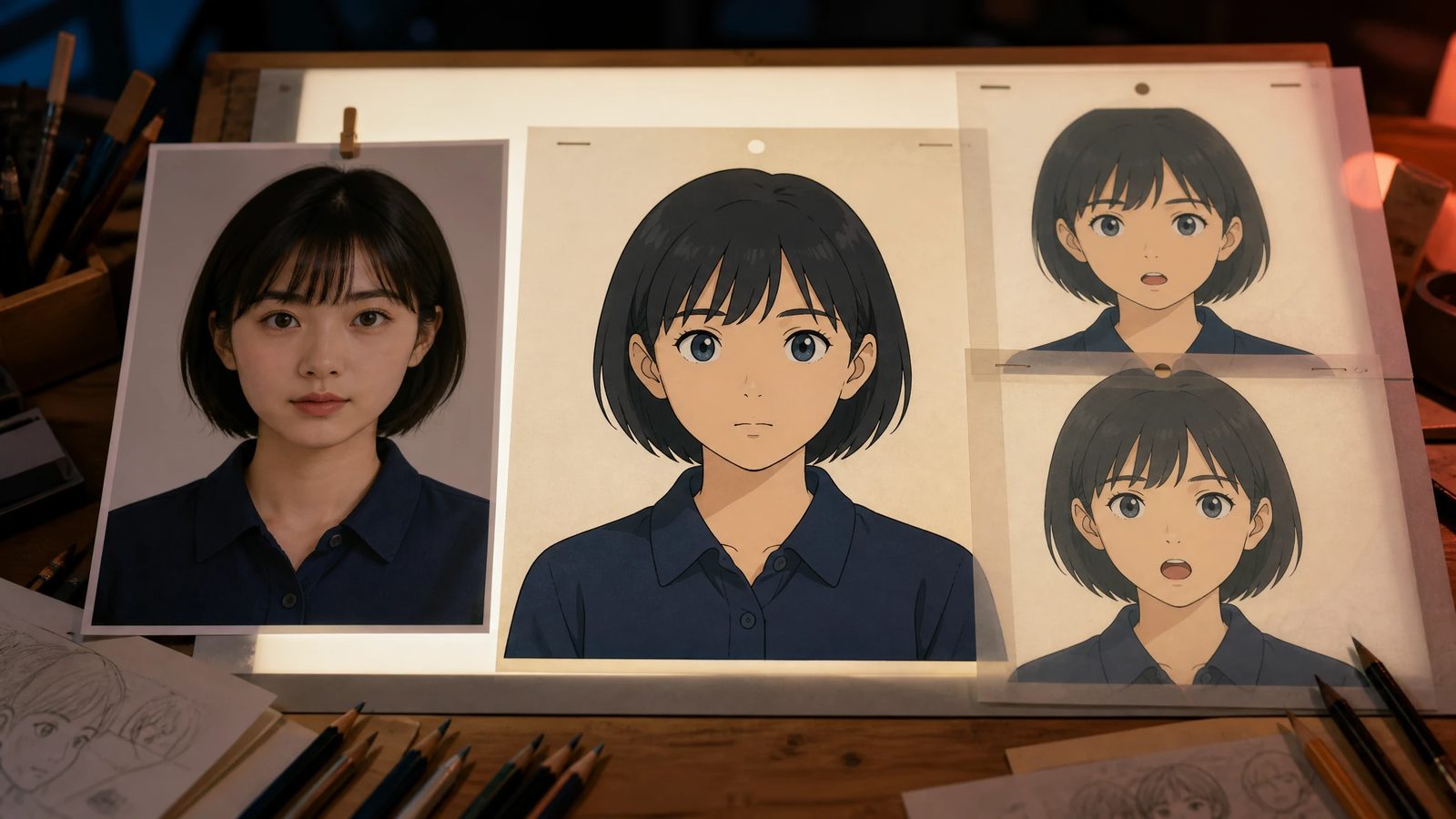
Photo to Anime AI: A Complete Portrait-to-Video Workflow
Learn how to use photo to anime AI for polished portraits, consistent character design, platform-ready crops, and animated talking videos.
8 min read
How to Use an AI Comic Generator for Consistent Stories
Turn a simple premise into readable panels with an AI comic generator while keeping characters, settings, and visual style consistent.
8 min read
How to Use an AI Pixel Art Generator for Game Assets
Learn how to use an AI pixel art generator to create, evaluate, clean up, and export consistent game-ready sprites, tiles, icons, and props.
8 min read