
Kling AI Image to Video: Step-by-Step Guide With Kling 3.0
Kling AI image to video with Kling v3 Omni in LazyKiwi: upload rules, motion prompts, start-end frames, credit costs, and Wan 2.7 and Hailuo compared.
 Noah Berger 10 min read
Kling AI image to video takes one still, a short motion prompt and a duration, and returns a clip that starts from your exact frame. In LazyKiwi that model is Kling v3 Omni from Kuaishou's Kling 3.0 generation: clips between three seconds and a minute, 720p or 1080p, and a second mode that animates between a start still and an end still. Opening image mode on 6 September 2026, I saw the Kling v3 Omni button ask 829 credits for five seconds at 720p, a discounted figure at the time. This guide walks through the upload, the prompt, the frame-pair mode, the free options and how Kling compares with Wan 2.7 and Hailuo 2.3 Fast on the same photo.
How does Kling AI image to video work?
The image is the first frame. Kling reads its composition, subject and lighting, then uses your prompt to decide what moves over the next few seconds. Because the frame is fixed, the model spends its capacity on motion rather than on inventing a scene, which is why image-led clips hold faces and product shapes better than text-only ones.
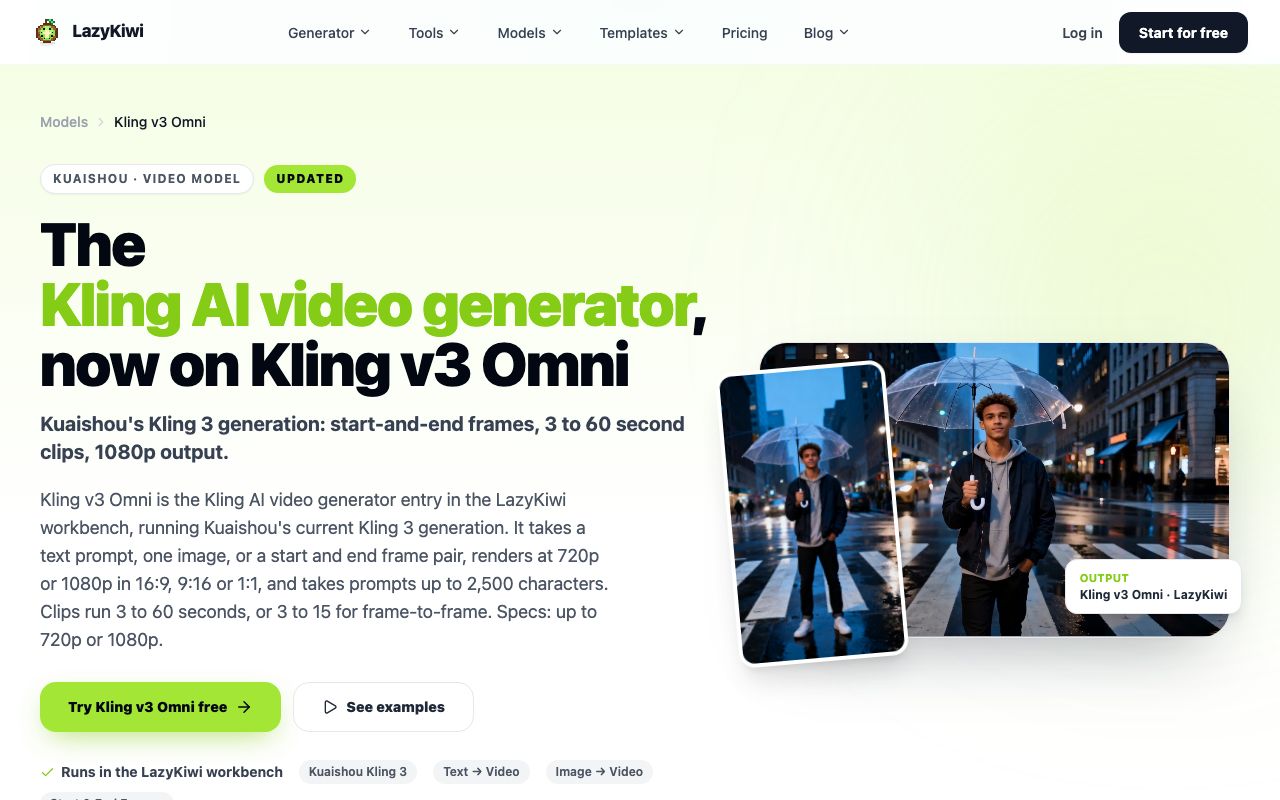
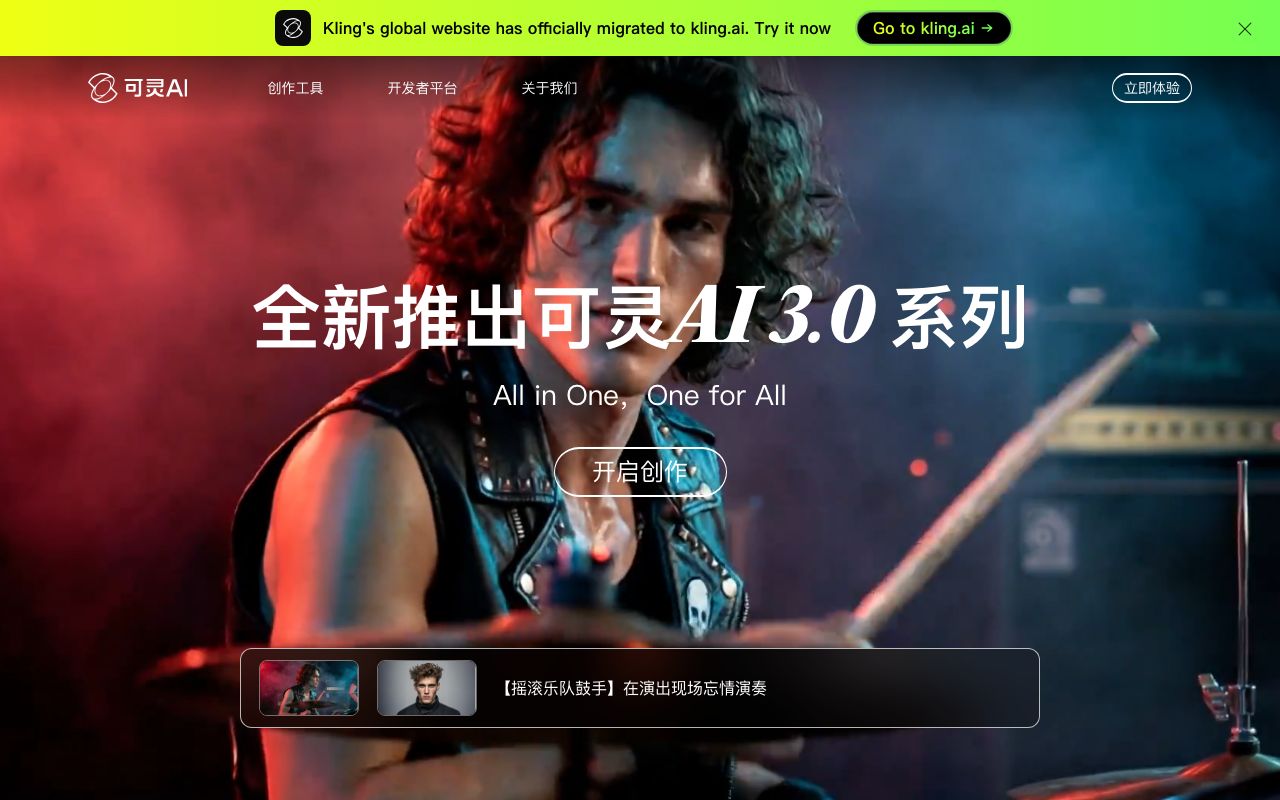
The Kling v3 Omni page in LazyKiwi describes three ways in: plain text, one reference image, or a first and last frame. Resolution is 720p or 1080p, ratios are 16:9, 9:16 and 1:1, the prompt box holds 2,500 characters, and length runs 3 to 60 seconds for single-image jobs or 3 to 15 for a frame pair. Kuaishou's own site sells the 3.0 series as one model family for video, image and sound, per Kling AI (2026); only the video half reaches the LazyKiwi workbench.
What is the difference between Kling 3.0 and Kling v3 Omni?
Kling 3.0 is Kuaishou's generation name; Kling v3 Omni is the specific model from that generation that LazyKiwi runs. An earlier edition of this post named a 1.x model that has since left the catalog, along with its page. Everything below was checked against the current model.
How to use Kling AI image to video step by step
A Kling AI image to video run takes six actions in the AI video generator. The screenshot shows the image mode with the reference slot marked Required, which is the state you want before typing anything.
- 1
Open Kling in image mode
Pick Kling v3 Omni in the model menu and set the mode picker to References to Video. The Ref badge turns to Required.
- 2
Upload a clean still
One subject, sharp edges, nothing important touching the frame border. If the source is small, run it through the AI photo upscaler first so Kling is not guessing at soft detail.
- 3
Write a motion-only prompt
Describe what changes, not what is already visible. 'Slow push in, she turns her head toward the window, hair moves in a light breeze' is enough for a portrait.
- 4
Set ratio, length and resolution
Match the ratio to the photo. Start at 5 seconds and 720p; the button updates the credit price as you change either.
- 5
Generate and watch at full size
Check hands, the edge of the subject and the last second, where drift shows first.
- 6
Change one thing and rerun
If the motion is wrong, edit the verb, not the whole prompt. If the face warps, swap the photo before touching the text.
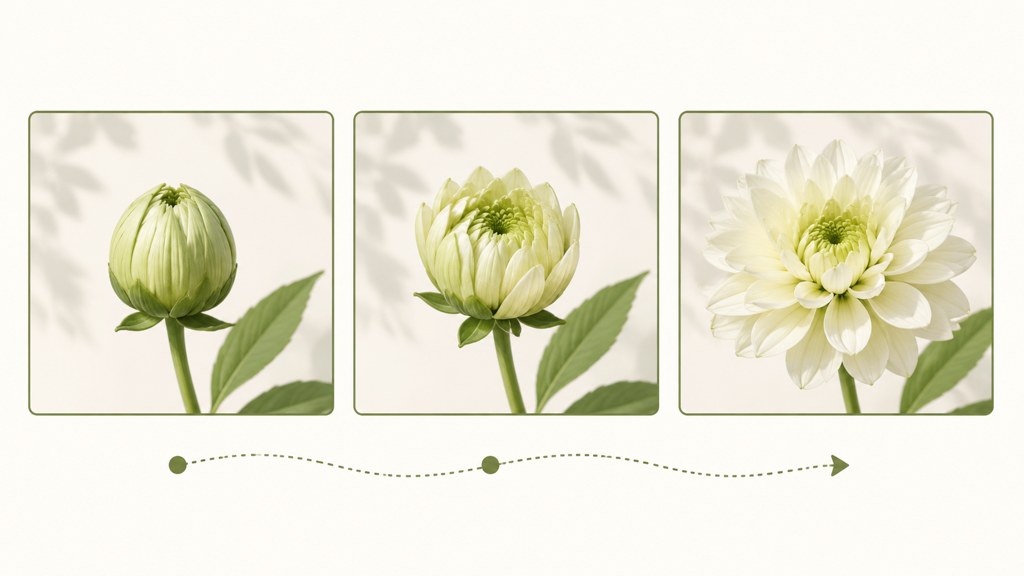
Keep the first render short
A 5-second 720p run is the least expensive way to learn how Kling reads your photo. Only move to 1080p or longer durations once the motion is right, because both raise the price on the button.
What prompts work best for Kling AI video generation?
Kling AI video generation from a still, which searchers also call Kling AI photo to video, rewards three things: one camera move, one subject action, and a sentence about what must stay the same. Borrow the camera words from film. StudioBinder keeps a glossary of moves, from pan and tilt through dolly and arc, which I keep open, per StudioBinder (2026).
Gentle push in starting at a medium shot. The woman blinks and turns her head slightly toward the window light; her hair moves in a light breeze. Keep the face, outfit and background unchanged.
The sneaker rotates a quarter turn on its pedestal while the camera holds still. Soft studio light sweeps across the upper. Keep the logo, laces and silhouette exactly as in the photo. No new objects.
Wide static shot. Clouds drift slowly from left to right, the lake surface ripples, and the light warms as if the sun is setting. No people, no camera movement.
Notice what the prompts leave out: no style words, no 'cinematic', no lists of adjectives. The photo already carries the style. A Kling AI video prompt that repeats what the image shows gives the model nothing to do with those tokens except drift.
How long should a Kling prompt be?
The field allows 2,500 characters, but two to four sentences produce steadier motion than a paragraph. Save the long form for start-end transitions, where you need to describe the path between two frames.
How to use Kling start and end frames for transitions
Start & End Frames is the mode that separates Kling from most image-to-video options. You upload two stills, the first frame and the last, and Kling renders the movement between them over 3 to 15 seconds. The prompt box relabels itself as a transition description, and that is the only thing worth typing there.
Good pairs share a subject and a lighting setup and differ in one big way: a closed box and an open box, a wide shot and a close-up of the same person, day and dusk on the same street. Pairs that differ in everything force the model to morph, and morphs look like morphs.
- Shoot or generate both stills at the same aspect ratio; the mode will not fix a mismatch.
- Write the transition as a single sentence: 'the camera pushes in and the lid opens'.
- Use 5 to 8 seconds for a two-beat change; 3 seconds is too fast for anything but a cut.
- If you only have one still, leave End empty; the mode still works as image-to-video.
For a broader look at where this control matters against Google's model, the Kling vs Veo 3 comparison covers the start-end advantage in detail.
Is there a free Kling AI video generator?
Not for a full Kling clip. Every new LazyKiwi account gets 40 credits a month with no card, per the pricing page, and a five-second 720p Kling run was quoted at 829 credits on 6 September 2026, well past what the free allowance covers. What the free credits do cover is a template test: the photo animation template page advertises a free one-photo animation, which is the quickest way to see motion on your own picture before spending on Kling. LazyKiwi's August 2026 usage numbers show 15 external accounts using that free Seedance template and a median of about 1.5 minutes between signup and a first generation, so the template route is the one most newcomers actually take.
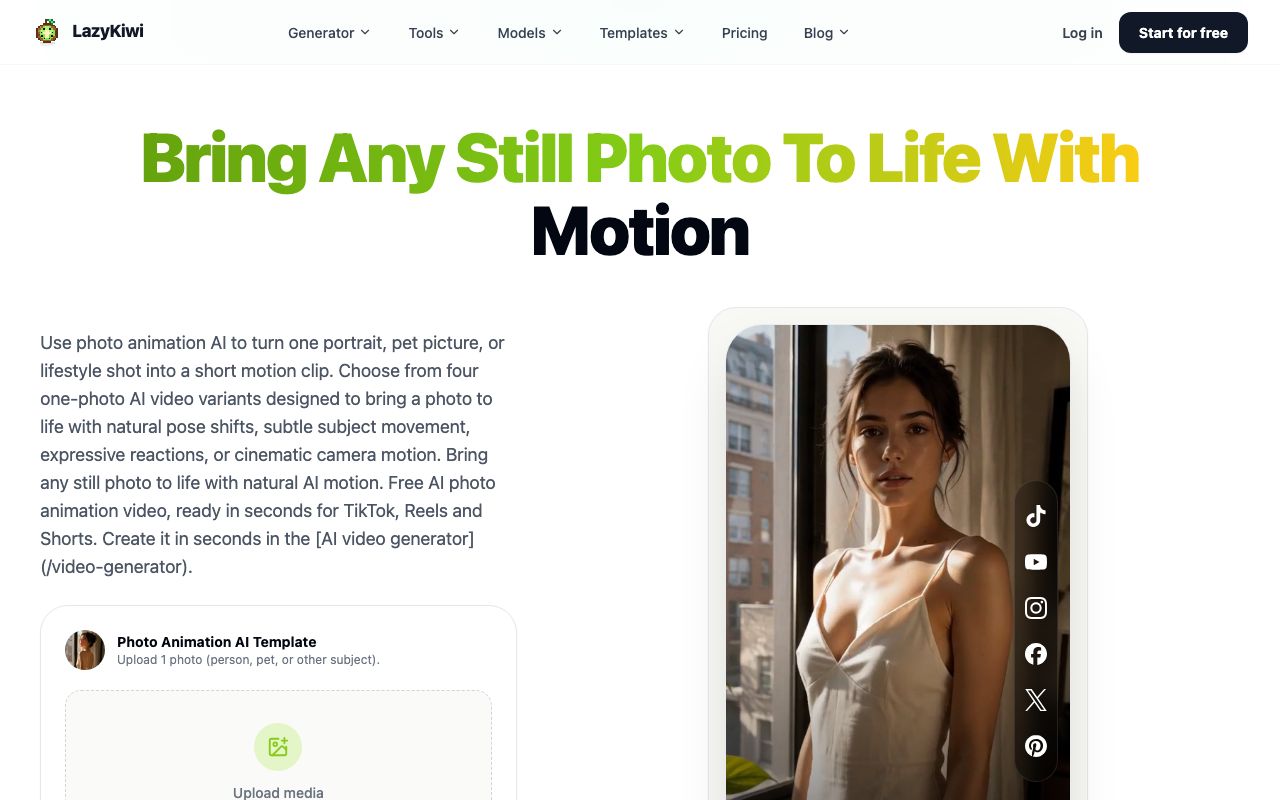
Searches for a free Kling AI video generator, or for Kling AI free image to video 2026, usually land on Kuaishou's own platform, which lists its plans and any free allowance on its site, per Kling AI (2026). I could not verify a specific free credit figure there on the day of writing, so treat any number you see elsewhere as unconfirmed.
What does 720p versus 1080p cost?
The workbench prices each resolution separately and shows the number on the button before you commit. On the day I checked, the 720p figure for five seconds was 829 credits once the 26 percent sale was applied, with 1,120 crossed out beside it. Switching to 1080p raises the figure, so run drafts at 720p and reserve 1080p for the final.
Kling image to video vs Wan 2.7 and Hailuo: which should you use?
LazyKiwi has two other image-first models in the same picker, and both are cheaper than Kling per clip. The table lists what each one showed on September 6, 2026 with the same portrait uploaded and default settings.
| Model | Modes | Duration | Resolution | Ratio | Prompt limit | Price shown |
|---|---|---|---|---|---|---|
| Kling v3 Omni | Text, image or frame pair | 3 to 60 seconds (pairs up to 15) | 720p or 1080p | 16:9 / 9:16 / 1:1 | 2,500 characters | 829 credits, 5 s 720p (sale) |
| Wan 2.7 I2V | Image, start-end | 2 to 60 seconds (pairs up to 15) | 720p or 1080p | Inherits the photo's ratio | 5,000 characters | 473 credits, 5 s 720p (sale) |
| Hailuo 2.3 Fast | Image-to-video only | 6 to 60 seconds | 768p or 1080p | Inherits the photo's ratio | 2,000 characters | 190 credits, 6 s 768p |
Wan 2.7
Wan 2.7 is Alibaba's Tongyi Wanxiang model, and LazyKiwi runs it as an image-only variant: one still or a keyframe pair, anywhere from two seconds to a minute, 720p or 1080p with 1080p preselected, and no ratio picker because the clip inherits the photo's shape. Its prompt box, 5,000 characters, is the roomiest of the trio. Alibaba documents the Wan line at Wan (2026). Reach for it when start-end control matters more than a square crop and the Kling price is hard to justify.
Hailuo 2.3 Fast
Hailuo 2.3 Fast is MiniMax's speed-tuned image-to-video model. It has no text mode and no frame-pair mode, runs 6 to 60 seconds at 768p or 1080p, keeps the upload's frame shape and takes a 2,000-character prompt. Six seconds at 768p was priced at 190 credits, the lowest figure in the picker for making a photo move. MiniMax's own Hailuo site lists its current models and templates, per Hailuo AI (2026).
A practical order: Hailuo for the first look, Wan 2.7 when you need a keyframe pair on a budget, Kling when the shot needs 1:1, the longest prompt discipline or the most controllable motion. For an outside view of image-to-video quality, Artificial Analysis video leaderboard (2026) publishes a crowd-voted leaderboard.
What are the most common Kling image-to-video mistakes?
Most poor Kling AI image to video results are input problems rather than model problems. These are the errors I see most often in shared results.
- Prompting new objects. Asking for 'a cat walks in' when there is no cat in the photo forces the model to invent one, and inventions warp. Add the object to the still instead.
- Writing a wall of adjectives. Style words fight the photo. Keep the prompt to camera, action and what stays fixed.
- Uploading the wrong ratio. A 4:5 portrait rendered at 16:9 gets cropped or padded; pick 9:16 or 1:1 for portraits on Kling, or use Wan or Hailuo, which follow the image.
- Paying for 1080p on a draft. The button shows the higher price; run 720p until the motion is right.
- Skipping disclosure. When the still shows a real person, label the clip: YouTube's guidance on realistic altered or synthetic content is at YouTube's Help Center (2026), and TikTok's AI-content rules are at TikTok's support page (2026).
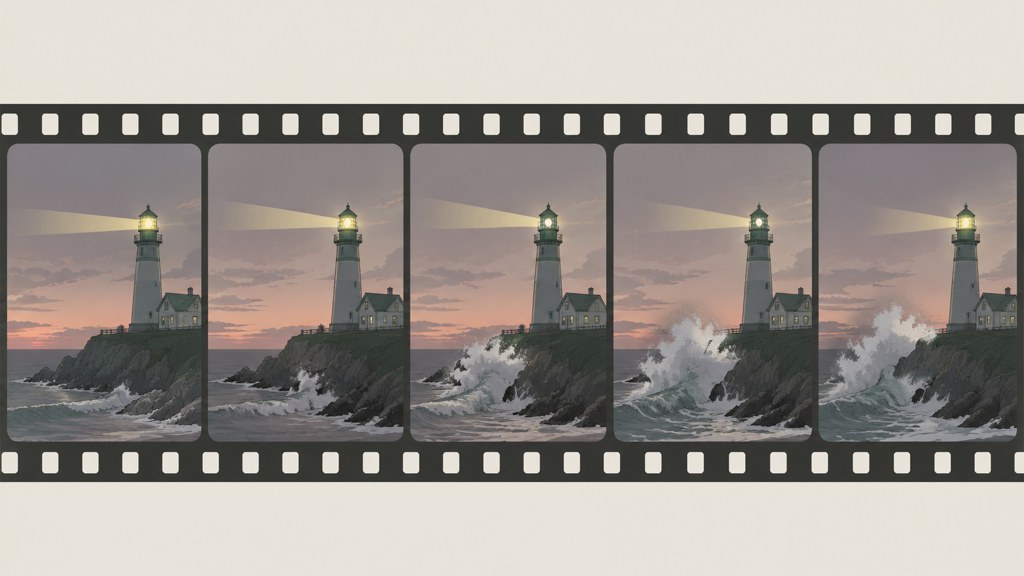
Judge the clip against its job
A three-second product turn that keeps the label sharp is a success. A ten-second portrait with one drifting ear is a retake. Decide what the clip is for before you decide whether it worked.
Key takeaways
- Kling AI image to video in LazyKiwi runs on Kling v3 Omni: one still or a start-end pair, 3 to 60 seconds, 720p or 1080p, 16:9, 9:16 or 1:1, and a 2,500-character prompt.
- Prices read on 6 September 2026: a 5 s, 720p Kling run was on sale at 829 credits, Wan 2.7 asked 473 for identical settings, and Hailuo 2.3 Fast asked 190 for a 6 s clip at 768p.
- Prompt for motion only: one camera move, one subject action and a sentence about what must not change; leave style words out because the photo carries the style.
- Start & End Frames renders 3 to 15 seconds between two matching stills and is the feature Wan 2.7 shares but Hailuo lacks.
- The 40 credits a month on the free plan do not stretch to a Kling render; use them on the free photo animation template first, then buy credits for Kling drafts at 720p.
Research & Trust Editor
Noah Berger
I track how detection, labelling and platform policy keep moving, and I cite the source and the date so you can check the claim yourself.
FAQ
Common questions
How do I upload an image to Kling AI image to video?
In the LazyKiwi video generator, choose Kling v3 Omni, set the mode picker to References to Video, and click the Ref slot, which is marked Required in this mode. Upload one still with a single clear subject, then describe only the motion and the camera in the prompt. Match the ratio to the photo, keep the first render at 5 seconds and 720p, and generate.
How long can a Kling AI video be?
From one image (or a prompt alone) Kling v3 Omni in LazyKiwi runs 3 to 60 seconds; with a start-end pair the ceiling drops to 15. Every extra second lifts the credit figure on the button, so draft at 5 seconds and lengthen only after the motion is right.
Does Kling v3 Omni support 1080p?
Yes. The model page lists 720p and 1080p output in 16:9, 9:16 and 1:1. The workbench prices the two resolutions separately: on September 6, 2026 a 5-second 720p clip showed 829 credits at the sale price, and switching to 1080p raised the figure on the button. Render drafts at 720p and reserve 1080p for the final version.
Is Kling AI free to use?
Not for a full clip in LazyKiwi. New accounts get 40 credits a month with no card, and the Kling button asked 829 credits for a five-second 720p render on the day of writing, so the free credits stretch to a template test, not a Kling run. Kuaishou's own Kling platform lists its plans and any free allowance on its site; I could not confirm a specific free credit figure there.
What is the difference between Kling 3.0 and Kling v3 Omni?
Kling 3.0 is the name Kuaishou uses for its current model generation, which its site presents as a unified system for video, image and sound. Kling v3 Omni is the specific video model from that generation that runs in LazyKiwi, with text, image and start-end modes. Earlier LazyKiwi posts referred to a 1.x Kling model; it and its page have since been removed from the catalog.
Animate your photo with Kling v3 Omni
Launch the LazyKiwi generator in image mode with Kling already chosen, upload one still, drop in a motion-only prompt from this guide, and begin at five seconds and 720p.
Keep reading
Sora 2 vs Veo 3.1 in 2026: Which Video Model Should You Use?
Sora 2 vs Veo 3 with dated sources: Sora 2's API ends September 24, 2026, Veo 3.1 Lite runs in LazyKiwi at 1080p, no audio, and four models fill the gap.
9 min read
How to Make an AI Video From a Photo (Without Weird Motion)
How to make an AI video from a photo that holds the face: source-photo rules, motion-only prompts, and Kling v3 Omni, Wan 2.7 and Hailuo 2.3 Fast compared.
9 min read
AI Video Prompts: Text-to-Video Prompt Guide for Every Model
AI video prompts that hold up in Kling v3 Omni, Veo 3.1 Lite, Seedance 2.5 and MiniMax H3: a six-part anatomy, per-model limits and worked examples.
9 min read
Kling vs Veo 3 in 2026: Which Video Model Wins?
Kling vs Veo 3 on the two tiers that run in LazyKiwi: Kling v3 Omni for start-end frames, 1:1 and 60-second takes, Veo 3.1 Lite for silent 16:9 clips.
9 min read