
How to Make AI Videos in 2026: Idea to Export, Step by Step
How to make AI videos in 2026: pick a generation mode, choose Kling v3 Omni or Seedance 2.5, prompt for clean motion, and export without wasting credits.
 Daniel Okafor 11 min read
An AI video is a set of short generated clips, each made from a prompt, a still image, or a pair of frames, then cut together like any other footage. Learning how to make AI videos in 2026 comes down to three choices per clip: the input mode, the model, and the settings you hand it (ratio, duration, resolution). This guide runs that workflow once in the LazyKiwi workbench, with every model limit taken from its model page and every credit price from the Generate button today. The first question in how to make videos with AI is which input you already have, so that is where it starts.
What do you need to make AI videos in 2026?
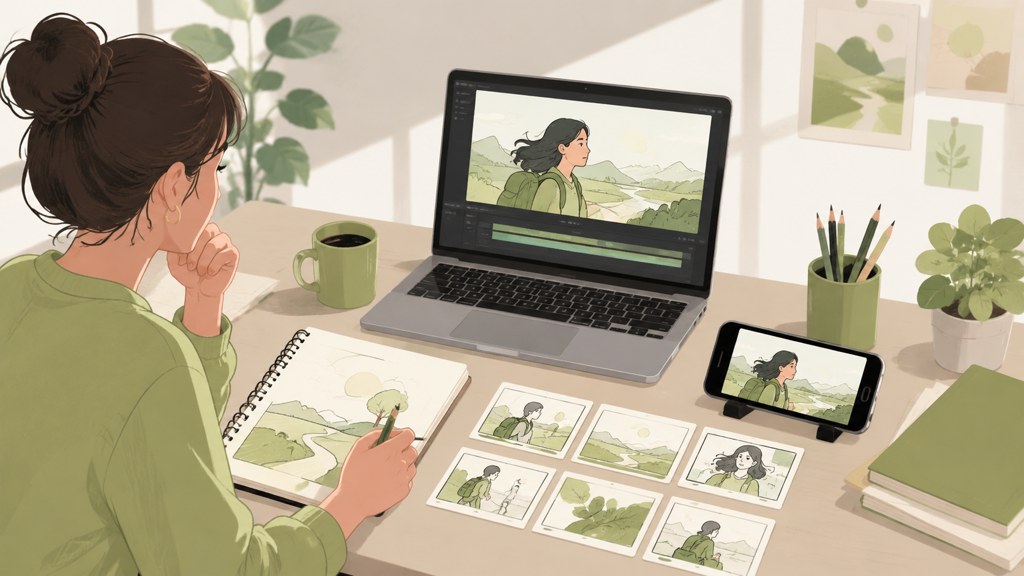
Three inputs cover almost every job. A text prompt when the scene does not exist yet. A single image when the subject already exists and only needs motion, which is the usual route for products and portraits. A start frame and an end frame when the clip has to travel from one exact composition to another. Inside the AI video generator these are the mode tabs at the top of the left panel, and everything below them changes with the mode.
Which generation mode fits your shot?
- Text-to-video: establishing shots, B-roll and scenes you cannot photograph. Weakest on exact faces and product labels.
- Image-to-video: the frame you upload is the frame you get, so identity, packaging and typography hold. Motion is the only variable.
- Start-and-end frames: two stills, one transition. Use it for reveals, before-and-after cuts and camera moves that must land on a specific composition.
- Templates: a fixed prompt and settings that only need your upload. The fastest route to a first clip and the cheapest way to learn what a model does.
What does a credit buy?
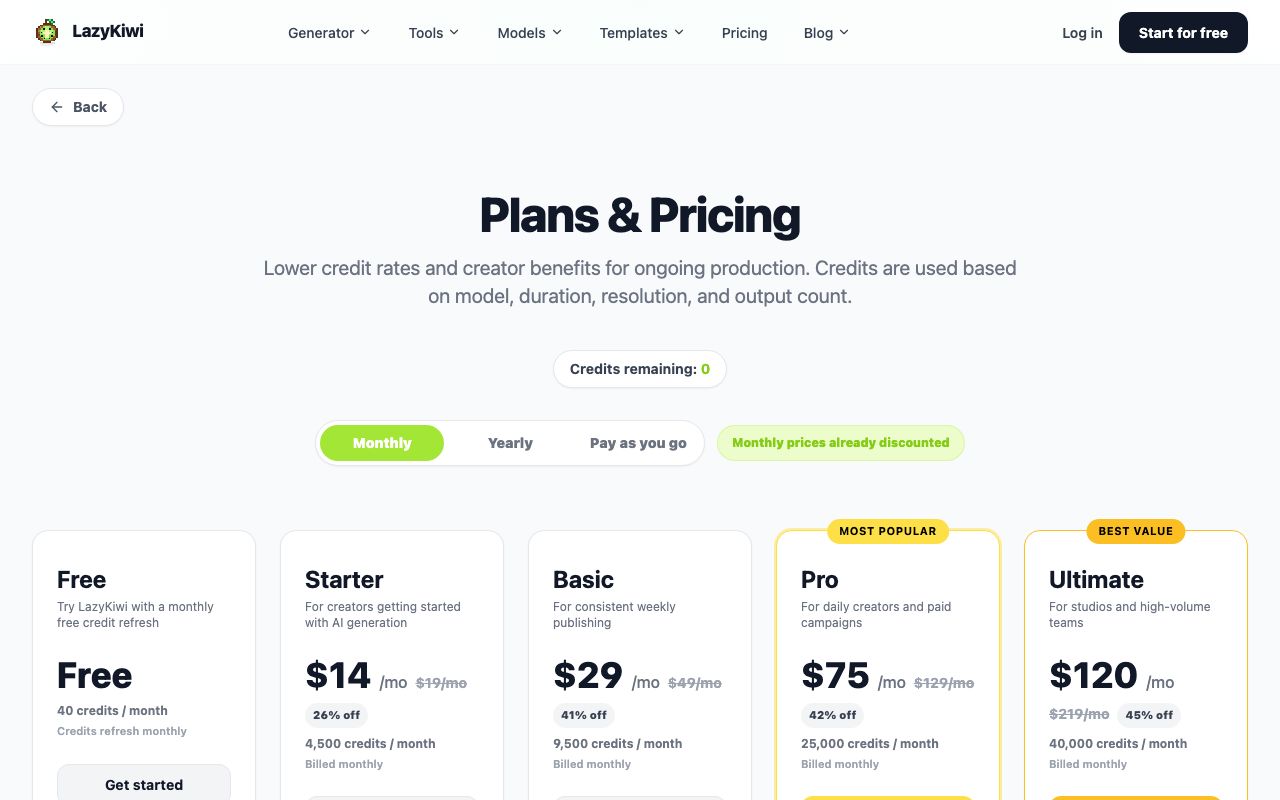
Every new account starts on the Free plan, which the pricing page lists at 40 credits a month with a monthly refresh and no card required; paid plans begin with the Starter tier at 4,500 credits a month. The same page states the rule that matters for budgeting: credits are charged by model, duration, resolution and output count. The generate button shows the exact cost of the run you have configured before you click, so read it every time you change a setting. On 2026-09-05 it showed 829 credits for a 5-second 720p clip on Kling v3 Omni and 410 credits for the same length on the default Seedance model, which is why the 40 free credits are for learning the panel and running image tools, not for a monthly video habit.
A generator gives you shots, not a finished video. Cutting, captions, music, voiceover and colour matching still happen in an editor. Some models add sound, but the Veo 3.1 Lite tier in LazyKiwi does not, so plan on adding audio yourself unless the model page says otherwise. Our guide on how to make a music video shows that assembly for one format, from shot list to cutting on the beat.
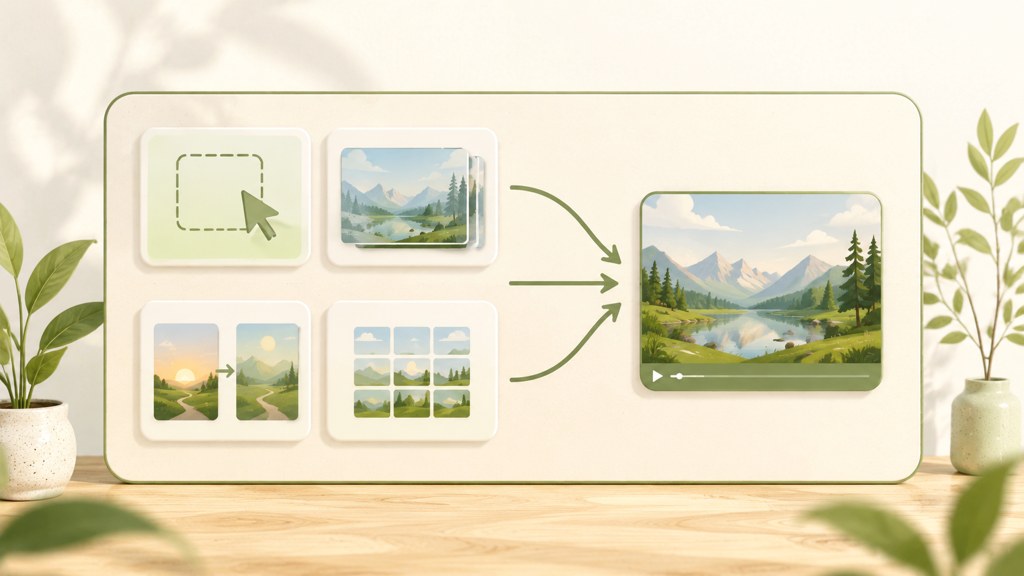
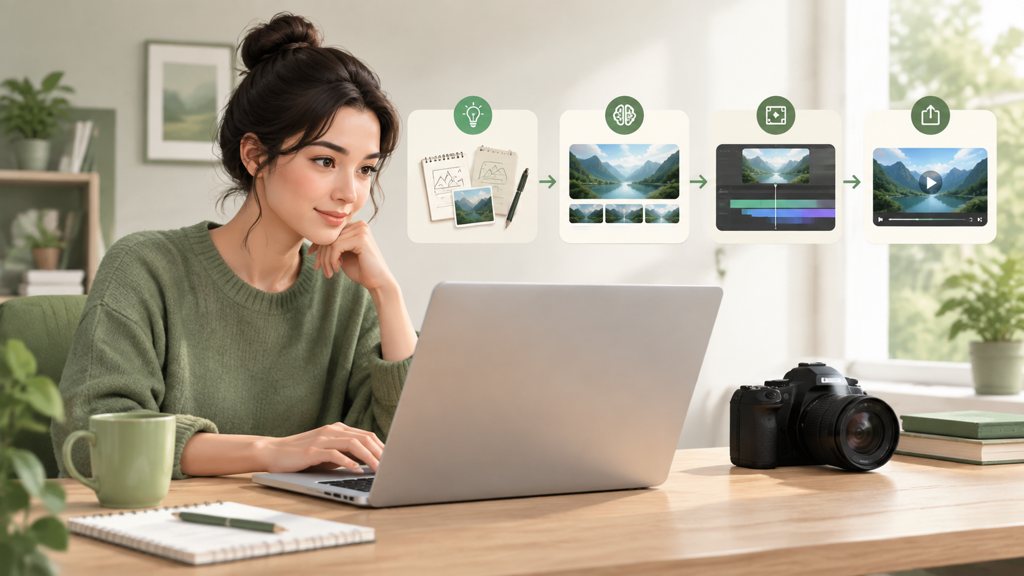
How to make AI videos step by step
This is the loop I run for every clip, whether it ends up in a product ad or a vertical story. Each step holds one decision. When a clip comes back wrong, go back to the step that owns the problem instead of rewriting everything.
- 1
Write a one-line brief
Say what happens, to whom, for how many seconds, on which platform. 'A ceramic mug on a wooden desk, steam rising, slow push-in, 5 seconds, 9:16' is a brief. 'Cosy coffee vibe' is not.
- 2
Pick the mode
Existing subject: image-to-video. New scene: text-to-video. Must land on a specific frame: start-and-end. Never use text mode for a real face or a real label.
- 3
Pick the model
Match the model to the job with the table in the next section. For a first attempt, Kling v3 Omni handles all three modes and is the safest default for motion.
- 4
Write the prompt in five parts
Subject, action, setting, camera, light, in that order, with one action per clip. OpenAI's video guide describes the same split: the prompt carries subjects, camera, lighting and motion, while size and seconds are parameters, per OpenAI Platform docs (2026).
- 5
Set ratio, duration and resolution
Choose the ratio the platform needs (9:16 for feeds, 16:9 for YouTube), the shortest duration that fits the action, and the lowest resolution you can judge motion at. Longer and sharper both raise the credit cost shown on the button.
- 6
Generate one clip, not four
Run a single output and look at it before spending on variants. Most first renders fail on a prompt problem that four copies would all share.
- 7
Review at full size
Play it at 100% and watch hands, text, and anything that crosses the frame edge. Note what broke, change one variable, run again.
- 8
Export and finish in an editor
Download the MP4, trim the dead frames at the start and end, add captions and sound, then export with the platform's recommended settings. YouTube lists MP4 with H.264 and an 8 Mbps target for standard-frame-rate 1080p, per YouTube Help (2026).
Keep a text file with every prompt and the settings that produced a keeper. Half of learning how to make an AI video is being able to reproduce the one that worked.
Which AI video model should you use for each job?
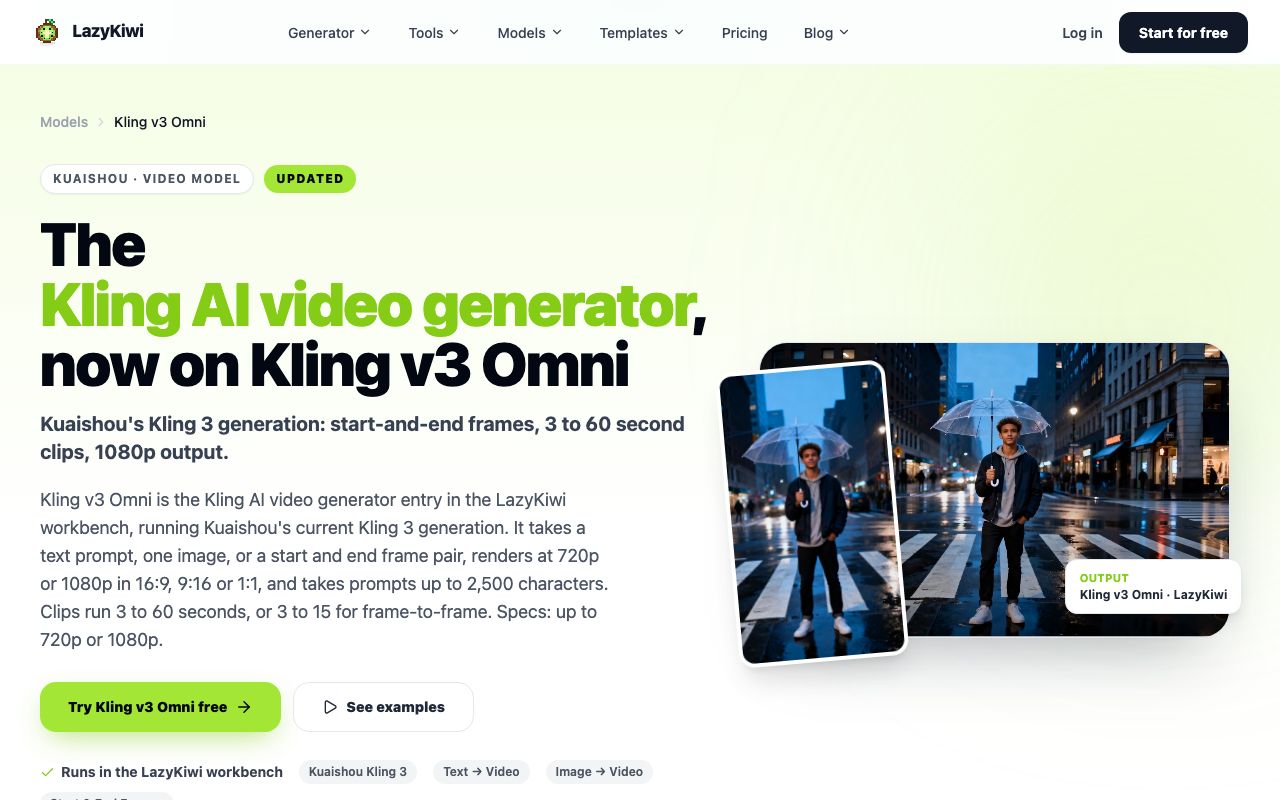
The workbench lists six video models, and they differ more in limits than in style. Duration ceilings, resolution, aspect ratios and how much prompt they read decide which one fits a job, so the table below is taken from each model page as of 2026-09-05.
| Model | Inputs | Duration | Resolution | Aspect ratios | Prompt limit |
|---|---|---|---|---|---|
| [Kling v3 Omni](/models/kling-v3-omni) | Text, image, start and end frames | 3 to 60 s (3 to 15 s for frame pairs) | 720p / 1080p | 16:9, 9:16, 1:1 | 2,500 characters |
| [Veo 3.1 Lite](/models/veo-3) | Text, image | 4 to 60 s, six fixed lengths | 720p / 1080p | 16:9, 9:16 | 1,000 characters; no audio in this tier |
| [Seedance 2.5](/models/seedance-2-5) | Text, image, start and end frames, up to 9 reference images | 4 to 30 s | 480p / 720p | Six, from 21:9 to 9:16 | 5,000 characters |
| MiniMax H3 | Text, image, start and end frames | 4 to 15 s | 768p / 2K | Six, from 21:9 to 9:16 | 7,000 characters |
| Wan 2.7 | Image, start and end frames | 2 to 60 s (2 to 15 s for frame pairs) | 720p / 1080p | Follows the uploaded image | Not stated on the model page |
| Hailuo 2.3 Fast | Image only | 6 to 60 s | 768p / 1080p | Follows the uploaded image | 2,000 characters |
Which model for portraits, products and B-roll?
Portraits and anything with a face: image-to-video on Kling v3 Omni, which keeps the uploaded frame and adds motion, or Hailuo 2.3 Fast for a quick 768p pass. Products with labels: Seedance 2.5 at 720p with the packshot as the reference, because its nine reference slots let you pin the label from more than one angle. Wide B-roll and establishing shots: Seedance 2.5 or MiniMax H3 in 21:9, then crop. Anything delivered at 2K: MiniMax H3 is the only option in the lineup.
For a second opinion beyond your own tests, the Artificial Analysis Video Arena (2026) ranks text-to-video and image-to-video models from blind votes, and ByteDance's Seed page (2026) describes Seedance as a multi-shot model that works from both text and image. Sora 2 is not in the LazyKiwi workbench, so do not plan a workflow around it here. If your starting point is a chat assistant, our answer to can ChatGPT make videos explains what it can do for a video and where a video model has to take over.
How to make realistic AI videos without weird motion
Weird motion almost always comes from asking for too much movement at once. The fix is a prompt that gives the model one subject motion and one camera motion, both slow, with the physics implied by the setting. This is the part of how to make realistic AI videos that no setting can do for you.
[Shot type] of [one subject] [one action with a clear start and end] in [setting with a named light source]. Camera: [one movement, slow]. Lighting: [one description]. Style: [film stock or lens]. Keep [the thing that must not change] unchanged.
A prompt that works with this shape: 'Medium shot of a barista pouring latte art into a white cup on a marble counter, morning window light from the left. Camera: slow push-in. Lighting: soft, warm. Style: 35mm, shallow depth of field. Keep the cup and logo unchanged.' We ran it through Kling v3 Omni and Seedance 2.5; Kling kept the pour continuous, Seedance held the marble texture better.
Which camera words do the models understand?
Use the vocabulary an operator would use. Pan, tilt, push in, pull out, dolly, tracking, arc, boom and handheld are each defined with film examples in StudioBinder's camera movement guide (2026), and models trained on captioned footage respond to those words far better than to 'cinematic camera'. Pick one per clip. Two movements in one prompt is the most common reason a clip warps halfway through.
- Say what should not move: 'the background stays static', 'no camera shake', 'hands stay on the cup'.
- Give actions an end state: 'raises the cup to chest height', not 'drinks coffee'.
- Skip crowds and mirrors on a first pass; both multiply the things that can break.
- Match duration to the action: a pour takes about four seconds, so do not ask for ten.
Prompt length matters less than order. Seedance 2.5 reads up to 5,000 characters and MiniMax H3 up to 7,000, per their model pages, but a short prompt with the structure above beats a paragraph of adjectives. For animating a real photo, where identity drift is the main risk, the photo-to-video guide adds the rules for faces.
How to make AI videos for free without wasting credits
The honest answer to how to make AI videos for free is that the Free plan buys you the workflow, not the volume. The pricing page lists it at 40 credits a month with the template library and both video modes included, and at the run prices shown on 2026-09-05 (190 credits for 6 seconds of Hailuo 2.3 Fast at 768p, 473 for 5 seconds of Wan 2.7, 829 for Kling v3 Omni) a single video-model run costs more than a month of free credits. Free, in practice, means template pages marked free, promo-tier models and image tools; the first paid step is the Starter plan at 4,500 credits a month, roughly five Kling clips or more than twenty Hailuo clips at those prices.
Is there a free AI video template?
Some are. Templates mode inside the video workbench fixes the prompt and the settings, so your upload is the only variable, and several template landing pages on lazykiwi.ai carry a free label (the photo slideshow template page, for one, lists 720p free with no watermark). Each template run is priced by the model behind it, and that price appears on the button before you confirm, so check it the same way you would for a plain generation.
- Test at the lowest resolution the model offers (480p on Seedance 2.5) and rerun only the keeper at 720p or 1080p; the button price drops with resolution.
- Use the shortest duration that contains the action; a 5-second clip that works beats a 10-second clip with a good half.
- Generate one output per run. Variants cost the same as the original.
- Sharpen a keeper with the AI video enhancer instead of re-rendering at a higher resolution when the motion is already right.
- Storyboard with stills first; animating a frame you have not approved is the fastest way to lose credits.
How do free tiers compare across AI video tools?
For context, the free tiers of the main generators were read from their pricing pages on 2026-09-05. Runway's Free plan is a one-time 125 credits with no monthly refresh, per Runway pricing (2026). Pika's Basic plan is free with 80 monthly video credits, per Pika pricing (2026). Luma's pricing page starts its listed plans at the paid Plus tier and offers a free trial without itemising it, per Luma Labs (2026). CapCut is an editor with free AI tools rather than a generator, per CapCut (2026).
| Tool | Free tier (checked 2026-09-05) | Refresh | Notes |
|---|---|---|---|
| LazyKiwi | 40 credits | Monthly | Templates and image tools; video-model runs cost more than the monthly allowance |
| Runway | 125 credits | One-time | Paid plans from the Standard tier |
| Pika | 80 video credits | Monthly | Per-video cost depends on the Pika model used |
| Luma Dream Machine | Free trial, not itemised | Not stated | Listed plans start at Plus |
| CapCut | Free editor with AI tools | Not applicable | Editing and captions, not a generator |
How to make AI videos for TikTok, YouTube Shorts and Reels
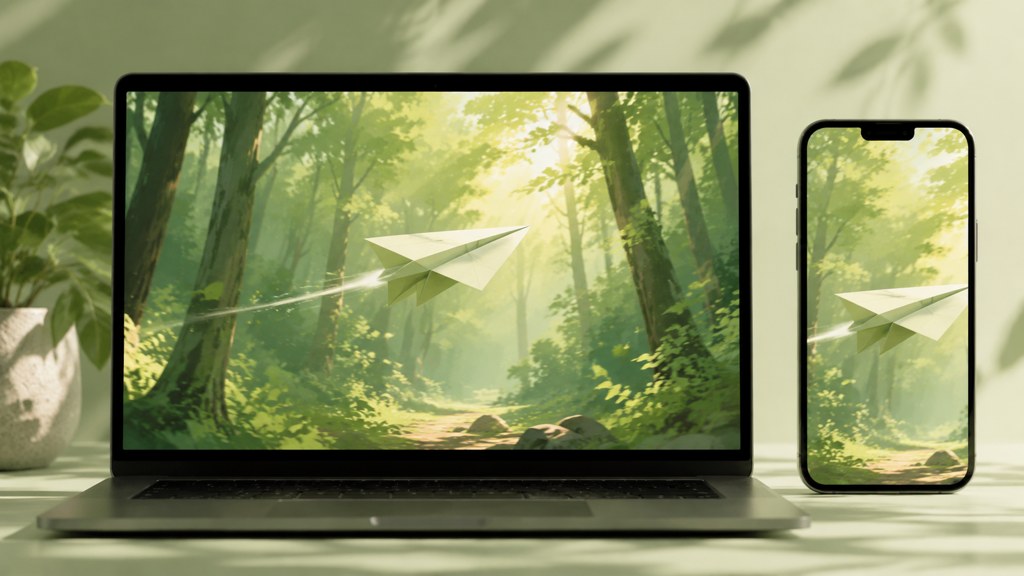
Short-form is the same workflow with three constraints: 9:16, movement in the first second, and captions that carry the message because most feeds start muted. Generate in 9:16 rather than cropping 16:9 later, since the models compose for the ratio you set; Kling v3 Omni, Veo 3.1 Lite and Seedance 2.5 all offer 9:16 natively.
- TikTok: open on the action, not the establishing shot. A clip whose subject is already moving beats a slow fade in. The TikTok guide covers hooks, trend timing and captions.
- YouTube Shorts: export at 1080 by 1920 and switch on the AI-use setting in YouTube Studio when the clip looks realistic.
- Reels: Instagram compresses hard, so run a 720p render through the AI video enhancer before uploading rather than paying for a 1080p regeneration.
One habit that helps on all three: generate a 16:9 hero clip for YouTube and a separate 9:16 run of the same prompt for feeds. The vertical version composes the subject for the frame instead of cutting it off, and you learn which prompts survive both ratios.
What are the most common AI video mistakes?
- Over-long prompts. Adjectives do not add control; structure does. Cut to subject, action, setting, camera, light.
- Wrong ratio. Cropping a 16:9 render to 9:16 loses the subject; set the ratio before generating.
- Generating before storyboarding. Approve the still first, then animate it in image mode.
- Ignoring audio. Veo 3.1 Lite in LazyKiwi has no sound; every clip needs audio added in the edit.
- Publishing without a label. Realistic AI content needs a disclosure on YouTube and TikTok.
- Trusting the thumbnail. Watch the full clip at 100%; artefacts hide in the last second of a render.
Do AI videos need a disclosure label?
On YouTube, yes when the content looks realistic: creators must disclose AI that meaningfully alters or generates photorealistic content, and the video then carries an altered-or-synthetic label, while non-realistic content and minor edits are exempt, per YouTube Help (2026). TikTok keeps its own AI-generated content label and the rules for applying it in its help centre, per TikTok Support (2026). Turn the label on at upload; removing a video later costs the reach you built.
How to create AI videos well is mostly discipline: one action per clip, one camera move, the right ratio from the start, and a label when the result looks real. Everything else is a setting you can read off the generate button.
Key takeaways
- Every AI video is three choices per clip: mode (text, image, or start-and-end frames), model, and settings. When a render fails, change the one that owns the problem.
- Kling v3 Omni covers all three modes at up to 1080p and 60 seconds; Seedance 2.5 adds 480p test renders and 21:9 framing; MiniMax H3 is the only 2K option.
- The Free plan refreshes 40 credits a month, but a single video-model run cost 190 to 829 credits on 2026-09-05, so budget on the Starter plan (4,500 credits) for regular clips and read the button price every time.
- One subject action plus one slow camera move per clip removes most weird motion. Use operator words such as push in, dolly and tracking, never 'cinematic camera'.
- Generate 9:16 natively for TikTok, Shorts and Reels, and switch on the AI disclosure label whenever the clip looks realistic.
Video Workflows Editor
Daniel Okafor
I run the same clip through every video model we ship and write down what actually changes: motion, timing, cost, and where each one falls apart.
FAQ
Common questions
How long does it take to make an AI video?
A single short clip renders while you write the next prompt; queue speed depends on the model, the resolution and your plan, and the pricing page lists faster queues on the paid tiers. Most of the time goes into the loop around the render: writing the brief, reviewing at full size and rerunning one variable. A finished short with captions and sound is an editing session, not a click.
Can you make AI videos with no experience?
Yes. Anyone asking how to make AI generated videos for the first time should start in Templates mode, where the prompt and settings are fixed and only the upload changes, then move to image-to-video with a photo they already like. Text-to-video comes last because it asks you to describe everything from scratch. The Free plan's monthly credits cover that learning path.
How much does it cost to make an AI video?
On 2026-09-05 the workbench priced a 5-second 720p Kling v3 Omni clip at 829 credits, a 6-second 768p Hailuo 2.3 Fast clip at 190, and the Starter plan on lazykiwi.ai/pricing at $14 a month for 4,500 credits, so a short social clip lands somewhere between a few cents and a dollar or two of credits depending on model and resolution. The exact price is on the Generate button before you run.
Which AI video generator is the most realistic in 2026?
It depends on the input. From an uploaded photo, Kling v3 Omni held faces and hands best in our runs, and it is the only model in the workbench with 1080p across text, image and start-and-end modes. For blind, vote-based rankings across vendors, the Artificial Analysis Video Arena publishes separate text-to-video and image-to-video leaderboards that update as new models ship.
Do AI videos need an AI label on YouTube or TikTok?
When the clip looks realistic, yes. YouTube requires creators to disclose AI that generates or meaningfully alters photorealistic content and then shows an altered-or-synthetic label; stylised or clearly unreal content is exempt. TikTok has its own AI-generated content label with rules in its help centre. Both settings are switched on at upload and take seconds.
Make your first clip in the workbench
Open text-to-video with Kling v3 Omni selected, paste the five-part prompt structure, and read the credit cost on the button before you run.
Keep reading
AI Video Prompts: Text-to-Video Prompt Guide for Every Model
Most AI video looks generic because the prompt was generic.
6 min read
Kling vs Veo 3: Motion, Audio, and Workflow Compared
This Kling vs Veo 3 comparison explains which model to test first for image-led motion, native audio, product ads, dialogue scenes, and rapid iteration, with practical prompts and evaluation criteria.
8 min read
How to Make an AI Video From a Photo Without Weird Motion
Learn how to make an AI video from a photo using controlled movement, practical prompts, and settings that help keep faces, products, and backgrounds consistent.
8 min read
How to Make AI Videos for TikTok Without a Complicated Setup
Learn how to make AI videos for TikTok with a simple workflow for planning hooks, generating consistent scenes, editing vertical clips, testing trends, and creating videos with free tools.
8 min read