
How to Edit Text in an Image With the Same Font
Edit text in an image with the same font: change a date, price or line in a photo, keep its typeface, colour and angle, and rebuild the background.
 Maya Chen 9 min read
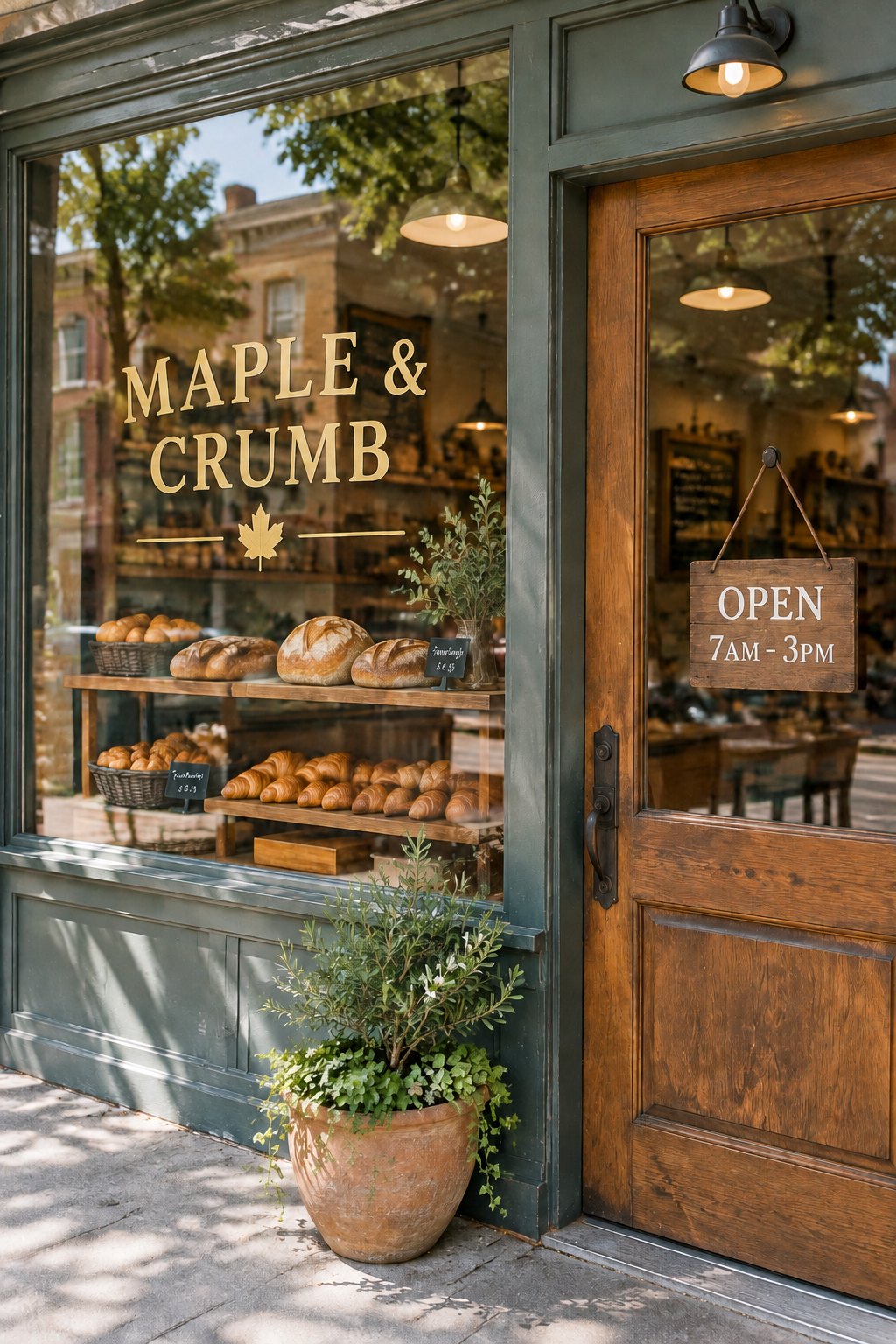
A poster says SATURDAY 9TH and the event moved to Sunday. A menu photo still shows last season's price. A certificate is printed and a name is spelled wrong. The old fix was slow: paint out the letters, work out which typeface it was, retype it and nudge it back until nobody notices. The newer way is to name the new wording and let the tool keep the same font, colour and angle. This guide covers both halves of the job — editing text that is already baked into a picture, and adding new text to a photo — what AI changed about the first one, and where it still struggles. Checked against the live tool on 7 November 2026.
Edit text in an image vs. add text to a photo
These sound the same and are two different jobs:
- Editing text means changing words that are already part of the picture — printed on a sign, set in a poster, rendered in a screenshot — so the design stays and only the wording changes.
- Adding text means putting a new caption or title on top of a photo that had none.
Adding text is easy and most devices do it already (more on that below). Editing text that is baked in is the hard one, because you have to match a font you may not own and rebuild whatever was sitting behind the old letters. That is the job this article is mostly about.
Why AI can finally edit text in a picture
Until recently, image models were notoriously bad at text — they produced warped, misspelled letters that gave the game away. That changed over 2026 as the major image models were rebuilt around legible type. OpenAI's November 2026 update (GPT Image 2.6), for instance, is reported to have sharper, more readable text as a headline change; its image generation guide is the primary reference for the current model.
Legible generation is what makes editing possible: a tool can now read the styling already in the frame — the weight, spacing, colour and angle of a line — copy it, and paint in a replacement that wears the same look, then rebuild the background behind the old text. A few years ago that came back as a smear; now it comes back as a line you can usually publish.
How to edit text in an image with the same font
- 1
Upload the picture
Anything with words in it — a photo of a poster, a packaging shot, a scanned certificate, a screenshot from a deck. Upload the original file rather than a photo of a screen; the sharper the letters start out, the closer the new ones look.
- 2
Say what it should say
Write it as a swap: replace "Doors open 7pm" with "Doors open 8pm". Choose whether to change only that line or every place it appears, and optionally what kind of image it is — sign or poster, packaging or label, screenshot or slide, flyer or menu.
- 3
Generate and download
Check the wording and the styling at full size. If a line sits wrong, reword the instruction and run it again, then download. Each run uses credits; failed runs do not cost you the result.
LazyKiwi's edit text in image tool does exactly this — matches the typeface, weight, letter spacing, colour and shadow of the line it replaces, and rebuilds the background behind it — so the only thing that changed is what it says. There is nothing to select and no font to install.
Adding text to a photo (the simpler job)
If you just want a caption or title on top of a photo, you may not need AI at all. The Photos app on iPhone and Android, Google Photos, Canva, and even Word can lay text over an image, and for a quick social caption that is the fastest route.
Where a tool helps is when the new text has to look like it belongs in the scene — matched to the surface, the lighting and the perspective, not a flat label pasted on top. For that, the add text to a photo tool places type that sits in the image rather than over it. And when words need to come out instead of go in, remove text from an image clears a caption or watermark and rebuilds what was behind it.
What it keeps, and where it struggles
A realistic picture of what matches well and what does not:
| Situation | Result |
|---|---|
| Common sans or serif face | Matched closely — weight, spacing, colour and the way the line sits on the surface all come back very near the original. |
| Rare display or hand-lettered type | Approximated, not reproduced letter for letter: you get the same character, weight and mood. Check it at full size before publishing. |
| New wording a little longer | Fine — it can breathe into the space. |
| New wording much longer | A problem, because the replacement has to live in the space the old line occupied. Turning "Sale" into "End of season clearance sale" squeezes the type or spills the layout. |
| Two or three different lines | One wording change per run is cleanest. Change the headline, download, upload that version, change the subheading. |
| The same word in several places | Pick "every match" and they all change at once — a date repeated on every page of a flyer, for example. |
If the wording sits somewhere people will study at full size — a certificate, a price, a legal line — zoom in and read it before you publish. The match is close, not a guarantee of a perfect glyph.
Who edits text in images, and why
- Designers and studios: a client spots a misspelled name on the board an hour before the review. Fix the one line in about a minute instead of reopening the artwork and chasing down the licensed font.
- Cafes, shops and market stalls: the A-board price has been wrong in every photo since spring. Update the number on the picture you already have.
- Online sellers and localisation: one hero image, five markets. Swap the wording each country needs while the layout, badge and photography the brand approved stay exactly as they were.
For product and listing images specifically, our AI product photography guide covers the rest of the workflow around the shot.
Key takeaways
- Editing text in an image (changing baked-in words) and adding text to a photo (an overlay) are two different jobs — the first is the hard one.
- AI only got good at this once image models learned to render legible type; the 2026 model updates are what made font-matched edits practical.
- Write the change as a swap — replace "X" with "Y" — and the tool matches the font, colour and angle, then rebuilds the background behind the old letters.
- Common sans and serif faces match closely; rare display or hand-lettered type is approximated, so check it at full size.
- Keep the new line close to the old length, change one line per run, and use 'every match' when the same word repeats.
Image & Design Editor
Maya Chen
I test the image tools we ship on real photos — faces, text, backgrounds — and note which edits hold up at full size and which quietly fall apart.
FAQ
Common questions
How do I edit text in an image and keep the same font?
Upload the picture and type the swap — for example replace "Doors open 7pm" with "Doors open 8pm". The tool reads the typeface, weight, spacing and colour already in the frame and matches them, so you never name or install a font. Common sans and serif faces come back very close to the original.
Is there a free way to edit text in an image online?
LazyKiwi's edit-text tool gives new accounts free monthly credits with no card, so you can fix a line on your own image before paying for anything. Each run uses credits; a failed run does not cost you a result. It runs in the browser — no design suite and no font licences.
Can the new wording be longer than the old?
A little longer is fine; much longer is not, because the replacement has to fit the space the old line occupied. Turning "Sale" into "End of season clearance sale" either squeezes the type or spills past the layout. Keep the new line close to the original length where you can.
Will it match an unusual or hand-drawn typeface?
A common sans or serif is matched closely. A rare display face, hand-lettered signage or heavily distressed print is approximated rather than copied letter for letter — you get the same character, weight and mood. If people will read it at full size, check it there first.
Can I edit text in a screenshot or a scan as well as a photo?
Yes. Photographs of printed work, flatbed scans, phone screenshots and slide exports all work. Upload the original file rather than a photo of a screen or a re-compressed download — the sharper the letters start, the closer the new ones look.
How is this different from adding text to a photo?
Adding text puts a new caption or title on top of a photo, which your phone or Canva can do. Editing text changes words that are already part of the picture while keeping the design, which means matching a font you may not own and rebuilding the background behind the old letters — the harder job this tool is built for.
Change the words, keep the picture
Upload an image that already has text in it and type the swap. The new line wears the old font, colour and angle, and the background is rebuilt behind the letters. Free to try, no card.
Keep reading
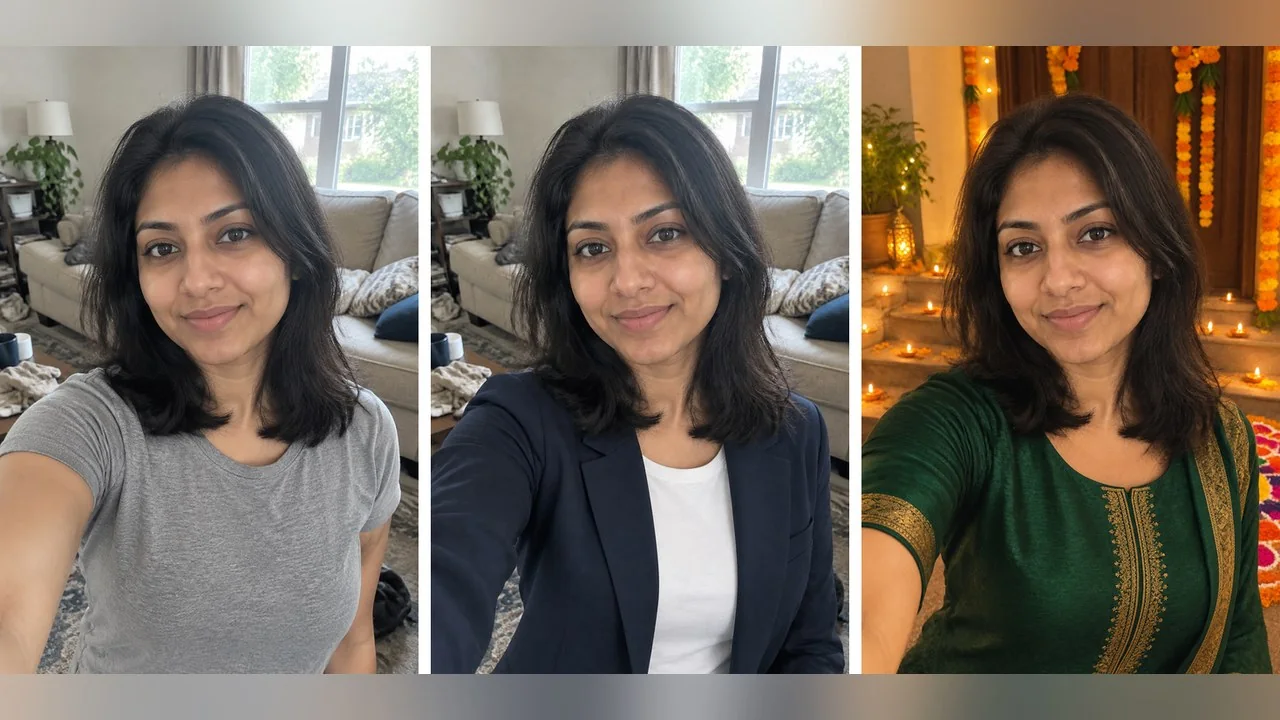
AI Photo Editing Prompts: 24 Copy-Paste Edits With Results
24 AI photo editing prompts for ChatGPT, Gemini or a browser editor, grouped by job, with before-and-after renders, a Vikas Editor section and a fix list.
10 min read
AI Product Photography: White Background to Branded Scene
AI product photography in practice: shoot on a phone, get a white-background image, swap in a branded scene, upscale, and export to Amazon and Google rules.
8 min read
Change Background of Photo: 3 Methods Compared
Change background of photo files three ways: white for IDs and listings, a real room for portraits, an invented scene for social. Edge and light rules.
9 min read