
AI Photo Editing Prompts: 24 Copy-Paste Edits With Results
24 AI photo editing prompts for ChatGPT, Gemini or a browser editor, grouped by job, with before-and-after renders, a Vikas Editor section and a fix list.
 Maya Chen 10 min read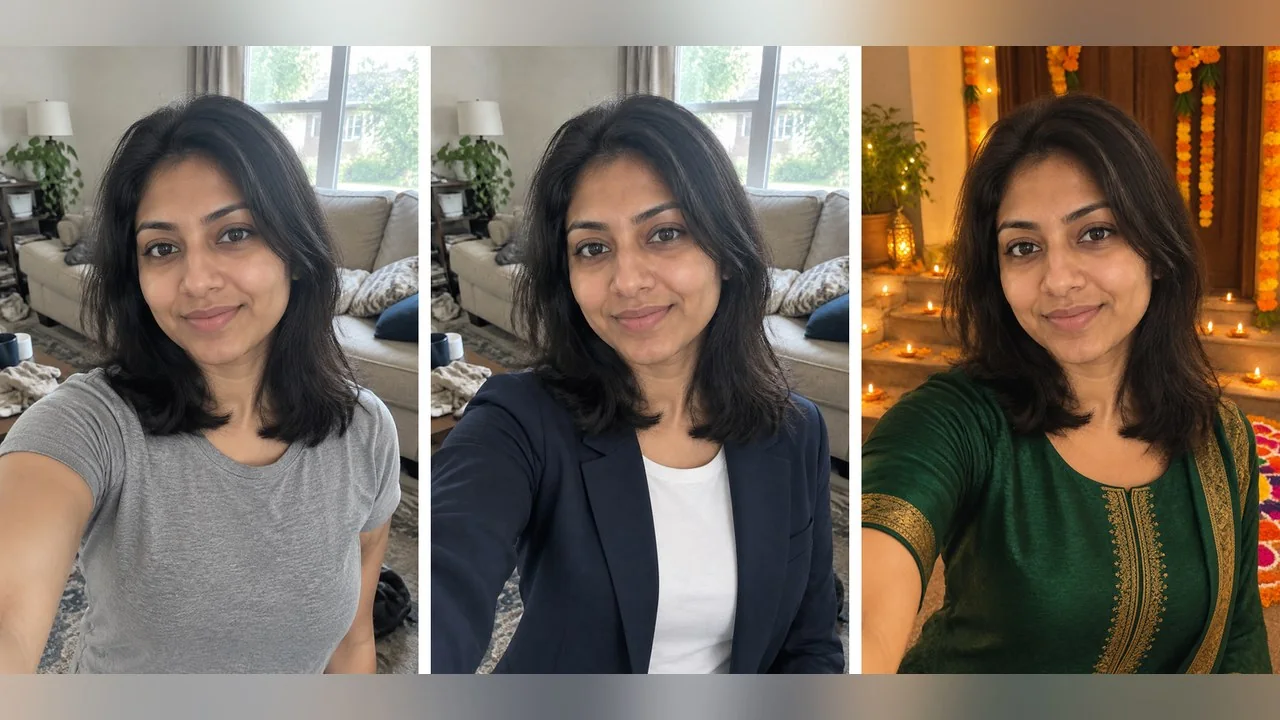
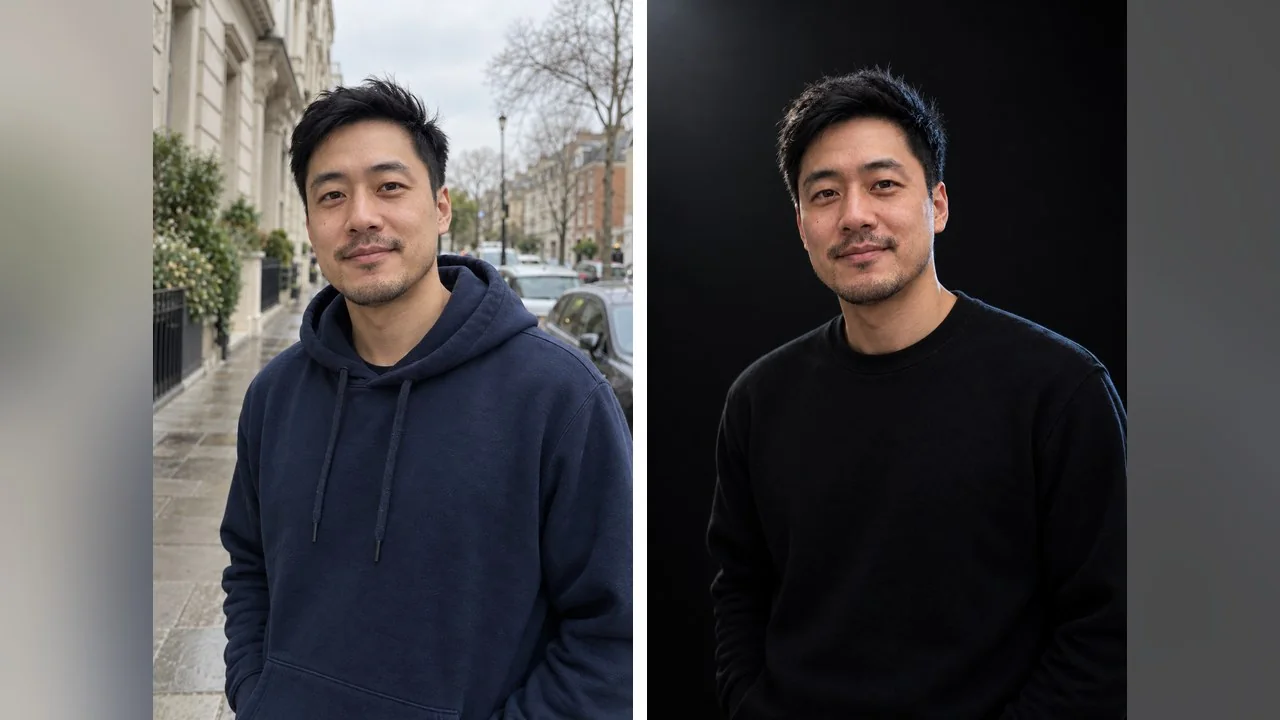
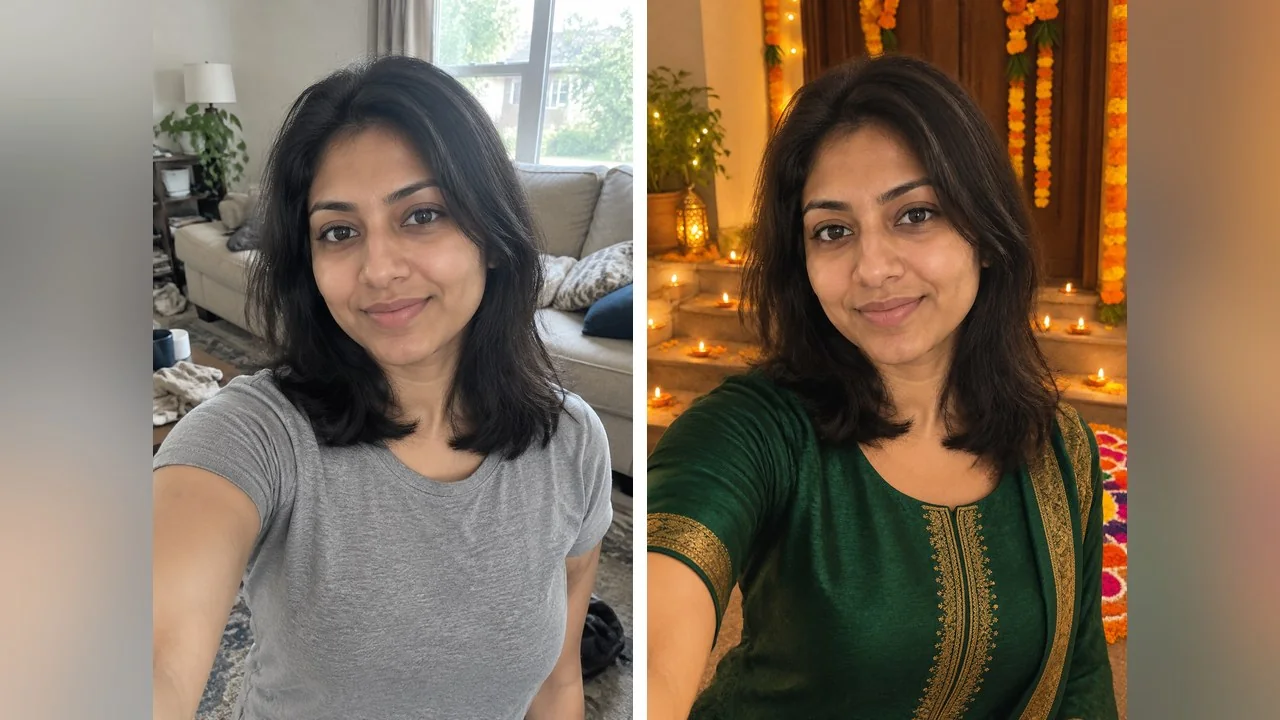
An AI photo editing prompt is a sentence you paste next to an uploaded photo: what to change, what to leave alone, and what it should look like when done. The same wording works in ChatGPT, in Gemini and in a browser editor like LazyKiwi's, so this list is organised by the job you want done rather than by tool: retouching, backgrounds, outfits, light, studio looks, festive scenes and the cinematic Vikas Editor style. Every prompt is written to be copied as-is, and ten of them were run on the same two fictional adults so you can see the before and the after side by side instead of guessing what a prompt does.
What are AI photo editing prompts?
There are two kinds of photo prompt and people mix them up. An AI image prompt describes a picture that does not exist yet, and the model paints it from nothing. An AI photo prompt for editing starts from your photo: you upload it, describe the change, and the model re-renders the picture with that change applied. The second kind is what most people mean by "photo editing prompts" on Instagram and YouTube, and it is the only kind in this article.
The reason the format spread so fast is that every major tool now accepts it. OpenAI's help centre says ChatGPT Images is available on all tiers and that you can "upload an existing image and describe the changes you want ChatGPT to make". Google's Gemini image page makes the same offer with Nano Banana 2 as the free model. Prompt libraries such as PromptPlum, Picsart's list and the 100-prompt roundup at Build Fast with AI all read the same way because the models all read the same way.
What you will not find in those libraries is the input. A prompt that looks miraculous under a polished result may have started from a studio photo. Ours start from two deliberately ordinary phone pictures, so the gap between before and after is the real work of the prompt.
How to write a photo editing prompt that holds your face
Every good editing prompt has four parts, in this order:
- 1
The change
One verb and one target: replace the background, change my t-shirt, relight the scene. One main change per prompt gives the model less to misread.
- 2
The keep list
Name what must not move: face, hairline, skin texture, glasses, pose, the rest of the room. Models follow a list better than a vague "keep me the same".
- 3
The look
Light, colour and lens words: soft window light, warm grade, shallow depth of field. This is where style libraries earn their keep.
- 4
The output note
Photoreal, no text, no logos, and the ratio if you need one. It stops the model from inventing a watermark or a slogan on a wall.
The order matters because models weight the start of a prompt. Put the change first and the keep list second; if you lead with a long mood description, the face is the first thing to drift. The Gemini-specific list at Aiarty reaches the same conclusion from the other direction: its structure is subject, task, style, restrictions.
Say "my" and "me" in the prompt even though you are typing about a photo. Editing models treat the uploaded person as the subject by default, and first-person wording keeps that anchor.
How we tested these prompts
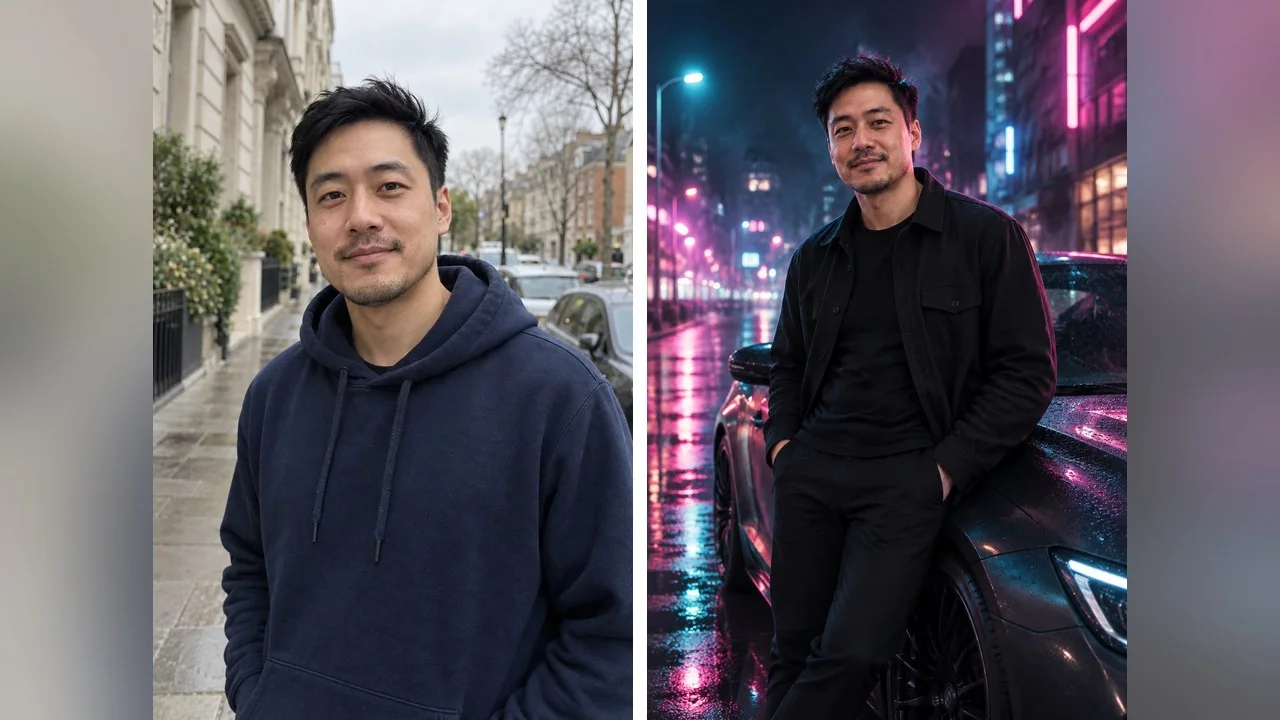
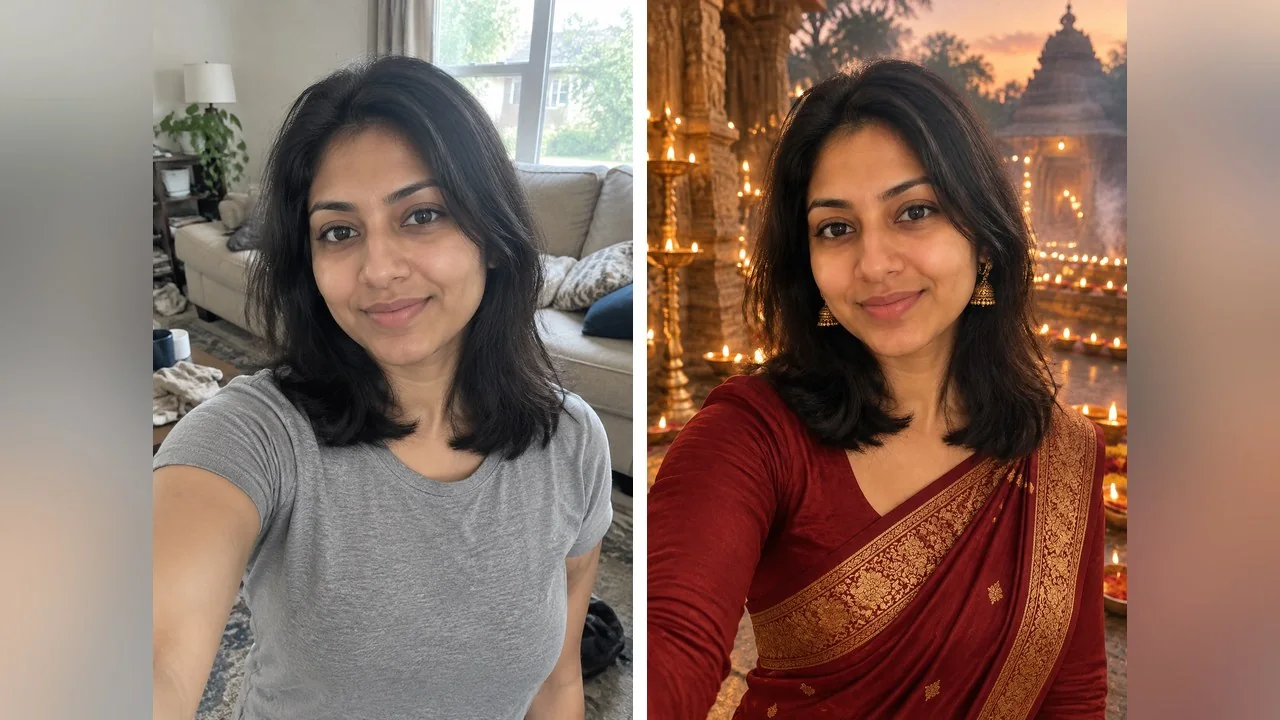
We generated two fictional adults as the starting photos: a woman in a grey t-shirt in a cluttered living room, and a man in a navy hoodie on an overcast street. Both are invented people, not real photos, and no children appear anywhere in this article. Each of the ten rendered AI photo editing prompts below was then run once on the matching photo in GPT Image 2's edit mode, with the exact text you see in the box. We did not cherry-pick between multiple runs, which is why some results are modest and one or two have small flaws; that is what a single pass looks like.
On LazyKiwi the same loop is the AI Photo Editor: upload, type the change in plain English, and the price shows on the button before you run it. If you prefer to describe the whole scene from scratch, use the image generator instead; that is image-prompt territory, covered in our Sharda AI prompt guide.
Retouch and clean-up prompts
Start here if the photo is already the one you want and it just needs tidying. These are the prompts most likely to pass as an unedited picture, provided you keep the "no smoothing" line.
1. Natural skin retouch
Retouch this photo naturally: even out the skin tone, reduce the shine on my forehead and nose, soften the shadows under my eyes by about half and remove the stray hairs on my cheek. Keep pores, freckles and fine lines visible and keep my face shape, eyes, nose and lips exactly as they are. No smoothing-filter look.
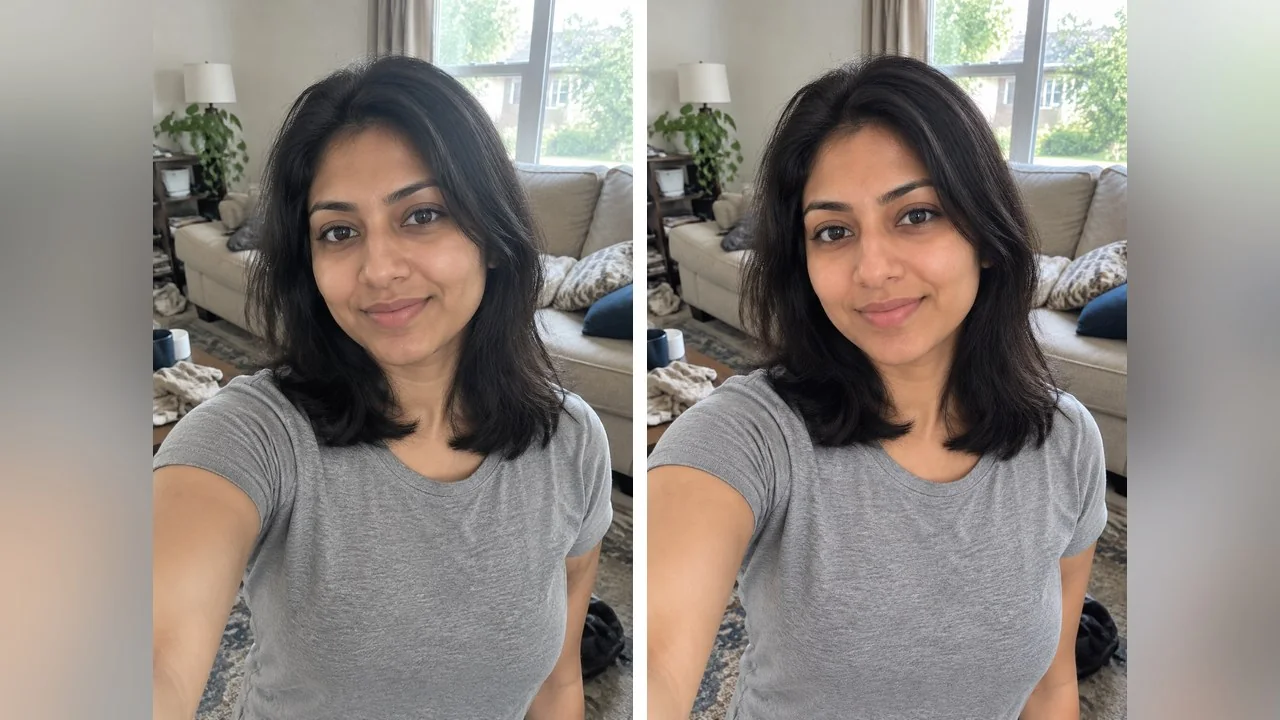
This is the most useful prompt in the article and the least dramatic. The "by about half" wording stops the model from erasing the eyes' natural shadow altogether, which is the quickest way to make a portrait look waxy.
2. Remove background clutter
Remove the clutter from the background of this photo: the cups, the folded clothes and the loose items on the sofa and the floor. Rebuild the sofa, rug and wall behind them with matching texture, light and perspective. Do not change me, my hair or my clothes.
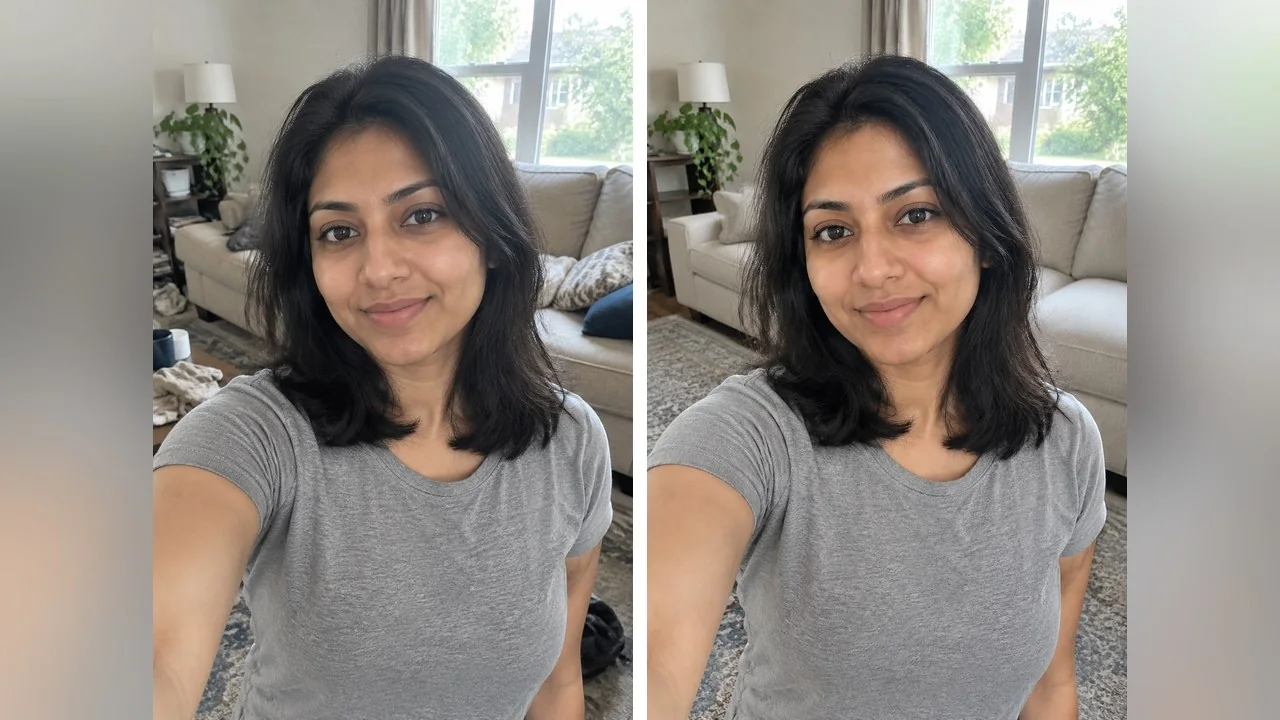
Name the objects instead of saying "clean up the background". A named list tells the model what to remove and, by omission, what to keep, which is why the lamp and the plant survived here.
3. Open closed eyes
Fix this photo so my eyes are open and looking at the camera, with the same expression I have now. Keep my face, hair, clothes and the background exactly the same. Photoreal.
4. Straighten and sharpen
Straighten the horizon in this photo, correct the wide-angle lens stretch on the edges and sharpen the image slightly. Do not crop out anything important, do not change the colours, and keep my face untouched.
Prompts 3 and 4 were not rendered because our starting photos did not need them. They are here because they are the two fixes people ask for most after a group shot.
Background and location prompts
Background swaps are where editing prompts beat a cut-out tool, because the model also changes the light on you to match the new place. The trade is that it may reshape your edges, so check hair and shoulders at full size.
5. Plain studio backdrop
Replace the background of this photo with a seamless light-grey studio backdrop. Keep the natural shadow under my chin and hair, match the soft indoor light already on my face, and keep my clothes, pose and face unchanged. Photoreal.
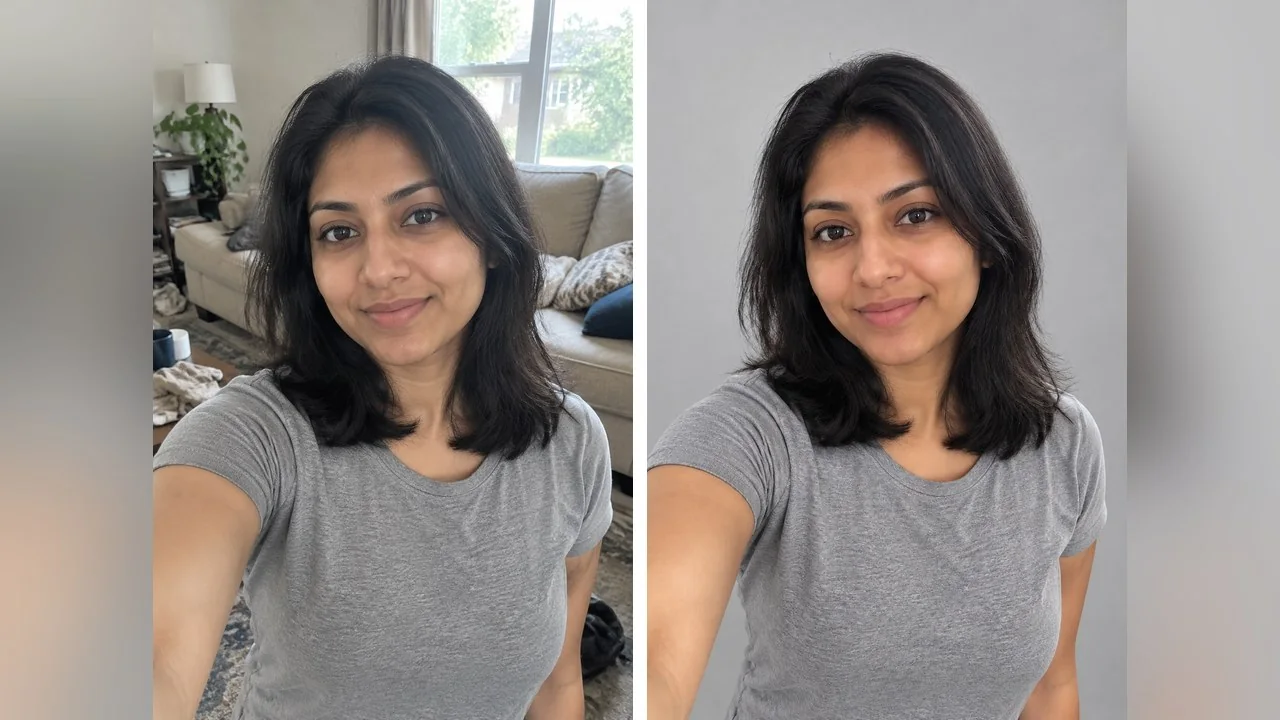
6. Old-town street at blue hour
Keep me exactly as I am and put me on a quiet old-town street at blue hour: cobblestones, warm shop windows glowing behind me, shallow depth of field, the light on my face shifting slightly cooler to match the scene. Photoreal.
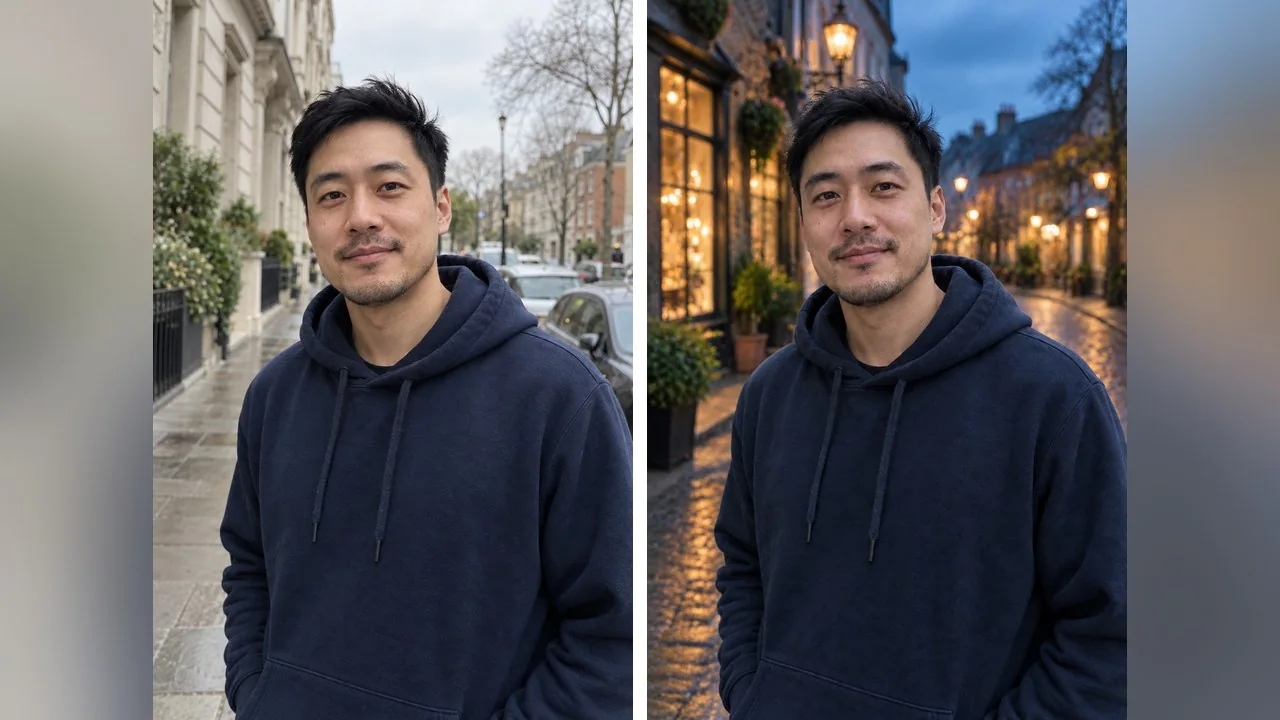
The "light on my face shifting slightly cooler" line is the difference between a composite and a photo. Without it, the model often keeps the original daylight on the face and the result looks pasted.
7. Beach at golden hour
Place me on an empty beach at golden hour with the sea behind me, soft warm light coming from the left, sand and a little wind in my hair. Keep my face, clothes and pose exactly as they are, and match the shadows on me to the new light. Photoreal.
8. Bright office
Put me in a bright modern office with glass walls and a blurred open-plan space behind me, daylight from large windows, clean and neutral. Keep my face, hair and clothes unchanged. Photoreal, no readable signs or screens.
For a one-click version of this section, LazyKiwi's AI Background Changer keeps the subject and takes a description of the new scene; the prompt text above works there as well.
Outfit and styling prompts
Outfit changes are the most popular editing request on Indian and South-East Asian social media and the most likely to drift the face, because the model redraws the whole upper body. Keep the keep list long.
9. Navy blazer for a profile photo
Change my grey t-shirt to a tailored navy blazer over a white crew-neck top. Keep my face, hairstyle, skin and pose exactly the same and keep the background as it is. Photoreal, with natural fabric folds.
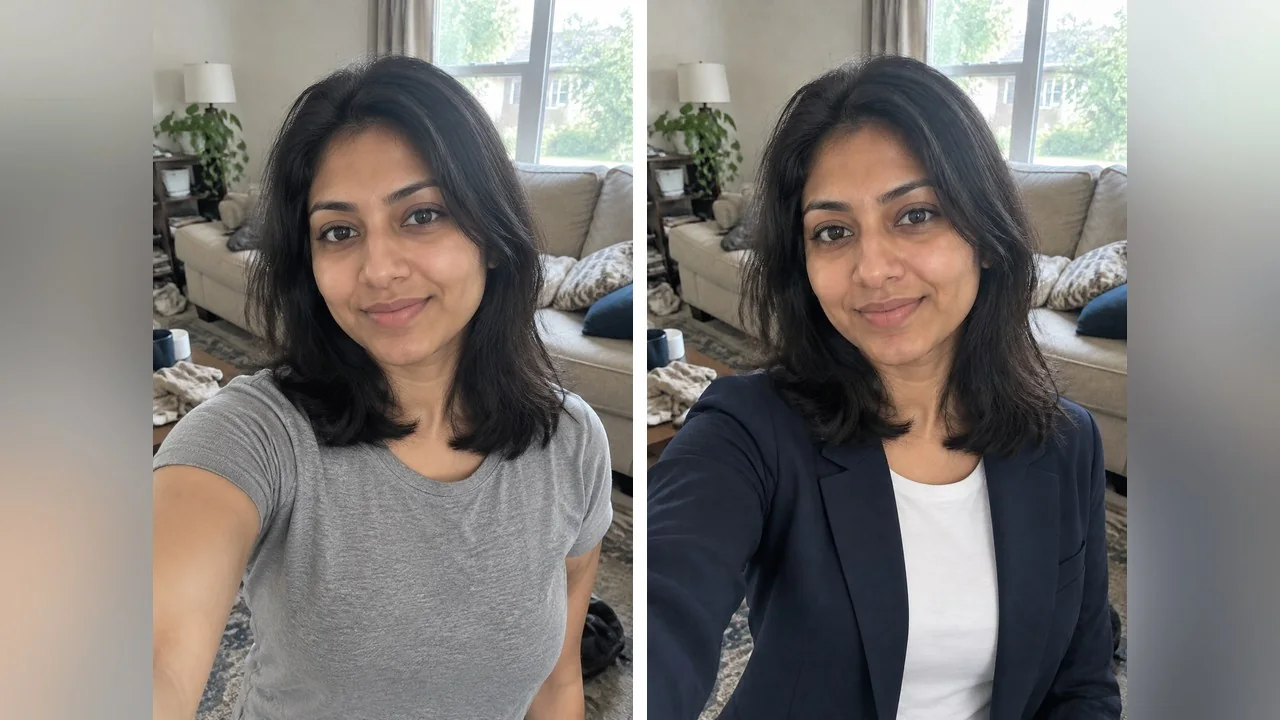
Note what the prompt does not ask for: a new background or a new pose. One change, and the face holds. If you want the blazer and a studio backdrop, run prompt 5 on the result rather than asking for both at once.
10. Silk kurta and earrings
Change my outfit to a modest cream silk kurta with a thin gold border and small gold stud earrings. Keep my face, hair, skin tone and pose exactly as they are, and keep the background and light unchanged. Photoreal.
11. Leather jacket
Swap my hoodie for a black leather biker jacket over a plain white t-shirt. Keep my face, hair and stubble identical, keep the street background and the overcast light. Photoreal, no logos on the jacket.
If you have a photo of the actual garment, LazyKiwi's AI Clothes Changer takes the person photo plus the clothing image, which beats describing fabric in words.
Lighting and colour grade prompts
These change the mood without changing a single object, which makes them the hardest for viewers to spot and the easiest for the model to get right.
12. Golden-hour window light
Relight this photo as if late-afternoon sun is coming through the window on my right: warm golden highlights on my hair and cheek, soft shadows on the other side, a slightly warmer tone overall. Keep the room, my clothes and my face unchanged. Photoreal.
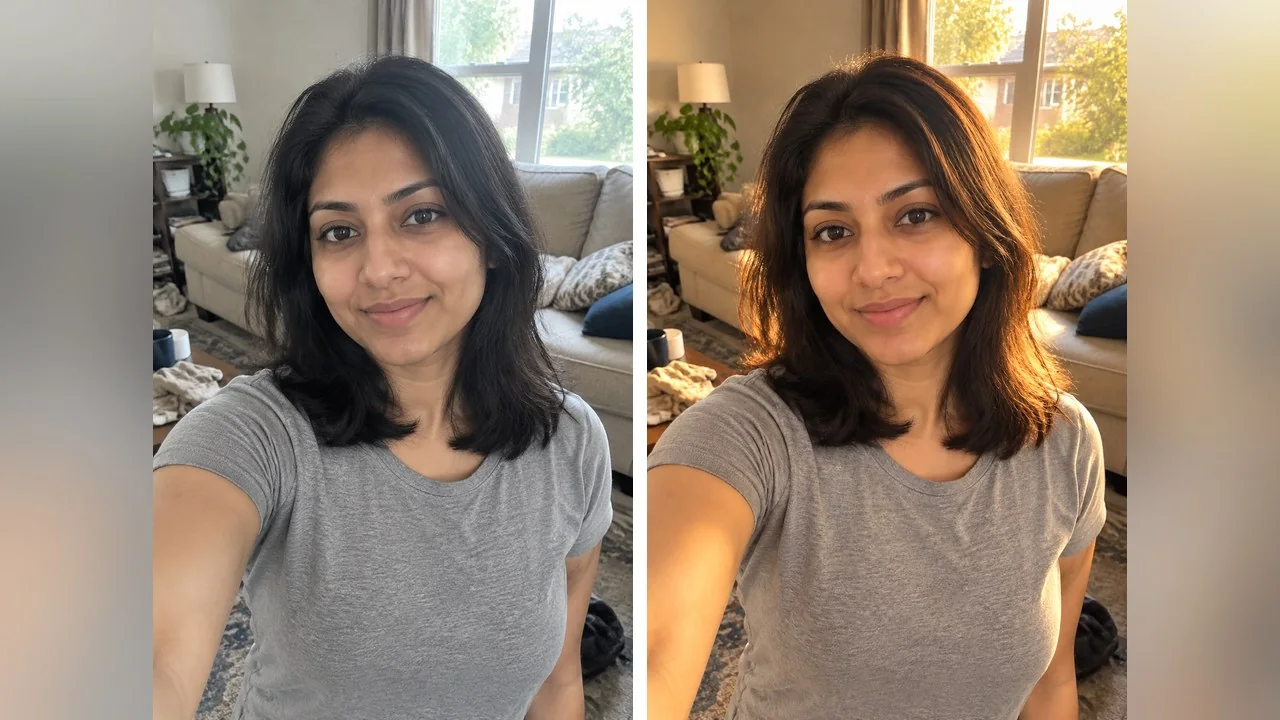
Say where the light comes from. "Warm light" without a direction tends to brighten everything evenly; "through the window on my right" gives the model a reason to add shadow, and shadow is what makes relighting look real.
13. Teal and orange cinematic grade
Apply a cinematic colour grade to this photo: teal shadows, warm orange skin tones, slightly lifted blacks, subtle film grain and a gentle vignette. Change nothing else: same pose, same face, same background.
14. Film black and white
Convert this photo to black and white with rich contrast, deep but not crushed shadows, bright but not blown highlights, and a fine film grain. Keep every detail of my face and the background exactly as it is.
Studio portrait prompts
A studio portrait prompt changes backdrop, light and usually the top you are wearing in one go. It is three changes, so the keep list has to carry the face on its own.
15. Dark studio with rim light
Turn this into a dark studio portrait: black backdrop, one soft key light from the upper left, a thin cool rim light on my shoulder and hair, deep shadows. Change my hoodie to a plain black crew-neck. Keep my face and stubble exactly as they are. Photoreal.
16. High-key white studio
Turn this into a high-key studio portrait: pure white backdrop, bright even light with almost no shadows, a clean white shirt instead of my current top. Keep my face, hair, skin texture and expression exactly as in the photo. Photoreal.
17. Editorial terracotta backdrop
Editorial studio portrait: a deep terracotta paper backdrop, one large softbox from the front left, a modest black turtleneck, a slight head tilt. Keep my face and hair exactly as they are. Photoreal, magazine quality.
For LinkedIn, use 15 or 16 and nothing stronger. Editorial colour backdrops photograph well but read as a fashion shoot on a professional profile.
Festive and seasonal prompts
Festival prompts are the busiest scenes in the list, with lamps, garlands and decorations, so they are also where models invent text and logos. The "no text on any decorations" line is doing real work.
18. Diwali doorway
Place me in a doorway decorated for Diwali: rows of lit clay diyas on the steps, a marigold garland over the door and a colourful rangoli on the floor. Change my t-shirt to a modest emerald silk kurta with a gold border. Warm candlelight on my face. Keep my face, hair and expression exactly as they are. Photoreal.
19. Christmas living room
Put me in a cosy living room at Christmas: a lit tree with warm white lights behind me, a knitted cream jumper instead of my current top, soft fairy-light glow on my face. Keep my face and hair exactly as they are. Photoreal, no text on any decorations.
20. Autumn park
Move me to a park path in autumn with orange and yellow leaves, soft overcast light, a long camel coat and a dark scarf instead of my current top. Keep my face, hair and expression exactly as in the photo. Photoreal.
Swap the festival for yours by changing only the scene sentence: Eid with lanterns and a crescent-moon backdrop, Lunar New Year with red lanterns, Onam with a flower carpet. Keep the keep list exactly as written.
What is Vikas Editor, and how do you write a Vikas editor prompt?
If you have searched for "vikas edit prompt" or "vikas editor prompt", you have met one of the most copied photo-editing styles on Indian social media. The name comes from Editing By Vikas, a free editing library whose site says it is run by one person who tests every CapCut template, VN code and AI prompt on a phone before posting it, and whose prompts are "written for ChatGPT and Gemini". The style, rather than any single prompt, is what spread: cinematic colour grades, hard or moody light, night streets, cars and bikes, festival portraits and saree looks.
Because the name became a search term, a crowd of unrelated sites now use it. Vikas Editor at vikaseditor.org states plainly that it "is not affiliated with Editing By Vikas, any individual creator, OpenAI or Google", and Media.io's prompt zone describes its Vikas Editing prompts as "inspired by the viral aesthetics of popular creator Editing By Vikas". Treat all of them as third-party collections, and do not upload a photo of yourself to a site just because it carries the name.
Writing a Vikas editor prompt is a matter of adding three ingredients to the four-part structure above: a cinematic grade (teal shadows, warm skin, crushed blacks), a dramatic light source (neon, oil lamps, a hard flash) and a location with attitude (wet street, highway, temple courtyard, dark studio). The four below are our own, written in that style and rendered on our two fictional subjects.
21. Night street and sports car
Cinematic Vikas-style edit: I am standing beside a dark matte sports car on a wet night street, neon signs reflecting in the puddles, moody teal and magenta light, slight haze, low camera angle. Change my hoodie to an all-black outfit with a black overshirt. Keep my face, hair and stubble identical. No logos, no readable signs. Photoreal.
22. Monsoon motorcycle
Vikas-style monsoon edit: I am sitting on a classic motorcycle with no badges on an empty wet highway, heavy grey clouds, light rain, a dark raincoat open over a black t-shirt, a cool desaturated grade with teal shadows and warm skin. Keep my face and hair exactly as they are. Photoreal.
23. Temple courtyard at dusk
Vikas-style festival portrait: I am wearing a modest deep-red silk saree with a gold border and a matching full-sleeve blouse, standing in a temple courtyard at dusk lit by hundreds of oil lamps. Warm cinematic grade with a soft glow and a little smoke in the air. Keep my face, hairstyle and skin exactly as in the photo. Photoreal.
24. Hard-flash dark studio
Vikas-style studio edit: dark grey backdrop, a hard flash from the front with a sharp shadow behind me, a black bomber jacket over a plain white tee, slight smoke, high contrast with crushed blacks and a cool grade. Keep my face and hair exactly as they are. Photoreal, no logos.
Two notes on the renders. The car came out with no badges because the prompt said so; if you drop "no logos", the model will happily invent a fake marque. And the saree prompt asked for a full-sleeve blouse and a modest drape on purpose; cinematic styling is in the light and the grade, not in how much skin the outfit shows.
Gemini photo prompt vs ChatGPT photo prompt: what changes?
Nothing about the wording. What changes is the tool around the prompt: where the photo goes, what it costs, how much control you get over size and ratio, and what the tool refuses to do.
| Where you paste it | What the official page says | Good for | Watch out for |
|---|---|---|---|
| ChatGPT | Available on all tiers; upload an image and describe the change; a selection tool for editing one area | Multi-step edits in one chat, text in the image | Usage limits on free accounts; re-renders the whole picture each time |
| Gemini app | Nano Banana 2 free, Nano Banana 2.1 with a Google AI plan; visible and invisible SynthID watermarks; 18+ | Keeping faces close to the original, style transfer from a reference | A visible watermark on outputs; limits apply |
| LazyKiwi AI Photo Editor | Describe the change in plain English; ratio and resolution controls; cost shown before you generate | Batches, print sizes, 9:16 for Stories | Credits per run; free credits on sign-up |
| LazyKiwi image generator | Text or reference-photo generation with GPT Image 2, Nano Banana, Seedream and others | Building the scene from scratch, up to 4K | An image prompt, not an edit: your face comes from the reference, not the upload |
A Gemini photo prompt and a ChatGPT photo prompt are therefore the same text. If one model keeps changing your face, try the identical prompt in the other before rewriting it; the fix is usually the tool, not the words. For the Gemini models on their own pages, see Nano Banana; for OpenAI's, see GPT Image 2. LazyKiwi's ChatGPT photo editor alternative exists for the edits a chat assistant declines, such as real faces and clothing changes.
Common mistakes with AI photo editing prompts
- Asking for three changes at once. Background plus outfit plus light is three re-renders' worth of risk in one; chain prompts on the result instead.
- Leaving out the keep list. "Make it look professional" with no anchors is how you get a different person in a nicer jacket.
- Uploading a tiny or cropped photo. The model can only keep what it can see; a 200-pixel face comes back as a guess.
- Asking for names, numbers or slogans. Text is still the weakest part of most image models; add it afterwards in an editor.
- Editing an edit five times. Each pass drifts a little; go back to the original photo when the face starts to slide.
- Using other people's photos without asking, and uploading photos of children to prompt sites you do not know.
If you want the same approach for a specific occasion, our birthday AI photo prompts and couple AI photo prompts use the same four-part structure with their own rendered examples.
Key takeaways
- An editing prompt starts from your photo; an image prompt starts from nothing. Only the first kind keeps your real face.
- Write the change first, the keep list second, then the look and the output note. One main change per prompt.
- Ten of the 24 prompts were run once each on two fictional adults; the before-and-after pairs are single passes, not cherry-picked.
- Vikas Editor is a style associated with the Editing By Vikas library: cinematic grades, dramatic light and night, bike or festival scenes. Most sites using the name are unrelated.
- The same AI photo editing prompts work in ChatGPT, Gemini and LazyKiwi's AI Photo Editor; what differs is limits, watermarks and ratio control.
Image & Design Editor
Maya Chen
Maya Chen edits LazyKiwi's image and design coverage. She works through every template and tool herself before writing about it, and keeps the receipts: the settings used, the credits spent and the runs that did not work.
FAQ
Common questions
Are AI photo editing prompts free to use?
The prompts themselves are just text, so yes. Running them costs whatever the tool charges: ChatGPT Images is available on all tiers with limits, Gemini offers Nano Banana 2 free with a visible watermark, and LazyKiwi gives free credits on sign-up and shows the cost before each run.
Which is better for editing photos, ChatGPT or Gemini?
Both accept the same prompt and both re-render the whole image. We did not benchmark them; the Editing By Vikas library, which writes for both, says Gemini keeps the real face closest while ChatGPT handles instructions well, and results vary by photo. Try the identical prompt in both before deciding, and use a browser editor when you need ratio or size control.
Can I use these prompts on someone else's photo?
Only with their permission, and never with photos of children on sites you do not control. The prompts anchor on the uploaded face, so the person in the result is recognisably them. For couples or groups, upload one photo that shows everyone, or the model will invent the missing faces.
Why did the AI change my face?
Usually because the prompt asked for too much at once or had no keep list. Lead with a single change, list face, hairline, skin texture and expression as things that must not move, and avoid editing the same result repeatedly. Starting again from the original photo fixes most drift.
Do these prompts work for couples or groups?
The structure does, but the wording changes from "me" to "the two of us" or "all four people", and the keep list has to name every face. Our couple AI photo prompts article covers the two-person case with its own renders, including how to combine two separate photos.
Run any of these prompts on your own photo
Open the AI Photo Editor, upload a clear photo, paste the prompt and keep the keep list. Free credits on sign-up, and the cost is shown before you generate.
Related reading
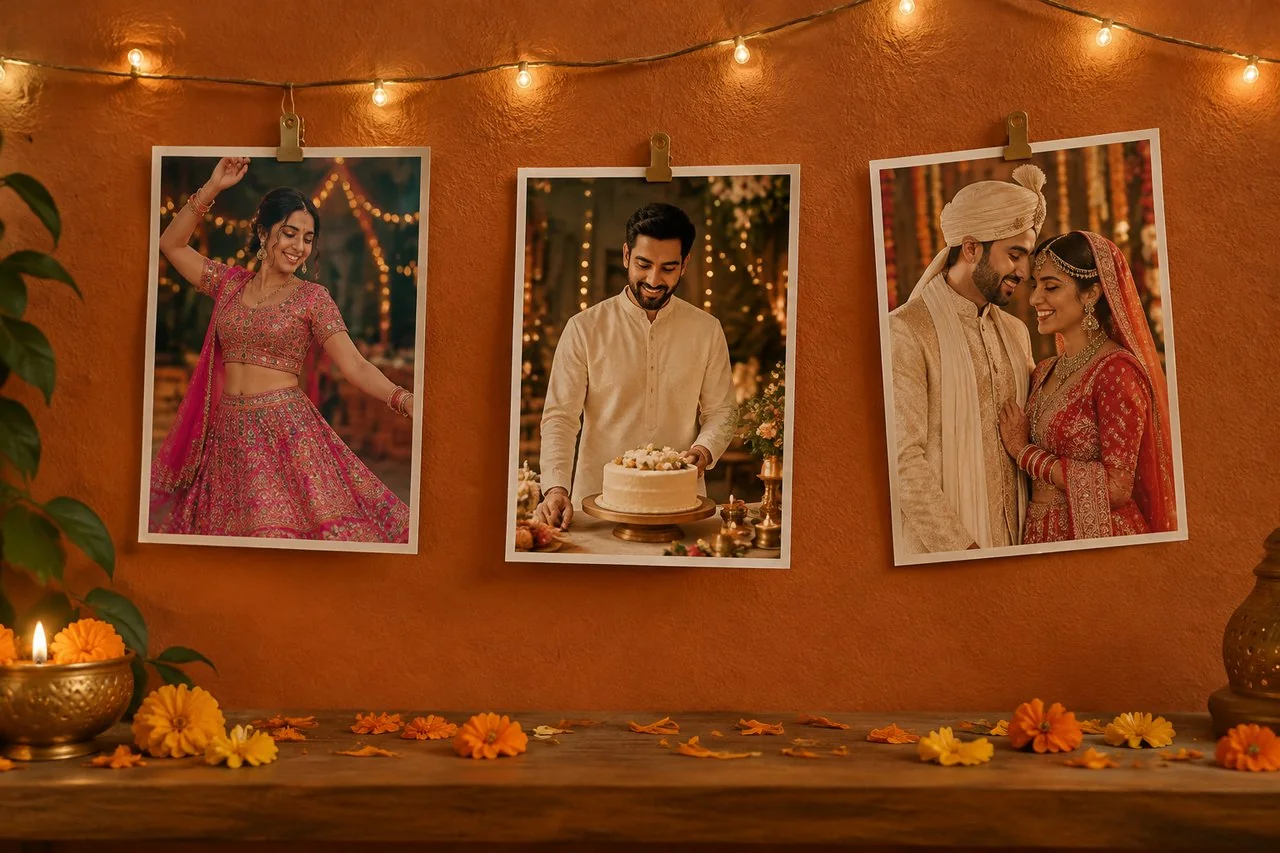
Sharda AI Prompt Guide: 7 Prompts With Example Renders
What a Sharda AI prompt is, where the official prompt website lives, how to use one with your own photo, and seven original prompts with example renders.
7 min read
Best AI Photo Editing Apps in 2026, Tested
Nine of the best AI photo editing apps run against the same two files: retouch a face, clean a scene, batch a set, export without a watermark.
10 min read
Change Background of Photo: 3 Methods Compared
Change background of photo files three ways: white for IDs and listings, a real room for portraits, an invented scene for social. Edge and light rules.
9 min read
How to Look Better in Photos: 5 Things That Work
Angle, posture, light, clothes, edit. Five variables in priority order, what each one is worth, and how to test them one at a time on your own face.
9 min read