
AI Mockup Generator: Make Product and Apparel Mockups Fast
An AI mockup generator builds the scene around your real design instead of a fixed template: the LazyKiwi route, six tools compared, prompts that hold up.
 Elena Vasquez 11 min read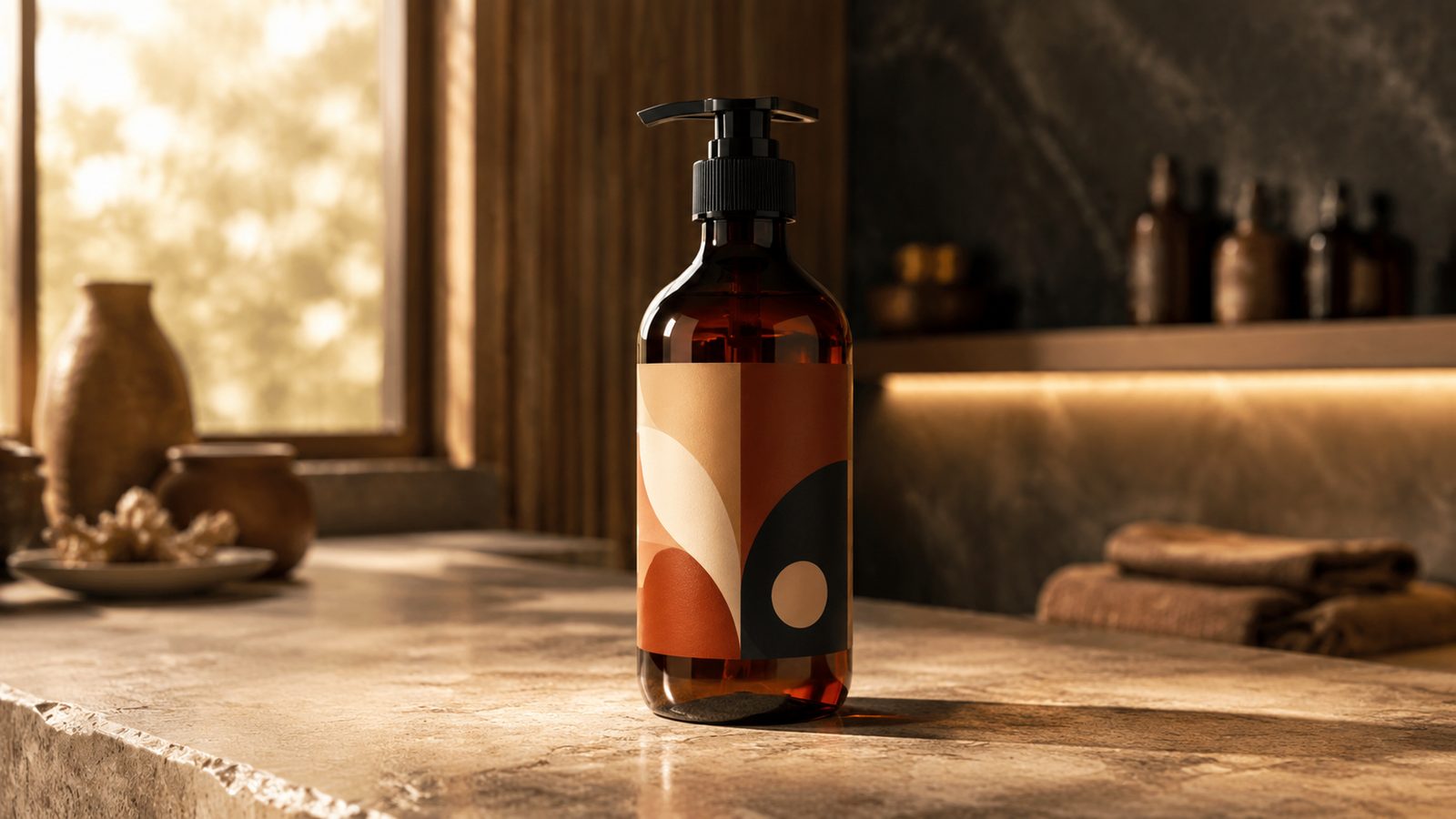
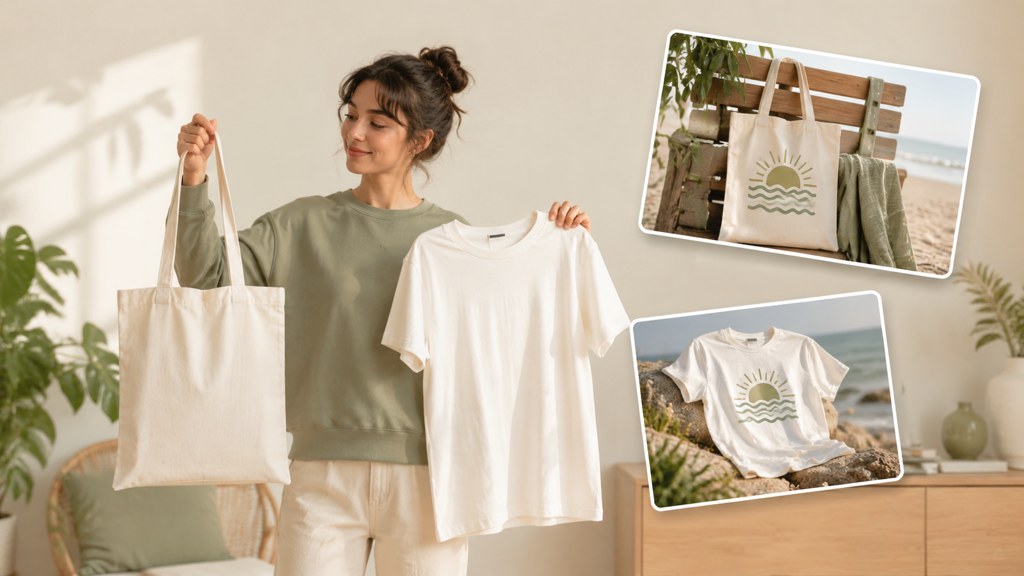
An AI mockup generator takes a flat design or a product photo and generates the scene around it: the surface, the lighting, the model wearing the shirt, the wall the poster hangs on. A template mockup does the opposite, dropping your artwork into a fixed photo through a smart object. Both have a place, and this guide shows when each fits, how to make product, apparel and poster mockups in the AI image generator, what Printful, Printify, Placeit and the others offer, which prompts hold up, and why some AI mockups look fake. Tool prices and free tiers were checked on 2026-09-06.
What is an AI mockup generator and how is it different from template mockups?
A template mockup is a photograph with a placeholder: you paste your design into the placeholder and the file wraps it around the mug or the chest of the shirt. It is exact, repeatable and limited to the angles somebody photographed. A mockup generator AI works from your image and a description, then renders a new scene each time. It can show a product that has never been photographed, in a room that does not exist, at any angle, but it re-renders your design in the process and can bend it.
| Tool | Template mockup | AI-generated mockup |
|---|---|---|
| How it works | Smart object inside a fixed photo | Scene rendered around your image from a prompt |
| Design fidelity | Exact pixels, exact placement | Re-rendered; logos and small text can drift |
| Angles and scenes | Only what the template offers | Any angle, any environment |
| Best for | Print-on-demand listings, catalog consistency | Campaign visuals, concepts, lifestyle shots, unusual products |
| Cost driver | Subscription or per-template licence | Credits per render |
When should you use each?
- Use a template when the print area must be exact: Etsy listings, Amazon Merch, a catalog of forty colourways.
- Use AI when the scene matters more than the pixel-perfect print: a hero image, an ad, a packaging concept before the dieline exists.
- Use both when you can: generate the scene with AI, then paste the exact logo back on top in an editor.
How to make a product mockup with AI step by step
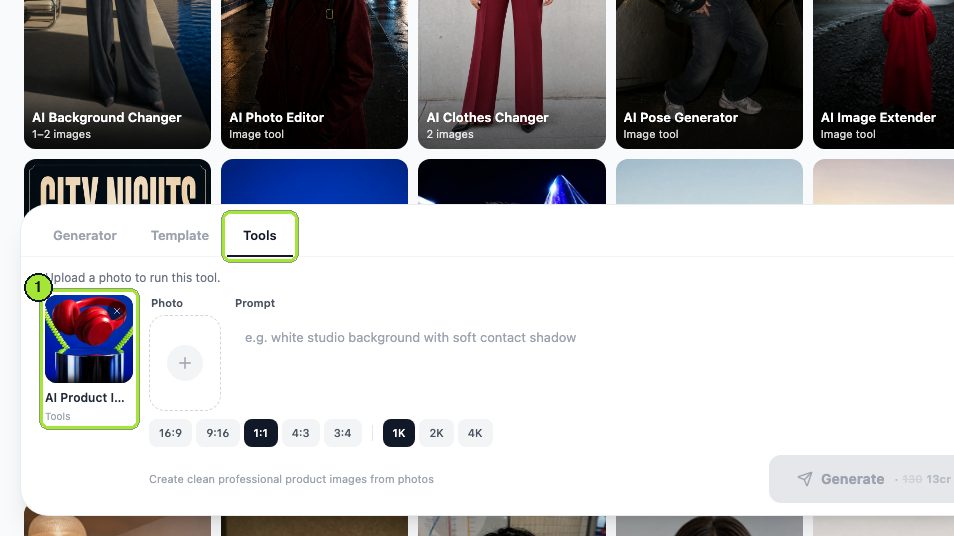
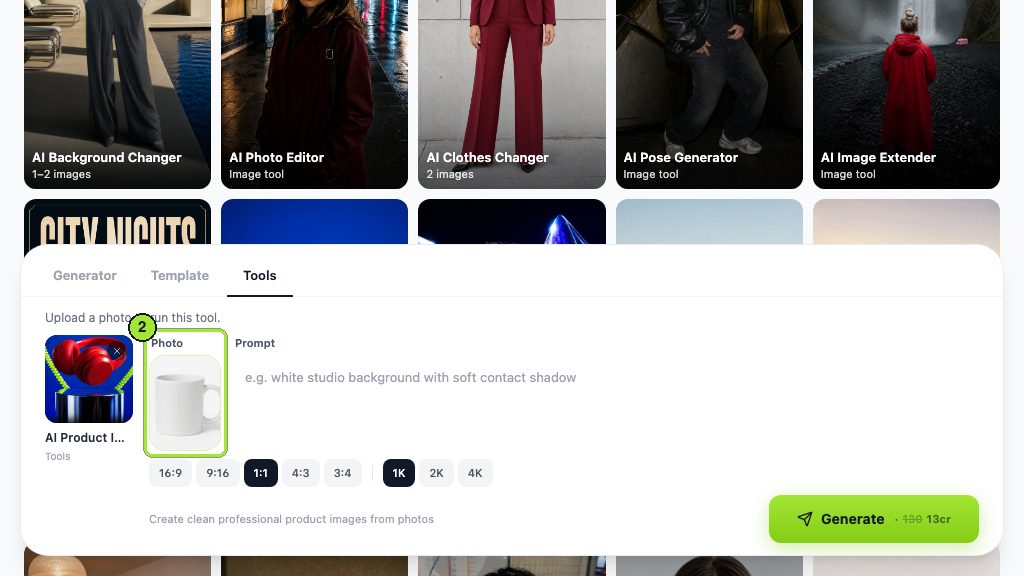
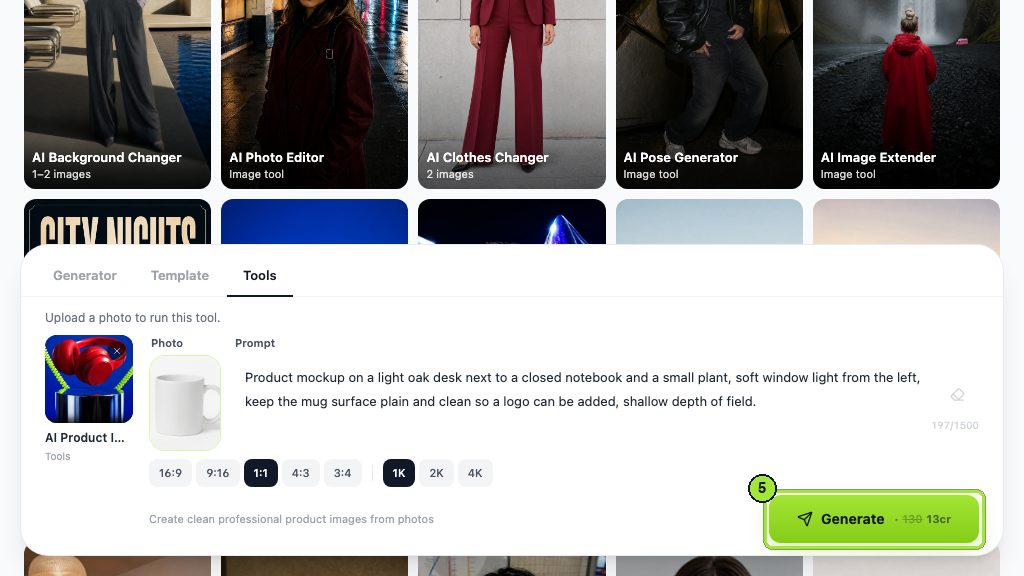
This is the route we use for packaging, bottles, boxes and devices. It costs one render per scene; on 2026-09-06 the buttons on all four tools read 13 credits with a discount applied.
- 1
Start from a clean product image
A transparent PNG of the packaging render, or a phone photo of the real product on a plain surface. Sharp edges and readable text on the source are what the model preserves.
- 2
Generate the studio version first
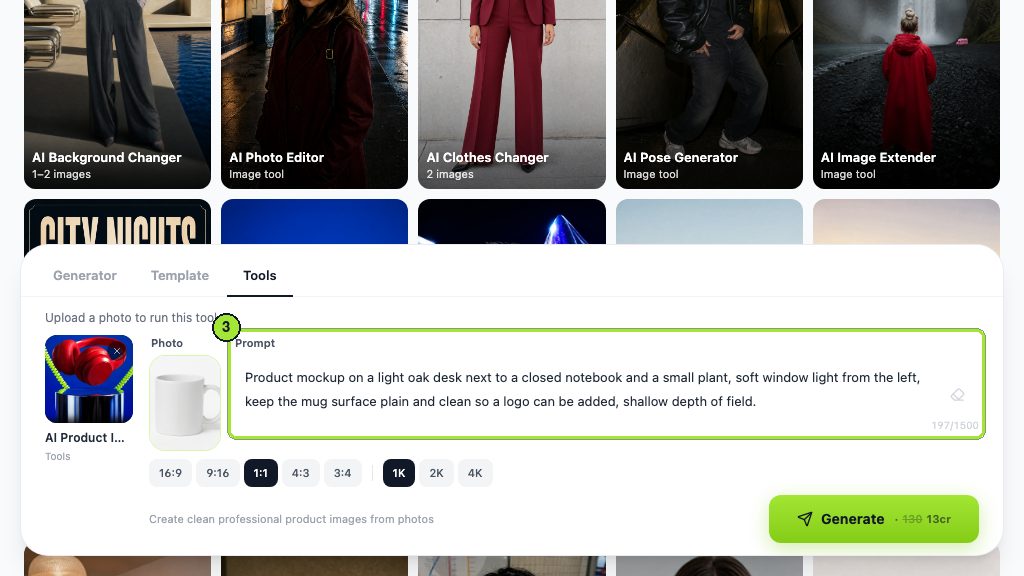
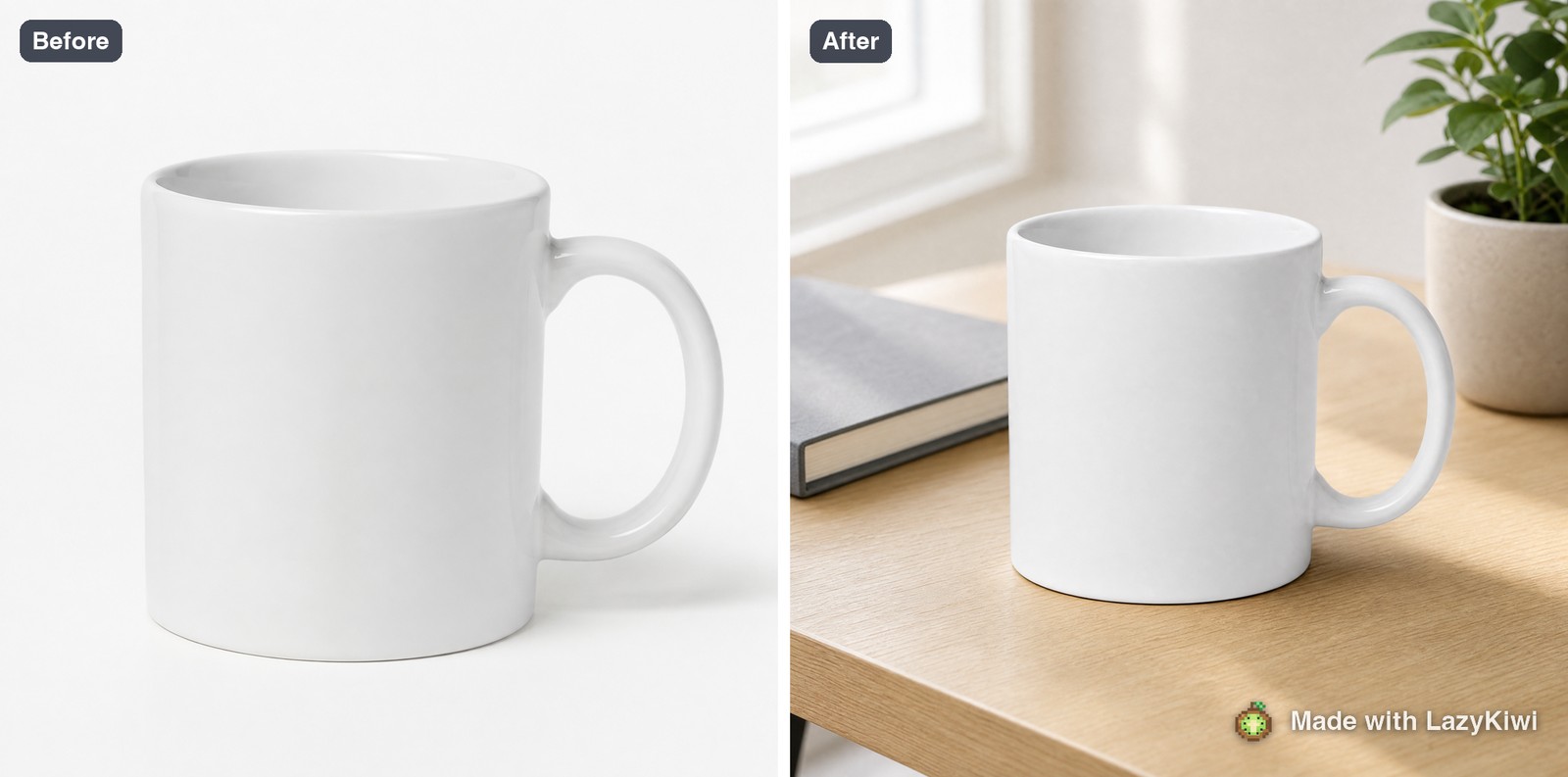
In the AI product image generator, drop in the image and ask for a plain white studio backdrop with a soft shadow under the product. This gives you a neutral master and shows immediately whether the tool holds your label.
- 3
Write the scene prompt
Name the surface, the room, where the light comes from, a prop or two and the camera height. Describe the product only as 'the supplied product, unchanged'. Per-product examples are in the prompt section.
- 4
Swap the scene with the background changer
For lifestyle shots, move the same image to the AI background changer, which replaces everything around the subject from a prompt and can take a second photo as the new backdrop.
- 5
Refine one variable at a time
Rerun with only the surface changed, then only the light. Comparing two renders that differ in one line is how you learn what the prompt controls.
- 6
Restore exact brand assets and export
Paste the original logo or label over the render in your editor where the AI version drifted, then export square for the marketplace and portrait for social, at 2K or 4K. Square dominates in practice: LazyKiwi workbench data for August 2026 puts 1:1 across 124 of the 143 image jobs run by outside accounts.
Two renders, not ten
Generate the neutral master and one lifestyle scene, then decide. Ten variants of an unapproved concept spend credits on images nobody will use.
How to make an AI clothing mockup
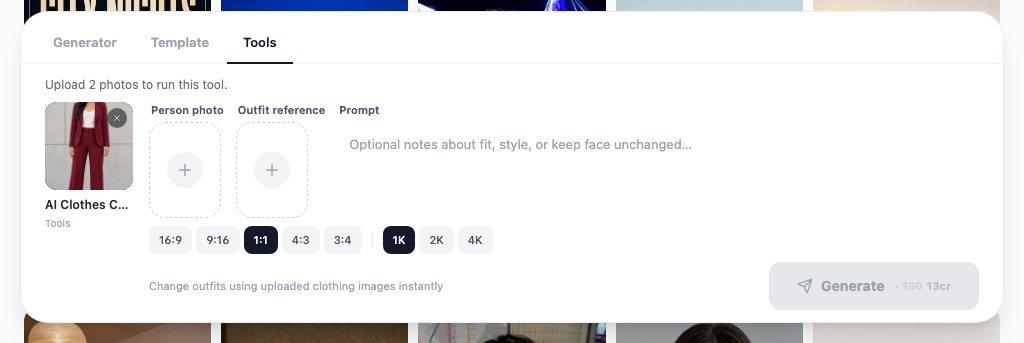
An AI clothing mockup generator has a harder job than a packaging one, because fabric folds, print placement and a human body all have to be right at once. In LazyKiwi the route is the AI clothes changer: upload a person photo and a picture of the garment with your design on it, and the tool puts that garment on the person while leaving the face and pose alone. It is also where much of the site's referral traffic lands: in LazyKiwi site data for the 90 days to 2026-09-04, chatgpt.com was the second-largest source after direct, at 300 sessions, arriving mostly on the clothes changer and logo animation pages.
How do you get the print area to look real?
- Make the outfit reference a flat, front-on photo or render of the printed garment, not a floating graphic. The tool copies what it sees.
- Ask for the print to sit 'centred on the chest, undistorted by folds' in the notes field. Say the garment weight: 'heavyweight cotton' folds differently from 'thin jersey'.
- Use a person photo with soft frontal light. Hard side light casts shadows across the print that the model then invents.
- Keep the chest visible: arms down, no bag strap, no jacket over the shirt.
- For hoodies and caps, generate one angle at a time; three-quarter views drift more than front views.
Oversized heavyweight black cotton tee, supplied chest graphic centred and undistorted by folds, matte print, soft frontal studio light, keep the face and pose unchanged, waist-up framing.
For posters and wall art the AI poster generator takes one image and a description of what the poster is for, then builds the layout around it, which makes it the quickest way to preview print-on-demand wall art before a listing goes live.
Which AI mockup generator tools are worth comparing?
Most 'mockup generators' in print-on-demand are template systems tied to a catalog, and that is fine when you sell through that catalog. The table separates the two kinds. Every row was read from the vendor's own page on 2026-09-06; where a page blocked automated reading, the row says so rather than guessing a price.
| Tool (checked 2026-09-06) | Type | Free access | Notes |
|---|---|---|---|
| LazyKiwi | AI scene generation from your image | Free tier, 40 credits each month | Product, clothes, poster and background tools share one credit balance |
| Printful | Template mockups of Printful products | Free mockups of catalog products | Ties mockups to items Printful prints and ships |
| Printify | Template mockups of Printify products | Free mockup generator | Same model: catalog products, print-on-demand fulfilment |
| Placeit | Template library (apparel, devices, print) | Free account listed; paid tier for downloads | Pricing page sat behind a bot check on 2026-09-06 |
| Smartmockups | Template library, now part of Canva | Not verified | Site redirected to Canva mockups; Canva blocked automated reading |
| Mockup World | Curated free PSD mockups | Free downloads | Manual Photoshop work, no generation |
Printful describes its tool as a free mockup generator for its own products with no upfront costs, per Printful (2026), and Printify positions its generator the same way for its catalog, per Printify (2026). Placeit lists a free account and a paid download tier on its site, per Placeit (2026); its plans page put a bot check in front of our request. Mockup World (2026) remains the reference for free PSD mockups when you want exact print placement and have Photoshop.
Is there a free AI mockup generator?
Yes, with limits. Searches for an AI mockup generator free of charge split into two answers. For template mockups of print-on-demand products, Printful and Printify are free for their own catalogs and Mockup World gives away PSDs. For a generator that renders a new scene free of charge, LazyKiwi's Free plan, which every account starts on, adds 40 credits monthly without a card, per the pricing page. With the tools reading 13 credits on the day, that buys a few renders a month; regular use needs a paid plan, which lists no-watermark exports.
Free mockups from template libraries carry their own cost: licence terms that may restrict commercial use, and the same shirt-on-model photo that every other seller downloaded. Photoroom, which lets you start free and trial its Pro plan for product staging, per Photoroom (2026), is worth a look if you want a second AI option to compare against.
What prompts produce usable mockups?
The prompt structure is the same for every product type: what stays fixed, then surface, environment, light, camera, one or two props, framing, exclusions. Material words do more than adjectives. 'Kraft paper' and 'brushed aluminium' change the render; 'premium' does not.
Keep the supplied box unchanged, including the printed label. Place it on a pale oak tabletop in a bright kitchen, daylight from a window on the right, gentle grounding shadow, a ceramic bowl behind it out of focus, three-quarter view at eye level, square framing, space on the right for text. No extra boxes, hands or new text.
Keep the supplied phone case exactly as uploaded. Show it on a dark slate surface, hard directional light from upper right with a soft fill, realistic matte plastic texture, straight-on top-down camera, 4:5 framing, no props, no text.
Frame the supplied artwork as an A2 poster in a thin black frame on a white plaster wall, natural daylight from a window on the left, slight glass reflection, a plant edge in the lower corner, straight-on camera, 4:5 framing.
Heavyweight cream hoodie, supplied graphic centred on the chest, undistorted, matte print, keep the face and pose unchanged, soft frontal light, waist-up.
When you need a product rebuilt from a different camera position rather than placed into a scene, GPT Image 2 accepts reference images alongside the text and tops out at 2K on its model page; attach the product as the reference and describe the angle. Expect to paste the exact logo back afterwards; re-rendered lettering is the first thing to check.
What mistakes make AI mockups look fake?
An AI product mockup generator fails in the same handful of ways, and each one shows up at full zoom beside the source file.
- Warped logos and drifting letters: the render re-drew the artwork. Fix: paste the original over the render, or keep the product pixels with the background changer.
- Impossible print placement: a chest graphic that crosses a seam or wraps under an arm. Fix: front-on reference, 'centred and undistorted' in the notes, one angle per render.
- Scale drift: a mug rendered as tall as a bucket, a poster as wide as the sofa. Fix: name a familiar object to real-world size inside the prompt.
- Over-glossy surfaces: plastic-looking cotton and mirror-like cardboard. Fix: name the material and add 'matte' where true.
- Floating products: no contact shadow, or a shadow that disagrees with the light. Fix: describe the light direction and ask for a contact shadow.
- Template fatigue: the same stock model every competitor uses. Fix: generate the scene, then verify the print.
- Passing a concept as a spec: sending an AI render to a printer as if it were the dieline. Fix: label concepts as concepts.
A mockup earns its keep when a buyer cannot tell it was never photographed, and a printer is never asked to trust it.
— LazyKiwi creator playbook
Anyone selling through Amazon's print-on-demand program should also read the Merch on Demand (2026) content pages before uploading; mockups there are generated by the platform from your artwork, so the AI version is for your own marketing, not the listing. Shopify's photography guide is the sensible companion for what a listing image should look like in the first place, per Shopify (2026).
Key takeaways
- An AI mockup generator renders a new scene around your design; a template mockup pastes the design into a fixed photo. Use AI for scenes and concepts, templates for exact print placement, or both together.
- Four LazyKiwi tools cover mockups (product image, background changer, clothes changer, poster generator); each read 13 credits per run on 2026-09-06, and every account starts with 40 monthly credits on the Free plan.
- Printful and Printify offer free template mockups tied to their own catalogs; Placeit lists a free account and a paid download tier; Mockup World gives away PSDs for Photoshop.
- Apparel mockups need a front-on outfit reference, soft frontal light on the model and one angle per render; say 'centred and undistorted' in the notes.
- Inspect every render at full zoom beside the source: warped lettering, print across seams, wrong scale and missing contact shadows are the four tells of a fake mockup.
Commercial Imagery Editor
Elena Vasquez
I came from product and property photography, so I care about the boring parts: scale, shadows, disclosure rules, and what a listing platform will reject.
FAQ
Common questions
Can AI generate mockups from a logo?
Yes, but not directly from a logo file alone. Place the logo on a simple product render or a photo of the real item first, then feed that image to the product image generator or background changer so the scene is built around it. Feeding a bare logo to a text-to-image model produces a new object with a re-drawn logo, which usually needs the original pasted back on afterwards.
How do I make a t-shirt mockup with AI?
Upload a person photo and a front-on picture of the printed shirt to the AI clothes changer, add notes such as 'heavyweight cotton, graphic centred and undistorted, keep the face and pose unchanged', pick a ratio and generate. A run was 13 credits on 2026-09-06. Inspect the print at full size for drift across seams, and rerun with one change if the placement is off.
Are AI mockups good enough for Etsy listings?
For lifestyle and scene images, yes, provided the design in the render matches what the buyer receives. For the image that shows the print itself, a template mockup or a photo of a real sample is safer because AI re-renders artwork and can bend lettering. Many sellers use an AI scene as the first image and a template or sample photo as the second.
Which is better, Placeit or an AI mockup generator?
They solve different problems. Placeit is a template library with a free account and a paid download tier, so it wins when you need a known angle and exact print placement quickly. An AI mockup generator wins when the scene, angle or product does not exist as a template. Placeit's plans page was bot-checked on 2026-09-06, so confirm current prices on the site.
Can I use AI mockups for Amazon Merch?
Only for your own marketing. Merch on Demand generates the listing images from the artwork you upload, so an AI-rendered shirt cannot replace them on the product page. AI scenes are useful for social posts and ads that send traffic to the listing, and the artwork you upload to Amazon must be the original file, not a render.
Generate a mockup from one image
Upload a packaging render or product photo, get the studio version, then a lifestyle scene, and paste your exact logo back before export.
Keep reading
AI Product Photography: White Background to Branded Scene
AI product photography in practice: shoot on a phone, get a white-background image, swap in a branded scene, upscale, and export to Amazon and Google rules.
8 min read
AI Real Estate Photo Editing: A Workflow Agents Can Trust
AI real estate photo editing that stays on the right side of the line: exposure fixes, clutter removal, labelled virtual staging, a pre-publish checklist.
7 min read
Best AI Interior Design App in 2026: 7 Tools Compared
The best AI interior design app depends on the job: LazyKiwi, Homestyler, Planner 5D, RoomGPT, REimagineHome, Spacely and Collov compared, prices read now.
8 min read