
AI GIF Generator: Make Reaction GIFs From Video or Text
Use an AI GIF generator two ways, video to GIF or text to a short loop, then trim, convert and upload it where people search, with every limit cited.
 Maya Chen 10 min read
An AI GIF generator is any workflow where a model produces the frames and a converter turns them into a looping GIF: a text prompt becomes a three-second clip, a clip becomes a loop, a still becomes a blink. There is no magic single button; there is a short video model, a trim, and a converter with the right settings. This guide covers both directions, video to GIF and text to GIF, in the LazyKiwi workbench as of September 2026, with the converter limits, the upload rules and the mistakes that make a GIF unusable in a chat window.
What is an AI GIF generator and how does it work?
Three routes exist, and they differ only in what goes in. Video to GIF takes footage you already have and cuts one moment into a loop. Text to GIF generates a short clip from a prompt and converts it. Image to GIF animates a still, a blink or a head turn, and loops it. In every case the model makes motion and a converter makes the file; the AI part ends before the GIF exists.
That matters because GIF is an old, small format. It carries no sound, a limited palette and every frame in full, so file size climbs fast with length, frame rate and dimensions. EZGIF's converter states the trade-off plainly: at 5 fps it allows a 60-second selection, at 10 fps only 30 seconds, and the upload cap is 200 MB, per EZGIF (2026). Everything in this guide is about generating less and cutting more. Frame rate is also what gives stop motion its feel, and that guide explains how shooting on twos or threes changes the result.
Why generate a video first instead of a GIF?
- Video models output MP4; a GIF is a downstream export, so AI generated GIFs all start life as clips.
- The clip keeps colour and sound, which means you can also post it as a Short or a Reel from the same render.
- Trimming a video is precise to the frame; trimming a GIF after the fact re-encodes and softens it.
- Templates such as facial punch and zoom eyes are designed as short loops already, so the conversion is a formality.
How to make an AI generated GIF step by step
This is the text-to-GIF route, which is the one people mean when they search for a gif ai generator. It costs a handful of credits per draft when you pick the cheap model and the lowest resolution, and the whole loop is done in a few minutes.
- 1
Write a one-action prompt
One subject, one movement, a plain background and a return to the starting pose. A reaction GIF is a single beat, and a prompt with two beats gives you a clip that never loops cleanly.
- 2
Pick the cheap model for drafts
In the AI video generator I draft with LTX-2.3, whose model page lists text-to-video and image-to-video, clips up to 10 seconds, and a promo credit tier; the workbench shows its price on the button. Draft at 480p; the GIF will be smaller than that anyway.
- 3
Set the shortest duration
Choose the shortest duration chip. Three to five seconds is more than a loop needs, and every extra second is credits now and kilobytes later.
- 4
Generate and mark the loop
Scrub the result and note the frame where the pose returns to the start. That pair of frames is your loop; the rest is trimmed.
- 5
Re-render the keeper if it needs polish
For a GIF that will be posted somewhere permanent, re-run the winning prompt with Seedance 2.0, whose page lists text and image input, up to 60 seconds and up to 1080p. For a chat reaction, the draft is usually enough.
- 6
Convert, then check the first frame
Upload the trimmed MP4 to a converter, set the start and end time, and export. Open the GIF and look at frame one: it is the thumbnail in most chat previews, so it should already show the expression.
A person in a plain grey hoodie faces the camera, slowly raises both eyebrows, holds for a beat, then relaxes back to a neutral face. Static camera, plain wall, soft light, no text, no other movement.
Loop from the middle
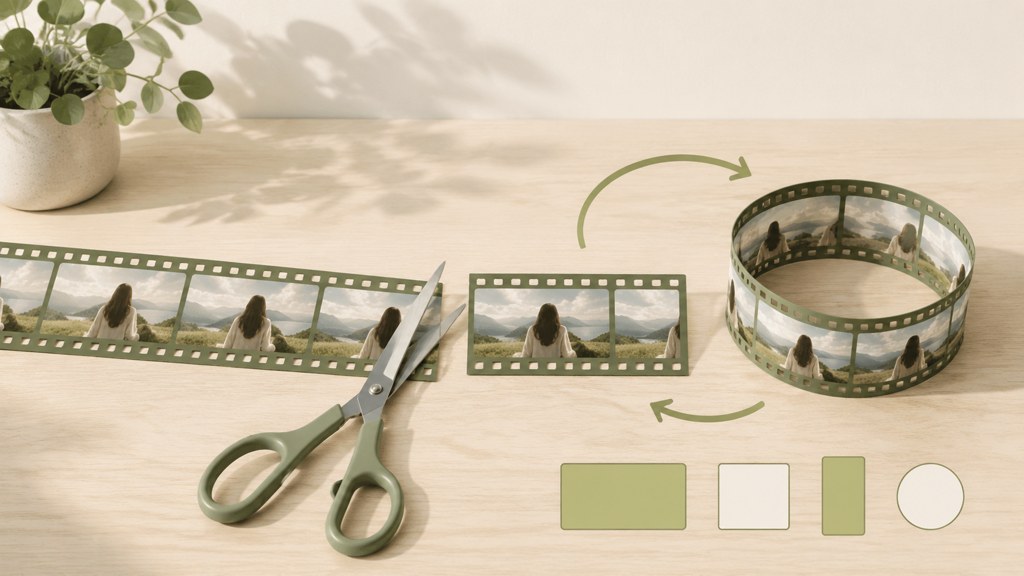
Ask for the pose to return to neutral at the end. If it does not, cut the clip so it starts and ends on the two most similar frames, even if that means dropping the first second.
How to turn a video into a GIF with AI
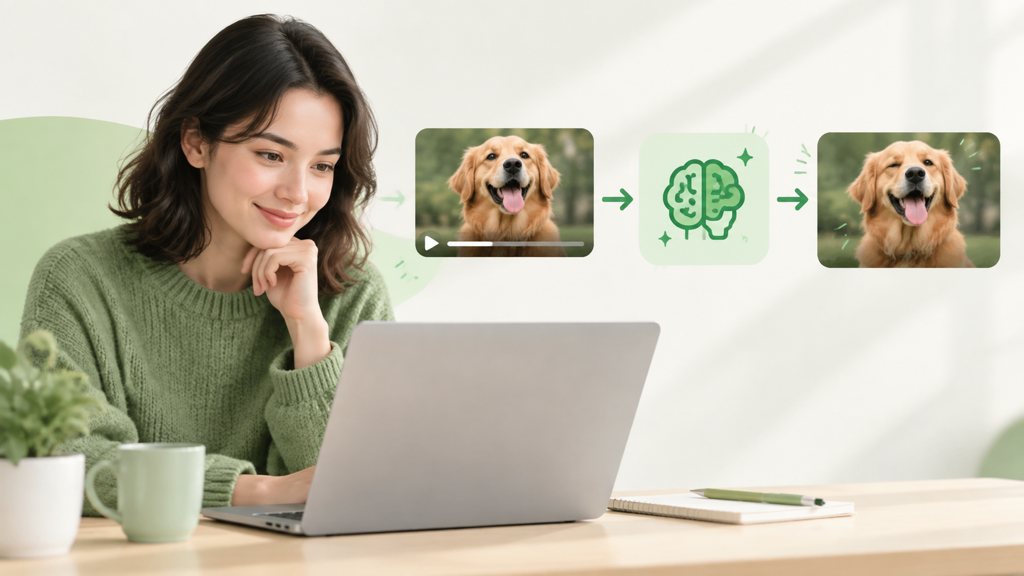
Video to GIF is the older workflow and still the most common. The AI here is optional and sits before the conversion: it sharpens the source, smooths the motion, or adds an effect to the moment you are looping. The conversion itself is a converter setting, not a model. An animated logo GIF starts the same way, from a short reveal clip, and our animated logo post covers how long that reveal should run and which patterns read in under three seconds.
What settings matter when you convert?
| Setting | What to pick | Why |
|---|---|---|
| Frame rate | 10 to 15 fps for reactions | Halving fps halves the file; EZGIF caps clip length by fps, so lower fps also allows longer loops |
| Dimensions | Around 480 px wide for chat, larger only for feeds | Every pixel is stored per frame; width is the biggest lever after length |
| Length | Under 3 seconds | Chat apps autoplay on loop; the joke should repeat, not run |
| Loop count | Infinite (0 in EZGIF) | A GIF that stops after one pass reads as broken |
| Colours | Fewer, with a plain background | GIF palettes are small; gradients and confetti band and bloat |
Two enhancements are worth running before you convert. The AI video enhancer raises resolution and clears compression blocks from old phone footage, and its tool page says it needs no prompt or settings; in the workbench it also offers frame interpolation, which turns a choppy source into a smooth loop before the fps cut. Run it on the trimmed clip, not the whole video, so the credits go to the seconds you keep.
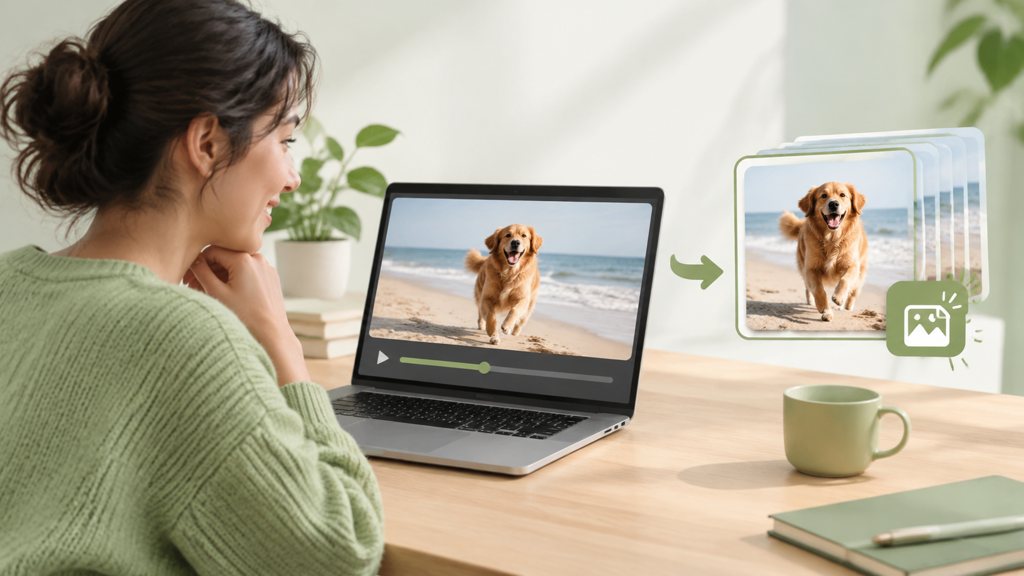
Kapwing's GIF maker converts uploaded video or images in the browser and is free to start, per Kapwing (2026), and CapCut lists a free online GIF editor for adding text and stickers to an existing GIF, per CapCut (2026). I keep EZGIF for the actual conversion because it exposes the fps and loop settings above without an account. For papercraft-style loops, our roundup of paper animation tools compares the free options, including ones that work from a photo.
What prompts make good reaction GIFs?
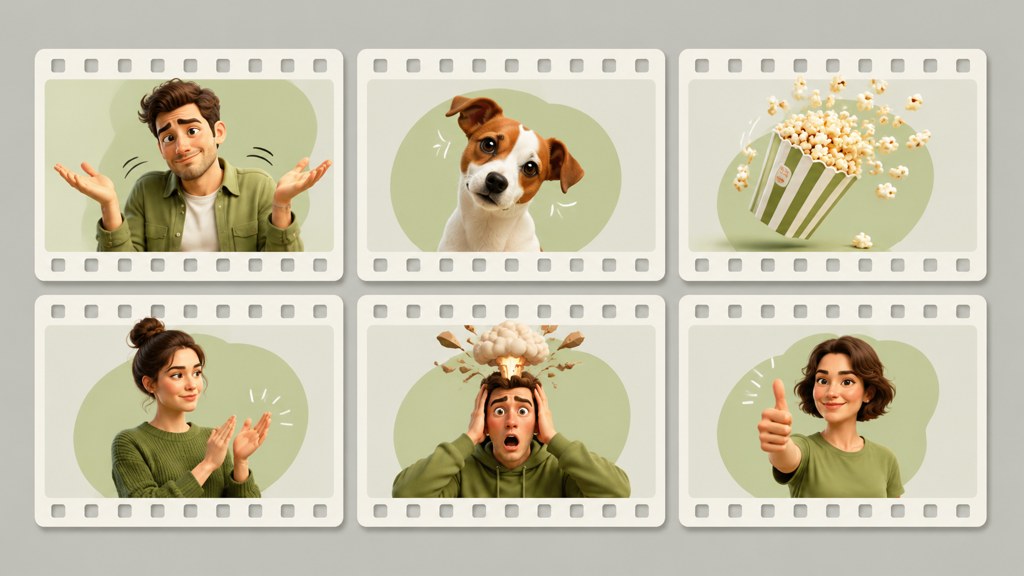
A reaction GIF has to read at thumbnail size with the sound off, so prompts favour big, single motions over subtle acting. The templates below skip the prompt entirely: each takes one photo and returns a short clip built around one exaggerated beat, which is exactly what a loop needs.
The facial punch template is a stylised impact reaction from one portrait; its page says the stop-motion jolt hooks viewers in the first half second, which is another way of saying it loops. The zoom eyes template drives a hard push-in to the eyes for a dramatic reveal, and the AI flip template mirrors a clip horizontally for a drip-flip style reveal, which pairs well with an outfit or product joke.
Which motions loop and which do not?
- Loops: a blink, a nod, an eyebrow raise, a slow zoom that resets, a punch reaction that snaps back.
- Loops with a cut: a head turn (cut before the turn back), a sip, a clap.
- Never loops: walking out of frame, a pan across a room, anything that ends in a different place than it started.
- Prompt phrasing that helps: static camera, plain background, returns to the starting pose, no text in frame.
The person in the photo blinks once, tilts their head slightly to the left, then straightens. No camera movement, same lighting, no other motion, two seconds.
Is there a free AI GIF generator?
Yes, if you accept that the generation and the conversion are two free things rather than one. Searches for ai gif generator free mostly land on converters, which are free but do not generate. The generation side runs on the LazyKiwi free plan, which the pricing page lists at 40 credits a month with a monthly refresh and no card, and the conversion side is EZGIF or Kapwing at no cost. A free AI GIF generator, in practice, is that pair.
Watermarks are the thing to check. The LazyKiwi pricing page lists no-watermark exports as a paid-plan feature, so a free-plan clip may carry one; crop it before conversion or keep it out of the loop area. Converters generally leave your file alone, but any tool with a Pro tier should be assumed to mark free output until you have seen an export.
How many GIFs do the free credits cover?
It depends on the model and the chips. An LTX draft at the lowest resolution costs a small fraction of a full-resolution render, and the exact number is on the Generate button before you click. My rule is one draft per idea, one re-render per keeper, and everything else is trimming.
Which AI GIF generator tools are worth comparing?
The market splits into generators, converters and hosts, and most AI GIF generator tools are one of the three wearing the name of another. Below is what each does, verified on its own page on 2026-09-05.
| Tool | Role | Free access (checked 2026-09-05) | Notes |
|---|---|---|---|
| LazyKiwi + EZGIF | Generate, then convert | Free plan with monthly credits; EZGIF free | Full control of the clip and the fps and loop settings |
| GIPHY | Host and search | Free account; API and SDK for apps, per [GIPHY Developers (2026)](https://developers.giphy.com/) | Where reaction searches happen; publishes to the keyboards |
| Tenor | Host and search | API page carries a service discontinuation notice, per [Tenor (2026)](https://tenor.com/gifapi) | Check before building anything on it |
| Kapwing | Convert and edit | Free to start, per [Kapwing (2026)](https://www.kapwing.com/tools/make/gif) | Browser editor with text and stickers |
| CapCut | Edit an existing GIF | Free online GIF editor listed on its tools hub, per [CapCut (2026)](https://www.capcut.com/tools) | Text, filters and stickers, not generation |
Can you upload AI GIFs to GIPHY?
GIPHY's developer site describes itself as the largest GIF search engine, serving more than 10 billion GIFs a day, and its docs include community guidelines and a rating system that uploads are held to, per GIPHY Developers (2026). Nothing there bars generated content; the guidelines are about what the GIF shows, not how it was made. Tag it honestly, keep real people you do not have permission from out of it, and label it as AI where the platform you post it to asks, which TikTok does for realistic AI media on its AI-generated content help page (2026) and Meta does through its AI info label, per Meta Newsroom (2024).
What mistakes make AI GIFs unusable?
Unusable means it does not send, does not load, or does not land. These are the faults behind each, in the order I meet them.
- 1
Too long
A ten-second loop is a video with the sound missing. Cut to the beat and its return.
- 2
Huge file
Full-resolution conversion at the source fps makes GIFs that chat apps refuse or compress into mud. Drop dimensions and fps before length.
- 3
A seam in the loop
If the last frame does not match the first, the viewer sees the jump on every pass. Trim to matching frames or ask the prompt for a return to neutral.
- 4
Text that dies on resize
Caption text generated inside the frame turns to noise at chat size. Add text after, or leave it to the message around the GIF.
- 5
A busy background
Gradients, confetti and moving crowds fight the palette and balloon the file. Plain wall, one subject.
- 6
Skipping the label
A photoreal person doing something they did not do is exactly what the platform rules target. Label it or make it obviously stylised.
Fix length and file size and the GIF sends anywhere. Fix the seam and it gets reused, which is the only metric that matters for a reaction.
Key takeaways
- Every AI GIF starts as a short video: generate a one-beat clip, trim to the loop, then convert; the model never writes the GIF itself.
- Draft with LTX-2.3 at 480p and the shortest duration, and re-render a keeper with Seedance 2.0 only when the loop is going somewhere permanent.
- Convert at 10 to 15 fps, around 480 px wide, under three seconds, infinite loop; EZGIF caps a 10 fps selection at 30 seconds and uploads at 200 MB.
- Facial punch, zoom eyes and AI flip templates produce single-beat clips from one photo that loop without a prompt.
- The LazyKiwi free plan lists 40 monthly credits with no card; pair it with a free converter and check exports for watermarks before posting.
Image & Design Editor
Maya Chen
I spend my days inside image tools, testing prompts and settings on real photos so the steps here match what you actually see on screen.
FAQ
Common questions
Can AI generate GIFs?
Indirectly. Video models generate short MP4 clips from text, an image or a reference video, and a converter turns the trimmed clip into a GIF. No mainstream model writes GIF files natively, which is why every AI GIF generator is really a video generator plus a converter such as EZGIF or Kapwing.
How do I make a GIF from an AI video?
Download the clip, trim it to the single beat you want to loop so the first and last frames match, then upload it to a converter, set the start and end times, choose a low frame rate and an infinite loop, and export. Check the first frame afterwards, because it is the preview thumbnail in most chat apps.
What size should a GIF be for Slack or WhatsApp?
I could not find a published size cap on either platform's help pages today, so I do not quote one. In practice both transcode uploads and struggle with large files; keep the loop under three seconds, around 480 pixels wide and at 10 to 15 fps, and send a test to yourself before sharing it with a group.
Is this GIF AI generated?
Look for the usual tells: fingers that change count between frames, text that warps, a background that breathes, or lighting that shifts with no camera move. A perfectly clean loop from a single photo is also a hint. When you post your own, label it as AI wherever the platform asks so nobody has to guess.
Can I upload AI GIFs to GIPHY?
Yes. GIPHY's developer documentation covers community guidelines and a rating system for content, and neither bars generated GIFs; the rules concern what the GIF depicts. Tag it accurately, avoid real people without permission, and remember that Tenor's API page currently shows a discontinuation notice, so GIPHY is the safer host for reach.
Generate the clip, then loop it
Pick a one-beat template or write a one-action prompt, draft at the lowest resolution, and convert only the seconds that loop.
Keep reading
AI Video Effects That Stop the Scroll: A 2026 Hook Guide
Which AI video effects stop the scroll, how to add one to a photo or clip in minutes, and what the free tiers really cover, checked on official pages.
10 min read
How to Make an AI Baby Meme (Video and GIF) in 2026
Where the AI baby meme came from, how to make the image, video and GIF versions from one photo, caption formats that land, and the label rules per platform.
9 min read
How to Make AI Cat Videos People Actually Watch (2026 Guide)
Make AI cat videos from one photo with models that keep paws and eyes honest, run the dance templates, keep one cat across a series and test free.
9 min read
How to Make an AI ASMR Video That Feels Satisfying
Create an AI ASMR video with tactile visuals, controlled motion, synchronized sound, and a seamless loop viewers will want to replay.
8 min read