
AI Animation Generator: Animate Illustrations Into Clips
Turn a drawing or still into motion with an AI animation generator: image-to-video steps, text and anime routes, free tiers checked today and fixes.
 Daniel Okafor 10 min read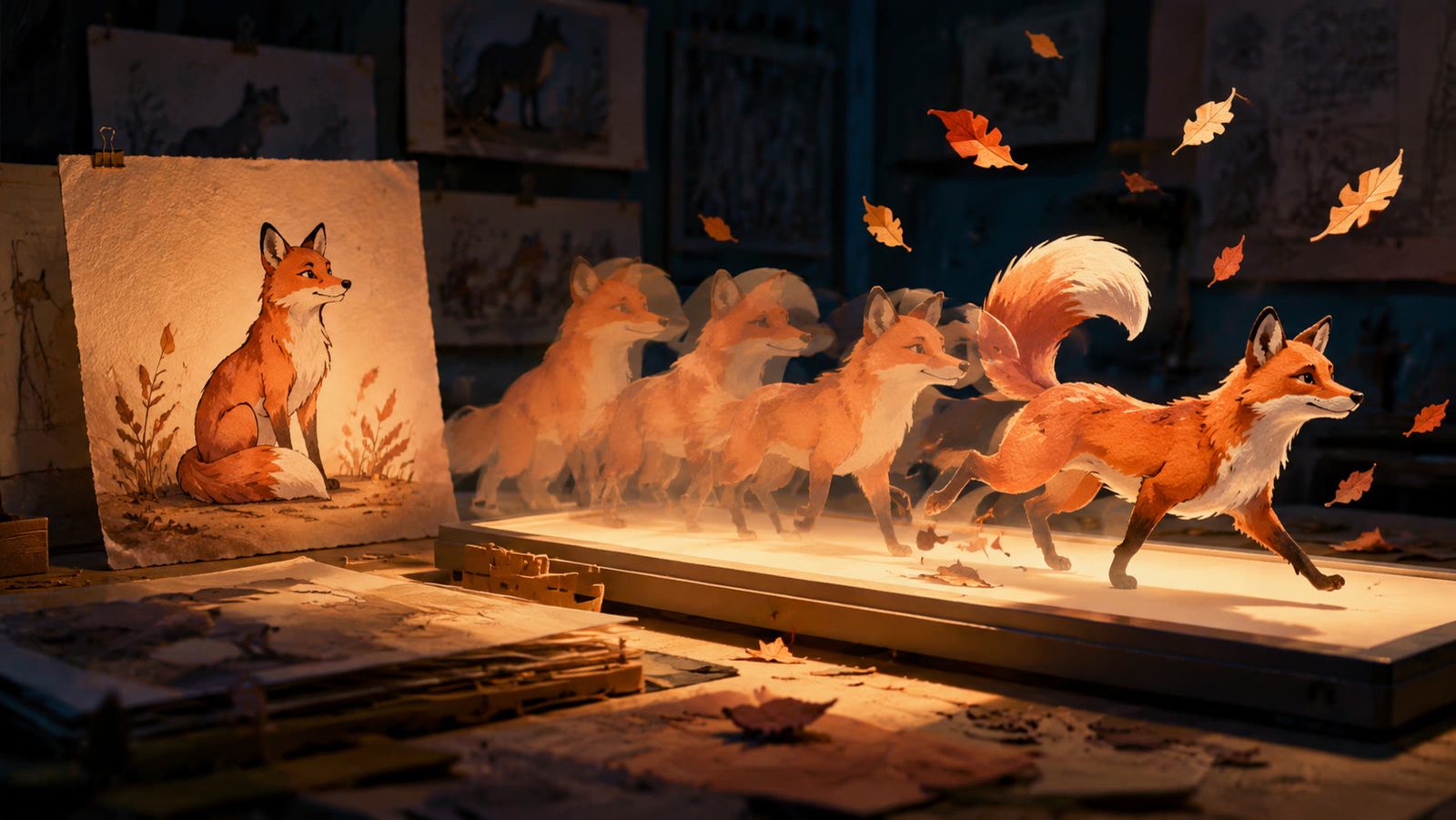
An AI animation generator takes a finished illustration, photo or character sheet and infers a few seconds of motion from it: a breath, a head turn, a camera push, petals crossing the frame. You do not draw in-betweens, and you do not rig anything. What you do control is the source image, the motion prompt and the model, and those three choices decide whether the clip looks animated or looks broken. This guide runs the image-to-video route in the LazyKiwi workbench with Kling v3 Omni and Wan 2.7, then covers text-to-animation, the anime route, free tiers we checked on vendor sites, and the mistakes that show up most.
What does an AI animation generator do with a still image?
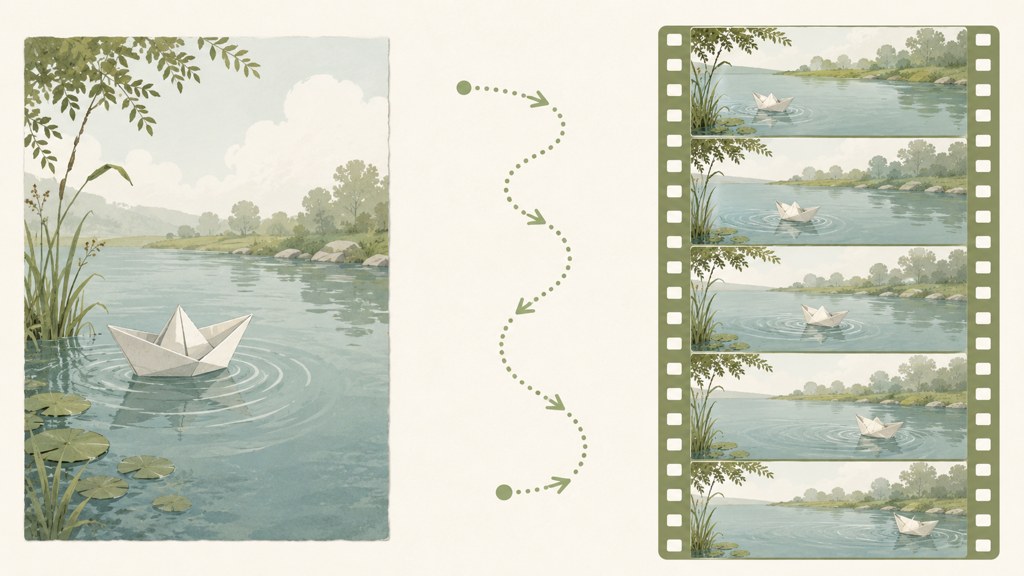
An image-to-video model reads the depth, the subject and the lighting in one frame, then predicts the next frames under the motion you describe. It is closer to a cinematographer than to an animator: it moves the camera and the subject plausibly, but it does not understand your character's skeleton, and it will redraw a line-art face if you ask for too much. Three style families behave differently under that constraint.
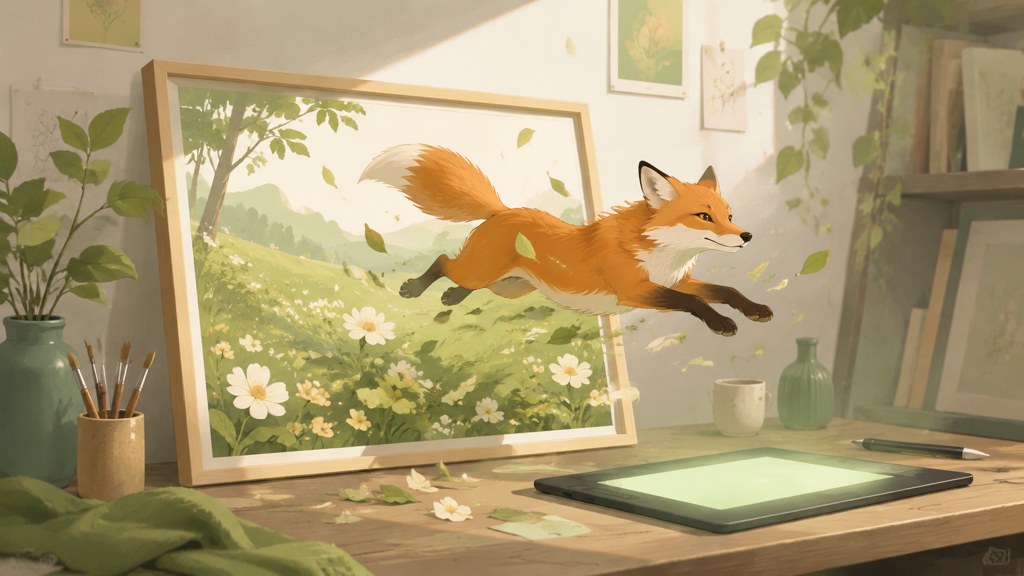
- Photographic and painterly: the model's home ground; parallax, breeze and small gestures come out clean.
- 3D-look renders: rounded, soft-shaded characters survive motion well because volumes are easy to infer; the Pixar-style template below produces this kind of still.
- 2D and anime line art: flat colour and thin lines shimmer if the motion is large; keep it to breathing, blinks and hair, and let the camera do the rest.
What are the hard limits?
Clip length, resolution and fidelity to the source. In LazyKiwi, Kling v3 Omni runs 3 to 60 seconds from a text prompt, one image or a start-and-end pair at 720p or 1080p in 16:9, 9:16 or 1:1, according to its model page. Wan 2.7 is image-only: 2 to 60 seconds from one still, 2 to 15 for a keyframe pair, 720p or 1080p with 1080p the default, and the clip inherits the aspect ratio of the image you upload. Neither model animates a layered file or a sprite sheet; they take one flat picture.
How to animate an image with AI step by step
Here is the image to animation AI workflow we use for an illustration. The order is deliberate: preparation happens in your drawing app, the prompt describes motion only, and every render is judged frame by frame before another credit is spent.
- 1
Flatten the illustration with headroom
Export a single PNG at the target aspect ratio with space around the character. The model needs somewhere for a head turn or a camera drift to go; a tight crop forces it to invent edges.
- 2
Open image mode and load the still
In the AI video generator switch to image mode, drop the PNG into the Ref slot and pick Kling v3 Omni for a prompt-heavy clip or Wan 2.7 when the image must dominate and the ratio must not change.
- 3
Write a motion-only prompt
Describe what moves and nothing else: 'she breathes slowly, blinks once, hair lifts in a light breeze, camera pushes in a few percent, line weight and colours unchanged'. Adjectives about style tell the model to repaint; verbs about motion tell it to animate.
- 4
Set the shortest duration first
Five seconds at 720p is the test setting. Kling's button read 829 credits for that on the day we checked and Wan's read 473, so a bad 20-second 1080p take is the expensive mistake to avoid; the pricing page explains that credits scale with model, duration, resolution and output count.
- 5
Generate and scrub
Play it once at speed, then step through the frames around the blink and the hair. Reject any take where an eye changes shape, a hand grows a finger or the outline thickness drifts. Change one thing in the prompt and run again.
- 6
Loop or extend
For a looping avatar, cut on the exhale so the last frame matches the first. For a longer piece, use the start-and-end frame mode with your final frame as the next clip's start.
- 7
Export at the platform ratio
Download, then add sound and captions in your editor. The 9:16 setting is the one for Shorts, Reels and TikTok, and looking at LazyKiwi workbench usage for August 2026 it was the ratio on 22 of 39 external video jobs; 16:9 is for a YouTube intro or a portfolio page.
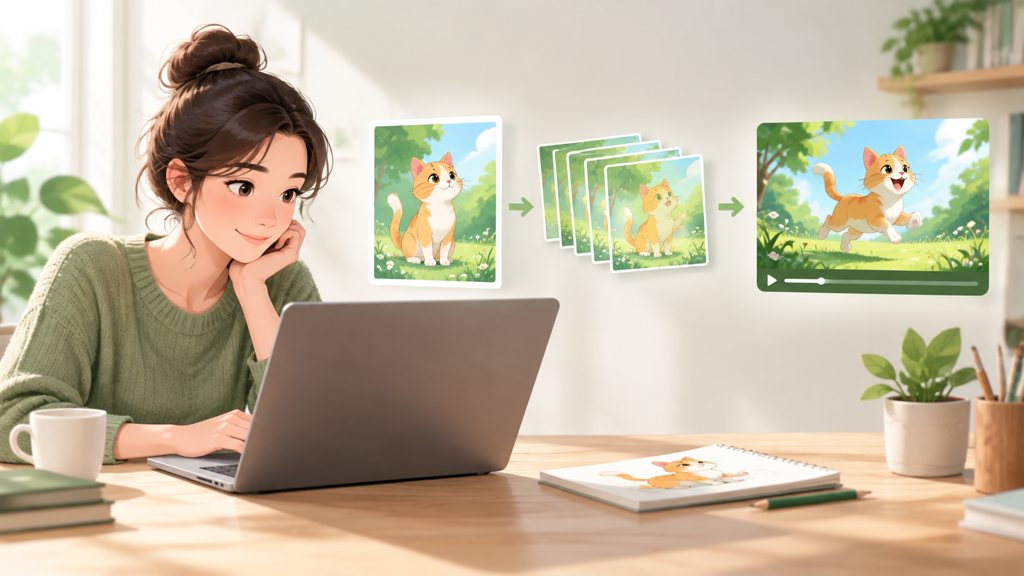
Keep a 'motion vocabulary' file: the ten verbs that worked (breathes, blinks, lifts, drifts, pushes in, tilts, sways, flickers, settles, glances). Prompts built from that list stay predictable across a series.
How to generate an animated video from text
When there is no drawing yet, there are two ways to get an animated look from text. The one-step way is a text-to-video prompt with the style baked in; the two-step way is a styled still first, then image-to-video. Two steps cost more clicks and fewer credits, because you approve the design before paying for motion. If you want the hand-made look of stop motion instead, our guide on how to make a stop motion video covers both shooting it frame by frame and simulating it with AI.
One step: text to video with a style prompt
Kling v3 Omni accepts a text prompt directly. Lead with the medium, then the shot, then the motion: '2D cel animation, flat colours, thick clean outlines, limited palette; medium shot of a courier on a bicycle; she pedals, the background parallaxes, camera tracks sideways'. Camera vocabulary matters: pans, tilts, dollies and tracking shots are named moves that the model recognises, and the StudioBinder camera movement guide (2026) is a good source of the exact terms.
Two steps: styled still, then motion
Generate the character in an image template such as the Pixar-style 3D look, which turns a photo or prompt into a rounded, soft-shaded render, then send that still through image mode with a motion-only prompt. The 3D look is the safest of the three style families to animate, because the model infers volumes from soft shading far more reliably than it infers them from line art.
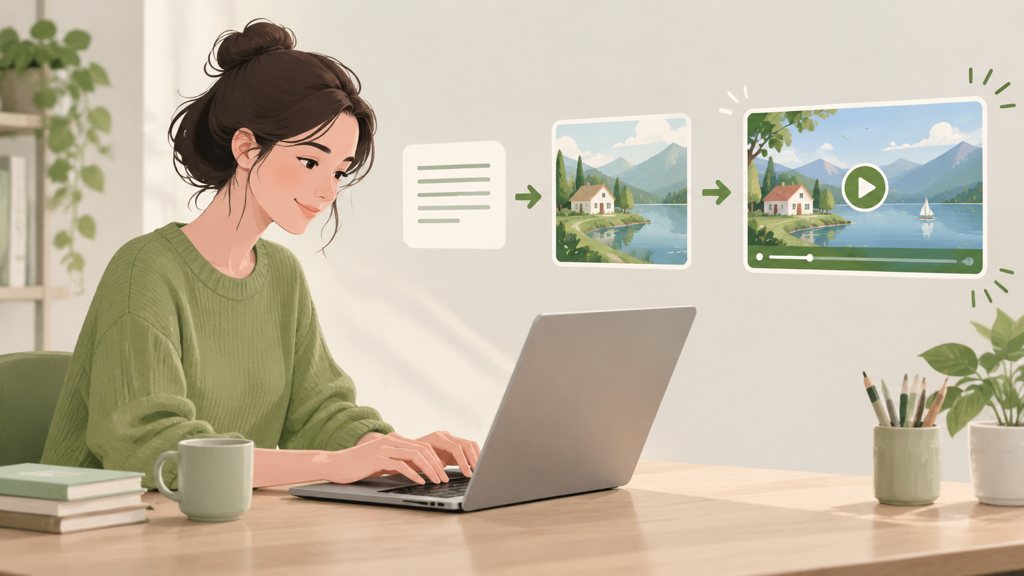
2D cel animation, flat colours, thick clean outlines, limited warm palette. Medium shot of a courier girl on a bicycle riding along a canal at dusk. She pedals steadily, her scarf trails behind her, lamps flicker on one by one, camera tracks sideways at her speed. No style change, no extra characters, no text.
How to use an AI anime generator for illustrated motion
An AI anime generator is the same tool with a stricter brief: anime relies on flat colour, sharp line weight and very specific eye shapes, and all three break the moment the model redraws the face. The working pattern is restraint. Breathing, a blink, a strand of hair, a slow camera drift, and nothing that changes the pose.
The AI anime video template is built for exactly that: its page describes natural breathing, blinking and subtle head micro-motion on one portrait, producing a loop avatar without rigging a Live2D model. In the workbench it opens as the Live2D Motion template under the Camera Motion category.
Which prompts keep the line art intact?
- Lock the elements first: 'preserve line weight, eye shape, hair colour and outfit exactly'. Then add one motion verb.
- Move the environment, not the character: petals, rain, lantern light and parallax read as animation without touching the face.
- Keep dialogue shots separate: a close-up with a still body is far easier than a character who talks, turns and walks in one clip.
- Prefer three-quarter portraits with the face fully visible; profile views lose an eye, and the model invents the second one.
If you are starting from a photo rather than a drawing, convert it to an anime portrait first and animate the result; the companion post on photo-to-anime workflows below covers that conversion in detail.
Is there a free AI animation generator?
Every free AI animation generator we checked is free to try rather than free to produce. LazyKiwi's pricing page lists a Free plan at 40 credits a month with no card required; the 5-second test renders above cost 473 to 829 credits, so the free allowance covers image-side work and a look around, and a video render needs a paid pack. There is one exception: a free 5-second Seedance template in the gallery, which LazyKiwi workbench usage for August 2026 shows was run by 15 external accounts, and which is the cheapest way to see image-to-video motion before spending anything. Runway's pricing page lists a Free plan with 125 one-time credits and a Standard plan at $12 a month billed annually with 625 monthly credits, per Runway (2026). Pika's page lists a free Basic plan with 80 monthly video credits and a Standard plan at $8 a month billed yearly, per Pika (2026).
Two things in LazyKiwi are free in the stronger sense. The logo animation tool composites a PNG or SVG logo into real-world scenes in the browser and exports 720p with no watermark at no charge, per its tool page, and the paper animation tool on the same Motion Studio works the same way. Neither is generative video; both are the kind of ai animation maker that renders frame by frame from your file, which is why they cost nothing per export. Our comparison of paper animation tools covers the free options and how they compare with a general video generator.
- Free to keep: Blender for 3D and 2D grease-pencil animation, which is free and open source per blender.org (2026); LazyKiwi's logo and paper animation exports at 720p.
- Free to try: 40 LazyKiwi credits a month, Runway's 125 one-time credits, Pika's 80 monthly credits, Toon Boom's trial of Harmony and Storyboard Pro.
- Paid: any generative clip at 1080p or longer than a few seconds, on every platform we checked.
Which AI animation video generator is best for each style?
The phrase covers two different product types. Generative tools (LazyKiwi's models, Runway, Pika, Luma) invent frames from a picture or a prompt. Template tools (Animaker, Vyond) assemble pre-drawn characters and scenes into explainer videos; nothing is inferred, so nothing drifts, and nothing looks like your illustration either. The table sorts by style so you pick the right type first.
| Style you want | Tool | What the official page says (2026-09-06) | Note |
|---|---|---|---|
| Illustration or photo brought to life | LazyKiwi Wan 2.7 / Kling v3 Omni | Wan: image-only, 2-60 s, 1080p default, ratio follows the image; Kling: text, image or start-end, 3-60 s, up to 1080p | Free plan 40 credits a month |
| Cinematic generative video | Runway | Free 125 one-time credits; Standard $12 a month billed annually, 625 credits a month | Gen-4.5 and Aleph 2.0 listed |
| Quick social clips with effects | Pika | Free Basic 80 monthly video credits; Standard $8 a month billed yearly | Image-to-video on the free tier |
| Agent-driven multi-model workflow | Luma | Plus $30 a month with 10,000 credits; Pro $90 a month with 40,000 | Commercial use on paid plans |
| Explainer with stock characters | Animaker | Free plan plus Basic, Starter, Pro and Enterprise tiers | Template animation, not generative |
| Corporate training video | Vyond | Free trial; plans on its plans page; text and PowerPoint to video | Template animation with AI avatars |
| Hand-made 2D or 3D | Toon Boom Harmony / Blender | Harmony trial of 14 days; Blender free and open source | You animate; no inference |
Sources for the rows above: Luma pricing (2026), Animaker (2026), Vyond plans (2026), Toon Boom (2026), plus the Runway and Pika pages cited in the free-tier section. Model vendors publish their own pages too: Kling AI (2026) and Wan (2026). For completeness, the video models in the LazyKiwi catalog at the time of writing are Kling v3 Omni, Veo 3.1 Lite, Hailuo, MiniMax H3, Seedance 2.5, Wan 2.7, Happy Horse, Grok Imagine Video, Hunyuan and LTX; Sora 2 is not among them.
Generative or template: how do you choose?
Ask whether the artwork already exists. If you have a drawing, a render or a photo you care about, you need an ai animated video generator that starts from an image, and Wan 2.7 or Kling v3 Omni are the routes in LazyKiwi. If you need a two-minute explainer with a narrator and no art of your own, a template tool is faster and never drifts. Logos sit in between: the Motion Studio route keeps your exact file on screen, which a generative model will not promise. Our animated logo ideas post covers the reveal patterns, how long a logo animation should run and the export settings each platform needs.
What are the most common AI animation mistakes?
Across the clips we reviewed, four failures account for nearly all of the rejects, and each has a specific cause in the prompt or the settings rather than in the model.
| Mistake | How it looks | Fix |
|---|---|---|
| Style collapse | Line art turns painterly halfway through; flat colours gain shading | Add 'line weight and colours unchanged'; cut the motion in half; prefer Wan 2.7 for image fidelity |
| Limb drift | Extra fingers, a hand that melts into a prop, a leg that bends wrong | Keep hands still or out of frame; animate the environment instead |
| Wrong frame feel | A stop-motion or anime look that moves too smoothly and reads as CGI | Ask for held poses and small moves; add the stepped feel in your editor |
| Over-long clips | Identity holds for five seconds, then wanders | Render short takes and chain them with start-and-end frames |
When should you stop regenerating?
After three takes with one variable changed each time. If the face still changes, the source image is the problem: too small a face, a profile view, or detail the model cannot hold. Redraw or re-crop, then return. Spending the fourth and fifth render on the same still is the most common way to burn a credit pack with nothing to show for it.
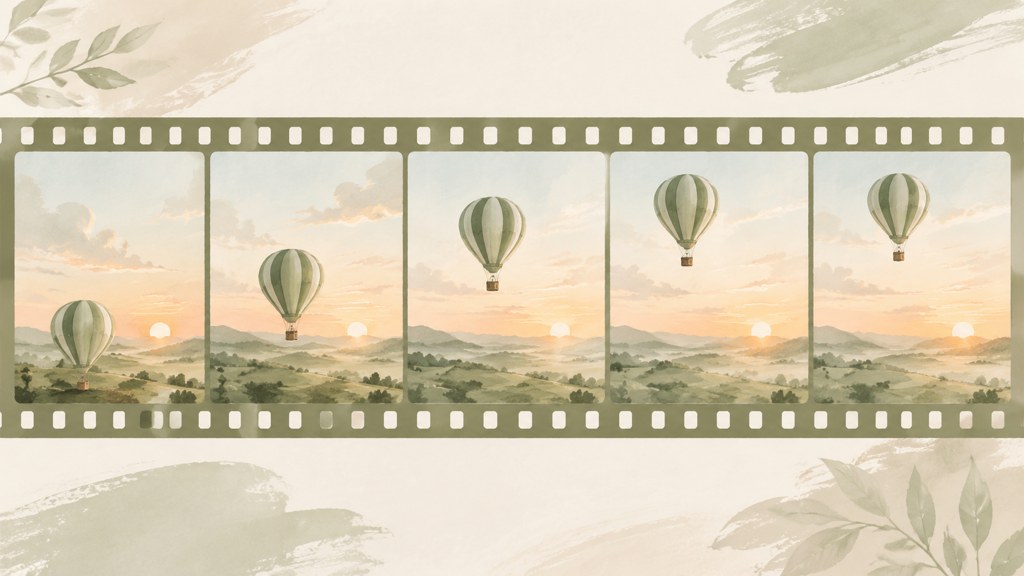
Judge takes muted and at half speed. Motion errors that pass at full speed with music are the ones commenters freeze-frame later.
Key takeaways
- Image-to-video infers motion from one flat picture: Wan 2.7 covers 2 to 60 seconds at up to 1080p and keeps the image's ratio, Kling v3 Omni covers 3 to 60 seconds from text, image or start-end frames.
- Prompt motion, not style: verbs like breathes, blinks, lifts and pushes in animate; style adjectives make the model repaint your line art.
- Test at 5 seconds and 720p, where the buttons read 473 credits (Wan) and 829 credits (Kling) on the day we checked, before any 1080p or 20-second render.
- Free tiers checked today: LazyKiwi 40 credits a month, Runway 125 one-time credits, Pika 80 monthly video credits; the logo and paper animation tools export 720p free.
- Anime and 2D line art need restraint (breath, blink, hair, camera drift); 3D-look stills animate most reliably, and template tools like Animaker or Vyond never drift but never use your art.
Video Workflows Editor
Daniel Okafor
I run the same clip through every video model we ship and write down what actually changes: motion, timing, cost, and where each one falls apart.
FAQ
Common questions
Can AI animate my drawing?
Yes, within limits. Export the drawing as one flat PNG with room around the character, load it in image mode with Wan 2.7 or Kling v3 Omni, and describe motion only: a breath, a blink, hair in a breeze, a slow camera push. Large pose changes and hands are where line art breaks, so keep those still and let the environment and camera carry the movement.
What is the best AI animation generator?
It depends on what you start with. For your own illustration or photo, an image-to-video model such as Wan 2.7 (image-only, keeps the ratio) or Kling v3 Omni (text, image or start-end frames) in LazyKiwi. For cinematic clips from scratch, Runway or Luma. For explainers with stock characters and no art of your own, a template tool like Animaker or Vyond, which never drifts.
How do I animate AI-generated images?
Treat them like any still: approve the design first, then animate. Generate the character in an image model or a style template such as the Pixar-style 3D look, download the PNG, switch the video generator to image mode, and write a motion-only prompt at 5 seconds and 720p. Scrub the result frame by frame, change one variable, and only then spend credits on a longer or 1080p take.
Can I make a cartoon animation with AI for free?
You can test for free and finish for a small spend. LazyKiwi's Free plan lists 40 credits a month; a 5-second 720p test cost 473 credits on Wan 2.7 and 829 on Kling v3 Omni when we checked, so renders need a paid pack. Runway lists 125 one-time free credits and Pika a free tier with 80 monthly video credits. Blender is fully free for hand-made 2D and 3D animation.
Does AI animation work for logos?
Generative models redraw logos, which is usually unacceptable for a brand mark. The LazyKiwi logo animation tool takes the opposite approach: it composites your exact PNG or SVG into real-world scenes, reads the palette from the file, renders in the browser and exports 720p with no watermark for free, per its tool page. Use it for the mark and generative video for the scene around it.
Animate your first illustration
Open image mode, drop in one flat PNG and describe only the motion. Start at 5 seconds and 720p, and check the credit price on the button before you generate.
Keep reading
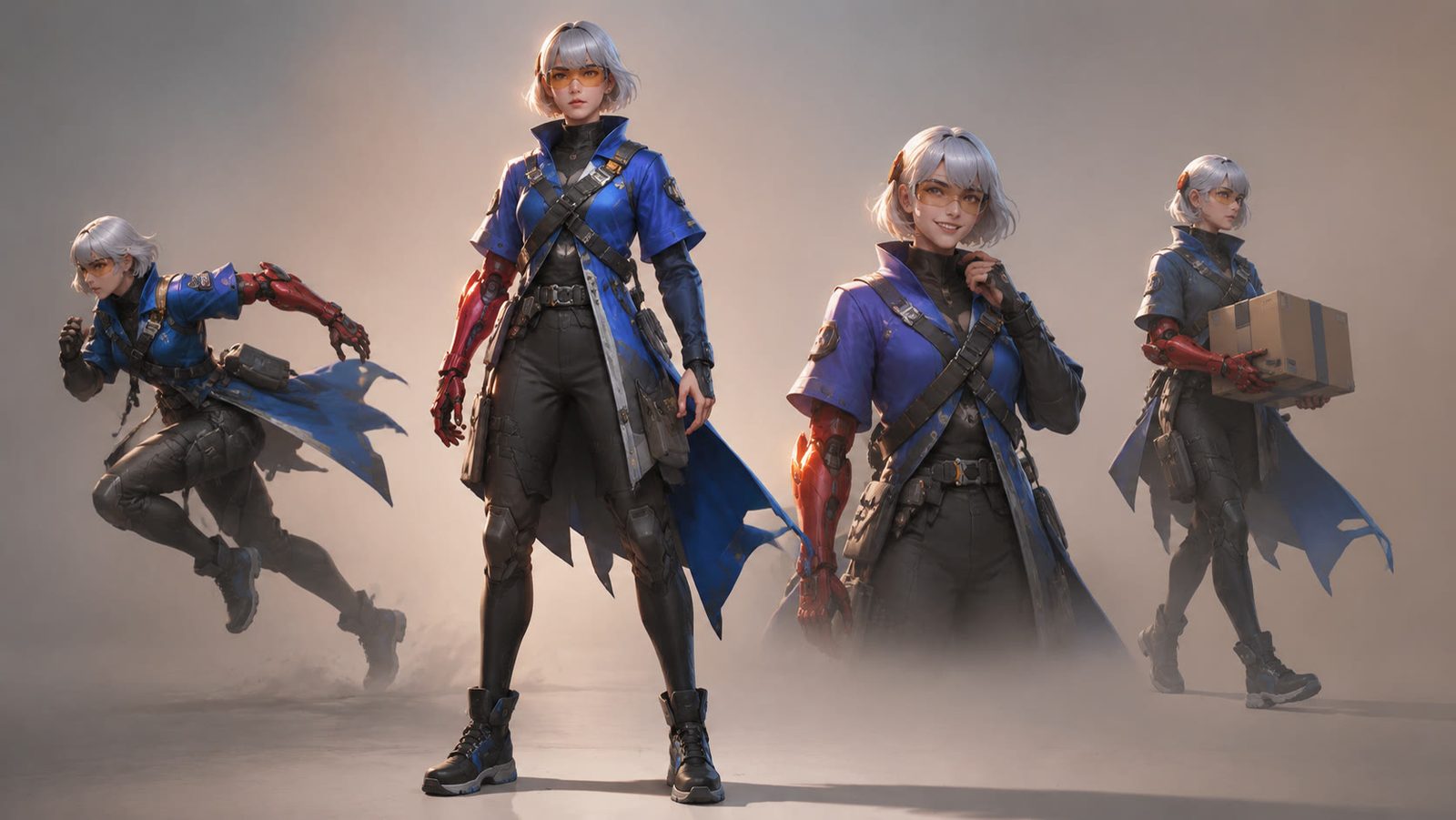
AI Character Generator: How to Design Consistent Characters
Build one character with an AI character generator, then keep the face, outfit and palette steady across poses, outfits, figures and short video.
11 min read
How to Make an AI Video From a Photo (Without Weird Motion)
How to make an AI video from a photo that holds the face: source-photo rules, motion-only prompts, and Kling v3 Omni, Wan 2.7 and Hailuo 2.3 Fast compared.
9 min read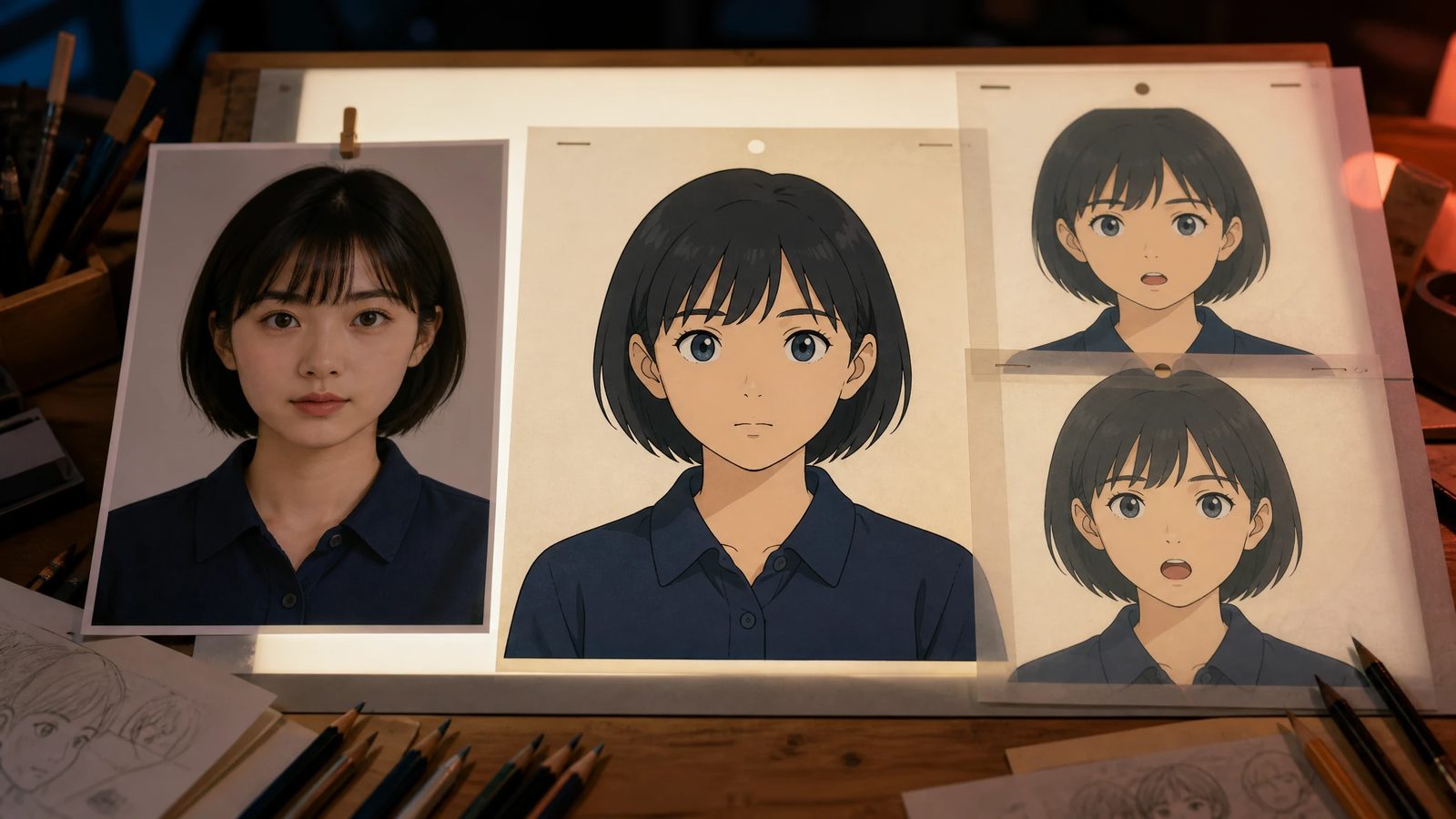
Photo to Anime AI: Turn a Portrait Into Anime Art and Video
A photo to anime AI pipeline that keeps your likeness: fusion filter or anime avatar, upscale, then a breathing anime video. Free routes checked today.
8 min read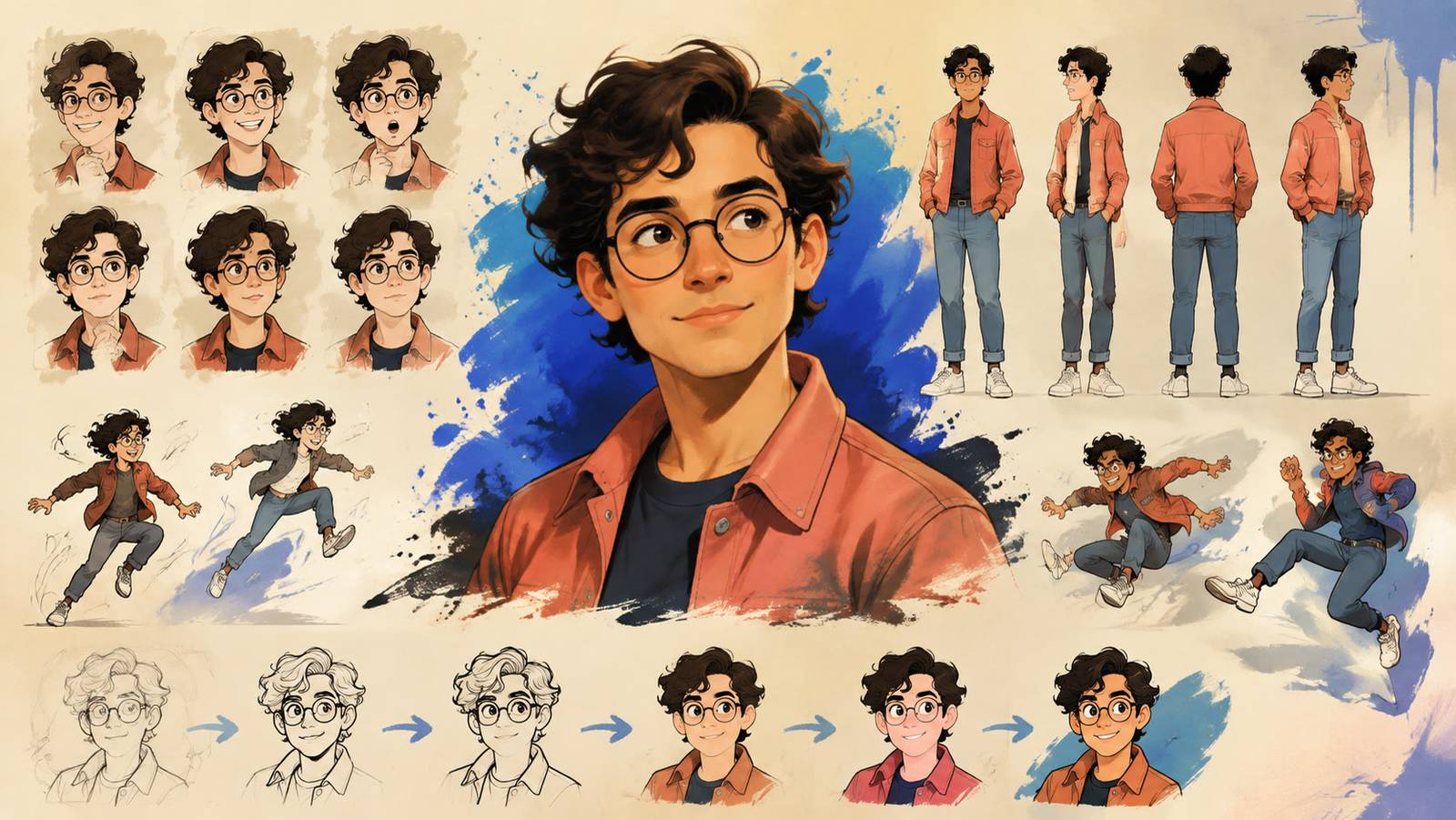
AI Cartoon Generator: Turn Photos Into Cartoons and Videos
Use an AI cartoon generator to cartoonify a photo in four looks, then restyle a clip into a cartoon video. Steps, prompts, free options and fixes.
8 min read