
Best AI Video Editor in 2026: 7 Picks, Free and Paid
Seven of the best AI video editors compared on prices checked today, free tiers, captions, text-based cuts and generative tools, plus where LazyKiwi fits.
 Marcus Tan 10 min read
Short version: CapCut is the best AI video editor for fast vertical clips, Descript wins when the edit lives in a transcript, DaVinci Resolve is the strongest free desktop option, and Runway is the pick when you need to generate footage rather than trim it. We opened every pricing page on 2026-09-06 and put the numbers in the table below. LazyKiwi is not a timeline editor; it sits before the editor, generating clips with Kling v3 Omni and fixing footage with an enhancer, an object remover and a background changer.
What is the best AI video editor in 2026?
There is no single winner among the best AI video editors, because the seven below are built for different jobs. Three of them are timeline editors with AI bolted on (Premiere Pro, DaVinci Resolve, Filmora), two are browser editors that lead with captions and templates (CapCut, VEED), one edits from a transcript (Descript) and one generates footage (Runway). The table lists the entry paid price on annual billing as shown on each pricing page today, and what the free tier actually lets you export.

| Tool | Entry paid plan (annual billing, checked 2026-09-06) | Free tier | Signature AI feature |
|---|---|---|---|
| CapCut | Pro plan exists; no public price page found | Online editor exports without a watermark | Auto captions, templates, AI video generator |
| Descript | Hobbyist $16 per person/month | Free plan, 720p local export | Transcript editing, Underlord co-editor |
| Adobe Premiere Pro | Subscription only; site unreachable from our network today | Trial only | Text-based editing, generative extend |
| DaVinci Resolve | Studio $295 one-time | Full free edition | Neural Engine: tracking, masking, transcription |
| VEED | Creator $12 per user/month | Free plan, watermark | Auto subtitles, translation, Gen-AI Studio |
| Runway | Standard $12/month | 125 one-time credits | Gen-4.5 video, Aleph edits, 4K upscaling |
| Filmora | Annual Basic plan or one-time Perpetual licence | Trial | AI Mate, auto reframe, AI portrait |
| LazyKiwi (tools, not a timeline) | Credit packs; Free 40 credits/month | 40 credits/month | Enhancer, object remover, background changer, Kling v3 Omni |

Sources for that table, opened today: Descript pricing (2026), VEED pricing (2026), Runway pricing (2026), Blackmagic Design (2026), Filmora pricing (2026), CapCut online editor (2026) and the LazyKiwi pricing page. Adobe's site did not respond from our network, so Premiere Pro appears without a number.
Where does LazyKiwi sit in this list?
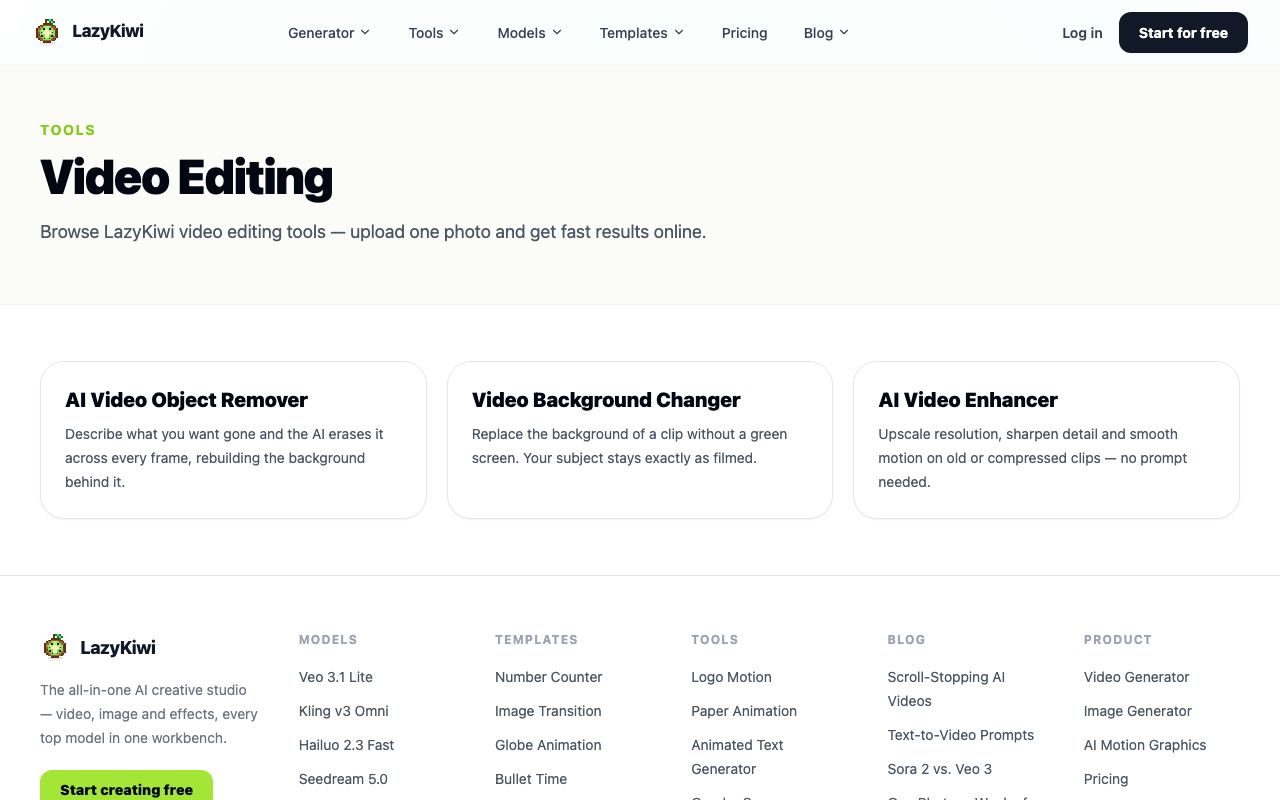
Upstream of the editor. The video edit tools hub holds three single-purpose tools: an AI video enhancer for upscaling and frame interpolation, an object remover driven by a text description, and a background changer that needs no green screen. Each returns a clip you then cut, caption and mix in one of the editors above. If you need footage that does not exist yet, the same workbench runs the video models in LazyKiwi's live catalog (September 2026): Kling v3 Omni, Veo 3.1 Lite, Hailuo, MiniMax H3, Seedance 2.5, Wan 2.7, Happy Horse, Grok Imagine Video, Hunyuan and LTX. Sora 2 is not among them.
How to choose an AI video editor
Feature counts mislead, and so do most best AI video editor lists. A tool with twenty AI buttons that all need correcting costs more time than a tool with three that work. Judge candidates on five things you can test in an afternoon with your own footage.
- Text-based editing: can you delete a sentence in the transcript and have the cut follow? Descript and Premiere Pro do this natively; CapCut and VEED do it for captions but not for the edit itself.
- Auto captions: accuracy on names and product terms matters more than raw speed. Check whether you can restyle and re-time captions after correction.
- Generative fill and extend: Premiere Pro's generative extend and Runway's Aleph model change footage; the others change overlays.
- Upscaling: Runway lists 4K upscaling on its Standard plan; DaVinci Resolve Studio has Super Scale; LazyKiwi's enhancer does 2x upscale plus frame interpolation as a separate tool.
- Export limits: watermark rules, resolution caps and monthly media hours decide whether a free tier is usable. Descript's free plan caps local export at 720p, per its plan comparison table.
What does 'AI' mean on each pricing page?
Three different things. For Descript and VEED it means a monthly allowance of AI credits spent on transcription, dubbing and generation: Descript (2026) gives Hobbyist 400 AI credits and 10 media hours a month, while VEED (2026) attaches 6,000 credits to its Creator plan. For Runway it means generation credits per model: Runway (2026) prices Gen-4.5 at 60 credits per 5 seconds on the Standard plan. For DaVinci Resolve it means features that ship with the software and never meter.
Run one real project through two finalists before paying: import, rough cut, captions, one AI fix, export. Count the corrections, not the features.
AI video editors compared one by one (2026)
CapCut: fastest route to a vertical clip
CapCut runs on phone, desktop and browser and leads with auto captions, caption templates, text to speech and trend templates. Its online editor page states that videos can be made without a watermark for both commercial and personal use, per CapCut (2026). The public pricing page returned a 404 from our network, so treat any Pro price you see elsewhere as unverified. Best for: TikTok, Reels and Shorts cut in under an hour.
Descript: edit the transcript, the video follows
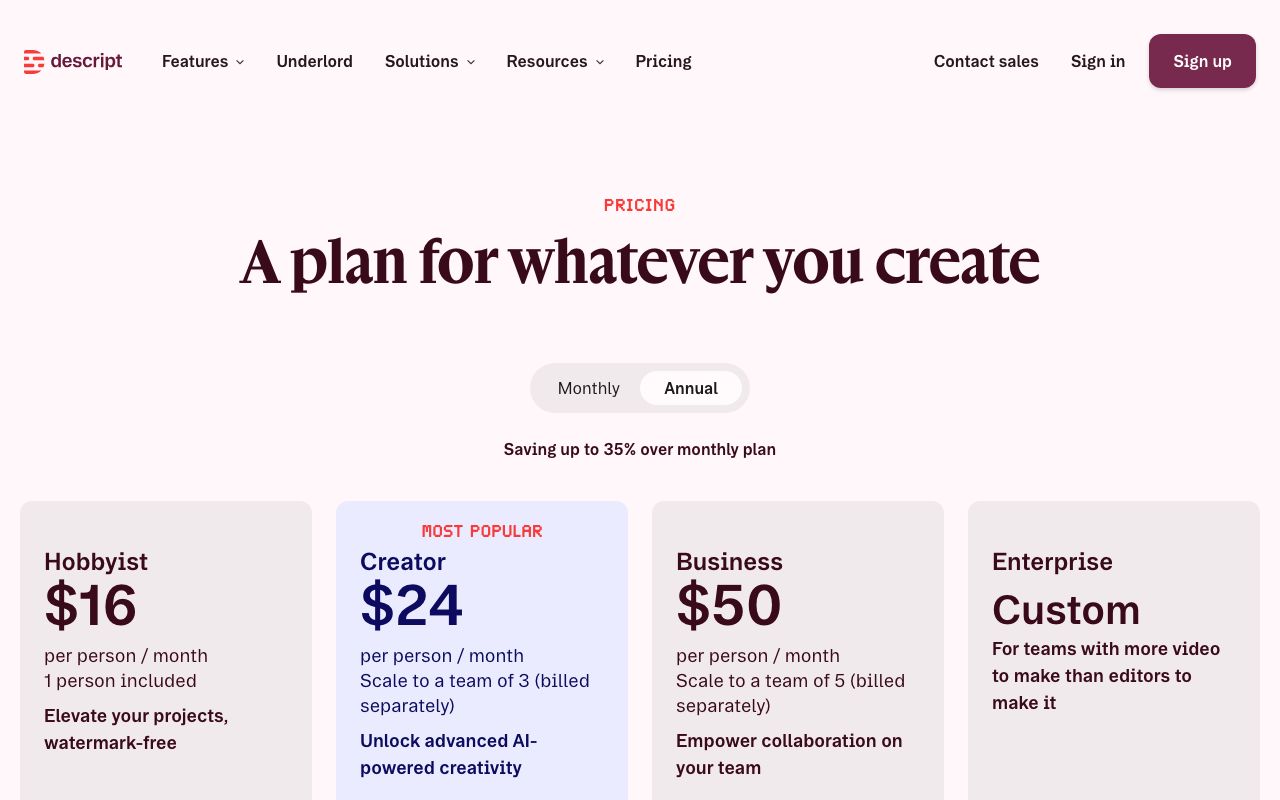
Descript transcribes the recording and lets you cut by deleting words. Underlord, its AI co-editor, handles filler-word removal, Studio Sound and clip creation. On annual billing the Hobbyist plan is $16 per person a month with 10 media hours, 400 AI credits and 1080p watermark-free export; Creator is $24 with 30 media hours, 800 AI credits and 4K export, per Descript pricing (2026). Best for: podcasts, interviews, talking-head courses.
Adobe Premiere Pro: the professional timeline
Premiere Pro is the editor most client projects still end up in, with text-based editing, speech-to-text and generative extend inside the timeline. Adobe's product pages did not load from our network on the verification day, so this entry carries no price; it is subscription-only through Creative Cloud. Best for: client deliverables and anything that has to round-trip with After Effects.
DaVinci Resolve: free edit, colour, Fusion and Fairlight
Resolve bundles editing, colour grading, visual effects and audio post in one application, and the free edition is a real editor rather than a trial. The Studio version is a one-time $295 and adds the DaVinci Neural Engine features such as face recognition, object detection and smart reframing, per Blackmagic Design (2026). Best for: creators who want a professional desktop tool without a subscription.
VEED: browser editing with captions and translation
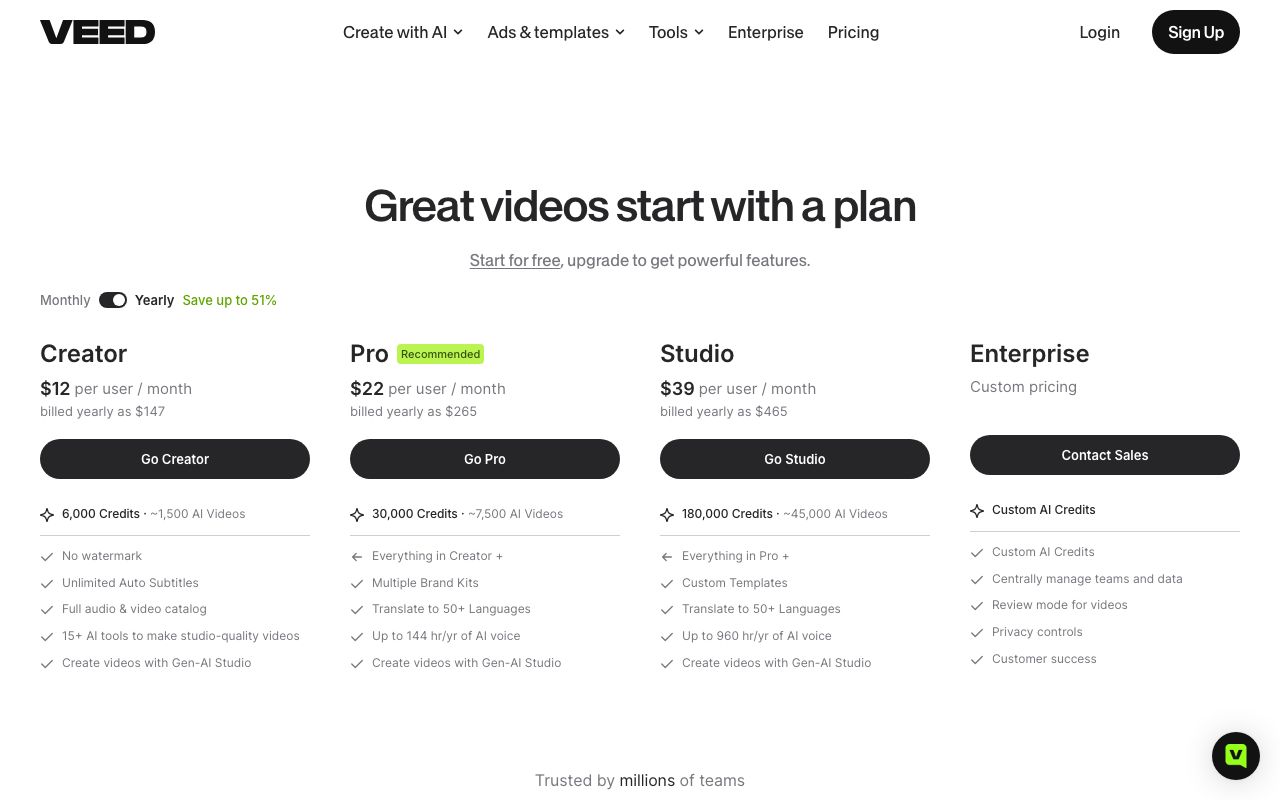
VEED is a browser editor whose plans are sized by AI credits. On yearly billing Creator is $12 per user a month with 6,000 credits, no watermark and auto subtitles without a cap; Pro is $22 and adds translation to 50-plus languages, per VEED pricing (2026). Best for: teams that caption, translate and resize the same video for several channels.
Runway: generate and transform rather than cut
Runway is a generation platform with editing features around it. The Free plan gives 125 one-time credits; Standard is $12 a month on annual billing with 625 credits, no watermarks and 4K upscaling; Pro is $28 with 2,250 credits, per Runway pricing (2026). Best for: creators whose missing shot cannot be filmed.
Filmora: consumer desktop editor with AI credits
Filmora is a Windows and Mac editor aimed at hobbyists, with AI Mate, auto reframe, AI portrait and a large creative-asset library. Its pricing page lists annual Basic and Advanced plans and a one-time Perpetual licence, with AI features metered by Filmora AI credits, per Filmora pricing (2026). Promotional countdowns change the displayed figures, so read the page rather than a roundup. Best for: family and hobby projects on a desktop.
What is the best free AI video editor?
DaVinci Resolve on desktop and CapCut in the browser. Resolve's free edition has no watermark and no time limit, and only the Neural Engine extras sit behind the Studio purchase. CapCut's online editor states it exports without a watermark. Every other free tier has a catch you should know before you start a project.
| Free tier | Watermark | Export cap | Source (checked 2026-09-06) |
|---|---|---|---|
| DaVinci Resolve free | No | Full editor; Studio features excluded | blackmagicdesign.com |
| CapCut online | No, per its editor page | Not stated on the page | capcut.com |
| Descript Free | Watermark-free export is a paid feature | 720p local export | descript.com/pricing |
| Kapwing Free | Yes | 720p, videos up to 4 minutes, 10 credits | kapwing.com/pricing |
| Clipchamp | No | HD export; premium features need Microsoft 365 | clipchamp.com |
| Runway Free | Yes on Free | 125 one-time credits | runway.com/pricing |
| LazyKiwi Free | No | 40 credits a month; price shown per tool run | lazykiwi.ai/pricing |
Two entries in that table are worth spelling out. Kapwing (2026) gives the free tier 10 credits, 720p and a 4-minute export length with a watermark, and removes the watermark on Pro at $16 a month billed annually. Clipchamp (2026) exports HD without a watermark and moves premium features behind a Microsoft 365 subscription, which many office workers already have.
LazyKiwi's free tier is generation credits, not editing time. The pricing page lists a Free plan with 40 credits a month that refresh monthly, and each tool shows its own credit price on the Generate button before you run it. For clipping long recordings into shorts, OpusClip (2026) states it is free to use with a seven-day Pro trial for new users.
Which AI video editor is best for beginners, streamers and teams?
Match the tool to the person doing the editing and the volume they ship each week. The scenarios below come up most often in reader questions, including the recurring one about an AI video editor for streamers.
| Scenario | First pick | Runner-up | Why |
|---|---|---|---|
| Complete beginner | CapCut | Clipchamp | Templates and auto captions carry the first ten videos; nothing to install |
| Streamer clipping VODs | OpusClip | Descript | Long recording in, ranked clips with captions out; Descript when the clips need a proper edit |
| Podcast or interview | Descript | Premiere Pro | Transcript editing removes the scrub-and-listen loop |
| Small marketing team | VEED | Kapwing | Brand kits, translation and browser review on the same file |
| Client or broadcast work | DaVinci Resolve | Premiere Pro | Colour, Fairlight audio and Fusion in one free application |
| Footage you cannot film | Runway | LazyKiwi generator | Generate the shot, then cut it in any editor on this page |
Which AI video editor is best for beginners?
CapCut, because the first hurdle for a beginner is finishing a video at all, and a template plus auto captions gets one out the door. Move to Descript when your videos are mostly talking, and to Resolve when you start caring about colour. The best video editor with AI features for a beginner is the one whose AI hides the timeline until they need it.
Is there an AI video editor for streamers specifically?
Clipping tools are the honest answer. A streamer's raw material is a multi-hour VOD, and the job is finding the 30-second moments, reframing to 9:16 and captioning them. OpusClip is built for exactly that, and Descript's Create Clips tool does the same inside a full editor. Neither replaces OBS for the live production; they sit after it.
How to combine an editor with AI generation tools
The workflow that has held up for us is generate and repair in LazyKiwi, assemble in the editor you already know. Every LazyKiwi tool returns a normal MP4 with the original length, framing and audio, so it drops onto any timeline. The generation step is also quicker than people expect: in LazyKiwi's workbench data (August 2026), the median time from signup to a first generation was about 1.5 minutes, and 103 of 108 first generations happened within ten minutes. The editing afternoon is spent in the editor, not the generator. Here is the order we run it in.
- 1
Generate the shot you cannot film
Open the AI video generator, pick Kling v3 Omni for a text prompt, one image or a start-and-end frame pair, and set 16:9, 9:16 or 1:1 at 720p or 1080p. Vertical is the sensible default: 9:16 accounted for 22 of the 39 external video jobs in LazyKiwi's August 2026 workbench data. The model page lists clips of 3 to 60 seconds, or 3 to 15 for frame-to-frame, and a 2,500-character prompt limit.
- 2
Remove what should not be in the frame
Drop the clip into the AI video object remover, type what should go (a street sign, a person in red) and the tool tracks it through every frame and rebuilds the background behind it. The tool page says MP4 and MOV are accepted and shorter clips process fastest.
- 3
Swap the background without a green screen
For a talking-head shot filmed in a bedroom, the video background changer takes a text description of the new scene and keeps the person exactly as filmed. Its page states no green screen, mask or keying step is involved.
- 4
Upscale and smooth before you cut
Run old or compressed footage through the AI video enhancer: choose an upscale factor and a frame-interpolation factor, generate, download. The tool page says nothing else changes, so the clip stays in sync with any audio you already cut.
- 5
Assemble, caption and export in your editor
Import the repaired clips into CapCut, Descript, Resolve or Premiere Pro, cut to the beat, add captions there (never in the generation step) and export at the platform's native size.
On cost: each of the three tool runs above was priced at 410 credits in the workbench when we captured them, with a struck-through 750, and the pricing page explains that credits depend on model, duration, resolution and output count. Budget one run per clip, not one per attempt, by checking the fill or edge quality on a short trimmed excerpt first.
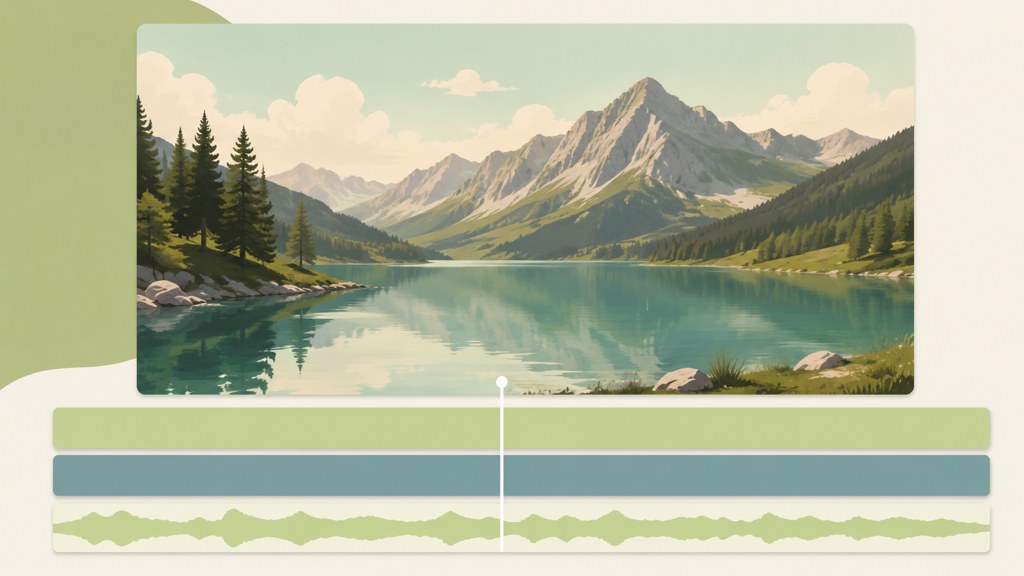
Keep the generation step silent and the caption step in the editor. Captions rendered into a generated clip cannot be corrected later; captions on the timeline can.
Key takeaways
- CapCut for vertical clips, Descript for transcript-led edits, DaVinci Resolve for a free professional desktop, Runway for footage you cannot film; there is no single best AI video editor for every job.
- Verified on 2026-09-06: Descript Hobbyist $16 and VEED Creator $12 per person per month on annual billing, Runway Standard $12 a month, DaVinci Resolve Studio $295 one-time.
- The usable free tiers are DaVinci Resolve (full editor, no watermark) and CapCut's online editor; Kapwing free caps at 720p and 4 minutes with a watermark, Descript free at 720p local export.
- Streamers should look at clipping tools first: OpusClip is free to use with a seven-day Pro trial, and Descript's Create Clips does the same inside a full editor.
- LazyKiwi is upstream of the editor: Kling v3 Omni for generation plus the enhancer, object remover and background changer, each priced per run in credits with a Free plan of 40 credits a month.
Tools & Reviews Editor
Marcus Tan
I open every competitor's pricing page myself before writing a comparison, and I say plainly when another tool is the better pick.
FAQ
Common questions
Which AI video editor is best for beginners?
CapCut. It runs in a browser or on a phone, its templates and auto captions get a first video finished without learning a timeline, and its online editor page states exports carry no watermark. Clipchamp is the alternative if you already pay for Microsoft 365, and DaVinci Resolve is where to go once colour and audio start to matter.
Is CapCut better than Descript?
They solve different problems. CapCut is faster for vertical social clips built from templates, captions and effects. Descript is better when the edit is driven by speech: you cut by deleting words in the transcript, and its Hobbyist plan on annual billing is $16 per person a month with 10 media hours and 1080p export. Podcasters pick Descript; TikTok creators pick CapCut.
What is the best AI video editor for streamers?
A clipping tool rather than a timeline. OpusClip takes a long VOD, finds the strongest moments, reframes them to vertical and captions them, and states it is free to use with a seven-day Pro trial. Descript's Create Clips does similar work inside a full editor. Use OBS for the live show and one of these for the highlights afterwards.
Can AI edit a video automatically?
For narrow tasks, yes: transcription, filler-word removal, captioning, reframing to 9:16 and clip selection all run without you touching the timeline. For a finished video, no. Pacing, music, continuity and factual checks still need a person, and every tool on this page expects you to review its first pass before export.
Is there a free AI video editor without watermark?
Yes. DaVinci Resolve's free edition exports without a watermark and has no time limit; only Studio features such as the Neural Engine extras are paid. CapCut's online editor page states its exports are watermark-free for personal and commercial use. Clipchamp exports HD without a watermark. Kapwing and Runway free tiers do watermark.
Fix the footage before you cut it
Upscale, remove an object or swap a background in the LazyKiwi workbench, then finish in the editor you already use. Each tool shows its credit price before you run it.
Keep reading

How to Make AI Videos in 2026: Idea to Export, Step by Step
How to make AI videos in 2026: pick a generation mode, choose Kling v3 Omni or Seedance 2.5, prompt for clean motion, and export without wasting credits.
11 min read
AI Video Upscaler Guide: Improve 720p Footage
Use an AI video upscaler to turn soft 720p clips into cleaner HD exports without introducing distracting artificial detail.
8 min read
How to Choose an AI Subtitle Generator for Global Videos
Learn how to choose an AI subtitle generator, correct transcript errors, create readable captions, and localize videos without losing your voice.
8 min read
AI Video Dubbing: A Practical Creator Guide for 2026
Use ai video dubbing to translate and localize videos while preserving the speaker’s meaning, delivery, timing, and brand voice.
8 min read