
Remove background from video, keep the person.
Upload a clip and describe the backdrop you want. The video background remover takes out everything behind your subject and drops in an office, a beach or a plain studio wall, while the person on camera stays exactly as filmed. No green screen.
What it is
Remove or replace a video background without a green screen.
Replacing a background used to need green fabric, even lighting and careful keying. Here the AI separates the subject from the scene on its own, holds that edge through hair and movement, and drops in the background you described. Use it to remove background from video for a clean cut-out, or to change video background to any scene you describe.
How it works
Your result in three steps
Upload your video
Any clip with you or your subject in frame. Even lighting makes the edge cleaner.
Describe the new background
Type it out: modern office with big windows, sunset beach, plain gray studio wall.
Generate & download
Check the edges, adjust the description if the scene isn't right, then download the finished clip.
What you get: a finished video, not a transparent cut-out
This tool re-renders your clip with the new background baked in and gives you an MP4 — it does not export a transparent (alpha) video, WebM or PNG sequence. If you need to composite the person yourself, ask for a "flat, evenly lit pure green backdrop" and chroma-key it in CapCut, Premiere or DaVinci Resolve. If you want a finished scene — an office, a beach, a studio wall — describe it or upload a photo of it and you are done.
- Output: MP4 with the new background
- Need transparency? Generate on flat green, then key it
- Upload up to 2 photos to use as the backdrop
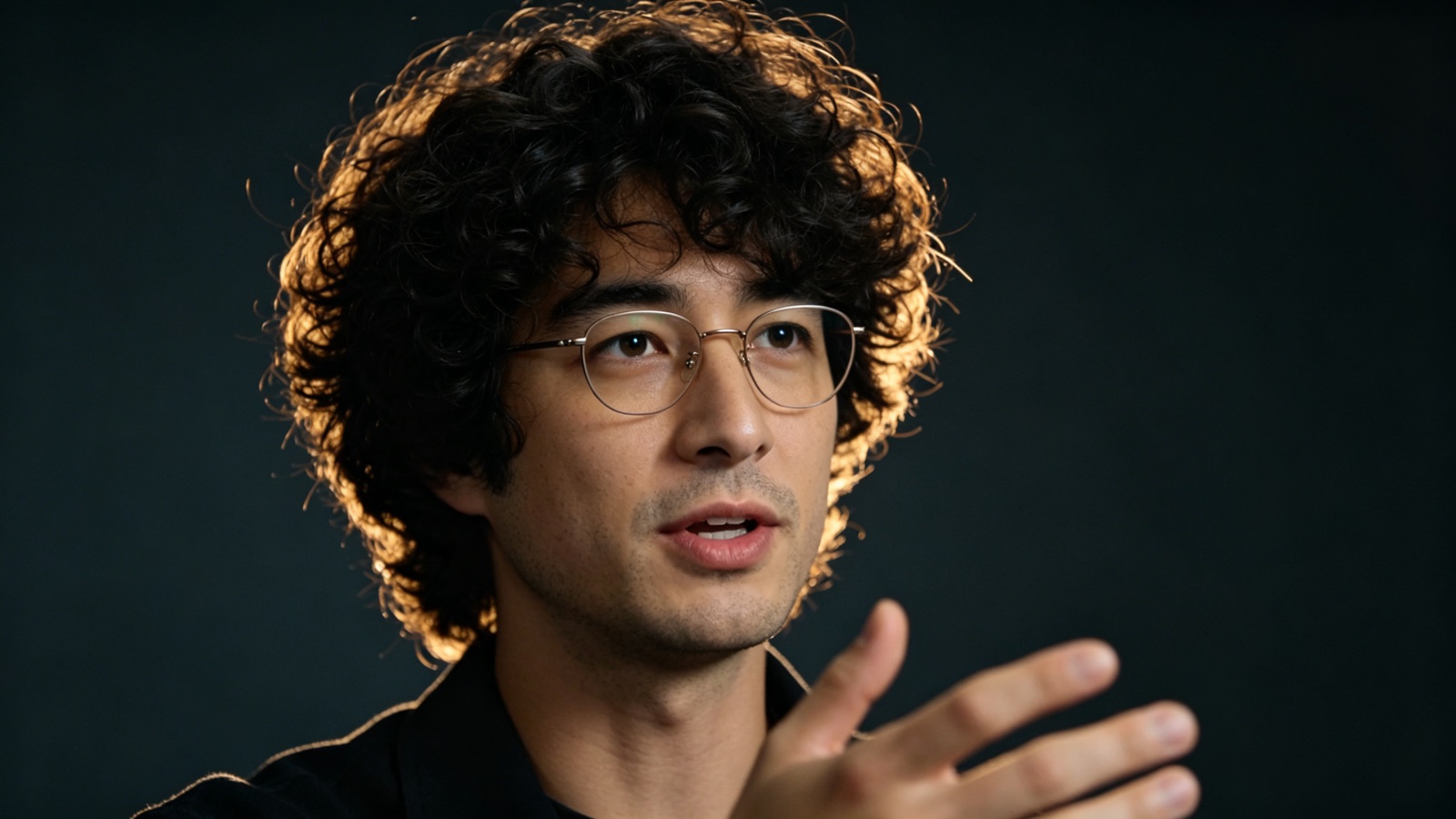
Hair and hands stay sharp
The outline is the hard part of any video background remover. This one holds the edge around hair, glasses and moving hands instead of chewing into them.
- Handles hair and fine detail
- Stable edge while you move
- No halo around the subject
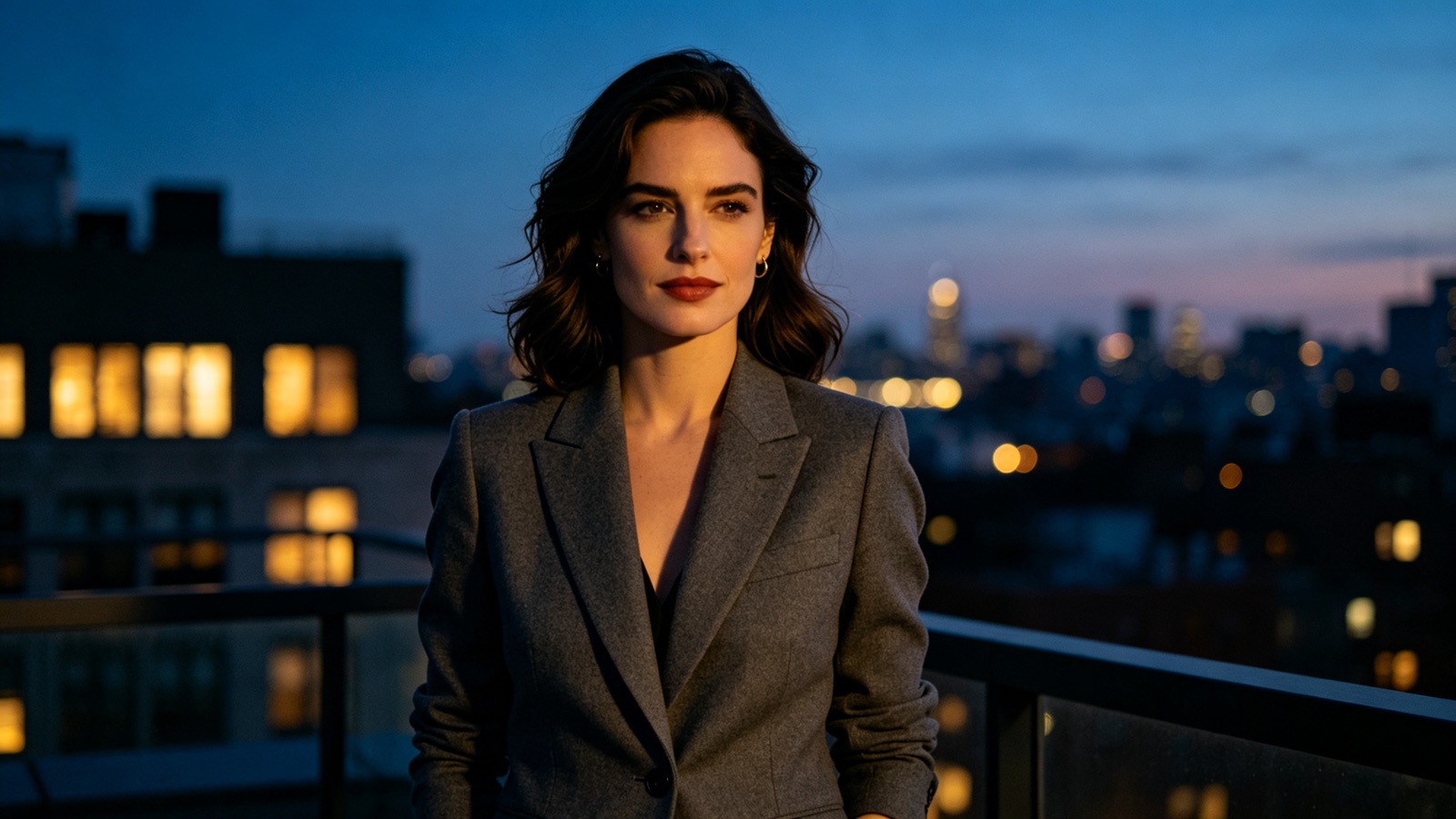
Any backdrop you can name
Skip the stock library. Write the room, street or set you want, generate it, then re-run with different wording until it fits the brief.
- Backgrounds from a text description
- Unlimited re-runs
- Lighting matched to your subject

Same recording, different settings
Record once and publish the same take against several backdrops — one for the client, one for social, one for the course page.
- Multiple versions from one clip
- Vertical and widescreen
- Original audio kept
Why LazyKiwi
Built for clean edges
No green screen setup
Skip the fabric, the stands and the lighting kit. The AI does the separation for you.
Private by default
Your clips are processed securely and never sold. What you upload stays yours.
Free to start
No credit card. Replace a background on your own footage and check the edge quality.
The subject stays the subject
Your face, clothing and gestures are untouched — only what's behind you changes.
Swap it as often as you like
Re-run with a new description whenever the brief or the campaign changes.
No editing skills needed
No keying, no masks, no plugins. Upload, describe, download.
FAQ
Questions, answered
How do I remove background from video online?+
Upload the clip to the LazyKiwi video background remover, type the backdrop you want (or a plain color for a clean cut-out look), and generate. The AI separates the person from the original scene in every frame and renders the new background behind them. Download the finished clip; no green screen, mask or keying step is involved.
Can I change video background instead of removing it?+
Yes. The same tool works as a video background changer: describe the scene you want behind the person, an office, a beach, a plain studio wall, and the AI replaces the original backdrop in every frame while the subject stays as filmed. Removing the background is the same job with a plain color as the new backdrop.
Is the video background changer free?+
Yes. Upload a clip and replace the background for free, with no credit card.
Do I need a green screen?+
No. The AI separates the subject from the scene on ordinary footage, shot in any room.
What if I move around a lot?+
Movement is handled. Keep the subject fully in frame and well lit for the cleanest edge.
Is my video private?+
Yes. Uploads are processed securely, never sold and never published by us.
Can I export a transparent background?+
Not directly — the result is an MP4 with a background in it. For a transparent cut-out, ask for a flat pure green backdrop and remove it with the chroma key in CapCut, Premiere or DaVinci Resolve.
Do I need to sign up?+
You need a free account to generate, so your clips and credits are saved. New accounts get free credits to try it.
How long can the video be?+
Each render is a short clip — 5 seconds by default. For a longer video, split it into shots and run them one by one.
Will my face or clothes change?+
The clip is re-rendered, so small details can shift. Describe only the background, add "keep the person exactly the same", and use well-lit footage where the subject is clearly separated from the background.
Does it keep my original audio?+
The output is a new render. If the original sound matters — speech, music — put your original audio track back on in your editor after downloading.
Can I use my own photo as the new background?+
Yes. Upload one or two reference images and say how to use them, for example "use the uploaded photo as the background".
How long does it take?+
Usually one to a few minutes per clip, depending on the queue and the length you choose.
Use cases
Who changes video backgrounds
Remote teams
Turn a cluttered spare room into a clean office before a recorded client update goes out.
Course creators
Give every lesson in a series the same studio backdrop, even if you filmed them in different rooms.
Online sellers
Put a product demo in a tidy set instead of your kitchen table before it goes on the listing page.
More answers
More about video backgrounds
Can it just remove the background instead of replacing it?+
Describe a plain surface — "solid white wall" or "flat green backdrop" — and you get a clean base to key or composite yourself.
Does it work with more than one person in frame?+
Yes, as long as everyone is clearly visible. Subjects overlapping at the edge of frame are the hardest case.
Will the lighting look wrong?+
The new background is toned to sit with your subject. Mention the light you want — "warm evening light" — to steer it further.
Can I use it during a live video call?+
No. This works on recorded clips: you upload a file and download the edited version. It doesn't run live in a meeting.
I only have a photo — can I still get a video with a new background?+
Yes, from the other direction. The AI Background Changer has a photo-to-video option: upload your subject photo, optionally a second photo as the background reference, and it returns a short vertical clip with the subject kept and the new scene in motion. It costs more credits than a still, and the cost is shown before you generate.
Remove the background, keep the shot.
Upload a clip, describe the background you want, and download it in minutes — no green screen needed.
No credit card · Free to try · Results in seconds