
How to Make a Webtoon With AI, From a Story to Vertical Pages
How to make a webtoon with AI: write the chapter, keep the same characters on every panel, letter the dialogue, and export vertical pages — without drawing.
 Maya Chen 9 min read
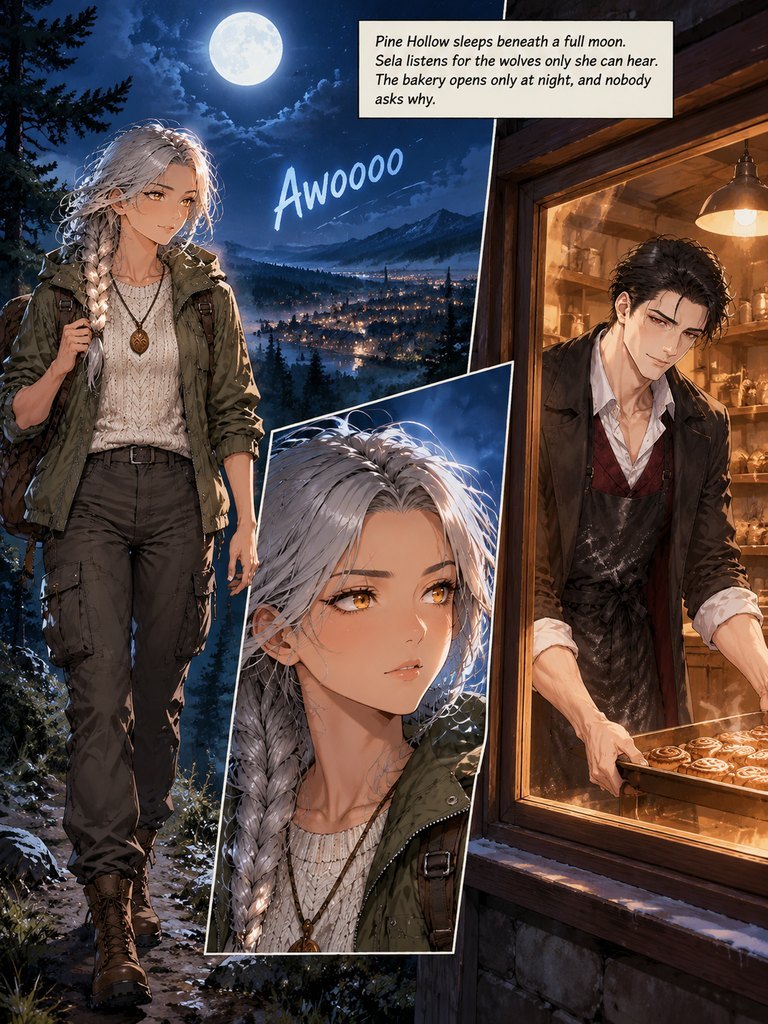
A webtoon is a comic built for the phone: a single vertical strip you scroll, released as episodes, read top to bottom instead of page by page. The format is huge and the barrier has always been the same — you need to be able to draw, consistently, for dozens of panels. AI changes the barrier, not the craft: you still decide the story, the cast and what happens in each panel, but the drawing is done for you. This guide shows how to make a webtoon with AI from a chapter of prose, how to keep the same character looking like themselves across every panel, and how manga, webtoon and comic-strip formats differ. Checked against Comic Studio on 7 November 2026.
What makes a webtoon different from a comic
A print comic is laid out in pages and grids; a webtoon is one long vertical canvas read by scrolling, usually in short episodes, and almost always on a phone. That changes how you pace it:
- Vertical, not gridded: panels stack down the screen, and the gap between them is a pause you control.
- Episodic: readers expect a chapter at a time, ending on a hook that pulls them to the next.
- Mobile-first: a panel has to read at phone size, so one clear beat per panel beats a busy page.
The tool side of this is a page format and an aspect ratio. A webtoon wants a vertical shape (9:16), where a print comic wants a page (3:4) and a strip wants a wide or square panel.
What you need to make a webtoon
Three things, and only the first is really yours to write:
- A chapter of story — up to about 1,000 words of prose (or 2,000 characters in Chinese, Japanese or Korean), or an outline the tool writes into a chapter for you.
- A cast — pick a lead from an original character library, create your own from a description or a reference image you have the right to use, or let the tool find the characters in your text.
- A look — one of 18 art styles and one of 6 page formats; for a webtoon, the vertical format.
Plain prose works best: say who is in the scene, what they do, and what they say in quotes. You are writing a script, not a novel.
How to make a webtoon with AI, step by step
This is the Comic Studio flow end to end. The planning is free; you only spend credits once pages are drawn.
- 1
Start a comic and pick the cast
Create a new comic and choose a lead — from the character library, one you create, or skip and let the studio find the characters in your chapter.
- 2
Write or paste the chapter
Give it a title and paste the first chapter of prose, or write an outline and let AI draft the chapter from it. You can add more chapters to the same comic later.
- 3
Choose style, format, ratio and language
Pick an art style, the webtoon (vertical) format, a 9:16 page shape, and the language for every caption and balloon. Turn off auto-generate in Advanced settings if you want to review everything before any drawing.
- 4
Check the character sheets
The studio reads the chapter, lists every character and draws a reference sheet for each in your art style. Fix a face or outfit here — every page is drawn from these sheets.
- 5
Break into panels and edit the storyboard
The chapter is split into pages with a continuity pass and a drawing prompt for each — all free. Edit any scene, insert or delete a page, before anything is drawn.
- 6
Draw the pages, then fix the text
Pages are drawn with their panels and lettering, a few at a time. Captions and balloons sit on an editable layer, so you can change a word or move a balloon without a redraw.
- 7
Read and export
Preview in the reader, then export a ZIP of every page or a PDF of the chapter. A free account adds a small mark; any paid plan or credit pack removes it.
The full walkthrough, with every setting, is in the Comic Studio guide.
The hard part: the same character on every panel
The single thing that separates a real webtoon from a pile of AI pictures is character consistency — the lead looking like the same person in panel one and panel forty. A general image tool makes one picture at a time and forgets your character between prompts, which is why its 'comic' is forty strangers who vaguely rhyme.
The approach that works is a reference sheet per character, drawn in your art style before any page, with every page drawn from those sheets. New characters in later chapters get their own sheet, and finished sheets are kept and reused. Our AI comic generator post goes deeper on why consistency is the make-or-break step, and the character consistency page shows how the sheets are built.
Manga, webtoon or comic strip?
'Webtoon' is a format, not the only one, and the AI comic wave in late 2026 has pushed all of them forward — Higgsfield released a dedicated manga generator (Mangaka) in early November, for example. The format you pick decides the reading experience:
| Format | Reads like | Pick it for |
|---|---|---|
| Webtoon (vertical) | One long strip scrolled top to bottom | Phone-first episodic series |
| Manga (right to left) | Pages read right to left, black and white | A manga-style story with page turns |
| Classic grid / cinematic | Western comic pages with panel grids | A print comic or a graphic-novel feel |
| 4-panel strip | A short gag in four beats | Quick, repeatable comedy |
Comic Studio does all of these from the same chapter — pick the format and pair it with any of the 18 art styles — so you can try your story as a vertical webtoon and as a manga page without rewriting a word.
Lettering, languages and publishing
Dialogue, captions and sound effects are set on an editable text layer over the art, in any of nine languages (English, Chinese, Japanese, Korean, Spanish, Portuguese, French, German or Indonesian). Change a word, drag a balloon or resize it on the page, with no redraw — or switch to lettering drawn into the art if you prefer that look.
When the chapter is ready, export it and publish where webtoons live. WEBTOON's own self-publish channel, Canvas, is the usual starting point and documents its episode and image requirements; read those before you size your export so pages are not rejected or resampled.
What it costs
Writing a chapter from an outline, the character scan, the storyboard, the continuity check and the prompts are free. Drawing costs credits: 13 per character sheet, 13 per page (17 in HD), and 40 to turn a finished page into a 5-second clip. Failed images and clips are refunded, and every button that spends credits shows the price on it. New accounts get free credits to start.
Key takeaways
- A webtoon is a vertical, episodic, phone-first comic — pick the vertical (9:16) format and pace it one clear beat per panel.
- You write the chapter and direct each panel; AI does the drawing. Plain prose with dialogue in quotes works best.
- Character consistency is the make-or-break step: a reference sheet per character, with every page drawn from those sheets.
- The same chapter can be drawn as a webtoon, a manga (right to left) or a comic strip — the format is a setting, not a rewrite.
- Planning is free; drawing is 13 credits per character sheet and per page (17 in HD), with failed images refunded.
Image & Design Editor
Maya Chen
I test the image tools we ship on real photos — faces, text, backgrounds — and note which edits hold up at full size and which quietly fall apart.
FAQ
Common questions
How do I make a webtoon if I can't draw?
You write the story and decide what happens in each panel; the tool draws the pages. In Comic Studio you paste a chapter of prose or an outline, pick the vertical webtoon format and an art style, review the character sheets and storyboard, and the pages are drawn with their lettering. No drawing skill is required.
Is it free to make a webtoon with AI?
The planning is free — drafting the story, finding the characters, the storyboard, the continuity check and the prompts all cost nothing. Drawing costs credits (13 per character sheet and 13 per page), and new accounts get free credits to start, so you can plan a whole chapter and draw a page or two before paying.
How do I keep the same character looking the same across panels?
Every character gets a reference sheet in your art style before any page is drawn, and every page is drawn from those sheets — that is what keeps the face, hair and outfit consistent from panel one to panel forty. New characters in later chapters get their own sheet, and finished sheets are reused.
Can it make a manga or a comic strip as well as a webtoon?
Yes. Pick the manga format for right-to-left black-and-white pages, the webtoon format for a vertical scroll, or the 4-panel strip for a gag, and pair any of them with the 18 art styles. The same chapter can be drawn in more than one format without rewriting it.
Can I publish the webtoon I make?
You export a ZIP of the pages or a PDF of the chapter and upload it where webtoons are published, such as WEBTOON's Canvas self-publish channel; check its episode and image size requirements first. The stories and characters you add must be yours or used with permission — see the terms for what you may do with what you create.
Can I make a webtoon on my phone?
Yes. Comic Studio runs in the browser on desktop and mobile, so you can write and assemble a chapter on a phone. Planning a chapter takes a few minutes, and pages are drawn a few at a time, roughly two to three minutes each.
Turn a chapter into a webtoon
Paste a chapter, pick the vertical format and an art style, and get lettered pages with the same characters throughout. The storyboard is free; you only pay for what gets drawn.
Keep reading
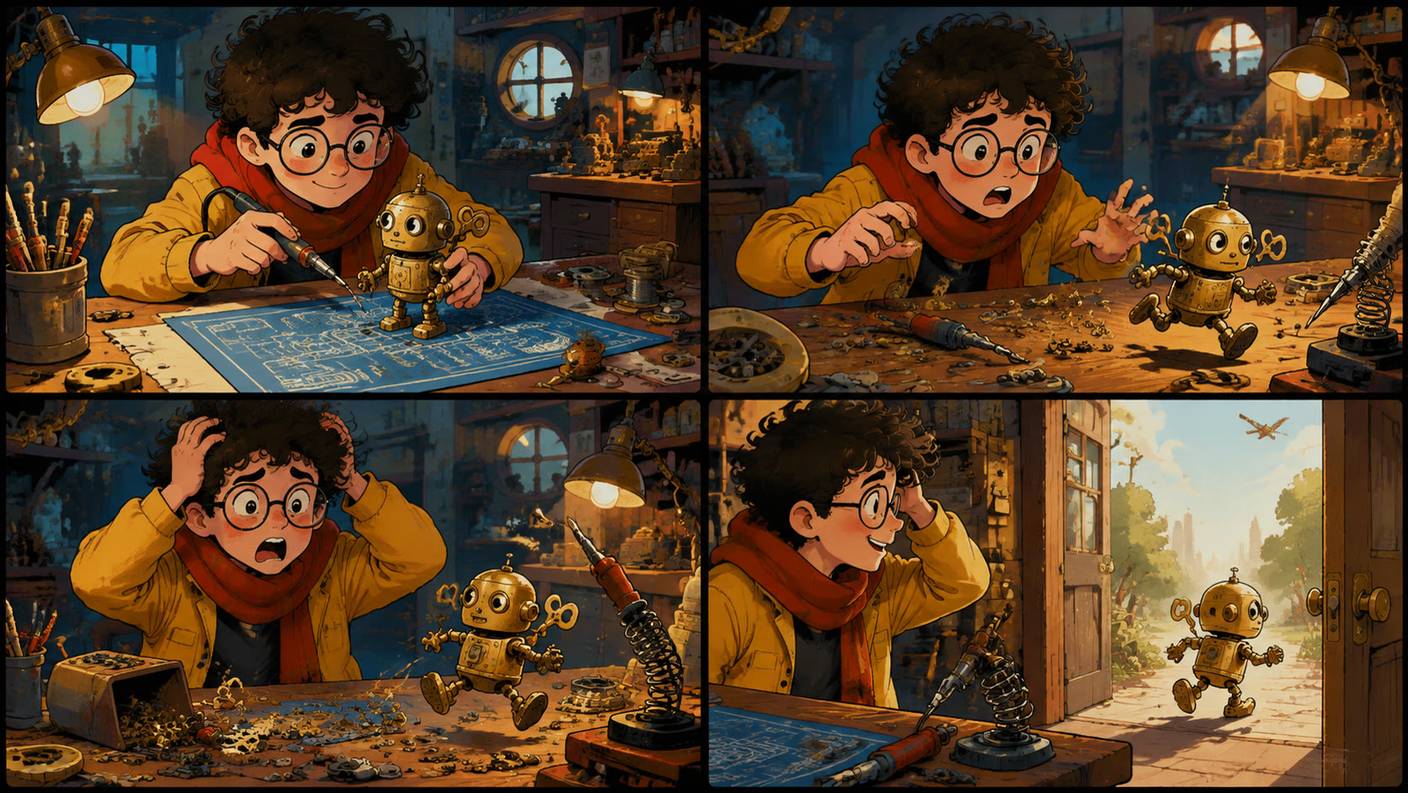
AI Comic Generator: How to Make Consistent Comic Strips
An AI comic generator workflow for strips that hold together: script beats, a character sheet, reference-image panels, manga styling and publishing rules.
10 min read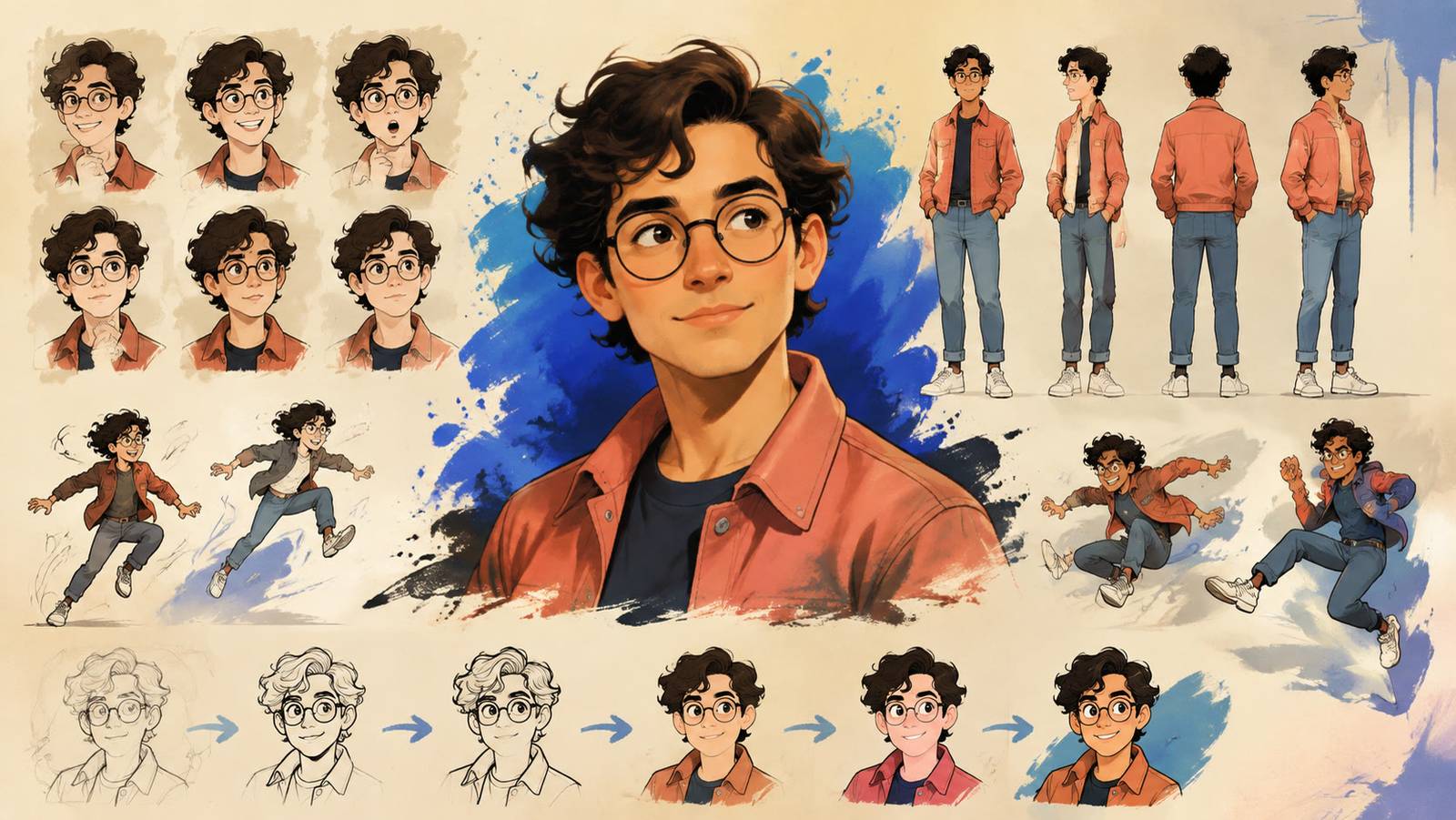
AI Cartoon Generator: Turn Photos Into Cartoons and Videos
Use an AI cartoon generator to cartoonify a photo in four looks, then restyle a clip into a cartoon video. Steps, prompts, free options and fixes.
8 min read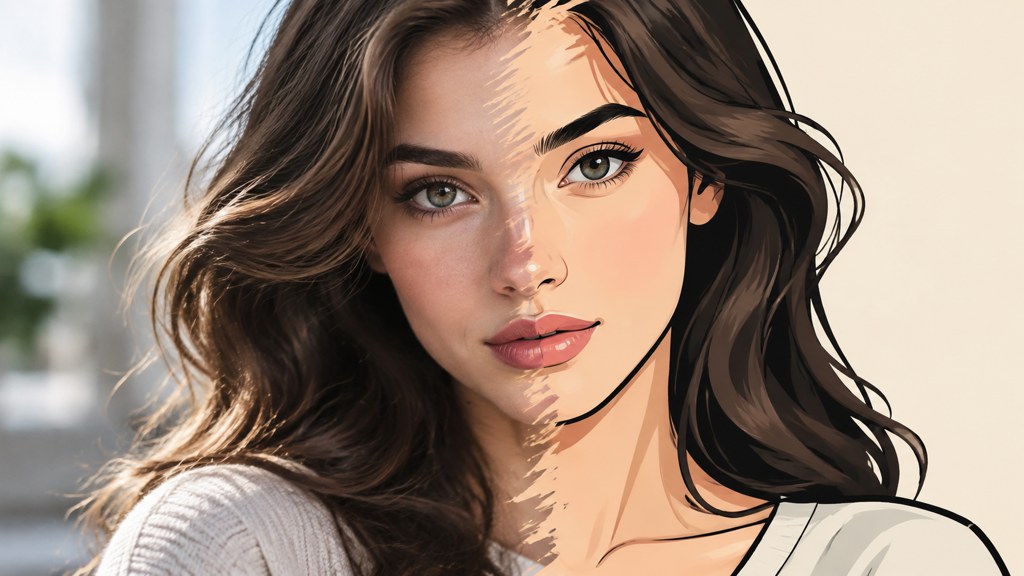
Turn Photo Into Cartoon and Keep the Likeness
Turn photo into cartoon output that still looks like the person: which sources convert, which styles hold a face, and how to fix a result that misses.
9 min read