
How to Use Comic Studio
From a few paragraphs of text to a lettered comic chapter — every step, every setting, and what each one costs.
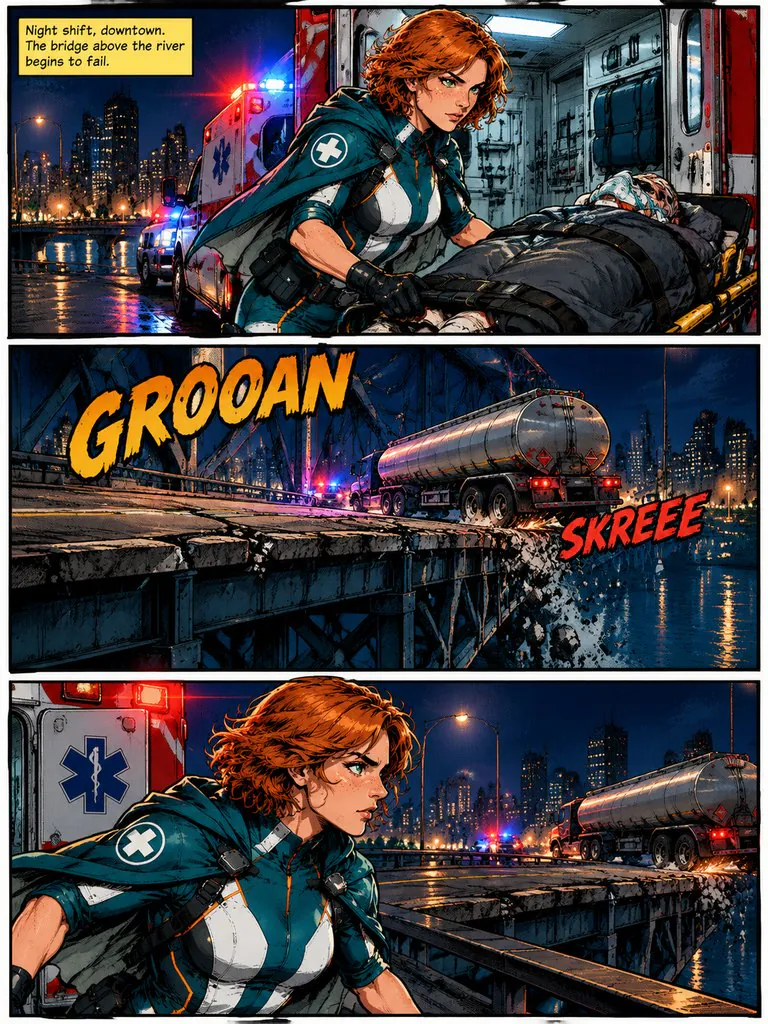
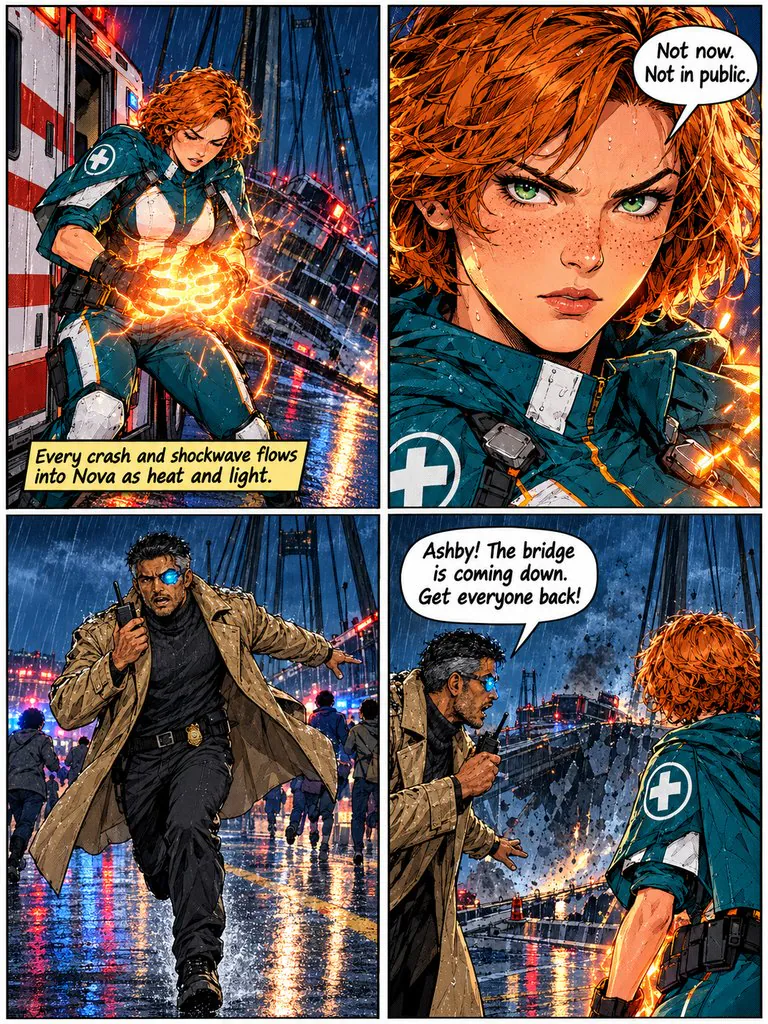
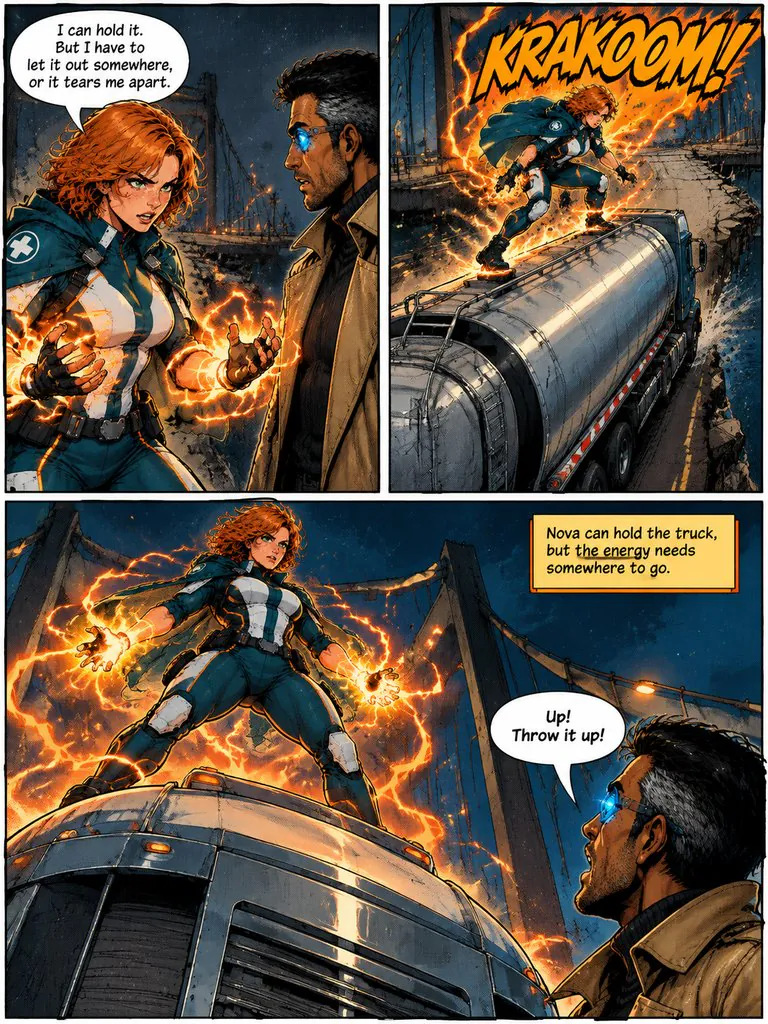
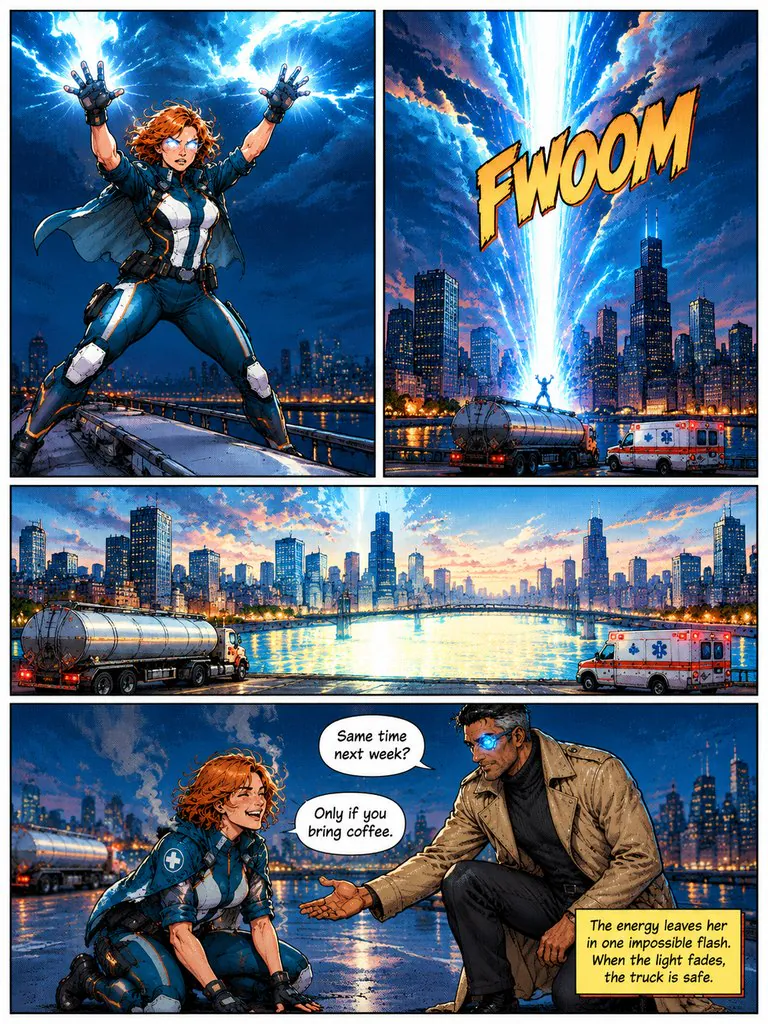
1. Start a comic and pick the cast
Open Comic Studio from the workbench and create a new comic. The first step asks for a lead character. You have three choices:
- Pick a character from the original character library. Each one comes with a portrait, an outfit and a short description.
- Create a character: give a name, aliases, appearance and outfit, and add an image you made or have the right to use. It is saved to your characters for later comics.
- Skip and start from text. The studio will find the characters in your chapter on its own.
2. Write or paste the chapter
Give the comic a title and paste the first chapter — up to 1,000 words, or 2,000 characters in Chinese, Japanese or Korean. Plain prose works best: say who is in the scene, what they do and what they say, in quotes. If you only have an idea, write an outline and let AI write the chapter from it.
You can add more chapters to the same comic later. Characters that appear for the first time get their own sheet; finished characters are reused.
3. Choose style, format, aspect ratio and language
Pick one of 18 art styles or let the studio suggest one from your text. Pick a page format — cinematic, classic grid, manga (right to left), webtoon (vertical), 4-panel strip or picture book — and a page shape: 3:4, 9:16, 1:1, 4:3 or 16:9. The novel language decides the language of every caption and balloon.
Advanced settings: Auto-generate images (on by default — pages are drawn as soon as the prompts are ready; turn it off to review everything first), Retry once if a page fails, Skip storyboard QA, and Standard or HD image quality.
4. Check the cast sheets
When you finish the style step, the studio reads the chapter, lists every character and draws a reference sheet for each in your art style (13 credits per sheet). Review the sheets before moving on: you can regenerate a sheet or upload a reference for any character. Every page will be drawn from these sheets, so this is the best moment to fix a face or an outfit.
Read more about how character consistency works.
5. Break into panels and edit the storyboard
Press Break into panels. The studio splits the chapter into pages, runs a continuity QA pass and writes a drawing prompt for each page — all free. Each page in the storyboard has a scene, the characters in it, a panel layout, narration, dialogue lines, sound effects, the prompt and a note on why the page is split that way.
Change any field, insert a page from one line of description, or delete a page. If you edit a page after its prompt was written, the studio warns you that the prompt no longer matches, so you can rewrite it before drawing.
6. Draw the pages — and fix the text
Each page is drawn with its panels (13 credits per page, 17 in HD). Pages are drawn three at a time, about two to three minutes each. Failed images are refunded.
Captions, balloons and sound effects sit on an editable text layer over the art. Open Edit lettering on a page to change the words, drag a balloon or resize it — no redraw and no credits. If you switched the lettering option to draw text into the picture, change a line by editing it and redrawing that page, or press Refine and describe the change in one sentence. Every redraw becomes a new version in the page history; restoring an older one is free.
7. Turn a page into a 5-second clip (optional)
Pick a finished page and press Make video. Add a camera move, a line or a mood if you like; the studio writes a short motion script and animates the page from that first frame (40 credits per clip, refunded if it fails). Keep several takes and choose the one shown in the reader.
8. Read and export
Preview the chapter in the reader, then export it: Download chapter ZIP gives you every page as an image, Export PDF gives you the chapter as one file. Free accounts get a small “Made with LazyKiwi” mark; any paid plan or credit pack removes it.
What costs credits
Free: writing a chapter from an outline, the character scan, the storyboard, the continuity check, the prompts and restoring an older page version. Paid: 13 credits per character sheet, 13 per page at standard size and 17 in HD, 40 per 5-second clip. Failed images and clips are refunded. Every button that spends credits shows the price on it.
Comic Studio help
Can I edit the dialogue after a page is drawn?
Yes. Lettering is on its own text layer: open Edit lettering to change words, drag or resize balloons without redrawing. With drawn-in lettering, edit the line and redraw the page, or use Refine.
Can I redraw just one page?
Yes. Every page has its own Regenerate and Refine buttons; the other pages are not touched.
Why are my pages drawn right after the storyboard?
Auto-generate images is on by default. Turn it off in Advanced settings on the style step to edit the storyboard before anything is drawn.
Where is my comic saved?
Your comics are listed on the Comic Studio home screen in the browser you made them in. Export a ZIP or PDF to keep a copy.
More about Comic Studio
Ready to try it?
Paste a chapter. The storyboard is free; you only pay for what gets drawn.