
AI Video Extender: Continue Your Clip Where It Ends
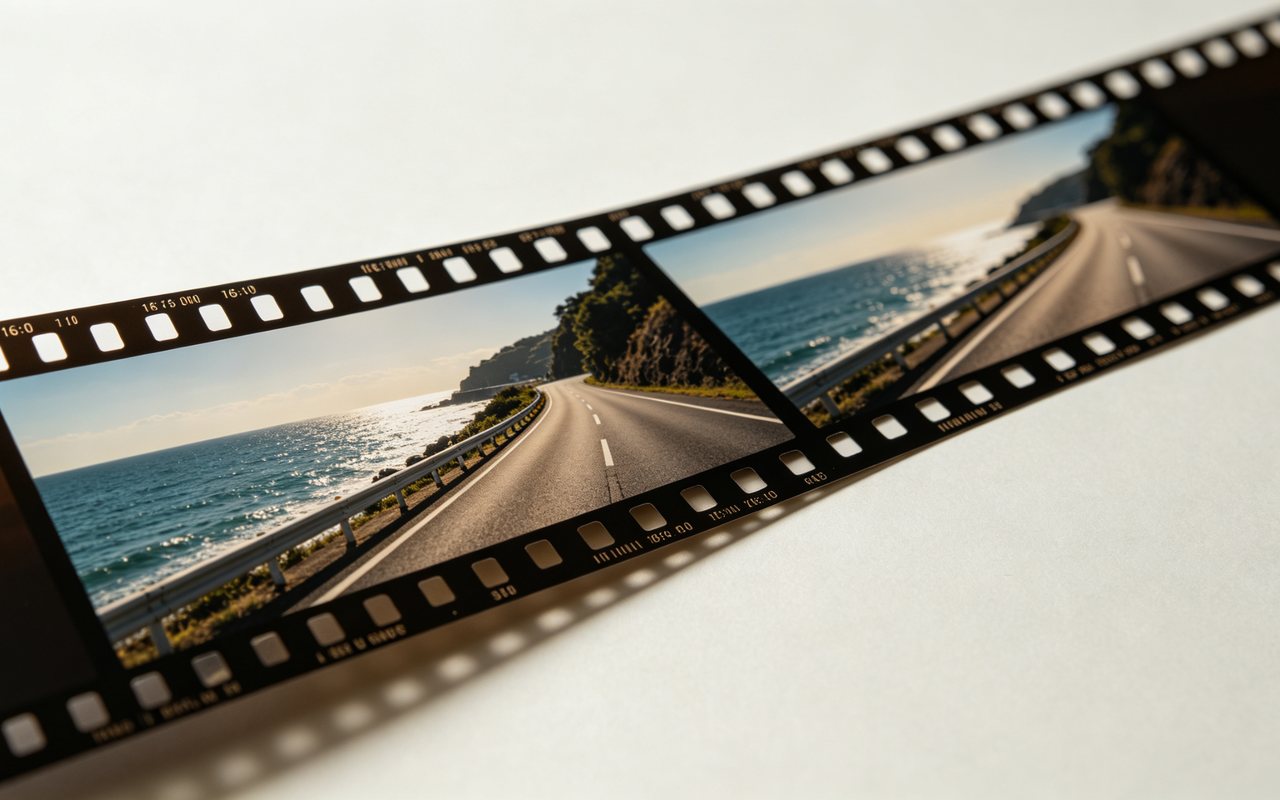
Upload a clip up to five minutes long. The AI reads the final frame, works out what was about to happen, and generates a new 5, 10 or 15 second clip that picks up exactly where yours stops. Add a short prompt if you want to decide the next beat yourself. The sample here is the continuation on its own; the original clip it was extended from is shorter and ends on the frame where this one begins.
What it is
The scene keeps going. It does not freeze or repeat.
An AI video extender is a tool that makes a clip longer by generating new footage that follows on from the end of it. The important word is follows. Older ways of stretching a video either hold the last frame for a few seconds, slow the whole thing down, or play it again from the top, and viewers notice all three within a second. Here the model starts from your final frame and predicts the next beat: a hand that was reaching finishes the reach, a camera that was drifting keeps drifting, a person who was turning completes the turn. The result is a separate clip that begins on the frame where yours ends, so you place it straight after the original on your timeline. You can leave the model to guess what comes next, which usually means the most natural continuation of the motion already on screen, or you can type a line such as 'she looks up and smiles at the camera' to steer it. It works on clips you filmed and on clips you generated, as long as they are MP4 or MOV and no longer than five minutes.
How it works
How to extend a video in three steps
Upload your clip
MP4 or MOV, up to five minutes. If your video is longer, trim it first so the clip ends on the moment you want continued — only the ending matters to the model, so the last second is the one to get right.
Describe what happens next (optional)
Leave the prompt empty to let the AI predict the natural next beat, or write one or two plain sentences about the action: who moves, what they do, how the camera behaves.
Check the price, generate, download
The workbench shows the exact credit cost before you run it. When the continuation is ready, play it back, download it, and drop it after your original clip in any editor.
Why the extension starts from your final frame
Joining two clips invisibly comes down to one thing: the first frame of the new clip has to match the last frame of the old one — same person, same clothes, same light, same position in the frame. Starting generation from that exact frame is what makes the join hold. The model then carries the motion forward instead of inventing a new shot, which is the difference between an extension and a cut. It is also why the tool does not add footage to the start of a clip or loop it: it only ever looks forward from the end. If you need a clip to lead in rather than carry on, generate that part separately in the video generator.
- New footage begins on the frame where yours ends
- Motion already on screen is carried forward, not restarted
- Extends the end of a clip only, never the start
Guide the next beat with a prompt
Without a prompt, the model does the obvious thing, and the obvious thing is often right: a walk continues, a pour finishes, waves keep rolling. A prompt is for when you want the story to go somewhere specific. Keep it to the action and the camera — the look of the scene already comes from your footage, so there is no need to describe the lighting or the outfit again. Short, concrete prompts work better than long ones, and asking for a single change of direction works better than asking for three. If the first result drifts from what you meant, rewrite the prompt around the one thing that went wrong rather than adding more detail everywhere.
- 'He stops walking, turns and waves at the camera'
- 'The camera slowly pushes in on the coffee cup as steam rises'
- 'She laughs and looks away to the left'
What goes in, what comes out
Input is a video clip up to five minutes long, uploaded as MP4 or MOV; only its ending is used. For the continuation you choose the model (Seedance, Neo, Kling or Vidu), the length (5, 10 or 15 seconds), the frame (16:9, 9:16 or 1:1) and the resolution (Auto, 480p, 720p, 1080p or 2K — what each model supports varies). Match the frame to your source so the join lines up: 9:16 for footage shot for Reels, TikTok and Shorts, 16:9 for landscape, 1:1 for square. Pricing is in credits and depends on the model, length and resolution, and the workbench shows the exact figure before you commit. If you need the finished result to look crisper, the AI video enhancer is the next step.
- Input: MP4 or MOV, up to 5 minutes
- Output: 5, 10 or 15 s · 16:9, 9:16 or 1:1 · up to 2K
- Credit price shown before you run it
Extend clips from Seedance, Kling, Sora or Veo
Most AI video models hand back clips of a few seconds, and the moment people want to use them the question becomes how to get a few more. Download the clip from whichever generator made it — Seedance, Kling, Hailuo, Sora, Veo or anything else — and upload it here like any other video. The extender does not care where the clip came from; it only needs the final frame to be clean. Generated clips are often easier to extend than phone footage, because they tend to have steady cameras and a single subject. If you have not made the clip yet, you can create it in the LazyKiwi video generator and bring it straight into this tool.
- Works on generated clips and real camera footage
- Upload the downloaded file; no link pasting
- Generate, then extend, in the same workbench
Clips that extend well
The model can only continue what it can see, so the ending of your clip decides how good the extension will be. The best endings are mid-action: someone still walking, a camera still moving, a product still turning. Clips that end on a hard cut, a fade to black, a heavy motion blur or a subject half out of frame give the model very little to hold onto, and the continuation has to invent more. Watch the last second of your clip before uploading. If it contains a cut or a transition, trim it away so the clip ends on a clean frame. The same goes for burned-in captions and on-screen text near the end: they will not be carried forward reliably, so it is better to add them after you have joined the two clips.
- End mid-action, not on a cut or fade
- Keep the main subject fully in frame at the end
- Add captions and text after joining the clips
Why LazyKiwi
Why continue a clip instead of stretching it
No frozen last frame
Holding the final frame reads as a mistake. A continuation keeps things moving on screen.
Predicts the next beat
The model looks at where the motion was heading and carries it on, rather than filling time.
You can steer it
One line of prompt is enough to decide what happens next, or leave it blank and let the AI decide.
Any frame shape
Choose 16:9, 9:16 or 1:1 so the continuation matches your original, whether it is for Reels, YouTube or a square post.
Price before you run
The workbench shows the exact credit cost for your clip before anything is generated.
Polish in the same place
Sharpen with the video enhancer, clean up soft footage with unblur video, or swap the background.
FAQ
AI video extender questions
What is an AI video extender?+
It is a tool that makes a video longer by generating new footage that follows on from the end of the clip. Instead of freezing the last frame, slowing the video down or repeating it, the AI predicts what happens next and renders it as a new clip that starts where yours ends.
How does LazyKiwi extend a video?+
You upload a clip of up to five minutes. The model takes the final frame as its starting point, reads the motion leading into it, and generates a continuation. If you add a prompt, it uses that to decide the next beat. The output is a separate clip that you place directly after your original.
Does it continue the action or just freeze the last frame?+
It continues the action. The new footage is generated, not copied, so people keep moving, the camera keeps moving and the scene develops. Because the new clip starts from your final frame, the cut between the two is hard to spot.
How long does my input video need to be?+
Up to five minutes, uploaded as MP4 or MOV. Only the ending matters to the model, so trim the clip to end on the moment you want continued. A clip that ends cleanly mid-action extends better than one that ends on a cut.
How much longer will my video get?+
Each run produces one continuation clip, and the credit price is based on clip length. The workbench shows what you will get and the exact cost before you run it, so check there rather than relying on a number on this page.
Can I tell the AI what should happen next?+
Yes. The prompt is optional, but when you use it the model follows it for the next beat. Describe the action and the camera in one or two sentences, for example 'the dog jumps onto the sofa' or 'the camera pulls back to show the whole street'. You do not need to describe how the scene looks; that comes from your footage.
What aspect ratio and resolution is the extended video?+
You choose: 16:9, 9:16 or 1:1, at Auto, 480p, 720p, 1080p or 2K depending on the model. Pick the same shape as your original so the two clips join cleanly. If you want a crisper final export, run the joined edit through the AI video enhancer.
Can I extend videos made with Sora, Kling, Veo or Seedance?+
Yes. Download the clip from the generator and upload it like any other MP4 or MOV. The extender does not need to know which model made it. Clips from Seedance or Kling generated on LazyKiwi can go straight from the video generator into this tool.
Can I extend real camera footage?+
Yes. Phone clips, camera footage and B-roll all work. The same rules apply as for generated clips: a steady ending with the subject fully in frame gives the model the most to work with, and a clip that ends on a cut or a fade gives it the least.
How many credits does a video extension cost?+
The price is set by clip length and is shown in the workbench before you generate, so you always see the exact cost for your clip first. Credits come with LazyKiwi plans; the pricing page lists what each plan includes.
Related tools:GIF to MP4 Add Text to Video Add Subtitles to Video
Use cases
When a clip is just too short
Reels and TikToks that end too soon
The shot is right but the voiceover or the beat runs two seconds past it. Continue the action instead of padding with a freeze frame or a repeat.
AI-generated shots
A generator gave you five good seconds of a scene. Extend it so the moment has time to land before the next cut.
Product and B-roll shots
A slow orbit around a product or a pan across a room that stops short. Let the camera keep moving so the shot fills the slot in your edit.
Transitions between scenes
Prompt a continuation that ends where the next scene begins: a walk towards a door, a camera tilt up to the sky, a move into close-up.
Short ads and hooks
Stretch a strong opening shot so there is room for the offer or the call to action without cutting away from the image that grabbed attention.
Reaction and ending beats
A clip ends just before the reaction you wanted. Prompt the look, the smile or the gesture that finishes the moment.
More answers
More on extending video with AI
Will the extended part have sound?+
Do not count on it. The tool is built around the picture: it continues the visual action from your last frame. Plan to lay your music, voiceover or ambient sound across the joined edit in your editor, which also hides the join between the two clips better than any single soundtrack would.
What kinds of clips extend best?+
Clips that end mid-action with a steady camera and one clear subject. A person walking, a slow pan, a product rotating, water moving. The hardest endings are hard cuts, fades, heavy motion blur, crowds and subjects leaving the frame, because the model has to invent more of what comes next.
Can I extend the beginning of a video or make it loop?+
No. The extender only continues forward from the final frame. If you need footage before your clip, generate a lead-in shot separately in the video generator and cut it in ahead of your original.
How do I join the extension to my original clip?+
Put the original on your timeline, then place the continuation directly after it with no transition. Because the new clip starts from your final frame, a straight cut is usually the least visible option. Play the join at full speed; that is how viewers will see it.
Can I make the extended video sharper afterwards?+
Yes. After joining the clips, run the result through the AI video enhancer for a general clean-up, or unblur video if the source footage was soft to begin with. Doing it after the join keeps both halves consistent.
Why does the continuation sometimes change a small detail?+
The model predicts new frames rather than copying old ones, so small things it cannot see clearly in the final frame, such as text on a shirt or a partly hidden hand, can come out slightly different. A cleaner, sharper ending frame reduces this. Re-running with a more specific prompt also helps.
Is my uploaded video kept private?+
Your clip is uploaded to LazyKiwi's servers to be processed. For details on how files are stored and handled, see the LazyKiwi privacy policy.
Give your clip the seconds it is missing
Upload a clip, steer the next beat if you want to, pick the length and frame, and see the exact credit price before you generate.
No credit card · Free to try · Results in seconds