
Add Subtitles to Video: Transcribe, Edit, Burn In
Upload a video and the speech is transcribed into short caption lines. Read through them, correct any word or timing, and the subtitles are burned into the picture so they show up on every app and every phone. Already have captions? Upload an SRT or ASS file instead. You download an MP4 with the subtitles in it and the original sound kept.
What it is
Captions that are part of the video.
There are two ways to put subtitles on a video. Soft subtitles are a separate track or file that a player can switch on or off; they depend on the platform supporting them, and many social apps simply ignore them. Burned-in subtitles, also called open captions or hardcoded subtitles, are drawn into the picture itself, so they appear wherever the video plays. This tool produces burned-in subtitles. It can write them for you: the speech in your clip is transcribed and split into short lines that are easy to read on a phone screen, and you get to review and edit every line, including its start and end time, before anything is rendered. Or you can skip transcription and upload an SRT or ASS file you already have. Either way, the result is an MP4 with the captions in the frame and the original audio kept. If you want to type your own titles, labels or on-screen notes rather than caption the speech, use the Add Text to Video tool instead.
How it works
How to add subtitles to a video
Upload the video
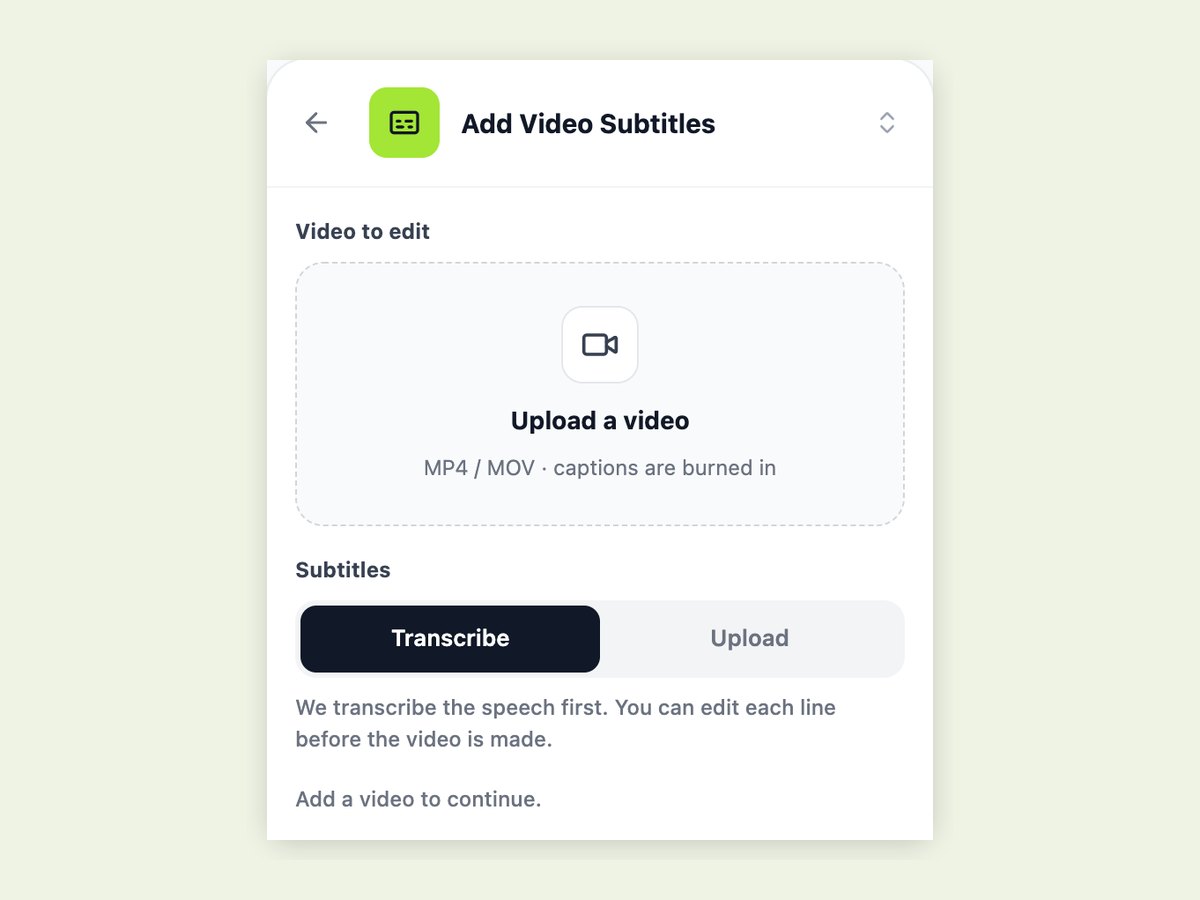
Open Add Video Subtitles in the workbench and upload an MP4 or MOV, up to five minutes long.
Transcribe and review
Choose Transcribe and press Recognize. The speech comes back as a list of lines with start and end times; fix spelling, names or timing in place, remove lines or add missing ones. Or choose Upload and add an SRT or ASS file.
Burn in and download
Press Add subtitles. The captions are rendered into the picture and you download the finished MP4.
Every line is editable before it is burned in
Automatic transcription is fast and usually close, but names, brand words and mumbled phrases are where it slips, and a typo burned into the picture cannot be fixed afterwards. So the tool does not go straight from speech to finished video. After recognition you see the captions as a list: each line with its text and its start and end time. Correct a word, shift a line that appears too early, delete one you do not want or add one that was missed — or run recognition again. Only when you press Add subtitles is the video rendered.
- Edit text, start and end time per line
- Add or remove lines, or recognize again
- Nothing is rendered until you confirm
SRT for plain captions, ASS for styled ones
If your captions already exist — from a transcription service, a translator or another editor — upload them instead of transcribing. SRT is the common plain format: numbered lines with timestamps, rendered in a clean default style. ASS (Advanced SubStation Alpha) also carries styling, such as font, size, colour, outline and position, and that styling is used when the captions are burned in. Use ASS when the look of the captions matters, for example to match a brand or to move them away from on-screen text.
Captions people see with the sound off
A large share of short-form video is watched muted, scrolling on a train or in an office. Platforms such as TikTok, Instagram Reels and YouTube Shorts do not reliably show separate subtitle files, so burned-in captions are the dependable way to make sure viewers can follow the words. They also help viewers who are deaf or hard of hearing, people watching in a second language, and anyone in a noisy place.
Why LazyKiwi
Why add subtitles here
Transcribe, then review
You see and fix every line before the video is rendered.
Your own files work too
Upload SRT for plain captions or ASS for styled ones.
Shown everywhere
Burned-in captions play on every app, player and phone.
Short, readable lines
Transcribed captions are split into short lines that fit a phone screen.
Original audio kept
The sound track is copied into the captioned MP4 unchanged.
Up to five minutes
Enough for a full social clip, an interview cut or a short explainer.
FAQ
Adding subtitles and captions to video
How do I add subtitles to a video?+
Open Add Video Subtitles in the LazyKiwi workbench and upload your video. Choose Transcribe to generate captions from the speech, review and edit the lines, then press Add subtitles. Or choose Upload and use your own SRT or ASS file.
How do I add captions to a video?+
The same way as subtitles: upload the video, let the speech be transcribed into caption lines (or upload your own SRT or ASS file), correct any word, and download an MP4 with the captions burned in. Captions and subtitles are the same text track here; burned-in captions show on every app without a CC button.
Are the subtitles generated automatically?+
Yes, if you choose Transcribe. The speech is recognised and split into short timed lines. You can edit every line before the captions are burned in.
What does burned-in subtitles mean?+
The captions are drawn into the video picture itself, so they always show and cannot be switched off. That is what makes them reliable on social platforms that ignore separate subtitle files.
Can I upload my own SRT file?+
Yes. Choose Upload and add an SRT or ASS file. Make sure its timing matches the video you upload.
Can I change the font or style of the captions?+
Captions from transcription or an SRT file use a clean default style. To control the font, size, colour or position, upload an ASS file with that styling; it is applied when the captions are burned in.
Can I add my own titles or text instead of subtitles?+
Yes, but with a different tool. This one turns speech into subtitles or burns in a subtitle file you upload. To type your own titles, labels or notes and set exactly when and where they appear, use Add Text to Video.
Which languages can be transcribed?+
Transcription detects the spoken language automatically and works with most widely spoken languages. Accuracy is best with clear speech and little background noise, which is why you review the lines before rendering.
Can I fix mistakes in the automatic captions?+
Yes. After recognition every line is shown with its text and timing. Edit any of them, remove lines, add a missing one, or recognize again, before the captions are burned in.
What video formats and lengths are supported?+
MP4 and MOV, up to five minutes. The result is an MP4 with the original audio.
Can I add subtitles to a video on my phone?+
Yes. The workbench runs in your phone's browser: upload from your gallery, review the lines, and download the result.
How much does it cost?+
Adding subtitles uses credits based on the video's length; the cost is shown before you render. New accounts get free credits to try it.
Use cases
What people add subtitles to
Reels, TikToks and Shorts
Talking-head clips that need captions for viewers scrolling with the sound off.
Podcast and interview clips
Cut a highlight from an episode and caption it so it works as a social post.
Tutorials and explainers
On-screen words make steps easier to follow and to re-watch.
Translated captions
Burn in an SRT you had translated so the clip reaches another language audience.
Accessibility
Make your video watchable for viewers who are deaf or hard of hearing.
AI avatar and voiceover videos
Caption a generated presenter or narrated clip before you publish it.
Make every word readable
Upload a video, check the transcribed lines or bring your own SRT, and download an MP4 with the captions burned in.
No credit card · Free to try · Results in seconds