
Add Text to Video: Titles and Timed Text Overlays
Upload a video, type the words, and set exactly when each one shows — 0:00 to 0:03, say. Put it at the top, middle or bottom, choose a size and a style (white with outline, yellow, black box or bold title), add up to 20 lines, and download an MP4 with the text burned into the picture so it shows on every app.
What it is
Text that is part of the video.
Adding text to a video means placing words over the picture for a set stretch of time: a title at the start, a hook across the top, a call to action at the end, a label on a product shot. There are two ways to do it. An editor can keep the text as a separate layer you can move later, or the text can be burned in — drawn into the frames themselves, so it appears wherever the file plays, including TikTok, Instagram, WhatsApp and any player that ignores separate text tracks. This tool burns the text in. It is its own tool in the LazyKiwi video workbench: you write each line, give it a start and end time, choose where it sits (top, middle or bottom of the frame), how big it is and one of four styles, and the video is rendered with the text in it. The text is sized to your video's own shape, so it is not stretched on a vertical clip, and your audio and length are kept. If what you want is the spoken words written out — subtitles made from the speech — use Add Subtitles to Video instead; this tool is for text you type.
How it works
How to add text to a video
Upload your video
Open Add Text to Video in the workbench's Video Tools and upload an MP4 or MOV, up to five minutes long.
Type the text and set the time
Write the line, set when it appears and disappears (for example 0:00 to 0:03), then pick its position, size and style. Add more lines for more text — up to 20.
Render and download
Press Add text. The credit cost is shown before you start; when it finishes, download the MP4 with the text in it.
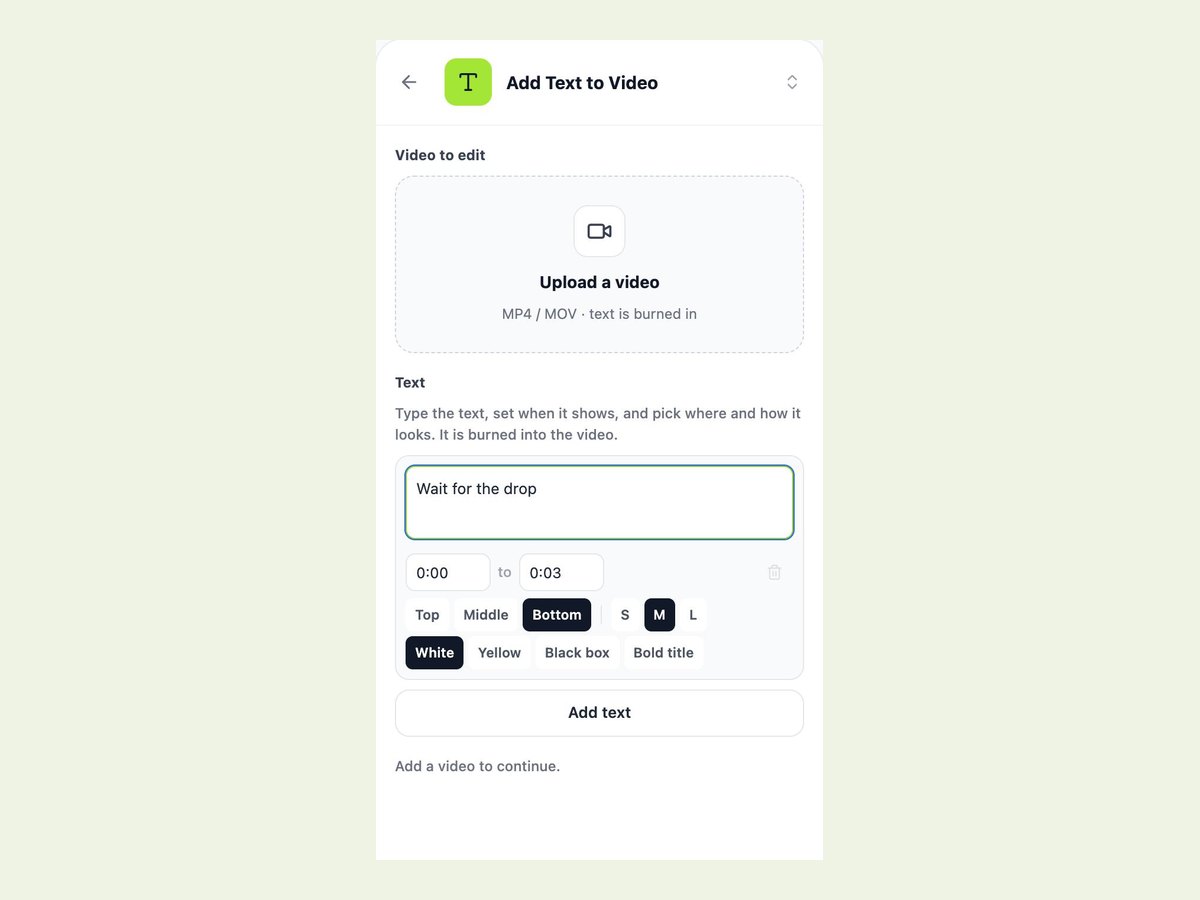
Every line has its own time, place and style
Each piece of text is its own row: the words, a start and an end time, a position and a style. That covers most of what short-form text is for — a bold title in the first two seconds, a yellow hook along the bottom while the clip plays, a boxed label in the middle for a product, a closing line in the last second. Lines can overlap in time, so a title and a lower line can be on screen together. Times are typed as minutes and seconds (0:03, 1:05) and the tool checks that each end comes after its start.
- Start and end time per line
- Top, middle or bottom of the frame
- Lines can overlap on screen
Four styles that stay readable over footage
Text over moving video has one job: be readable whatever is behind it. White with a black outline works on almost anything. Yellow with an outline is the classic look for a line along the bottom and stands out on bright or busy scenes. The black box puts a semi-transparent panel behind the words for the busiest footage. Bold title adds weight and a soft shadow for headings. Sizes are relative to your video, so Medium on a vertical phone clip and Medium on a landscape clip both read at a sensible size.
What this tool does not do
It does not animate text (no typewriter or bounce effects), does not offer custom fonts, and there is no drag-to-position canvas — positions are top, middle and bottom. It also does not listen to the audio: to turn speech into subtitles you can edit before they are burned in, use Add Subtitles to Video, which also accepts an SRT or a styled ASS file. For animated typography as its own clip, the animated text generator is the better fit, and to remove old burned-in text first, use remove text from video.
Why LazyKiwi
Why add text here
Exact timing
Type the start and end of each line instead of dragging a timeline.
Burned in
The text shows on every app and player, not just the ones that read text tracks.
Sized to your video
Vertical, square or landscape, text keeps its proportions.
Readable styles
Outline, yellow, black box and bold title for any background.
Its own tool
Add Text to Video sits in the Video Tools list; the subtitle tool is right next to it for speech-to-text.
Sound and length kept
Only the picture changes; your audio stays as it was.
FAQ
Adding text to video
How do I add text to a video?+
Open Add Text to Video in the LazyKiwi workbench (Video Tools), upload your video, type each line with a start and end time, pick the position, size and style, and press Add text. Download the MP4 when it is ready.
Can I control when the text appears?+
Yes. Every line has its own start and end time, typed as minutes and seconds, for example 0:00 to 0:03.
Where can I put the text?+
At the top, in the middle or at the bottom of the frame, centred. Free drag-and-drop positioning is not available.
Can I change the font or color?+
You can choose one of four styles — white with outline, yellow, black box or bold title — and three sizes. Custom fonts are not available; for full styling control, use the subtitle tool with a styled ASS file.
Can I add text to a video on my phone?+
Yes. The workbench runs in your phone's browser: upload from your gallery, type the lines and download the result.
How many text lines can I add?+
Up to 20 per video. Lines can overlap in time if you want a title and a second line on screen together.
Will the text be removable later?+
No. It is burned into the picture, which is what makes it show everywhere. Keep your original file if you might want a different version.
Can it turn what is said in the video into text?+
Not this tool — it only places text you type. For subtitles made from the speech, use Add Subtitles to Video: it transcribes the audio into timed lines you can edit before they are burned in.
What video formats and lengths work?+
MP4 and MOV, up to five minutes. The result is an MP4 with the original audio.
How much does it cost?+
It uses credits based on the video's length, and the cost is shown before you render. New accounts get free credits to try it.
Related tools:Add Subtitles to Video Flip Video Video Stabilizer
Use cases
What people add text for
Hooks on Reels and TikToks
A line across the top in the first second tells scrollers what the clip is about.
Titles and end cards
A bold title at the start and a call to action in the last seconds.
Product and price labels
A boxed label in the middle while the product is on screen.
Meme text
Top and bottom lines over a reaction clip.
Key lines for silent viewing
Type the one or two lines that matter so the clip works with the sound off — for full spoken-word subtitles, use the subtitle tool.
Replacing old burned-in text
Remove the old text first, then add clean new lines.
Put your words on screen
Upload a video, type the text, set when it shows, and download an MP4 with it burned in.
No credit card · Free to try · Results in seconds