
YouTube Intro Maker: How to Make a Channel Intro Free
How to make a YouTube intro free: how long it should be, what it should say, and three ways to build one — in the browser, from a template, or from a prompt.
 Daniel Okafor 11 min read
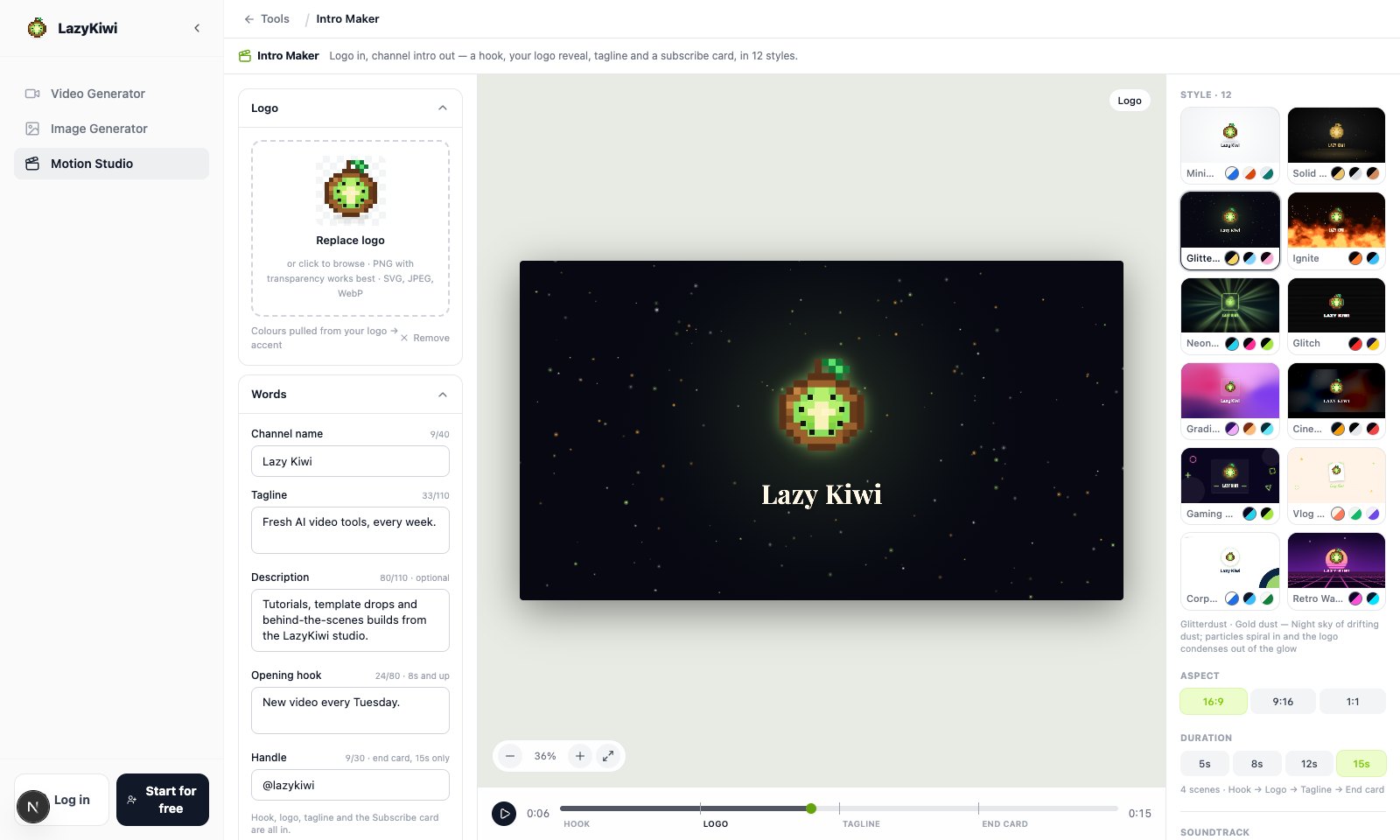
A YouTube intro is the two to ten seconds at the top of a video that shows your logo, says what the channel is and, on longer channels, asks for the subscribe. The job is small, which is exactly why it is easy to get wrong: a ten-second animation that plays before every video is ten seconds viewers can use to leave. This guide covers the two decisions that matter — how long the intro runs and what it says — and then the three ways people actually make one: a browser intro maker that previews live, a template-render site, and a general AI video generator. Everything here was checked on 7 November 2026.
How long should a YouTube intro be?
Short enough that nobody reaches for the skip button. For most channels that means five to ten seconds, and longer only when the intro carries something a new viewer needs, such as your handle or a one-line promise about the channel.
The retention graph is the honest judge. If there is a cliff in the first ten seconds of every video, the intro is the suspect — people are leaving before the content starts. A good rule: a brand-new viewer should reach your first real sentence inside five to eight seconds.
- 5 seconds: a logo reveal and a one-line tagline. The safe default for most uploads.
- 8-12 seconds: room for an opening hook like "New video every Tuesday" before the logo.
- 15 seconds: only if you close on a Subscribe card with your @handle, and only on a channel people already follow.
Cut your intro for the format, not the other way round. A 5-second opener on a Short should be shorter still — on vertical video the first second decides whether anyone stays.
What should a YouTube intro say?
Less than you think. A new viewer needs three things, and the third is optional: your channel name, one line that says what they will get, and — if you post on a schedule — a hook. Save the call to action for the end of the video, not the start.
- 1
Channel name
On screen as text, not only in the logo, so it is legible on a phone and to anyone with the sound off.
- 2
A one-line tagline
What a first-time viewer gets by staying: "Weeknight dinners in 20 minutes", "Honest camera reviews", "Learn a chord a day". Keep it under roughly a hundred characters so it fits one line.
- 3
An optional hook
A reason to keep watching, usually a schedule or a promise: "A new build every Friday." Leave it out if you do not post on a fixed day.
That is also the structure the intro maker here is built around — a hook, a logo reveal, a tagline and, on the longest cut, a Subscribe card — so the fields map to exactly these pieces rather than a blank canvas.
Three ways to make a YouTube intro
There are three common routes, and the difference between them is where the animation is drawn and how much of it is yours to change.
| Route | How it works | Best when |
|---|---|---|
| Browser intro maker | You fill in a short form — name, tagline, logo — and the opener plays live in the tab in one of a fixed set of styles. No render queue. | You want a clean logo intro in a few minutes and will reuse it on every video. |
| Template-render site | You pick from a very large catalogue, including hundreds of 3D logo reveals; the moving preview is rendered on their servers after you sign up. | You want a specific effect from a big library and do not mind the render wait and tiers. |
| AI video generator | You describe a video in a prompt and it writes scenes with stock media and voiceover; a five-second logo sting is a small corner of the job. | You are making a whole video, not just an opener. |
LazyKiwi's intro maker is the first kind: it draws the opener in your browser from your logo and words, so a style change shows up at once and the export starts straight away. If you want a logo that moves on its own rather than a full channel intro, the logo animation tool is the narrower version of the same idea.
How to make a YouTube intro in the browser
The flow below is the browser route, start to finish. Every step previews live, and you only sign in when you download.
- 1
Add your logo and words
Drop in a PNG (a transparent background gives the cleanest edges), SVG, JPEG or WebP, then type your channel name, a tagline, an optional hook and your @handle. No logo? The first letter of your channel name becomes a badge in the style's colours.
- 2
Pick a style and a colour
There are 12 styles — from Minimal White and Corporate Clean to Neon Power, Glitch, Gaming Neon and Retro Wave — each rendered with your own logo so you choose between finished frames, not swatches. Each has two or three colour variants, and your logo's colours can set the accent.
- 3
Set the length and ratio, then download
Choose 5, 8, 12 or 15 seconds and 16:9, 9:16 or 1:1, pick a soundtrack or none, and download an MP4. Free accounts export 720p with a small mark for personal use; any paid plan exports clean 1080p cleared for commercial use, and Pro adds 4K and 60 fps.
Because the opener is drawn live, trying a gaming style, then a corporate one, then a different colour costs nothing and takes seconds — there is no server render to pay for or wait on while you decide.
Intros for Shorts, TikTok and Reels
A widescreen intro cropped to vertical loses half its layout. The fix is to lay the intro out again for the frame rather than crop it: the logo, name and tagline are re-spaced and the decorations move clear of the text.
- 16:9 for regular uploads, 9:16 for Shorts, Reels and TikTok, 1:1 for feed posts — all from the same inputs.
- Keep vertical intros to the shortest length; on Shorts the opener competes with a thumb that is already moving.
- A gaming or glitch style reads well small; a thin, elegant serif can disappear on a phone.
If vertical is new to you, YouTube's own guide to creating Shorts covers the format, and our YouTube Shorts ideas post has what to put after the intro.
How to add the intro to your video
Download the MP4 and drop it at the very start of your timeline in whatever editor you cut in — Premiere Pro, DaVinci Resolve, Final Cut Pro, CapCut and iMovie all treat it as an ordinary clip — then export and upload as usual.
- Match the ratio to the video: 16:9 for a normal upload, 9:16 for a Short.
- A 720p intro is scaled up on a 1080p timeline and can look soft; a 1080p export matches pixel for pixel.
- Keep a copy of the project so you can re-export the same intro when you rebrand.
For the other end of the video, YouTube's end screens do the closing-card job natively in the last 5 to 20 seconds, so you do not have to build the outro into the clip if you would rather use theirs.
Free YouTube intro maker, and what paying removes
Every style plays in the live preview without an account, and a free account exports unlimited 720p clips with a small LazyKiwi mark, for personal use. Paying removes the mark and adds the rest: a one-time credit pack clears the watermark and the few premium styles, any paid plan adds 1080p and commercial use, and Pro adds 4K and 60 fps.
The honest line on "free, no watermark": most free intro makers either stamp a mark or hold back the clean export until you pay — this one is the same on the free tier. What is genuinely free here is trying every style, colour, length and ratio in the live preview before you decide. If the channel is monetised or the intro is for a client, that is commercial use, and it should go out on a paid plan.
Key takeaways
- Keep it to 5-10 seconds. Longer only earns its place if it carries your handle or a subscribe prompt, and only on a channel people already follow.
- Say three things: channel name, a one-line tagline, and an optional hook. The call to action belongs at the end of the video, not the intro.
- Three routes: a browser intro maker (live preview, no render queue), a template-render site (big catalogue, server render), or an AI video generator (for whole videos).
- Export the right ratio — 16:9 for uploads, 9:16 for Shorts — laid out for the frame instead of cropped from widescreen.
- Free exports are 720p with a small mark for personal use; a monetised channel or client work needs a paid plan for clean 1080p and commercial rights.
Video Workflows Editor
Daniel Okafor
I run the same clip through every video and motion tool we ship and write down what actually changes: timing, length, export, and where each one falls apart.
FAQ
Common questions
Is a YouTube intro maker free?
To try and for personal use, yes. In LazyKiwi's intro maker every style, colour, length and ratio plays in the live preview without an account, and a free account exports unlimited 720p clips with a small mark in the corner, for personal use. A monetised channel or client work needs a paid plan, which exports clean 1080p cleared for commercial use.
How long should a YouTube intro be?
Five to ten seconds for most channels. Use five for a logo reveal and tagline, eight to twelve if you open with a hook, and fifteen only when you close on a Subscribe card with your @handle. If there is a drop-off cliff in the first ten seconds of your videos, shorten the intro.
How do I make a YouTube intro and a matching outro?
Build the intro, then make an end screen with the same logo, colours and font so the two bookend the video. LazyKiwi has a separate outro maker for the closing card; keeping the type and colour identical is what makes a channel read as one thing.
Can I make a free YouTube intro with no watermark?
The free tier here exports 720p with a small mark; a one-time credit pack or any paid plan removes it. Be wary of sites that promise "free, no watermark" and then gate the clean download or the good styles behind a sign-up — the preview is the part that should be free, and here it is.
Can I make a gaming intro or one for Shorts?
Yes. A gaming style with floating neon shapes and a title panel suits gaming channels, and Glitch and Neon Power work too. Every style exports at 9:16 for Shorts, TikTok and Reels and at 1:1 for the feed, laid out for that frame rather than cropped from widescreen.
Do I need a logo to make a channel intro?
No. Leave the logo empty and the intro uses a badge with the first letter of your channel name in the style's colours; for a name in Chinese, Japanese or Korean it takes the first character. Add a real logo later and every style picks it up.
Make a YouTube intro in your browser
Drop in a logo, type your channel name, and watch the opener play live — 12 styles, 5 to 15 seconds, at 16:9, 9:16 or 1:1. Preview every style free; sign in to download.
Keep reading

Animated Logo Ideas: 12 Reveals That Work
Twelve animated logo patterns sorted by how long each takes to build, what every one says about a brand, and the export settings each platform expects.
9 min read
How to Make a YouTube Thumbnail With AI (Step by Step, 2026)
How to make a YouTube thumbnail with AI in six steps: pick the frame, generate with title space, add text, export to YouTube's spec and A/B test the result.
7 min read
25 Faceless YouTube Channel Ideas That Still Work in 2026
25 faceless YouTube channel ideas grouped by production load, with the format, tool stack and policy risk for each, plus YouTube's 2026 rules on AI content.
10 min read