
How to Edit Photos With ChatGPT (and What It Still Refuses)
How to edit photos with ChatGPT by describing the change, what the GPT Image 2.6 update added, the three walls it hits on photos of real people, and the fix.
 Maya Chen 9 min read
Describing an edit in plain English and getting the picture back changed is the best interface image editing has had in twenty years, and it is why so many people now open a chat window instead of a photo editor. ChatGPT does it well for a lot of edits — and runs into three hard walls on exactly the edits most people want, which are photos of themselves and other real people. This guide shows how to edit photos with ChatGPT, how to word the instruction so it edits rather than redraws, what the GPT Image 2.6 update changed, and what to do when it refuses the photo or hands back a different face. Checked on 7 November 2026.
Can ChatGPT edit your photos?
Yes, for a good range of edits. You upload an image, type what should be different — "make the sky overcast", "warm the whole thing up", "remove the bin on the left" — and the edited picture comes back. For casual, non-portrait work it is genuinely good, and it keeps getting better with each image-model update.
The limits show up the moment the photo has a recognisable person in it, which is most real photo work. There are three of them, and they are worth knowing before you spend an afternoon fighting the chat window.
What the GPT Image 2.6 update changed
In early November 2026 OpenAI updated the image model behind ChatGPT to GPT Image 2.6. The widely reported changes are sharper, more legible text inside generated images, better use of a reference image you attach, and short looping clips. OpenAI's image generation guide is the primary source for what the current model can be asked to do, and the broader history of its image models is on the DALL-E article; treat anything else as secondhand.
What the update does not change is the shape of the three walls below. A newer model renders text better and follows a reference more closely, but a general assistant still applies a broad refusal on photos of identifiable people, still tends to regenerate the whole frame, and still returns a screen-sized image. Those are product and policy choices, not model limits a version bump removes.
The three walls on photos of real people
It declines most edits to an identifiable face
A general-purpose assistant refuses the majority of requests that alter a photo of an identifiable person. That is a reasonable default for a chatbot and a dead end for anyone editing their own photos — retouching a portrait, changing an outfit, tidying a background behind a person.
It regenerates the whole image, not one part
Ask it to change the shirt and the background quietly shifts too, because it produces a new, similar-looking image rather than your image with one change. That is whole-image regeneration, and it is the main reason multi-step edits drift away from the original.
It hands back a screen-sized file
The output is a fixed, modest resolution that looks fine in a message bubble and is useless for a print, a poster, a product listing or a page layout.
How to word an edit so it edits instead of redrawing
Whichever tool you use, the wording decides the result. Name the thing and the change, and nothing else.
- Good: "remove the car on the right", "change the jacket to dark green", "make the light look like late afternoon".
- Avoid: long stylistic paragraphs. They push the model toward regenerating the whole picture, which is the opposite of an edit.
- Build in steps: make one change, check it, then give the next instruction, so each edit is small and correctable.
If you want a library of edits worded this way, our AI photo editing prompts post has copy-paste examples with before-and-after results.
When it refuses the photo or changes the face
When the job is a photo of a real person — you, a client, a model you shot — a general assistant is the wrong tool, not because the model is weak but because the product declines the request. A photo editor built for this can ask instead that you have the right to the image, and then apply narrower rules.
That is what LazyKiwi's prompt-based photo editor is for. It works the same way — you type the change in plain English and the edited photo comes back — with the three walls addressed: edits to people are supported on images you own or have permission to use, the change is masked to the region you named and composited back so faces, framing and the untouched background survive exactly, and the export goes up to print resolution. It is an independent tool, not ChatGPT and not made by OpenAI.
- Works on real faces for images you own — the portrait and clothing edits a chat assistant usually declines.
- Region-masked, not regenerated, so the parts you did not mention are literally untouched and edits can be stacked.
- Full-resolution export, and a batch mode to run the same instruction across a folder of photos.
The content line is the same everywhere and worth stating plainly: no impersonation, no sexual content, nothing involving minors, and no fabricating a real event that did not happen — regardless of who owns the photo.
When a named tool beats a prompt
A sentence is the long way round whenever the job already has a name. These give more control in fewer steps than describing the same thing to any model:
| The job | Faster than a prompt | Why |
|---|---|---|
| Change or remove a background | A dedicated background tool | One click or one clear instruction, with the edge handled for you — see [change background of photo](/blog/change-background-of-photo). |
| Make it print-size | An image upscaler | The [photo upscaler](/tools/ai-photo-upscaler) takes a finished edit up to print resolution without re-describing it. |
| Swap an outfit | A clothes tool | The [clothes changer](/tools/ai-clothes-changer) keeps the face and pose and only changes the garment. |
| Any edit, by prompt | A prompt editor built for photos | The [AI photo editor](/tools/ai-photo-editor) handles the free-form edits that do not have a dedicated button. |
Key takeaways
- ChatGPT edits photos well for casual, non-portrait work — you describe the change and it comes back edited.
- The GPT Image 2.6 update improved text and reference handling, but did not remove the three walls on photos of real people.
- Those walls: it declines most edits to identifiable faces, regenerates the whole image instead of one region, and returns a screen-sized file.
- Word edits as a named change, not a paragraph, and build them up in small steps so each one is correctable.
- For photos of real people, use a prompt editor built for photos — region-masked edits, real faces on images you own, and print-resolution export.
Image & Design Editor
Maya Chen
I test the image tools we ship on real photos — faces, text, backgrounds — and note which edits hold up at full size and which quietly fall apart.
FAQ
Common questions
Can ChatGPT edit my photos?
It can make many edits — you upload an image and describe the change — but it declines most requests that alter a photo of an identifiable person, it tends to regenerate the whole image rather than change one region, and it returns a fixed, modest resolution. For casual non-portrait edits it is good; for photo work involving people, composition or print output, those three limits are the problem.
How do I edit a photo with ChatGPT without changing the face?
Word the request as a single named change and keep it off the face — "change the jacket to navy", not "redo this portrait" — because long or sweeping instructions push the model to regenerate the whole image, including the face. If the face still changes, that is whole-image regeneration; a region-masked editor composites the change back into the original pixels so the face is untouched.
Is this the same as the ChatGPT image editor?
It works the same way — type the change in plain English and the edited image comes back — but it is not ChatGPT and not made by OpenAI. LazyKiwi is independent. It is a prompt-based image editor built specifically for photographs, including the portrait and clothing edits a chat assistant often declines.
Why does ChatGPT refuse to edit a picture of a person?
Editing photos of identifiable people carries impersonation and consent risks, so a general assistant applies a broad default refusal rather than judging each case. A tool built for photo editing can instead ask that you have the right to the image, then apply narrower rules — no impersonation, no sexual content, no fabricated real events.
What resolution do I get, and can I edit many photos at once?
A chat assistant hands back a fixed, screen-sized image. A photo editor exports up to print resolution, and an upscaler takes it further for large prints. For volume — product listings, team headshots, event galleries — a batch applies one instruction across a whole set instead of one message per image.
What edits are off limits?
Anything that impersonates a real person, sexual content, anything involving minors in a suggestive context, and edits designed to fabricate a real event. Those apply regardless of who owns the photo, in a chat window and in a dedicated editor alike.
Edit a photo by describing the change
The same describe-it editing people go to a chat window for, built for photographs: real faces on images you own, the region edited instead of the whole frame, and full-resolution export.
Keep reading
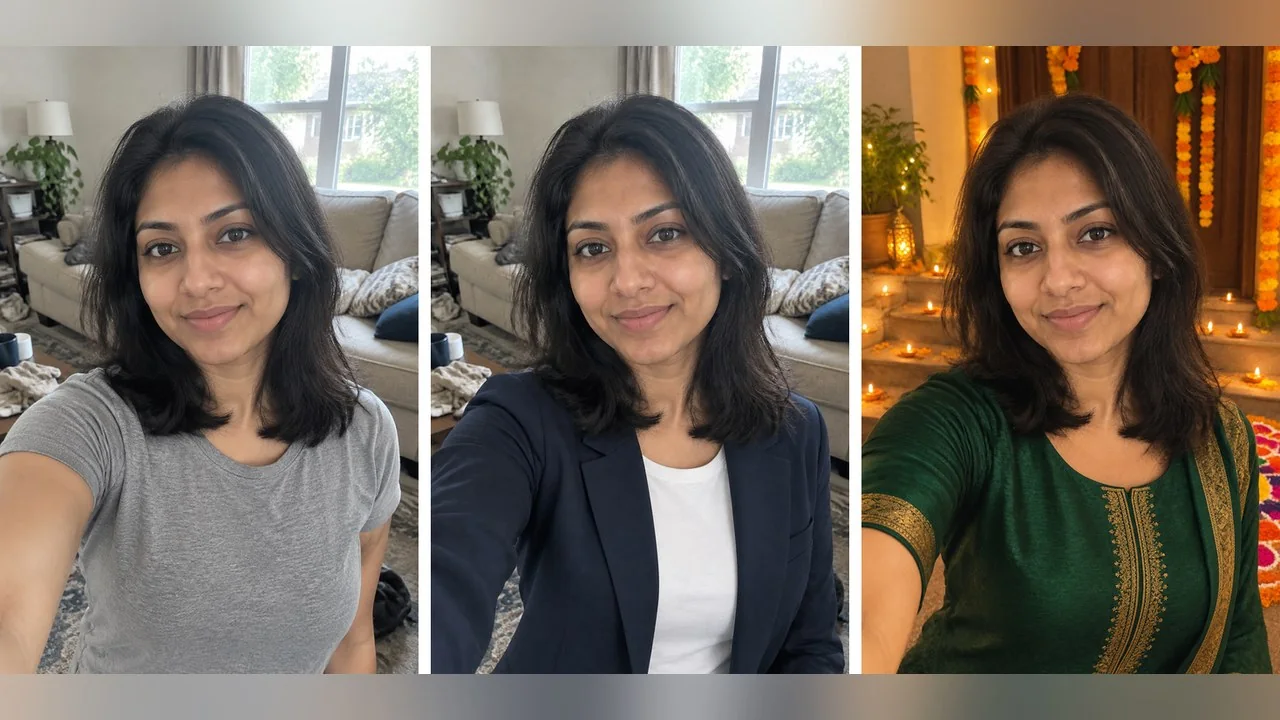
AI Photo Editing Prompts: 24 Copy-Paste Edits With Results
24 AI photo editing prompts for ChatGPT, Gemini or a browser editor, grouped by job, with before-and-after renders, a Vikas Editor section and a fix list.
10 min read
Best AI Photo Editing Apps in 2026, Tested
Nine of the best AI photo editing apps run against the same two files: retouch a face, clean a scene, batch a set, export without a watermark.
10 min read
Change Background of Photo: 3 Methods Compared
Change background of photo files three ways: white for IDs and listings, a real room for portraits, an invented scene for social. Edge and light rules.
9 min read