
Google Flow Veo 3.1 Tutorial: Credits, Modes and Limits
A step-by-step Google Flow Veo 3.1 tutorial from Google's own help pages, read 15 October 2026: access, credits, text, frames, ingredients, extend, limits.
 Daniel Okafor 10 min read
Google Flow is the browser studio in which Google's Veo 3.1 video model, the Gemini Omni video model and the Nano Banana image models sit behind one prompt box. Its help centre is complete but scattered across fifteen articles, so this Google Flow Veo 3.1 tutorial consolidates them into one path: who can sign in, what each plan gives you, how to generate from text, from frames and from ingredients, how to extend and assemble clips, and where the documented limits are. Everything below was read on 15 October 2026 from flow.google.com, the Google Flow Help Center and the Google One plans page. The last section covers what to do when Flow refuses, whether for age, region, plan or model reasons, and which LazyKiwi pages take over at that point.
What is Google Flow, and what does Veo 3.1 do inside it?
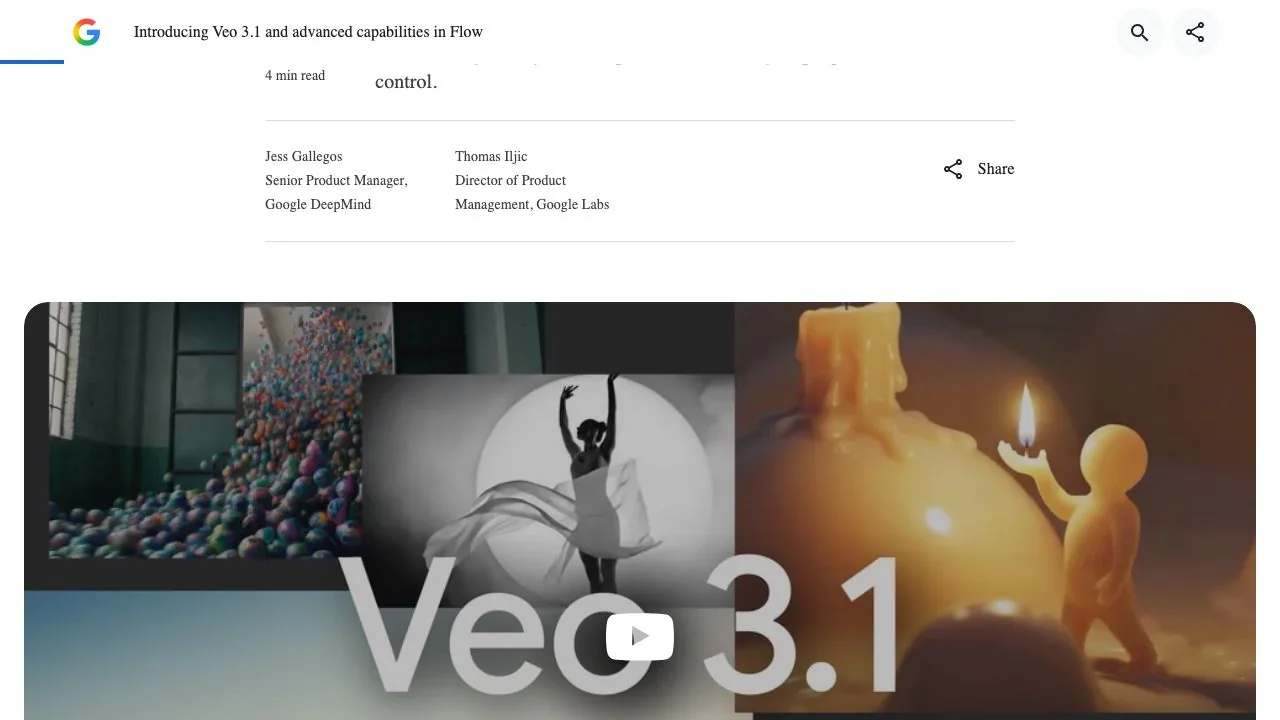
Flow by Google launched on 20 May 2025 as a Google Labs experiment that combined the earlier VideoFX, ImageFX and Whisk tools, and was renamed Google Flow with its own domain in May 2026, per Wikipedia. Veo 3.1 arrived on 15 October 2025; Google's announcement introduced Ingredients to Video with audio, Frames to Video with audio, Extend, Insert and Remove, and noted that more than 275 million videos had been generated in Flow in its first five months.
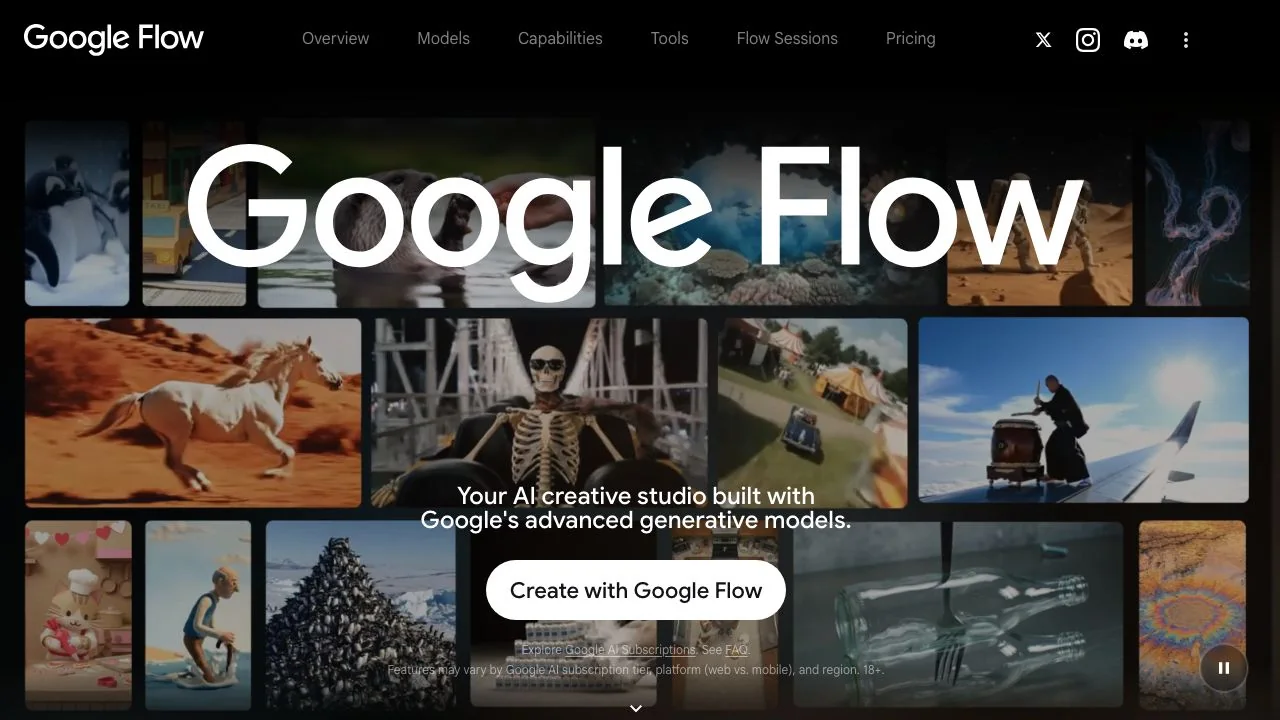
On the about page today three model families are listed: Gemini Omni, described as creating and editing videos from any input reference, Nano Banana for image generation and editing, and Veo 3.1, which Google says delivers expanded creative controls, native audio and strong physics and prompt adherence. DeepMind's Veo page adds that Veo 3.1 is also available in the Gemini app, Google AI Studio, the Gemini API and Google Vids, and that every output carries a SynthID watermark. Flow is where the full set of Veo controls lives, which is why most Google Flow AI video searches end up here.
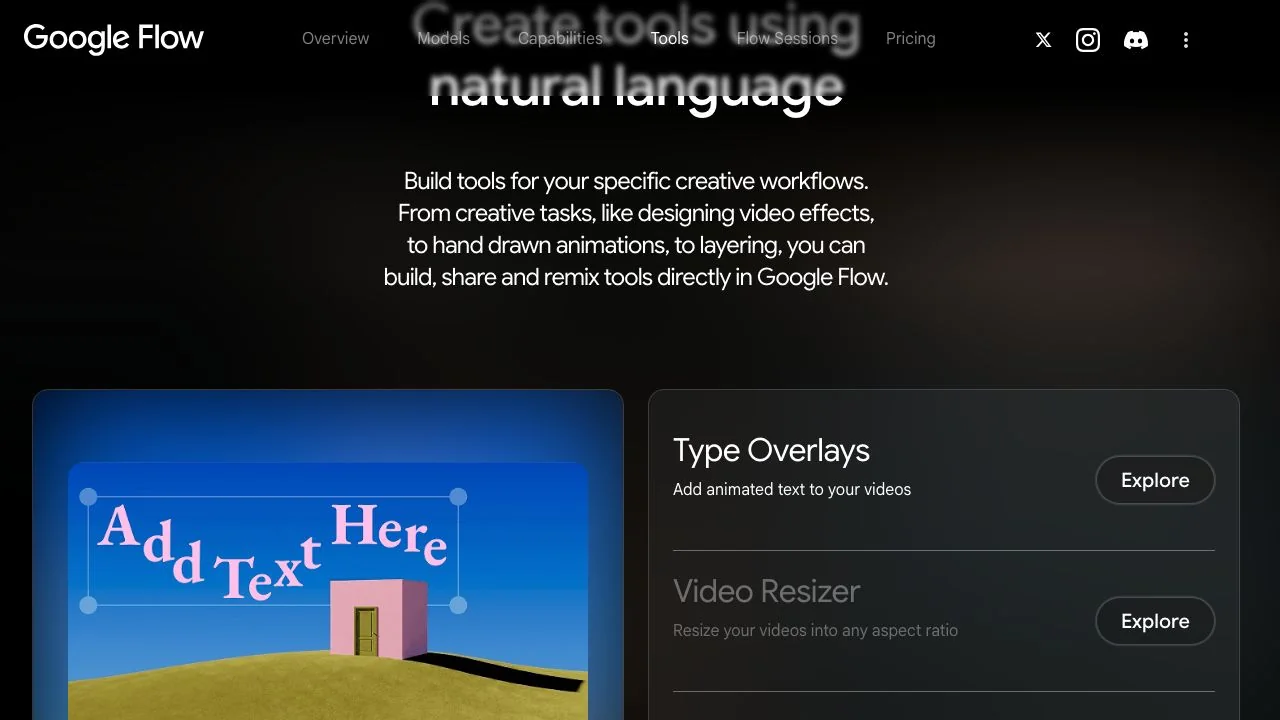
Around the models, Flow has an Agent that plans, batch-generates and organises assets from a chat box, Scenebuilder for sequencing clips, Characters and Avatars for consistent people, and Tools, which are small apps you build by describing them. The about page lists Google-made Tools such as Type Overlays, Video Resizer, Storyboard Studio, Shader Effects and Scout360.
Is Google Flow free? Plans, credits and what each tier adds
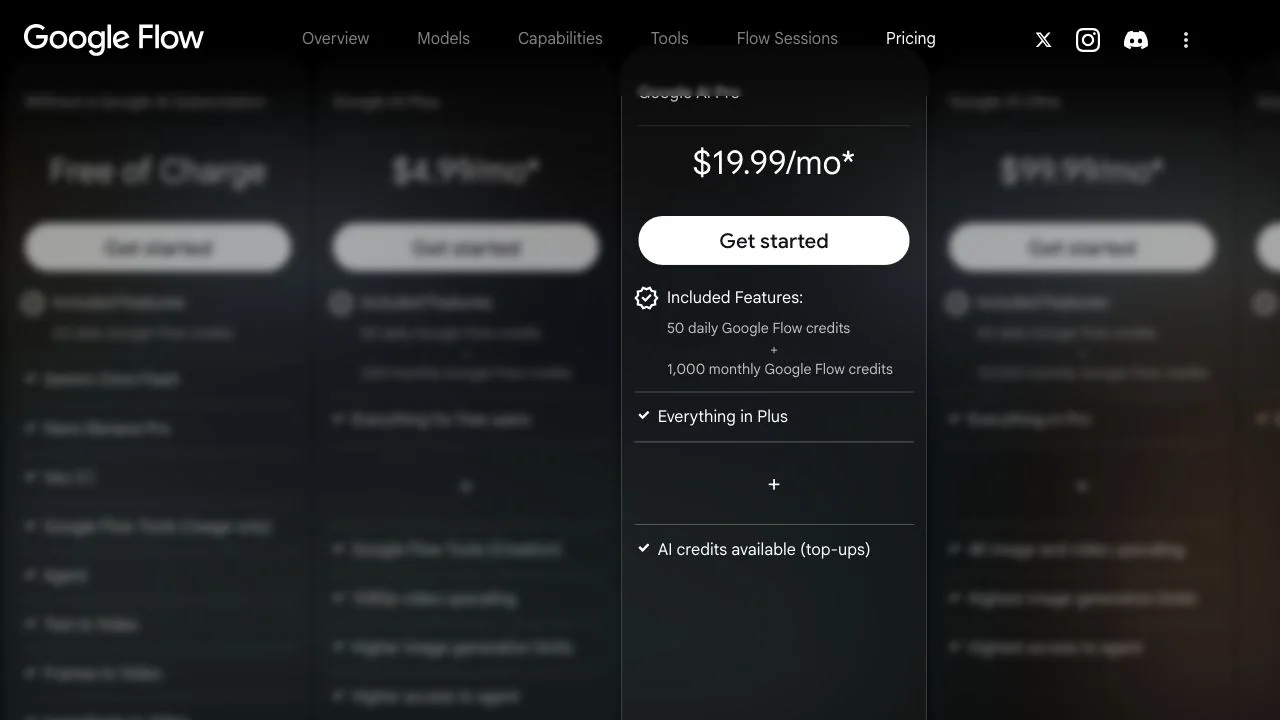
Yes, with a Google account and no subscription, within limits. The about page's pricing section and the credits help article agree on the numbers:
| Tier (US pricing) | Flow credits | What the about page adds | Price on 15 Oct 2026 |
|---|---|---|---|
| No subscription | 50 a day | Gemini Omni Flash, Nano Banana Pro, Veo 3.1, text, frames and ingredients to video, extension, video-to-video editing, Scenebuilder, 2K image upscaling, Characters, Avatars, Tools (use only), Agent | Free |
| Google AI Plus | 50 a day + 200 a month | Tools creation, 1080p video upscaling, higher image limits, higher Agent access | $4.99 a month |
| Google AI Pro | 50 a day + 1,000 a month | Everything in Plus, plus AI credit top-ups | $19.99 a month |
| Google AI Ultra | 50 a day + 10,000 a month | 4K image and video upscaling, highest limits and Agent access | $99.99 a month |
| Google AI Ultra (higher tier) | 50 a day + 25,000 a month | Everything in the $99.99 tier | $199.99 a month |
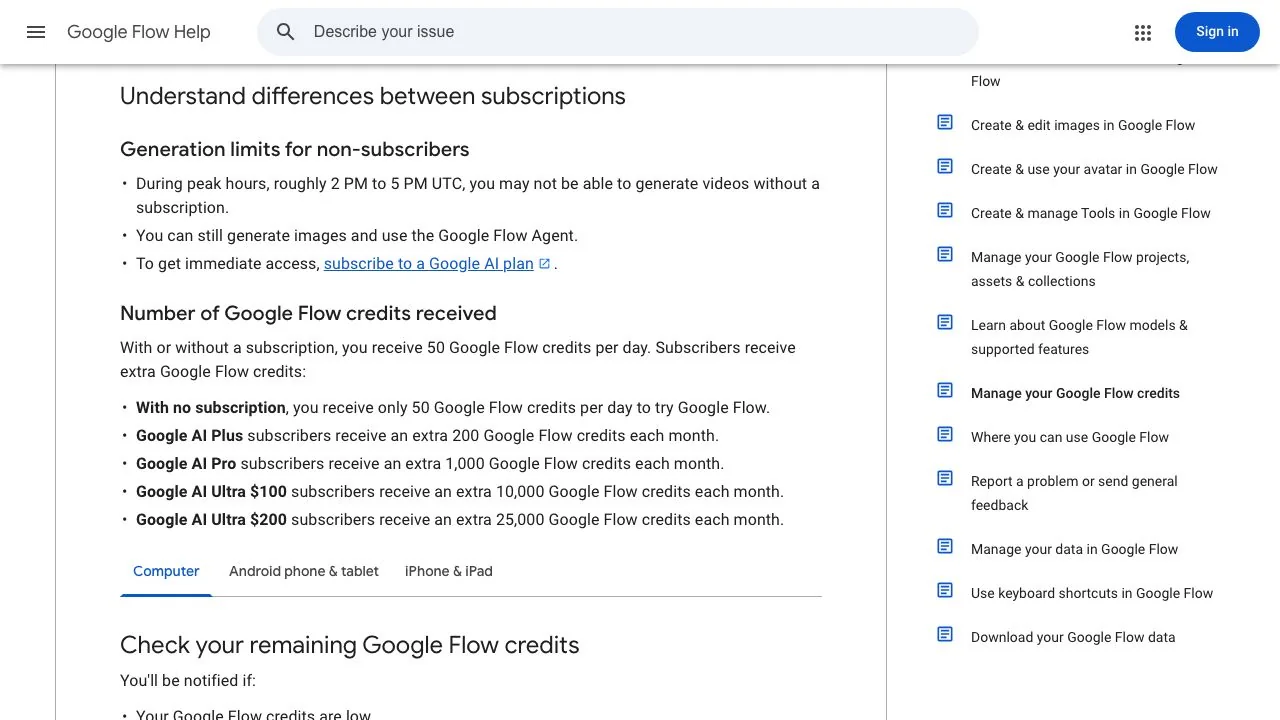
Three rules shape how far those credits go. Daily credits refresh the day after your first generation and do not roll over; monthly credits refresh with your billing cycle and do not roll over either. Non-subscribers may be unable to generate video during peak hours, roughly 2 PM to 5 PM UTC, though images and the Agent still work. And top-up AI credits can be bought by Plus, Pro and Ultra subscribers in supported regions, except Japan. The Google One plans page lists the same Flow credit figures next to the storage and Gemini benefits of each plan.
What a single generation costs depends on the model, and the help article prints the table:
| Model and setting | Credits per generation |
|---|---|
| Veo 3.1 Lite, 4 to 8 seconds or Extend | 10 for most users; 5 on Ultra; a Lower Priority queue is 0 for Ultra plan managers |
| Veo 3.1 Fast, 4 to 8 seconds or Extend | 20 for most users; 10 on Ultra |
| Veo 3.1 Quality, 8 seconds or Extend | 100 for all users |
| Gemini Omni Flash 720p | 7, 10, 12 or 15 for 4, 6, 8 or 10 seconds |
| Gemini Omni Flash 360p | 4, 5, 6 or 7 for 4, 6, 8 or 10 seconds |
| Gemini Omni Flash video edit | 40 |
| 1080p upscaling, any model | 0 for Plus, Pro and Ultra; not available without a subscription |
| 4K upscaling, any model | 50, Ultra only |
Costs are per generation, not per request. If you set two outputs, you pay twice. Check the figure in the prompt box settings before every run; the help page says limits can change at any time.
How to use Google Flow: your first Veo 3.1 clip step by step
Before the steps of this Google Flow tutorial, two gates from the Get started article: you must be 18 or older with a verified age, and in a supported country, which the availability article lists country by country alongside the supported languages, with a note that English prompts give the best results.
- 1
Sign in and open a project
Go to flow.google.com with a Google account, click an existing project or start a new one. Everything you generate lands in the open project.
- 2
Click the model name in the prompt box
This opens the mode and model picker. Choose Video, then pick Veo 3.1 Lite, Fast or Quality, or Gemini Omni Flash. Lite is the cheapest Veo and the only one that can extend; Quality is the dearest and skips ingredients.
- 3
Write the scene
The create article asks for subject, action, environment, lighting and style. Add the sound you want in words, because Veo 3.1 generates audio with the picture.
- 4
Set the preferences
Aspect ratio (16:9 or 9:16), number of outputs, model, and generation length: 4, 6 or 8 seconds on Veo 3.1, up to 10 on Omni Flash.
- 5
Check the credit cost, then click Generate
The settings panel shows the current price. A first-time account on the free tier can afford five Lite clips a day, or two Fast ones.
- 6
Review and save
Each result appears in the project with its prompt in the History panel. Save the version you like before editing, so Scenebuilder can find it later.
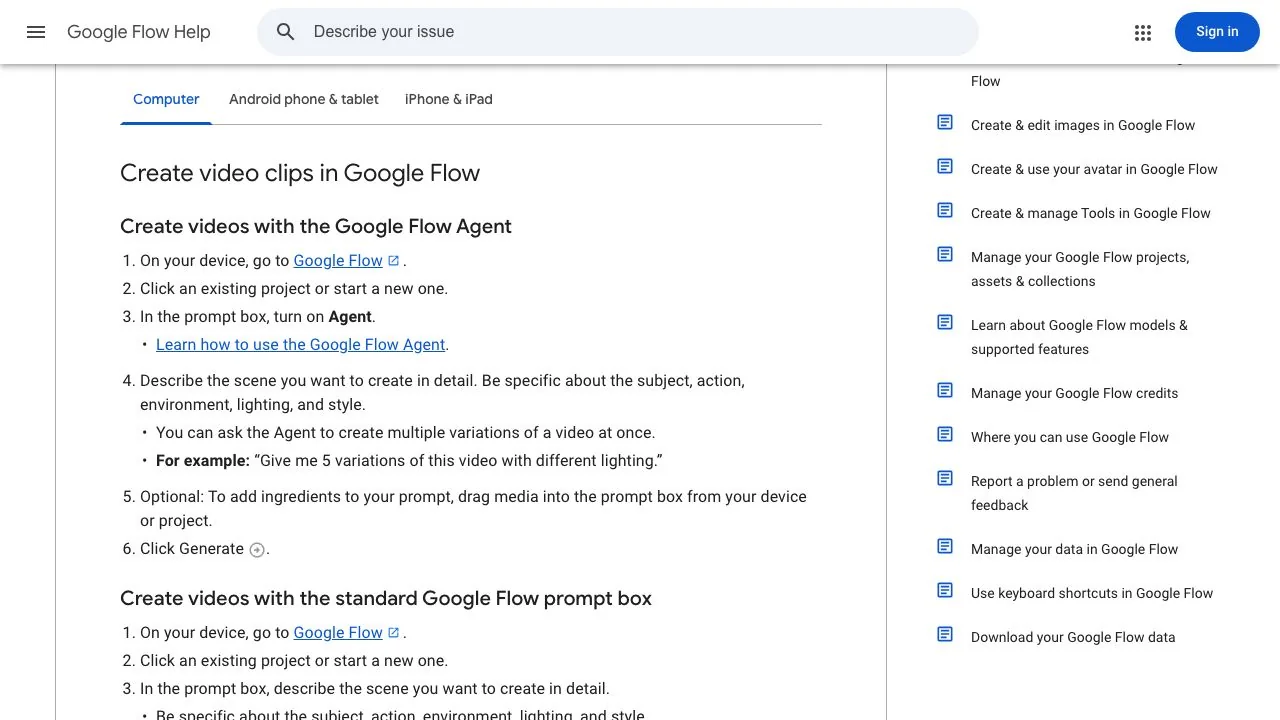
The alternative route is the Agent. Click Agent in the prompt box, describe the scene or ask for a storyboard, and drag media in as context. Agent queries do not cost Flow credits, per the Agent article, but the media it generates does, and there is a daily quota of Agent queries. It is also web and PC only for now.
Frames to video: how start and end frames work
Frames are the mode people reach for in a Google Flow Veo 3.1 project when they have a still and want motion, or two stills and want a transition. The steps from the create article:
- 1
Open Video, then Frames
Click the model name, choose Video, then Frames.
- 2
Drag images into the frame slots
The prompt box shows + Add start frame and + Add end frame. A start frame alone animates the image; start plus end produces a clip that opens on one and closes on the other.
- 3
Describe the transition
Say what happens between the two frames and what the camera does. Keep it to one movement.
- 4
Pick length and ratio, then Generate
Frames to Video supports 4, 6 and 8 seconds in both aspect ratios on every Veo 3.1 tier and on Omni Flash, per the models article.
If you do not have the right still yet, generate it in the same project: the image side of Flow runs Nano Banana Pro by default for Ultra subscribers, Nano Banana 2 Lite as the no-charge default and Nano Banana 2.1 as the standard model, and any image you make can be dragged straight into a frame slot.
Ingredients to video: characters, references and voices
Ingredients are the consistency feature. Instead of describing a character every time, you upload references once and mention them:
- Type @ followed by a character name to insert a saved character into the prompt, for example @CaptainZoro walking through a futuristic city; type @me to insert your own avatar.
- Click the model name, then Video, then Ingredients to drag visual references in, or type @ to search any uploaded asset in the project by name.
- Voices are an Omni Flash feature: under Ingredients click Add, then Voices, pick a voice, and reference it as @Voice in the prompt. You can also create a custom voice from a preset by describing the performance.
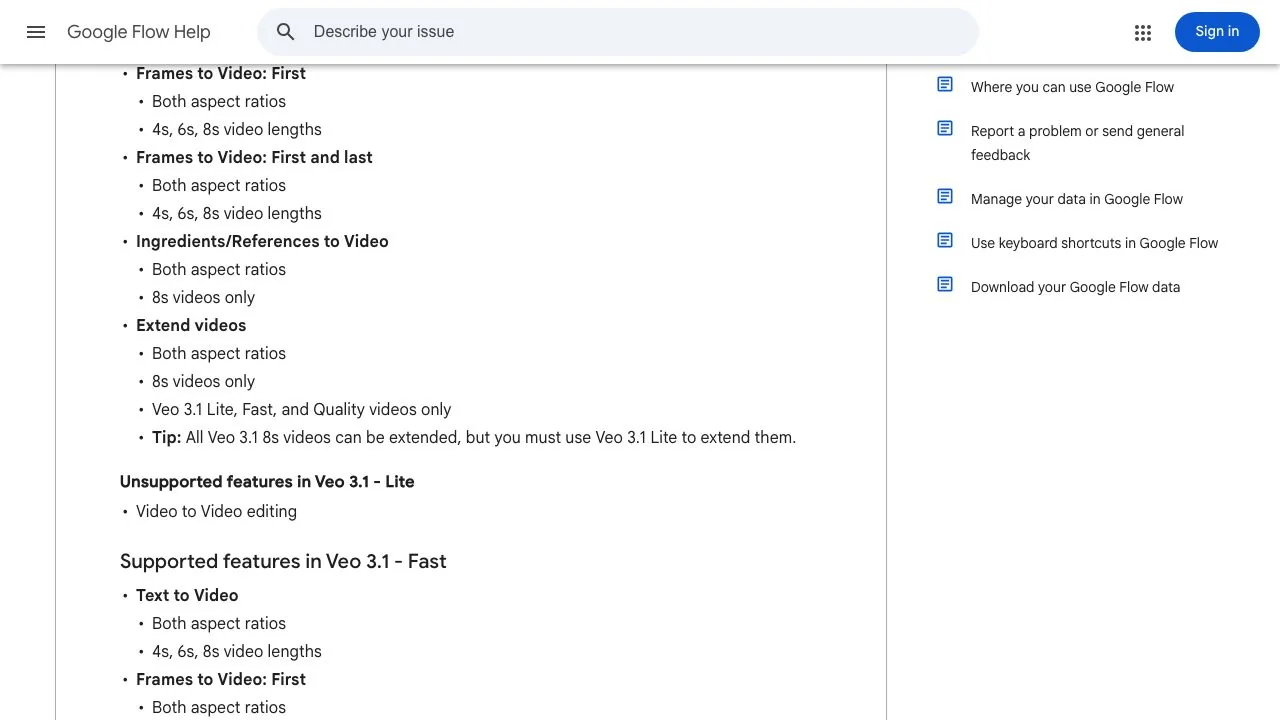
The limits here are the ones that catch people. On Veo 3.1 Lite and Fast, Ingredients to Video is 8 seconds only; on Veo 3.1 Quality it is not supported at all; on Gemini Omni Flash 1.1 it works at 4, 6, 8 and 10 seconds. Voice references work only on generations that use ingredients, and the help text warns you will get an error otherwise. Some Omni features and voice options are region-restricted.
Extend, Scenebuilder and editing: what Google Flow Veo 3.1 can and cannot do
Extend adds new footage to the end of an existing clip. Open the clip in a project, click Extend at the bottom, describe what happens next, and generate. The editing article and the models article set the rules:
- Only Veo-generated videos can be extended, and only at 8 seconds. All Veo 3.1 8-second clips can be extended, but you must select Veo 3.1 Lite to do it; Fast and Quality cannot run the extend step.
- Extended clips cannot then be edited with insert, remove or camera modes.
- Video-to-video editing belongs to Gemini Omni Flash, at 40 credits per edit, on clips up to 10 seconds. Uploaded videos longer than 30 seconds must be trimmed to 30 seconds, and you edit one segment of up to 10 seconds at a time.
- Scenebuilder arranges clips in sequence, lets you rearrange and trim each clip with handles, and downloads the whole scene. Save a version of an edited clip to the project before adding it.
- Downloads are per asset: hover, click More, then Download, and choose the file type; a GIF export is offered at 270p. 1080p upscaling is free for subscribers, 4K costs 50 credits on Ultra, and every video carries an invisible SynthID watermark that the assets article says should not be removed.
Common mistakes in a Google Flow Veo 3.1 workflow
- Choosing Quality for a character scene. Quality has no Ingredients mode, so your @character references are ignored; use Lite, Fast or Omni Flash for consistency and keep Quality for a single hero shot.
- Generating with Fast and planning to extend. Extend requires Lite. If you know a shot will run longer than 8 seconds, start it on Lite.
- Leaving outputs at two. The default is a request that may generate two videos, and credits are charged per generation, so a Fast request can cost 40 instead of 20.
- Starting a free session at 3 PM UTC. Non-subscribers can be locked out of video during the afternoon peak; generate images or plan with the Agent until it clears.
- Uploading a 45-second phone clip to edit. Flow will make you trim it to 30 seconds and then edit a 10-second segment, so cut the part you want first.
- Expecting 4K on Pro. 4K upscaling is Ultra only; Pro and Plus get 1080p upscaling at no credit cost.

When Flow says no: alternatives for age, region, plan and model limits
Flow's refusals are documented, not mysterious. You cannot sign in under 18; you cannot use it outside the supported countries; video editing and Avatars are unavailable in the European Economic Area, Switzerland and the United Kingdom; AI credit top-ups are unavailable in Japan; the policy forbids editing uploaded videos of identifiable minors and generating videos of prominent people; and without a subscription you may be blocked from video at peak hours. Then there are the model limits above: no ingredients on Quality, no extend on Fast, 8 seconds per Veo clip.
When one of those stops you, the question is which part of the job you still need. Our live roundup of Google Flow alternatives sorts ten tools by that question. The short version, for the cases above:
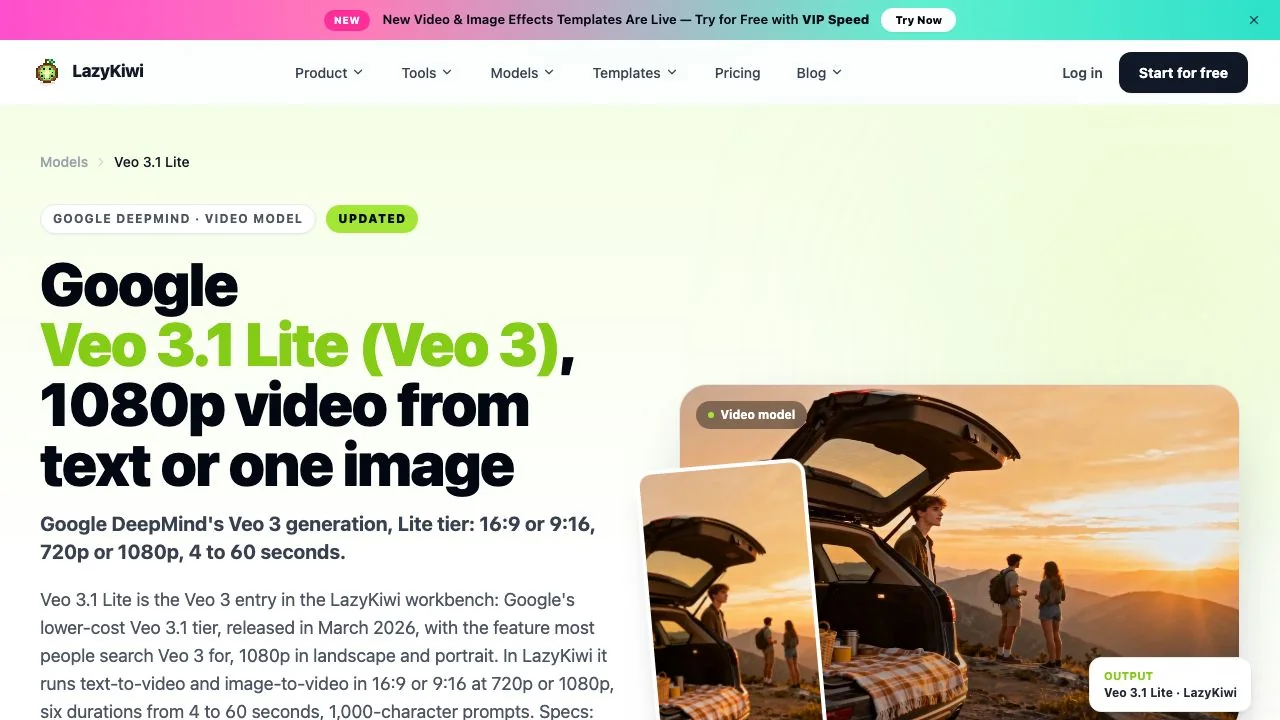
- You want Veo itself, outside Flow: Veo 3.1 Lite on LazyKiwi runs text-to-video and image-to-video at 720p or 1080p in 16:9 or 9:16, with clip lengths from 4 to 60 seconds on that page, free credits on sign-up and the cost shown before you generate. Dreamina also lists Veo 3.1 as a selectable model.
- You want a longer take without the extend chain: in the LazyKiwi video generator Seedance 2.5 runs up to 30 seconds in one pass, and the AI Video Extender continues a clip you already have, including one that did not come from Veo.
- You want a start-and-end transition without a Google account: the Image Transition template takes two stills and makes the cut between them.
- You want to replace a person in footage, which Flow's policy and region rules can block: Character Swap detects the people in a clip and swaps the one you choose.
- You want Gemini Omni Flash on a different bill: PixVerse lists it among the third-party models on its Pro plan and above.
None of these replace Scenebuilder, the Agent or custom Tools, which are the real moat of a Google Flow Veo 3.1 workflow. They replace the generation step, which is the part that credits, regions and plan tiers gate.
Key takeaways
- Google Flow is free with a Google account for users 18 and over in supported countries: 50 Flow credits a day, with Plus, Pro and Ultra adding 200, 1,000, 10,000 or 25,000 a month.
- In Google Flow Veo 3.1 costs 10 credits per clip on Lite, 20 on Fast and 100 on Quality for most users; Ultra halves Lite and Fast; Omni Flash 720p runs 7 to 15 depending on length.
- Three prompt modes: text, frames (start and end stills) and ingredients (@characters, references and, on Omni Flash, voices). Ingredients are 8 seconds only on Veo and unsupported on Quality.
- Extend works only on Veo clips, only at 8 seconds, and only through Veo 3.1 Lite; uploads are trimmed to 30 seconds and edited 10 seconds at a time.
- When Flow refuses on age, region, plan or model grounds, LazyKiwi runs Veo 3.1 Lite from 4 to 60 seconds with free credits on sign-up, plus extend, transition and character-swap tools.
Video Workflows Editor
Daniel Okafor
I run the same clip through every video model we ship and write down what actually changes: motion, timing, cost, and where each one falls apart.
FAQ
Common questions
Is Google Flow free to use?
Yes, within limits. Any Google account holder aged 18 or over in a supported country gets 50 Flow credits a day, enough for about five Veo 3.1 Lite clips or two Fast clips, and can use the Agent and image generation. Non-subscribers may be blocked from video during peak hours, roughly 2 PM to 5 PM UTC, and cannot buy top-up credits.
How many credits does a Veo 3.1 video cost in Google Flow?
Per generation on 15 October 2026: 10 on Veo 3.1 Lite, 20 on Fast and 100 on Quality for Plus, Pro and non-subscribers, with Ultra paying 5 and 10 on Lite and Fast. Gemini Omni Flash costs 7 to 15 at 720p depending on length. Costs apply per generated video, so two outputs cost double.
Can Google Flow make videos longer than 8 seconds?
Only by chaining. A Veo 3.1 clip is 4, 6 or 8 seconds; Extend adds more footage to an 8-second Veo clip but must be run through Veo 3.1 Lite, and Scenebuilder then joins clips into a sequence. Omni Flash generates up to 10 seconds. For a single longer take, an alternative such as Seedance 2.5 on LazyKiwi runs up to 30 seconds in one pass.
Does Google Flow work in the UK and the EU?
Flow is available there for users 18 and over, but the availability article says video editing and Avatars are not supported in the European Economic Area, Switzerland and the United Kingdom. Generation from text, frames and ingredients works; the Omni Flash video-to-video editing mode and avatar features do not.
What is the difference between Veo 3.1 Lite, Fast and Quality?
Price and features rather than length: all three make 4, 6 or 8-second clips in both aspect ratios. Lite is the cheapest, supports ingredients and is the only tier that can extend. Fast supports ingredients but not extend. Quality costs 100 credits, supports text and frames only, and cannot use ingredients or extend.
Run Veo 3.1 Lite without the Flow gates
Text-to-video and image-to-video with Veo 3.1 Lite from 4 to 60 seconds, free credits on sign-up, and the credit cost shown before you generate.
Related reading

Google Flow Alternatives: 10 AI Video Tools, Prices Checked
Google Flow alternatives sorted by what you need: Veo without Flow, multi-model studios, free plans and open models, with prices read on 7 October 2026.
12 min read
Kling vs Veo 3 in 2026: Which Video Model Wins?
Kling vs Veo 3 on the two tiers LazyKiwi runs: Kling v3 Omni for start-end frames, 1:1 and 60-second takes, Veo 3.1 Lite for silent 16:9 clips.
8 min read
Sora 2 vs Veo 3.1 in 2026: Which Video Model Should You Use?
Sora 2 vs Veo 3 with dated sources: Sora 2's API ends September 24, 2026, Veo 3.1 Lite runs in LazyKiwi at 1080p, no audio, and four models fill the gap.
9 min read
AI Video Prompts: Text-to-Video Prompt Guide for Every Model
AI video prompts that hold up in Kling v3 Omni, Veo 3.1 Lite, Seedance 2.5 and MiniMax H3: a six-part anatomy, per-model limits and worked examples.
10 min read