
Best AI Tattoo Generator in 2026: 6 Tools Compared
The best AI tattoo generator for each job, prices read today: BlackInk, TattoosAI, Fotor, Picsart, NightCafe and LazyKiwi, plus a photo mockup workflow.
 Maya Chen 10 min read
The best AI tattoo generator is the one that gives your artist a clean reference, not the one with the flashiest gallery. On that test, BlackInk is the strongest dedicated tool because it adds body-placement previews and a stencil converter on its paid plan, TattoosAI is the cheapest specialist at 4.99 USD a month on its annual plan, and a general image workbench such as LazyKiwi wins when you want line-art drafts at 2 credits each and a mockup on your own photo. Prices below were read from each vendor's page on September 6, 2026. The guide ends with the checks a studio will run before any of this touches skin.
What is the best AI tattoo generator in 2026?
Six tools, three jobs, and a different best AI tattoo generator for each. Dedicated tattoo generators (BlackInk, TattoosAI) understand words like blackwork, fine line and chicano without coaching. General editors with a tattoo mode (Fotor, Picsart) are convenient if you already use them. General image generators (LazyKiwi, NightCafe) give the most prompt control and the cheapest drafts but expect you to name the tattoo language yourself.
| Tool | Type | Price or free tier (checked 2026-09-06) | Photo mockup |
|---|---|---|---|
| BlackInk | Dedicated tattoo generator | Free: 3 credits, one placement visualization; Pro 15 USD a month, 39.99 USD per quarter or 72 USD a year, with no cap on designs | Yes, body placement and stencil converter on Pro |
| TattoosAI | Dedicated tattoo generator | 4.99 USD a month billed annually or 14.99 USD monthly; free trial | Not shown on its pricing page |
| LazyKiwi | Image workbench | 40 free credits a month; Z-Image 2 credits per draft, GPT Image 2 13 credits, combiner 13 credits | Yes, via the image combiner on your own photo |
| Fotor | Editor with tattoo generator and try-on | Free tier; limits on its pricing page | Tattoo simulator on its feature page |
| Picsart | Editor with tattoo generator | Page could not be read at check time | Not verified |
| NightCafe | General generator, credit based | Page blocked at check time | No |
How to choose an AI tattoo generator
Five criteria, in the order a tattoo artist would rank them. Style coverage: can it produce American traditional, fine line, blackwork, geometric and realism without the result drifting into illustration. Line clarity: are outlines closed and even, or feathered, because feathered lines cannot be stenciled. Placement preview: can you see the design on a forearm at real scale. Export resolution: a 1K file is fine for discussion, a 2K or 4K file is needed to print a stencil. Artist handoff: can you save the prompt and variations so the studio sees your thinking, not just one image.
Does tattoo-specific training matter?
Less than the marketing suggests. A general model told 'black ink only, bold closed outlines, no shading, white background, tattoo flash' produces usable line art, and it does so at a fraction of the price. Where the dedicated tools earn their fee is the placement preview and the stencil step, which a general workbench replaces with a two-tool workflow described below.
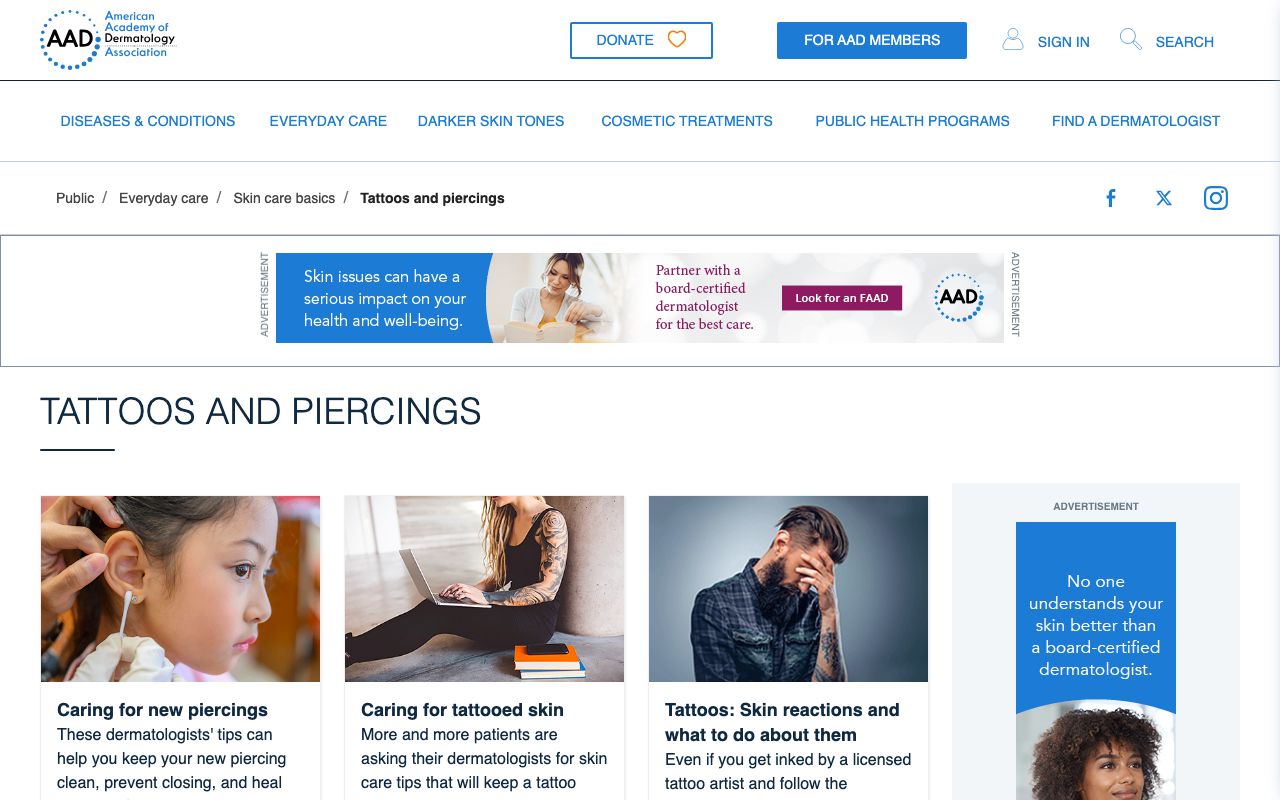
One safety criterion sits above all of these: the generator is a design tool, not a medical one. The American Academy of Dermatology publishes guidance on caring for tattooed skin and on skin reactions to tattoos, per the American Academy of Dermatology (2026), and the U.S. FDA's tattoo fact sheet records a safety advisory about inks contaminated with microorganisms and explains how to report an adverse event, per the FDA (2026). Design online, ink with a licensed artist.
AI tattoo generators compared one by one: which is best?
BlackInk
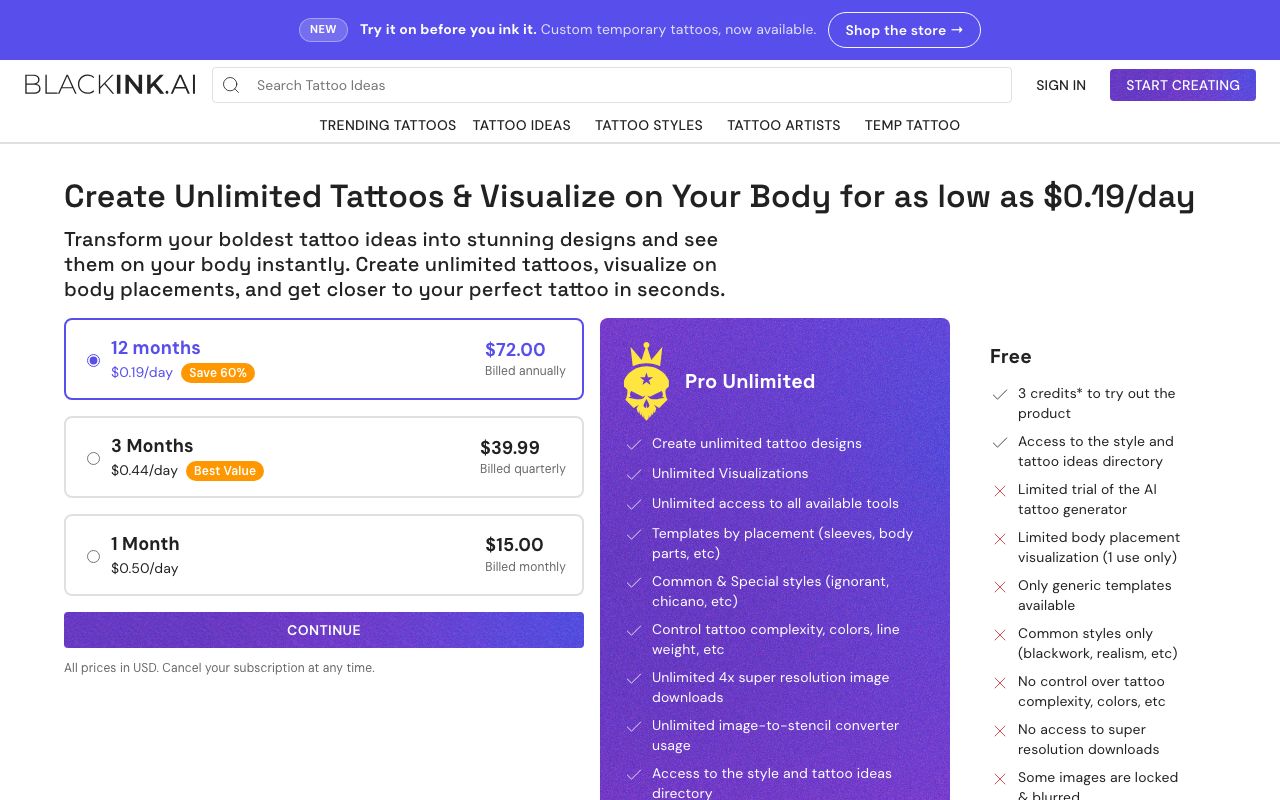
BlackInk is the most complete dedicated option. Its pricing page on September 6, 2026 listed a free tier with 3 credits, a limited trial of the generator, one body-placement visualization, generic templates only, public designs that may be deleted after 30 days, and no super-resolution downloads; the Pro plan at 15 USD for one month, 39.99 USD for three months or 72 USD for twelve months removes the caps on designs and visualizations and adds templates by placement, control over complexity, colors and line weight, 4x super-resolution downloads and an image-to-stencil converter, per BlackInk (2026). The stencil converter is the feature a studio will care about.
TattoosAI
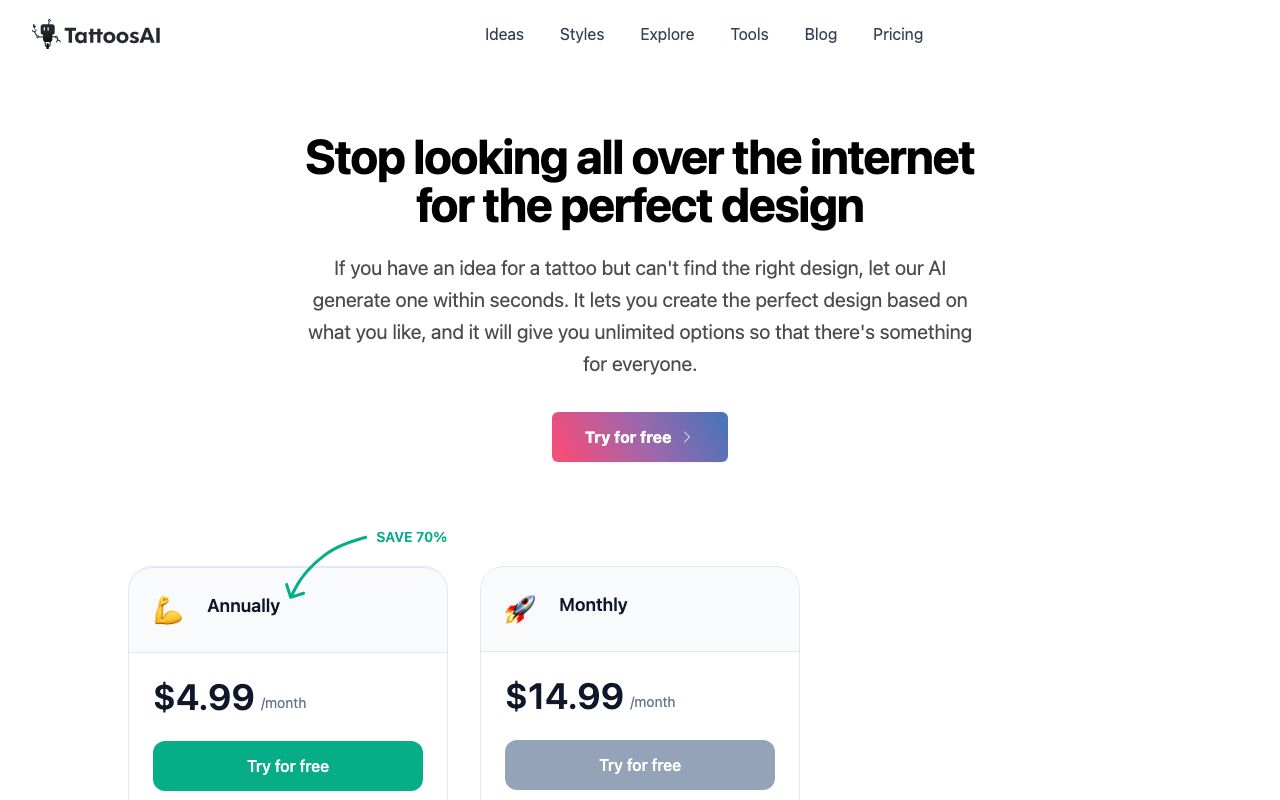
TattoosAI is the budget specialist. Its pricing page showed 4.99 USD a month on the annual plan, marked as a 70 percent saving, or 14.99 USD a month billed monthly, both with uncapped tattoo designs, cloud storage and a free trial, per TattoosAI (2026). The site also carries free tools such as a stencil maker, a size chart and a pain chart. I did not see a body-placement preview on the pricing page, so treat it as a design tool and do the mockup elsewhere.
LazyKiwi
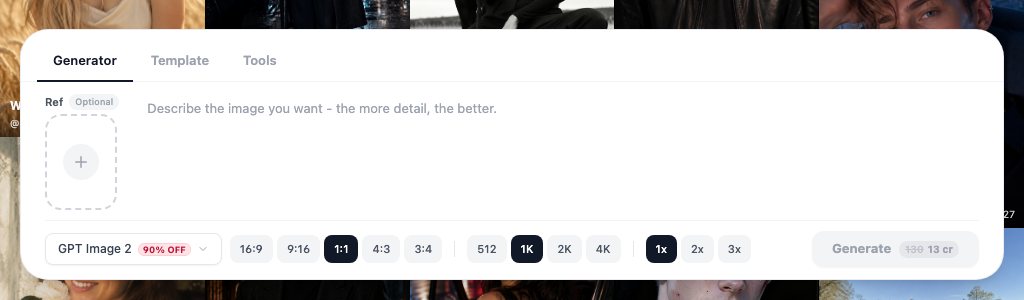
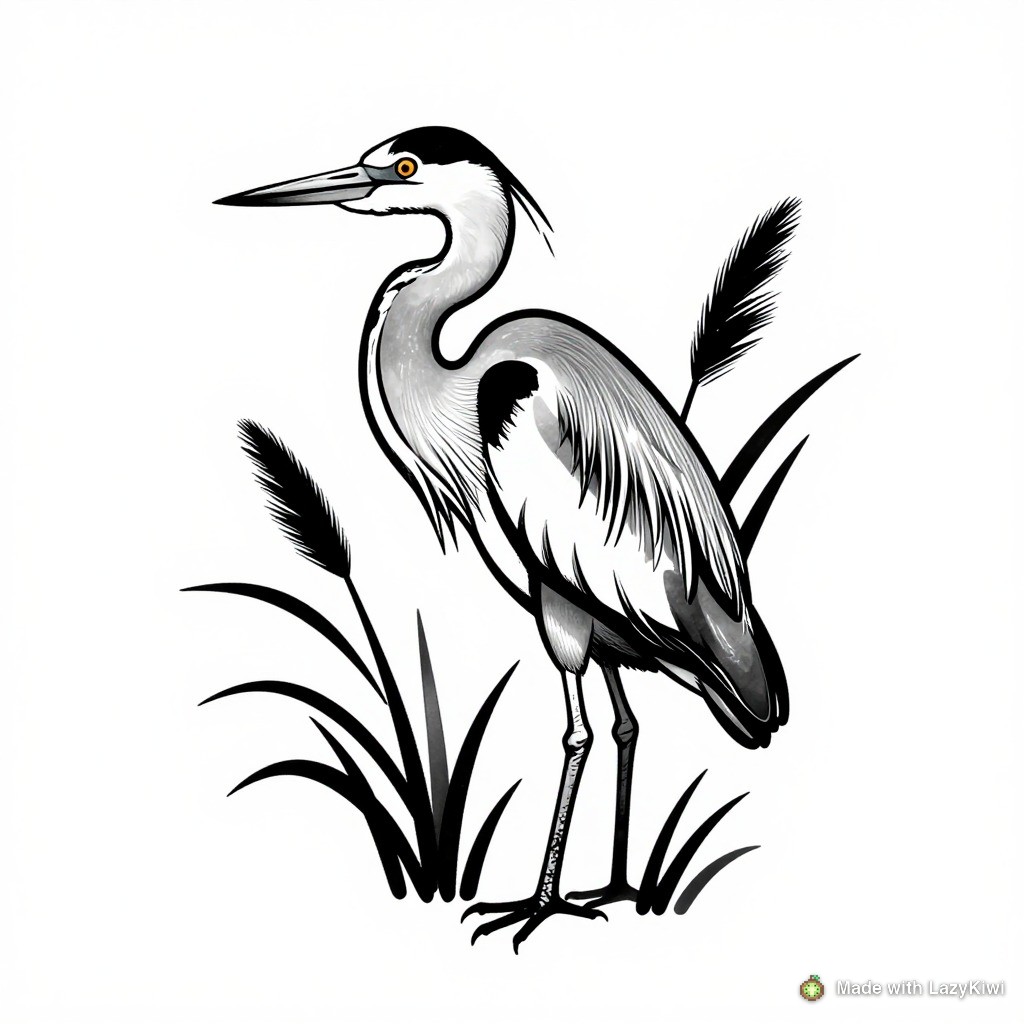
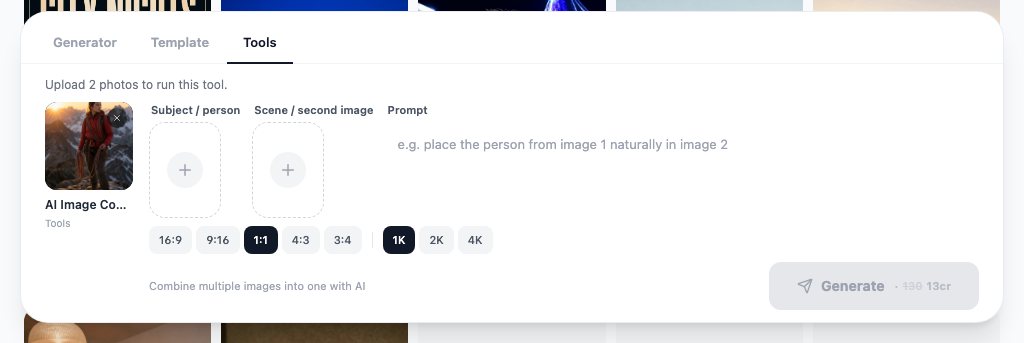
LazyKiwi is not a tattoo app; it is an AI image generator with the two tools a tattoo workflow needs. Z-Image renders text-only drafts at 2 credits each on its promotional price, which makes it the cheapest place I found to iterate on a motif. GPT Image 2 takes reference images and outputs up to 2K for 13 credits, for the version you hand over. The AI image combiner then places the design on a photo of your arm with matched light and scale for 13 credits. LazyKiwi's own workbench data for August 2026 shows GPT Image 2 producing 127 of 181 external generations, so most people already finish there.
Fotor, Picsart and NightCafe
Fotor's feature page presents a free AI tattoo generator with a tattoo simulator try-on inside its editor, per Fotor (2026); the free tier's limits are on its pricing page and I am not quoting them. Picsart's tattoo generator page could not be read on the day of checking, and NightCafe's site returned an access error, so both are in the table without prices. If you already pay for one of these editors, test its tattoo mode before buying a dedicated tool; if you do not, the two specialists above are cheaper than a new editor subscription.
What is the best free AI tattoo generator?
For drafts, LazyKiwi. New accounts receive 40 credits every month, no card needed, per the pricing page, and at 2 credits per Z-Image draft that is twenty tattoo concepts before you spend anything, or thirteen drafts plus one combiner mockup. An AI tattoo generator free tier elsewhere is smaller: BlackInk's free plan gives 3 credits and one placement visualization, with designs public and deletable after 30 days, and TattoosAI offers a free trial rather than a free plan.
| Free route | What you get (checked 2026-09-06) | Limit that bites |
|---|---|---|
| LazyKiwi Z-Image | 40 credits a month; 2 credits per draft | Text only; no reference upload |
| LazyKiwi GPT Image 2 or combiner | Same 40 credits; 13 credits per run | Three runs a month |
| BlackInk free | 3 credits, one placement visualization | Designs public; may be deleted after 30 days |
| TattoosAI | Free trial | Then 4.99 USD a month annually |
| Fotor | Free tier with tattoo generator | Limits on its pricing page |
The best free AI tattoo generator route, then, is to draft in Z-Image until the motif is right, spend one 13-credit run on a GPT Image 2 final, and keep the last 13 credits for the mockup. One caution from the same August 2026 workbench data: content-safety blocks were the top failure reason for external image jobs, 49 of them in 30 days, so a design with nudity or graphic gore is refused before it renders.
How to use an AI tattoo generator from a photo
An AI tattoo generator from photo means two different things: turning a photo of a pet, a flower or a person into a tattoo design, and putting a finished design onto a photo of your own skin. The workflow below does both in the LazyKiwi workbench.
- 1
Reduce the photo to a subject
Crop the pet or object tight, on a plain background. Push it through the photo to sketch tool with ink selected to get a line drawing you can react to.
- 2
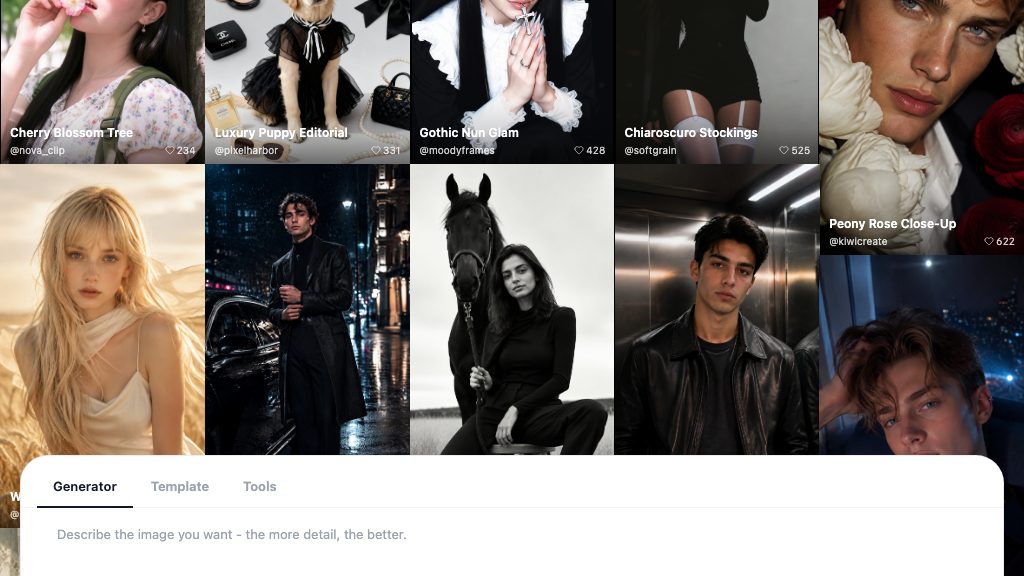
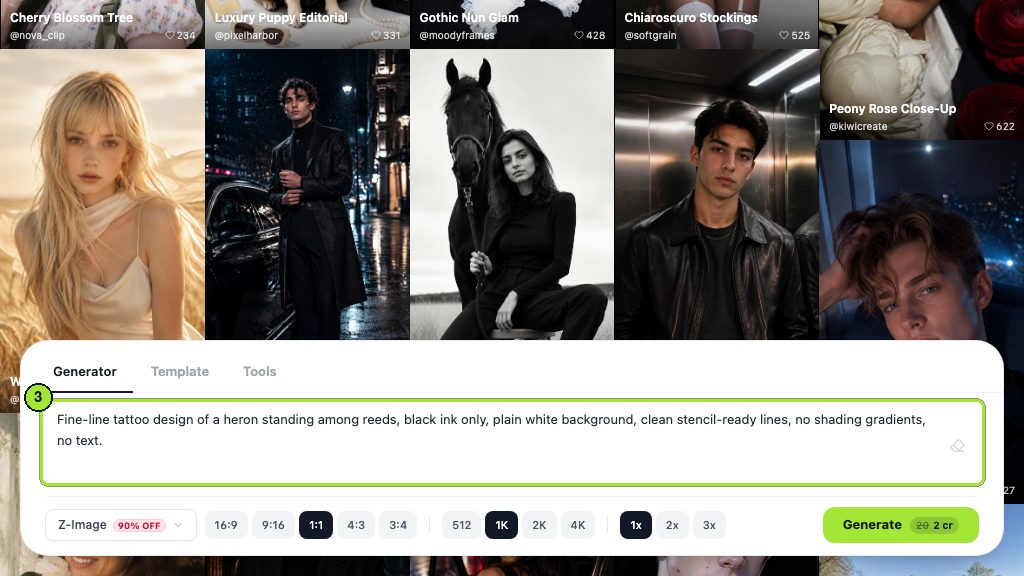
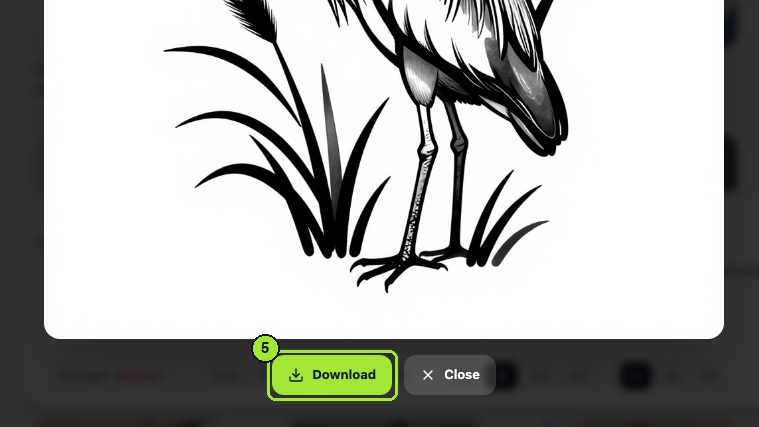
Draft the motif in Z-Image
Prompt: 'tattoo flash of a sitting greyhound, black ink only, bold closed outlines, minimal interior shading, white background, no text'. Three drafts cost 6 credits.
- 3
Make the final in GPT Image 2
Upload the best draft and the sketch as references and ask for 'the same design, cleaner even line weight, forearm-shaped composition, 2K'.
- 4
Photograph the placement
Shoot the arm, leg or shoulder straight on in daylight, no shadows across the skin, no clothing at the edge.
- 5
Place it with the combiner
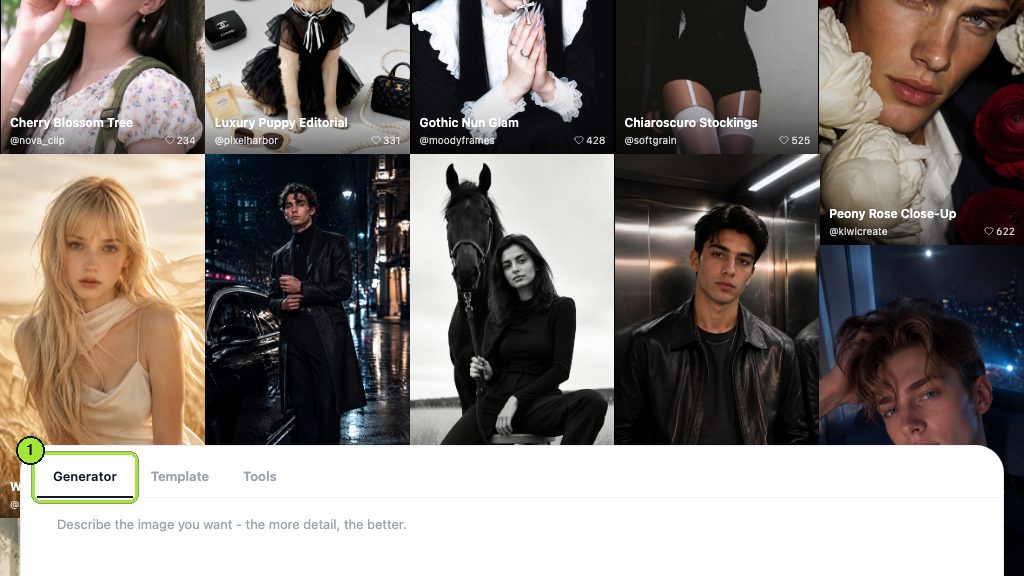
In the AI image combiner, load the design as the subject and the skin photo as the scene, and prompt 'place the design on the outer forearm as a black tattoo, follow the skin curve, matte ink, no gloss'.
- 6
Fix one thing with the photo editor
If the ink looks printed rather than under the skin, send it to the AI photo editor with 'soften the tattoo edges slightly and match the skin grain'. Save the mockup next to the design and the prompts.
Mockups flatter
A photo mockup shows the design flatter and cleaner than it will sit on curved, moving skin. Print the design at real size and tape it on before you decide.
What should you check before taking an AI tattoo design to a studio?
An AI generated tattoo design from even the best AI tattoo generator is a starting point for the artist, and the artist will change it. These checks make the conversation shorter.
- Line weight. Print at the intended size; any line thinner than a fine pen at that size will blur within a few years.
- Open space. Dense parallel lines and tiny gaps close up as ink spreads; ask the generator for fewer elements rather than a bigger design.
- Skin-tone contrast. Fine gray shading that reads on a white screen may vanish on darker skin; bold outlines survive on every tone.
- Anatomy of the subject. Count paws, petals and fingers; check symmetry on any geometric piece; verify any script or symbol independently before it is permanent.
- Style attribution. Do not ask for a living artist's signature style by name; describe the tradition instead.
- Ownership. In its report on AI, the U.S. Copyright Office (2026) treats output with no meaningful human authorship as unprotected, so the file you bring is a reference and the artist's redraw is the artist's work.
- Artist review. Find a licensed studio and book a consultation; Tattoodo lists and books artists by city and style, per Tattoodo (2026).
Bring three things to the consultation: the final design, two rejected variations, and the mockup on your own photo. That is more useful to an artist than any single image, and it is what separates a tattoo AI workflow from a screenshot of a gallery. Whichever best AI tattoo generator you settle on, the studio has the last word on scale, placement and whether the piece will age well.
Key takeaways
- BlackInk is the most complete dedicated tool: its Pro plan at 15 USD a month, 39.99 USD a quarter or 72 USD a year removes the cap on placement visualizations and adds a stencil converter; its free tier gives 3 credits and one visualization.
- TattoosAI is the cheapest specialist at 4.99 USD a month on its annual plan or 14.99 USD monthly, with uncapped designs and a free trial, but no placement preview on its pricing page.
- LazyKiwi drafts line art in Z-Image at 2 credits each, finals in GPT Image 2 at 13 credits, and mocks the design onto your own photo with the image combiner at 13 credits, all within the 40 free monthly credits.
- Prompt the tattoo language yourself: 'black ink only, bold closed outlines, minimal shading, white background, no text', then print at real size before judging the lines.
- Design online, ink with a licensed artist; the AAD and FDA pages cover skin reactions and ink safety, and the studio decides scale and placement.
Image & Design Editor
Maya Chen
I spend my days inside image tools, testing prompts and settings on real photos so the steps here match what you actually see on screen.
FAQ
Common questions
Can AI design a tattoo for me?
It can design a reference. Dedicated tools such as BlackInk and TattoosAI, and general generators such as LazyKiwi's Z-Image and GPT Image 2, produce line art from a description in seconds; BlackInk adds a stencil converter on its paid plan. None can judge how the lines will age, fit your anatomy or read on your skin tone, so a licensed artist redraws the reference first.
Is there a free AI tattoo generator from a photo?
Yes, within a monthly allowance. LazyKiwi hands new accounts 40 credits every month without a card: run the photo to sketch tool for a line drawing, rough out the motif in Z-Image at 2 credits a try, and place the design on a photo of your arm with the image combiner at 13 credits. BlackInk's free tier adds 3 credits and one placement visualization, with designs public and deletable after 30 days.
Will tattoo artists work from AI designs?
Most will treat one as a reference, the same way they treat a Pinterest board, and redraw it in their own hand. Bring the final design, two rejected variations and a mockup on your own photo, and expect changes to line weight, spacing and scale. Do not ask for a living artist's signature style by name; describe the tradition, such as American traditional or fine line, instead.
How do I preview a tattoo on my body?
Photograph the placement straight on in daylight, then load the design as the subject and the skin photo as the scene in the LazyKiwi AI image combiner with a prompt such as 'place the design on the outer forearm as a black tattoo, follow the skin curve, matte ink'. BlackInk offers one placement visualization free and uncapped on Pro. Print the design at real size and tape it on as a final check.
Can I copyright an AI tattoo design?
Probably not the raw output. The Copyright Office's AI report holds that output made entirely by a machine, with no meaningful human authorship, gets no protection. A design that you or your artist substantially redraw, edit and compose is a different case. For a personal tattoo this rarely matters; for flash you plan to sell, it does.
Draft a tattoo concept for 2 credits
Choose Z-Image in the LazyKiwi workbench, drop in the black-ink flash prompt from this guide, and render three drafts before you book a consultation.
Keep reading
Best AI Profile Picture Generator in 2026: 7 Tools Compared
Seven AI profile picture generator options compared on prices checked today, likeness, style range and photo retention, with LinkedIn, Discord and Instagram sizes.
8 min read
AI Couple Photo Generator: How to Make Natural Couple Photos
Use an AI couple photo generator to merge two selfies into one scene: the image combiner, the instant couple and bridal templates, a video route, free credits.
8 min read
AI Coloring Page Generator: Printable Pages for Kids
Use an AI coloring page generator to make printable line art: prompts by age, photo-to-page conversion, 300 DPI export, free credits and Etsy or TPT rules.
9 min read