
Video Stabilizer: Smooth Out Shaky Handheld Footage
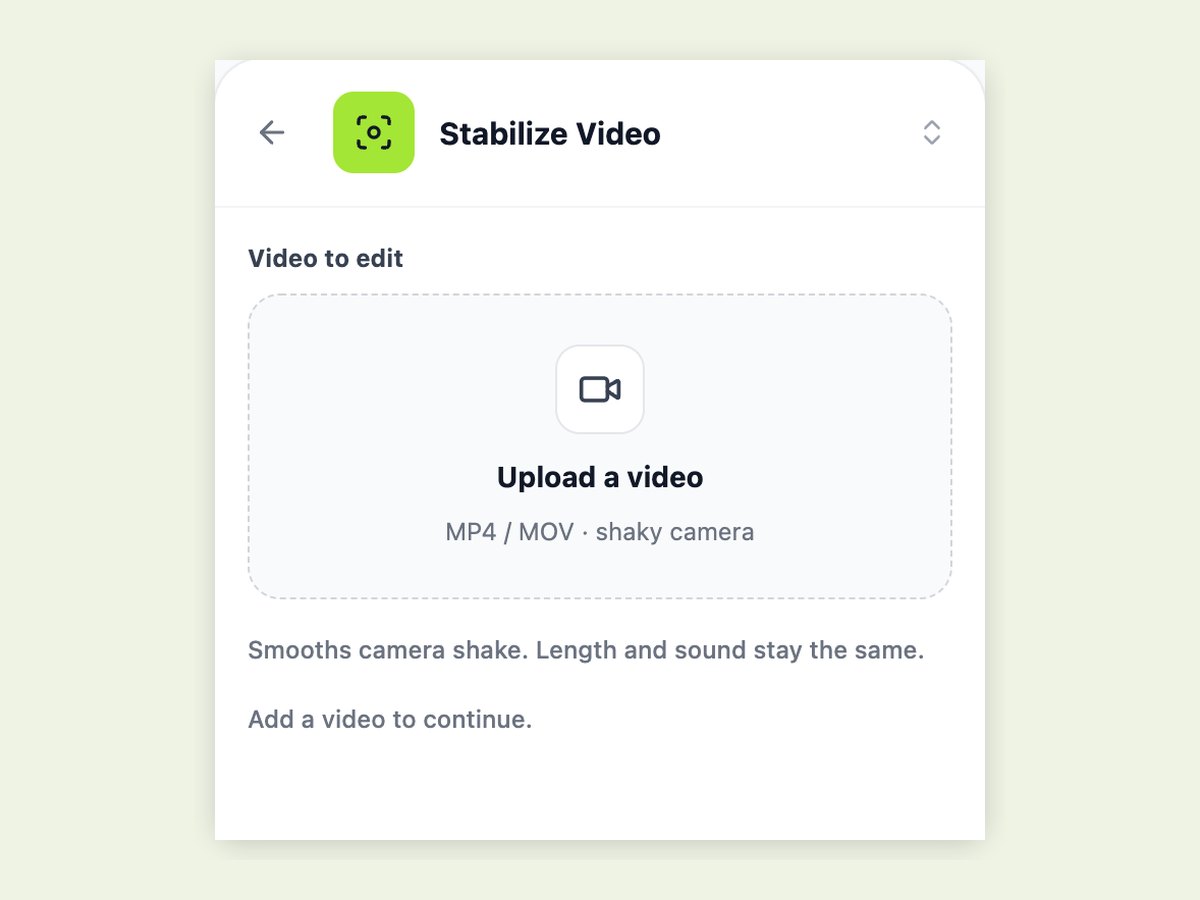
Upload a shaky MP4 or MOV and download a steadier version. The stabilizer makes two passes over your clip: the first measures how the camera moved from frame to frame, the second smooths that path and shifts each frame to cancel the jitter. Length and sound stay exactly as they were. Clips can run up to five minutes. The demo shows a shaken test clip next to its stabilized result.
What it is
Steadier footage, same clip.
Video stabilization reduces the small, fast movements a hand or a walking step adds to a shot, while keeping the movement you meant to make, such as a slow pan or a walk forward. It works in two stages. First the software tracks features across every frame to estimate how the camera shook. Then it computes a smoother version of that camera path and moves each frame by the difference, so the picture no longer bounces with every footstep. This tool runs exactly that two-pass process on the clip you upload. It does not invent new picture: it cannot recover detail lost to motion blur, and it does not zoom in automatically, so on very shaky footage you may notice the edges of the frame shifting slightly where the image was moved. What you get is the same clip, the same length and the same audio, with the shake taken down.
How it works
How to stabilize a video in three steps
Upload the shaky clip
Open Stabilize Video in the workbench and upload an MP4 or MOV, from one second up to five minutes long.
Run the stabilizer
There is nothing to tune. The cost appears on the Stabilize button before you start; the tool analyses the motion and then renders the smoothed version.
Download the MP4
Compare it with your original and download the stabilized MP4. Your uploaded file is not changed.
Best on handheld jitter, not on blur
Stabilization is good at one specific problem: the camera moving when it should not. Walking shots, footage filmed from a moving vehicle, a phone held at arm's length at a concert, a quick product shot taken without a tripod — these improve noticeably, because the shake is a movement the software can measure and reverse. It cannot fix a frame that is already smeared. If the shutter was slow and each frame is blurred by motion, a steadier sequence of blurred frames is the best any stabilizer can give you. Very violent shake, or clips where the camera swings hard in one direction, also leave less room to correct without the frame edges showing.
- Walking, running and vehicle shots
- Handheld phone footage and quick B-roll
- Not a fix for motion blur
Why the frame is not zoomed in
Many stabilizers hide moving edges by zooming in on every frame, which quietly throws away part of your picture and softens it. This one keeps the full frame and does not add a zoom, so nothing important near the edge of the shot is cut off. The trade-off is that on very shaky clips you may see the border of the image move slightly. If you need a clean edge, crop the stabilized clip in your editor, where you can decide exactly how much to lose.
Same length, same sound
The stabilized clip has the same duration and frame timing as the original, and the audio track is copied across without being re-encoded. That matters when the clip is already cut to music or a voiceover: you can drop the steadier version back into the same place in your timeline.
Why LazyKiwi
Why stabilize it here
One button
No sliders to learn: upload the clip and run it.
Two-pass processing
The whole clip is analysed before any frame is moved, so the correction follows the real camera path.
Full frame kept
No automatic zoom quietly cropping off the edges of your shot.
Timing and audio preserved
Same length, same sound, so the clip still fits your edit.
Up to five minutes
From a short clip to a full walk-through recording.
Works in the browser
Nothing to install on your computer or phone.
FAQ
Stabilizing video
How do I stabilize a shaky video online?+
Open Stabilize Video in the LazyKiwi workbench, upload your MP4 or MOV and press Stabilize. When the job finishes, download the stabilized MP4.
How does video stabilization work?+
In two passes. The first pass tracks how the camera moved between frames; the second calculates a smoother camera path and shifts each frame to match it, which cancels most of the jitter.
Can it fix blurry video?+
No. Stabilization removes shake, not motion blur. If individual frames are smeared, the result will be steadier but still blurred.
Will the video be cropped or zoomed in?+
No automatic zoom is applied, so the full frame is kept. On very shaky footage the edges of the picture may visibly move; you can crop them in your editor afterwards if you prefer a clean border.
Does stabilizing change the length or the audio?+
No. The clip keeps its duration, and the audio track is copied over unchanged.
What file types and lengths are supported?+
MP4 and MOV, from one second up to five minutes. The stabilized file comes back as an MP4.
Can I control how strong the stabilization is?+
Not at the moment. The tool uses one balanced setting that smooths handheld shake while keeping intentional movement such as pans.
Can I stabilize a video on my phone?+
Yes. Open the workbench in your phone's browser, upload the clip from your gallery and download the result.
Is it better than my phone's built-in stabilization?+
They complement each other. In-camera stabilization works while you film; this tool works afterwards, on clips you already have, including ones filmed with stabilization switched off.
How much does it cost?+
Stabilizing uses credits based on the clip's length, and the cost is shown on the button before you start. New accounts get free credits to try it.
Use cases
What people stabilize
Walking and vlog footage
Talking-to-camera clips filmed while walking, where every step makes the frame bounce.
Concert and event clips
A phone held up over the crowd. Steadier footage is easier to watch and to edit.
Travel and vehicle shots
Views from a car, train or boat window that shake with the road or the water.
Product and B-roll shots
Quick handheld shots of a product, a room or a dish taken without a tripod or gimbal.
Family videos
Birthday, school and holiday clips filmed in the moment, which are worth keeping and easier to watch steady.
Before upscaling or effects
Stabilize first, then enhance or add effects, so the next tool works from a steadier picture.
Take the shake out
Upload a handheld MP4 or MOV and download a steadier version with the same length and sound.
No credit card · Free to try · Results in seconds