
Flip Video Online: Mirror It or Turn It Upside Down
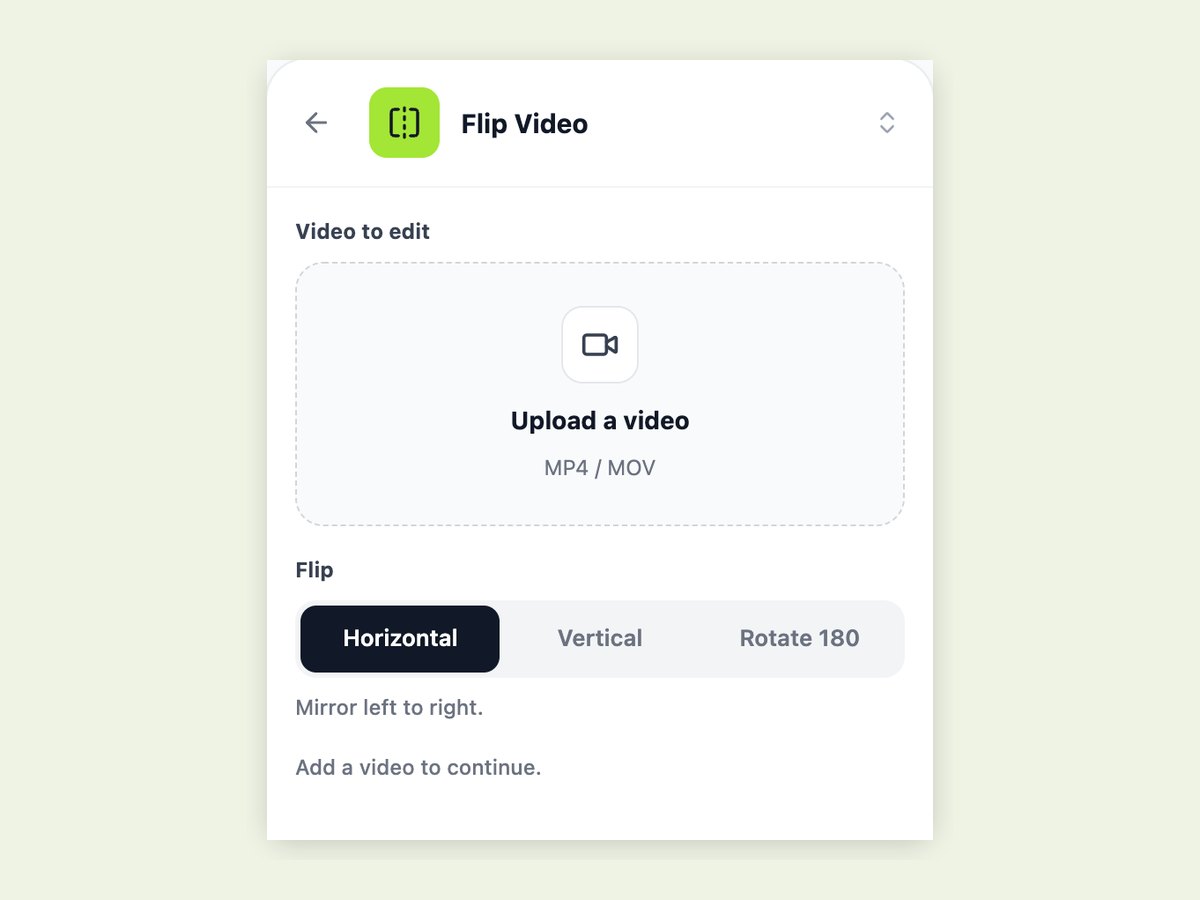
Upload an MP4 or MOV, choose Horizontal, Vertical or Rotate 180, and download the flipped video as an MP4. The picture is re-encoded, so the file you get back is really flipped — not just previewed that way — and the original sound is carried over untouched. Clips can run up to five minutes.
What it is
A real flip, written into the file.
Flipping a video means mirroring every frame along an axis. A horizontal flip swaps left and right, the way a mirror does: the classic fix for a selfie-camera clip where text reads backwards or a guitarist suddenly plays left-handed. A vertical flip swaps top and bottom, which is what you need when footage was recorded upside down. Rotate 180 does both at once, turning the picture around without mirroring it, so writing still reads the right way. Many players and editors can show a clip mirrored while you watch and still export the original; this tool re-encodes the frames, so the MP4 you download is the flipped version everywhere you play or upload it. It does one job only — it does not crop, trim or rotate by 90 degrees — and the length, frame rate and audio of your clip stay the same.
How it works
How to flip a video in three steps
Upload your clip
Open Flip Video in the workbench and upload an MP4 or MOV from your computer or phone. Anything from one second to five minutes works.
Pick the direction
Horizontal mirrors left to right, Vertical mirrors top to bottom, Rotate 180 turns the picture upside down. The panel tells you which one you have selected before you run it.
Download the MP4
The credit cost is shown on the button before you start. When the job finishes, download the flipped MP4; your original file is not changed.
Horizontal, vertical or 180°: which one do you need?
The three options look similar in a menu and produce very different results. Horizontal is a mirror image: what was on the left is now on the right. Use it when a front-camera clip shows text backwards, when a dance or tutorial needs to match the viewer's left and right, or when you want a shot to face the other way to cut cleanly with the next one. Vertical flips top to bottom, which is a mirror image upside down; it is rarely what you want for footage of people, but it is the right fix for some action-camera and drone mounts. Rotate 180 turns the frame upside down without mirroring, which is the correct repair for a phone that was held the wrong way up: faces, signs and captions come back readable.
- Horizontal: fixes backwards text and mirrored selfies
- Vertical: mirror top to bottom
- Rotate 180: upside-down footage, text stays readable
Only the picture changes
Flipping should not cost you anything else. The tool keeps your clip's resolution, length and frame rate, and copies the audio track across without re-encoding it, so voices and music sound exactly as they did. The output is an H.264 MP4, the format that phones, editors and social platforms accept without complaint, even if you uploaded a MOV straight from an iPhone.
Why a flipped preview is not a flipped file
Phone galleries, some editors and video players offer a mirror button that only changes how the clip is displayed. Share or upload that file and it plays the original way round. Here the frames themselves are rewritten, so the flip survives everywhere: in a group chat, in an editing timeline, or after you post it.
Why LazyKiwi
Why flip it here
Three directions, one panel
Horizontal, Vertical and Rotate 180 sit side by side, with a one-line hint for each.
The sound is untouched
Audio is copied across, not re-encoded, so it is identical to your original.
Clips up to five minutes
From a one-second loop to a five-minute recording.
MP4 that plays anywhere
H.264 output for phones, editors and social apps, even from a MOV upload.
Your original stays as it was
You download a new file; the clip you uploaded is not overwritten.
Next to the rest of your tools
Stabilize, add subtitles or extract the audio from the same workbench afterwards.
FAQ
Flipping videos
How do I flip a video online?+
Open Flip Video in the LazyKiwi workbench, upload an MP4 or MOV, choose Horizontal, Vertical or Rotate 180, and run it. When it finishes, download the flipped MP4.
How do I mirror a video?+
Choose Horizontal. That mirrors the picture left to right, exactly like looking in a mirror, and is the usual fix for selfie-camera clips where text appears backwards.
What is the difference between flipping and rotating a video?+
Flipping mirrors the image along an axis, so text ends up reversed. Rotating turns the whole picture around its centre, so text stays readable. Rotate 180 is the option to use for footage that was simply recorded upside down.
Can I rotate a video 90 degrees here?+
No. This tool offers horizontal and vertical flips and a 180-degree rotation. Turning a portrait clip into landscape (90 degrees) is not one of the options.
Does flipping a video lower the quality?+
The picture has to be re-encoded to be flipped, so it goes through one compression pass, but the resolution, length and frame rate stay the same. The audio is copied without any re-encoding.
Will the audio still be there?+
Yes. The original audio track is copied into the flipped MP4 unchanged. If your clip had no sound, the output will not have any either.
What file types can I upload?+
MP4 and MOV. The result always comes back as an MP4.
How long can the video be?+
Between one second and five minutes. For a longer recording, trim the section you need first.
How do I flip a video on iPhone or Android?+
Open the workbench in your phone's browser, upload the clip from your camera roll, choose the direction and download the result. There is nothing to install.
How much does it cost?+
Flipping uses credits based on the clip's length, and the exact cost appears on the button before you start. New accounts get free credits to try it.
Related tools:Video Stabilizer Extract Audio From Video AI Video Extender
Use cases
When people flip a video
Selfie-camera clips with backwards text
A shirt logo, a sign or a whiteboard reads in reverse because the front camera mirrored it. A horizontal flip makes it readable.
Footage recorded upside down
The phone was held the wrong way or a camera was mounted inverted. Rotate 180 turns it the right way up.
Dance and workout tutorials
Mirror the clip so the instructor's left matches the viewer's left when they follow along.
Matching shots in an edit
Flip a shot so a person or car faces the same direction as the clip before it and the cut feels continuous.
Reusing your own clips
Give a clip you already posted a different composition before you cut it into something new.
AI-generated clips
A generated shot came out facing the wrong way for your layout. Flip it instead of generating it again.
Flip it the right way round
Upload an MP4 or MOV, pick Horizontal, Vertical or Rotate 180, and download the flipped MP4 with its sound intact.
No credit card · Free to try · Results in seconds