
How to change skin tone in a photo (tan, lighter, darker)
Last checked against the product on
LazyKiwi's Skin Color Changer recolors the visible skin in one photo to one of 8 tones (porcelain, fair, light, medium, olive, tan, brown, deep) at a subtle, natural or strong strength, for 13 credits at 1K, 17 at 2K or 20 at 4K. The face, features, hair, clothes, background and skin texture stay the same.
Specifications
| Input | 1 photo: a selfie, portrait or full-body shot with the skin visible |
|---|---|
| Length | — |
| Resolution | 1K, 2K, 4K |
| File formats | JPG, PNG, WebP, HEIC · Up to 50 MB per file |
| Credits | 13 credits at 1K, 17 at 2K, 20 at 4K |
| Free allowance | 40 free credits cover three 1K runs |
| Watermark | None on paid plans (listed on the pricing page); Free plan: To be confirmed |
| Tones | 8: porcelain, fair, light, medium, olive, tan, brown, deep (default: tan) |
| Strength | Subtle (about halfway), natural (default), strong (all the way) |
| Kept | Face, features, face shape, expression, hair, clothes, background, skin texture |
How to use it
- 1
Open the tool
Image Generator → Tools → Skin Color Changer, or open it directly.
- 2
Upload a photo
A clear photo where the face or arms show. Daylight photos give the most natural result.
- 3
Pick a tone and strength
Choose one of the 8 swatches, then Subtle, Natural or Strong on the slider. Add a note to pick the person in a group photo.
- 4
Generate
Choose 1K, 2K or 4K: 13, 17 or 20 credits. The result keeps the shape of your photo.
Examples
Real results from the tool, the original on the left.

Original 
Result Tan, natural

Original 
Result Deep, natural
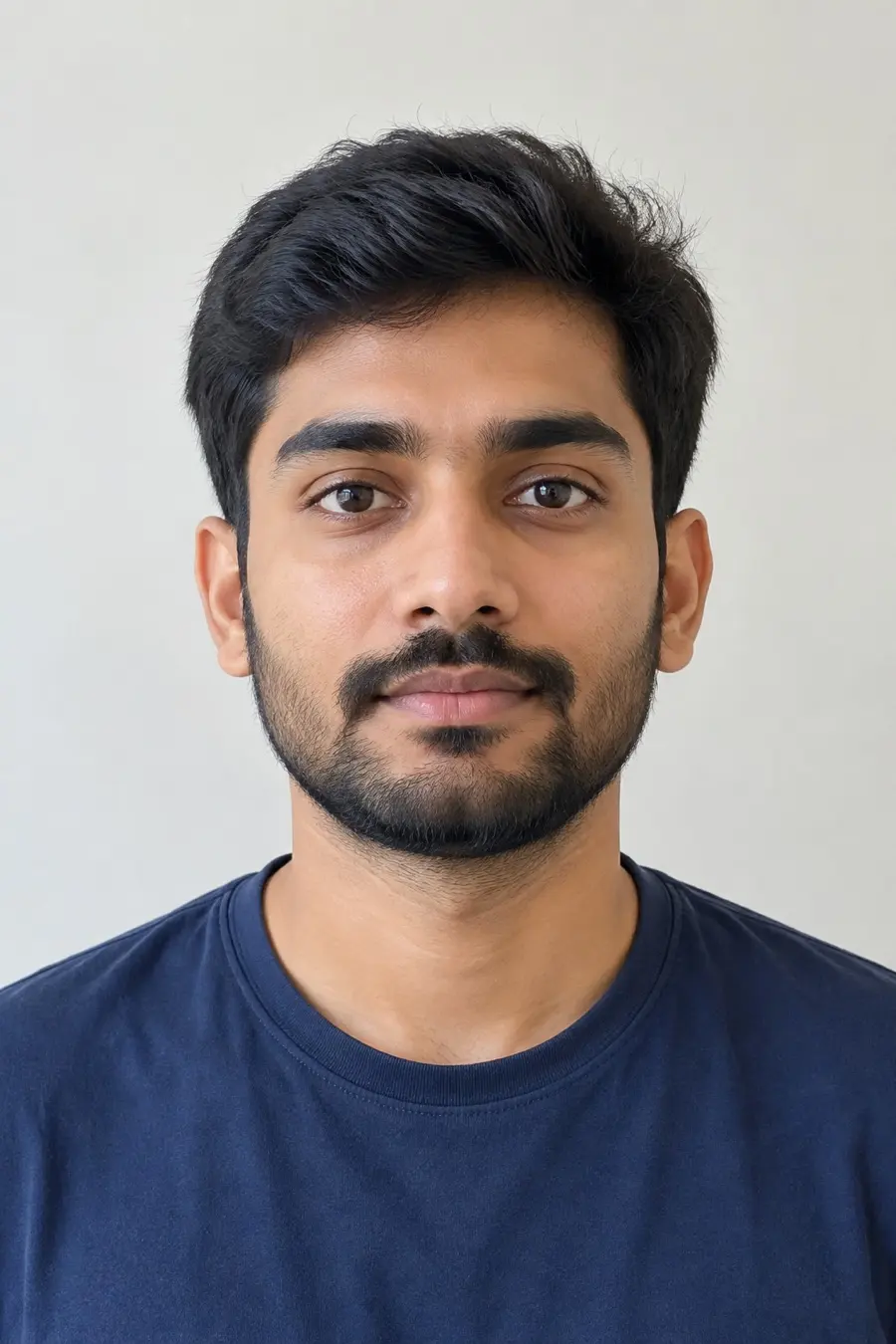
Original 
Result Light, natural
What changes and what stays
Only the color and lightness of the main person's visible skin change: face, ears, neck, chest, arms, hands and legs are recolored together so they match. Eyes, eyebrows, nose, lips, teeth, face shape, expression, hairstyle, hair color, makeup, clothes, jewelry, pose and background are kept, and so are pores, freckles, moles and facial hair.
Tips
- For a beach tan with no settings, use the one-click Tan Filter template (same price).
- Use Subtle to correct a photo where the light or a filter made the skin look too pale or too orange.
- Compare tones on the same photo: run it again with another swatch; each run is a new generation.
- In a group photo the main person is changed; add a note such as "only the woman on the left" to pick someone else.
FAQ
Will it change my face?
No. Only the skin color changes; your features, face shape, expression and hair are kept.
Can I make my skin lighter or darker?
Yes. Pick a lighter swatch (porcelain, fair, light) or a deeper one (brown, deep); the strength slider decides how far it goes.
What is the difference between the tool and the Tan Filter?
The Tan Filter is one click with a fixed natural golden tan. The Skin Color Changer lets you choose any of the 8 tones and the strength.