
Remove Watermark from Video
Erase logos, usernames and text watermarks from videos you own. The picture behind them is rebuilt — no blur box, no crop.
Specs
Remove watermark from video: what goes in, what comes out
- Input
A video you own or have rights to
MP4 or MOV
- Removes
Visible marks
logos, @usernames, web addresses and caption text, even when they move
- Output
An MP4 with the same framing
download it from the workbench
- Keeps
Everything else
the scene, people and real signs in the shot
How to remove a watermark from a video — 3 steps
No masks to draw and no boxes to place: upload the clip and say which mark to remove.

Step 1
Upload your video
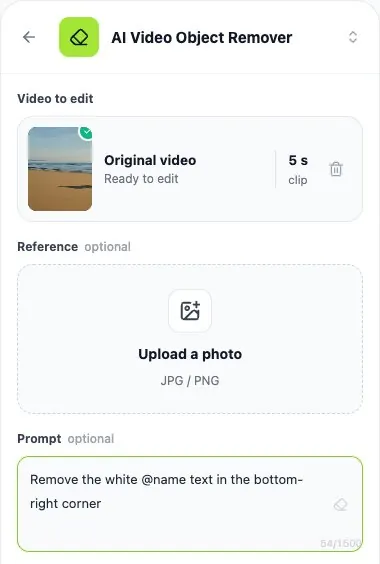
Open Video Tools in the workbench, choose AI Video Object Remover and upload the clip with the watermark.
Step 2
Say which mark to remove
Type what it is and where it sits, for example: the white @name text in the bottom-right corner.
Step 3
Download the clean video
Compare it with your original and download the MP4. Your uploaded file is not changed.

No smudge where the logo was
Blur filters and delogo boxes leave a soft patch that is easy to spot. Here the area under the mark is redrawn from the rest of the shot, so the wall, the sky or the street carries on through it.
- No blur box or color patch
- Full frame kept — no crop
- Real signs and text in the scene stay

Handles that jump around
Short-video apps move the username from corner to corner. Describe the mark once and every copy of it is removed, wherever it shows up in the clip.
- Corner, centre or jumping marks
- Logos, @usernames and web addresses
- Caption text burned into the picture
Compared
Removing a video watermark: AI removal vs blur and crop
The usual ways to hide a watermark, and what each one leaves behind.
| LazyKiwi AI removal | Blur / delogo filter | Cropping the frame | |
|---|---|---|---|
| Picture behind the mark rebuilt | ✓Redrawn from the shot | ✕Blurred patch | ✕Cut away |
| Keeps the full frame | ✓Same framing | ✓Same framing | ✕Edges lost |
| Handles marks that move | ✓Wherever it appears | ✕One fixed box | ✕Only if it stays at the edge |
| Works on centre watermarks | ✓Yes | !Leaves a smudge mid-frame | ✕No |
| No mask or box to draw | ✓Just describe it | ✕Draw the box | ✓Pick a crop |
| Free to try | ✓Free to try | Varies | Varies |
FAQ
Remove watermark from video FAQ
How do I remove a watermark from a video?+
Open Video Tools in the workbench and choose AI Video Object Remover. Upload the clip, describe the watermark and where it is — for example "the white @name text in the bottom-right corner" — and generate. Download the clean MP4 when it is done.
Is it free?+
Signing up is free and comes with free credits to try it. The price of each video is shown on the Generate button before anything is charged.
Which videos work best?+
Steady landscape (16:9) shots give the cleanest results today, including large centre watermarks and handles that move between corners. Fast action and vertical clips can come back with parts of the scene changed, so always compare the result with your original before you post.
Does it remove invisible watermarks such as SynthID or content credentials?+
No. It only removes marks you can see in the picture — logos, usernames, web addresses and caption text. Invisible watermarks and content-credential data are not touched.
Can I remove a watermark from someone else's video?+
Only remove watermarks from videos you own or have permission to edit. A watermark often identifies the creator or the licence; removing it from someone else's work can break copyright law and the platform's rules.
What about subtitles or captions burned into the video?+
Burned-in text is removed the same way — see remove text from video. For a watermark on a still image, use the watermark remover.
More AI video tools



Your video, without the watermark.
Upload a clip you own, say which mark to remove, and download the clean MP4.
Free to try · Price shown before you generate · Visible watermarks only