
Turn Photo Into Coloring Page: Line Art Guide
Turn photo into coloring page cleanly: which pictures convert, the contrast that matters, line weight by age, and the print settings that keep lines crisp.
 Maya Chen 9 min read
To turn photo into coloring page output that a child can actually use, you need three things from the result: outlines that close, one consistent line weight, and regions big enough for a crayon. Almost everything that goes wrong is decided before the conversion, by the photograph you picked. High contrast, a plain background and an unbroken silhouette convert cleanly; foliage, fur, crowds and backlighting never do. Below: how to choose the source, the six-step conversion, line weight by age, the Canva and Procreate routes, the print maths for A4 and Letter, and where the rights sit if you plan to sell what you make.
What makes a good coloring page from a photo?
A colouring page is not a drawing of a photograph. It is a set of closed regions with enough space inside each one for a crayon to sit. Judge every conversion against three properties and you will predict the result before you run it.
- Closed outlines. Every region has to join up, or colour escapes and the page stops being colourable.
- Consistent line weight. Lines that thin out and vanish in the light areas leave holes that nobody can work around.
- Enough white space. If regions are smaller than the tip of the pen or crayon that will fill them, the page is decorative rather than usable.

This is why detailed photographs make poor pages. A face with strong texture, a tree in full leaf, or a patterned jumper all convert into a mesh of short strokes that reads as grey at arm's length and cannot be filled in. Detail is the enemy here, and every good conversion begins by removing some.
Which photos convert to line art well?
The photograph decides most of the outcome. Four properties predict a clean conversion.
| Property | Converts well | Converts badly |
|---|---|---|
| Contrast | Clear tonal separation between subject and background | Subject and background at similar brightness |
| Background | Plain wall, sky, single-colour surface | Foliage, crowds, patterned wallpaper |
| Outline | Whole subject visible, edges unbroken | Subject cropped or merging into shadow |
| Texture | Smooth surfaces and simple shapes | Fur, lace, brickwork, dense hair |
The four photo types that never convert cleanly, in my experience: group shots where people overlap, anything backlit, close-ups of pets with long fur, and photographs of screens. The first three break the outline; the last one adds a grid of its own that no threshold setting will remove.
Photo to line art is really an edge-detection problem, and edge detection needs edges. If you cannot trace the subject's silhouette with a finger on the screen, the software will not find it either.
How do you turn a photo into a coloring page step by step?
- 1
Crop tight
Cut everything that is not the subject. Background detail is what turns into noise, and cropping is a faster fix than any setting you can adjust afterwards.
- 2
Raise contrast hard
Push the image towards pure black and pure white before conversion. Grey midtones are what produce broken lines, because the edge detector cannot decide where the boundary is.
- 3
Convert to line art
Run the photo to sketch tool, which turns a photograph into a pencil, charcoal or ink drawing. Ink is the one to pick here, because pencil and charcoal both produce shading, and shading is not colourable.
- 4
Clean the stray marks
Erase the specks and orphan strokes that always survive. Ten minutes with an eraser does more for a page than any amount of setting adjustment.
- 5
Close the gaps
Find every place a line stops short and join it. This is the step that separates a page a child can colour from a page they will give up on.
- 6
Set the print size last
Place the finished line art on the page you will actually print, with margins, then export. Doing this first means everything else was done at the wrong scale.
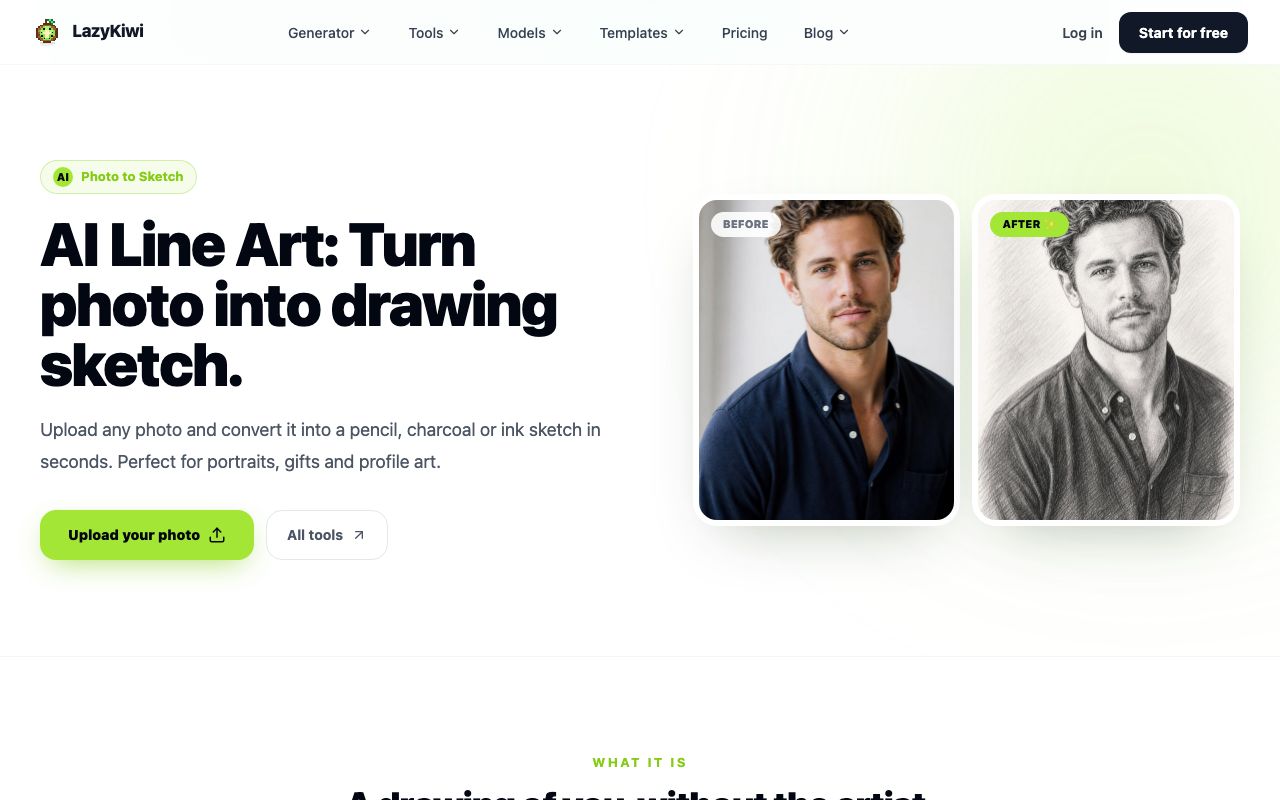
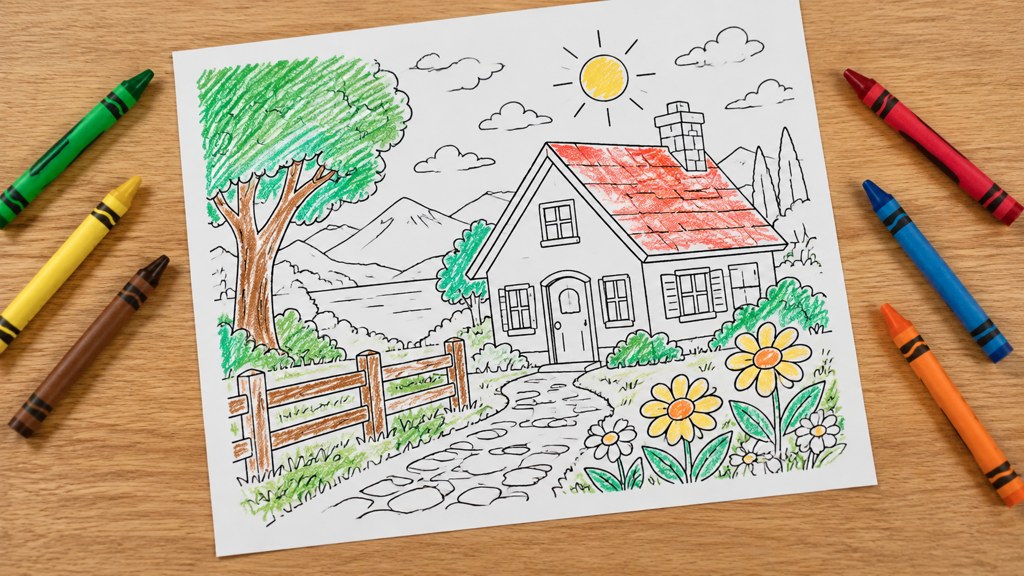
Budget about fifteen minutes for a photograph that suits the job and closer to an hour for one that does not. That gap is the strongest argument there is for choosing the source picture carefully rather than fighting the conversion.
How do you control line thickness for different ages?
Line weight is the setting that decides who can use the page, and it is not one setting but two: how thick the line is and how much detail survives.
| Audience | Line weight | Detail level | Smallest region |
|---|---|---|---|
| Toddlers | Very thick, closed shapes only | Silhouette and two or three internal lines | About the width of a thumb |
| Young children | Thick | Main features, no texture | About the width of a finger |
| Older children | Medium | Facial features, folds in clothing | About the width of a pencil |
| Adults | Fine, varied | Texture and pattern encouraged | As small as the pen allows |
The workbench has no line-weight slider, so thickness is set in the Prompt box rather than on a control. That is a limitation worth knowing before you plan a series, because it means you describe the weight rather than dial it.
black and white colouring page, very thick uniform outlines, closed shapes only, no shading, no grey, no hatching, no texture, large simple regions, plain white background, single subject centred

The three phrases that matter are uniform outlines, closed shapes and no grey. Grey is the failure mode: a model asked for a colouring page without being told to avoid tone will hand back a shaded drawing, and shading prints as mud.
How do you turn a photo into line art in Canva or Procreate?
Two platform routes people search for by name, described by what they actually do rather than by menu path, because menus move.
- Canva: apply a duotone or sketch-style effect to the photo, force the two tones to black and white, then adjust the effect's intensity until the outlines are continuous. It works for simple subjects and struggles with anything textured, because there is no threshold control fine enough to save a busy image.
- Procreate: duplicate the layer, invert the top copy, set its blend mode to colour dodge, then apply a Gaussian blur to it. That produces an edge map you can trace over. The tracing is the point, and it is the most reliable route of all, because a human decides which edges matter.
- Either way, finish by hand. Every automated route leaves gaps, and every page needs a pass with an eraser and a brush.
If you would rather generate the page than convert one, the doodle generator template starts from a description instead of a photograph. That avoids the edge-detection problem entirely, and it also avoids any likeness question, which matters if the page is going anywhere public. Described pages come out of a text-to-image model rather than an edge detector, and Z-Image is one of the image models in the catalog if you want to compare a described page against a converted one.
How do you prepare a coloring page for printing?
Print preparation is where most home-made pages fail, and the fixes are arithmetic rather than taste.
- Work out the pixel size from the paper size. A4 is 210 by 297 millimetres, US Letter is 8.5 by 11 inches. At 300 dots per inch, that is roughly 2480 by 3508 pixels for A4 and 2550 by 3300 for Letter. Those figures are the paper standards multiplied by the resolution, not a claim about any particular printer.
- Leave a margin of at least ten millimetres on every side. Most consumer printers cannot print to the edge, and a page that gets clipped loses its outer outlines, which are exactly the ones holding the regions closed.
- Export as PNG rather than JPEG. JPEG compression puts grey halos around black lines, and grey halos print as smudges.
- Never screenshot the page. A screenshot is the size of your screen, which is a fraction of print resolution, and enlarging it turns crisp lines into soft grey ones.
- Print one test page before you print thirty. Line weight that looks right on a monitor is routinely too thin on paper.

If you are making pages for a classroom, print the test on the actual paper you will use. Thin copier stock takes ink differently from the card a home printer's default profile assumes, and lines that were crisp on one will bleed on the other.
Is there a free way to turn a picture into a coloring page?
Several, with a real trade-off between speed and print quality. Checked on each vendor's own page on 7 September 2026.
- BeFunky offers Free, Plus and Pro tiers. The pricing page describes what each tier includes but publishes no prices and no watermark policy, so both are things to establish at sign-up rather than facts I can quote.
- Fotor describes its Basic plan as free forever, with limited free credits, one generation running at a time and watermarked JPG, PNG and PDF exports. A watermark is fatal here, because it lands on the page a child is meant to colour.
- Picsart publishes Pro at $10.5 a month billed yearly, down from $15, with 50 daily generations. Its pricing page advertises a free trial rather than a documented permanent free tier.
- Doing it by hand in any editor you already own costs nothing at all and gives the best print quality, because you control the threshold and you clean the result yourself.
Search suggestions such as how to turn photo into coloring page free and how to turn photo into coloring page canva both point at the same wish, which is a one-click route. The one-click routes exist; what none of them do is close the gaps, and that is the ten minutes that decides whether the page works.
Can you sell coloring pages made from photos?
Three separate questions get collapsed into one here, and they have different answers.
- 1
Do you have rights to the photograph?
A page traced from a photograph you did not take is a derivative of someone else's work. Your own photographs are fine; a picture found online is not, however far the conversion has taken it from the original.
- 2
Is a recognisable person in it?
Likeness is a separate right from copyright. A page of a stranger's face, or of a celebrity, can be a problem even when you took the photograph yourself. Pets, buildings and objects avoid this entirely.
- 3
How much of it did a model generate?
The US Copyright Office has been running a formal inquiry on this since 2023: its NewsNet issue 1017 of 30 August 2023 announced the notice of inquiry into the use of copyrighted works in training, disclosure, and the legal status of generated outputs, with comments due that October. Its subsequent report on copyright and artificial intelligence is being published in parts, and the copyrightability part landed on 29 January 2025.
The practical reading is unchanged by any of it: your own photograph, your own cleanup, your own arrangement into a set, and you have something to sell. Raw output from a prompt, with no human contribution, is the case the Office has been clearest about. Before listing, read the marketplace's own seller policy, because platform rules on AI-assisted listings differ from each other and change more often than the law does.

Worth a reality check on price too. Crayola publishes free printables, and a search on Pinterest will return more free pages than anyone can print. What sells is a coherent set with a theme, not a single converted photograph.
What makes a converted coloring page unusable?
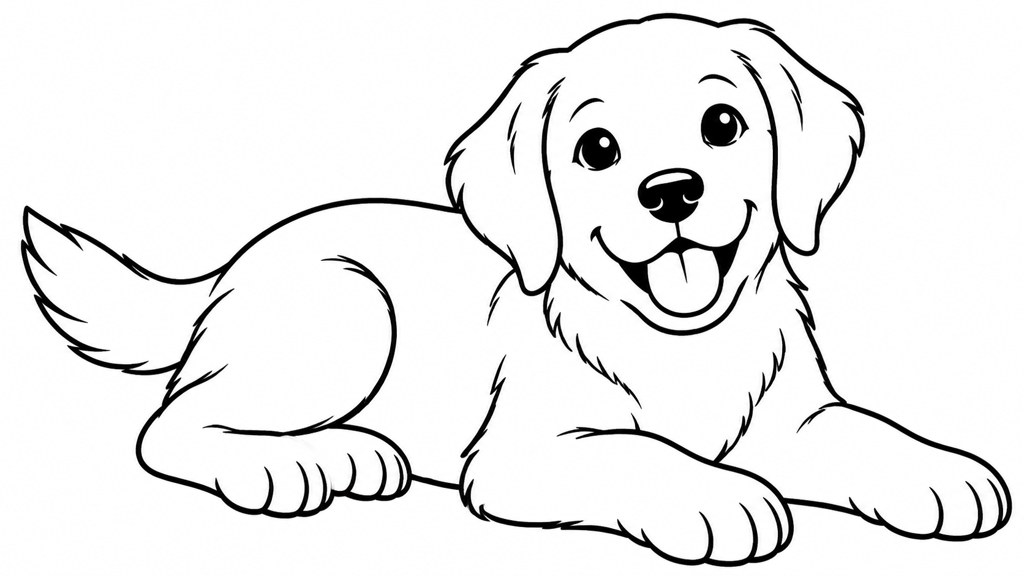
Three faults, in the order they ruin a page.
- Broken outlines. A region that does not close cannot be coloured, and children notice immediately. This is the single most common failure and the easiest to fix by hand.
- Grey fills. Any tone between black and white prints as a smudge and stops the region reading as empty. Convert to pure black and white before you export, not after.
- Detail too fine to follow. If a region is narrower than the crayon, it will be coloured over rather than filled, and the whole area turns into a scribble.
A quick test that catches all three: print the page, hand it to whoever it is for, and watch the first thirty seconds. Every fault above shows up in that half minute, and none of them shows up on a screen. If you want the generated route rather than the converted one, the sibling piece on making printable pages from a prompt covers that end of it, and there is a related guide on line-based art styles if you would rather draw the shapes yourself. Galleries such as MoMA are a good place to see how little line a subject actually needs.
Key takeaways
- The source photograph decides the outcome: contrast, plain background, unbroken outline, low texture.
- Crop and raise contrast before converting. Grey midtones are what break the lines.
- Closing the gaps by hand is the step that makes a page colourable, and no tool does it for you.
- Line weight is set in the Prompt box, not on a slider; there is no line-weight control in the workbench.
- Print maths: A4 at 300 dots per inch is roughly 2480 by 3508 pixels, Letter roughly 2550 by 3300, with a margin of at least ten millimetres.
- Selling: your photograph, your cleanup and your arrangement are the parts that carry rights.
Image & Design Editor
Maya Chen
Maya writes about image tools from the desk rather than the demo reel. She tests templates on ordinary photographs, keeps the runs that fail, and reports what the panel actually shows.
FAQ
Common questions
How to turn photo into coloring page canva users can print?
Apply a duotone or sketch effect, force the two tones to pure black and white, then raise the effect intensity until outlines join up. Export as PNG at the paper's full pixel size rather than screen size, and expect to close a few gaps by hand afterwards.
How to turn photo into coloring page photoshop style, without Photoshop?
The classic route is duplicate, invert, colour dodge, blur, which produces an edge map. Any editor with layer blend modes can do it, including Procreate on a tablet. The result is a tracing guide rather than a finished page, so plan on a cleanup pass.
What is the best photo to line art conversion for a pet?
Short-haired pets convert well and long-haired ones do not, because fur becomes thousands of short strokes. Photograph the animal against a plain floor or wall in even light, crop tight to the body, and accept that whiskers will need drawing back in by hand.
How do you turn photo into line drawing without losing the face?
Shoot or choose a picture with soft even light and no shadow across the nose. Hard side light creates a dark region that the converter reads as an edge, which puts a black shape across the face where there should be an open area to colour.
What resolution should a printable colouring page be?
Size it from the paper, not the screen. A4 is 210 by 297 millimetres and Letter is 8.5 by 11 inches, so at 300 dots per inch you need roughly 2480 by 3508 or 2550 by 3300 pixels. Export PNG, keep a ten millimetre margin, and test one sheet first.
Convert a photo to clean line art
Upload a photo, pick the ink style rather than pencil or charcoal, and start from an outline instead of a shaded drawing.
Related reading
Paper Animation Tools: Free Options Compared
Tools that turn a photo or idea into a paper-craft animation, compared on style range, render length and what each free tier actually lets you export.
8 min read
Doodle Ideas: 60 Easy Doodles by Skill Level
Sixty doodle ideas sorted by how long each takes and how much drawing skill it needs, plus the repeatable shapes that fill a whole page fast.
8 min read
How to Make Paper Animation: 3 Working Methods
Build a paper animation by hand, in After Effects, or from a photo with AI. Each method's real time cost, kit list and the look it produces.
8 min read
AI Coloring Page Generator: Printable Pages for Kids
Use an AI coloring page generator to make printable line art: prompts by age, photo-to-page conversion, 300 DPI export, free credits and Etsy or TPT rules.
8 min read
AI Pixel Art Generator: Make Game-Ready Sprites and Tiles
Use an AI pixel art generator for sprites, tiles and icons, then snap the grid and lock the palette so the assets ship. Steam and copyright rules checked.
9 min read