
How to Remove Background From Video: 7 Ways, Free and Pro
Remove background from video in CapCut, Canva, Premiere, After Effects or a free web tool, keep it transparent, or replace it, with each tool's real limits.
 Daniel Okafor 11 min read
To remove a background from a video, you either key out a solid colour you filmed against (green screen), or let an AI tool find the person in every frame and cut the rest away. CapCut does both for free on desktop, Canva does the AI version on paid plans, Premiere Pro and After Effects give you the most control, and browser tools such as VEED and Pixelcut work without an install. The step people miss is the export: a normal MP4 cannot hold transparency, so if you need the cut-out person on its own you must export a format with an alpha channel. Below are the exact menu paths and limits each vendor states, checked on 7 October 2026.
Which way to remove a video background fits your clip?
Two questions decide it: did you film against a green or blue screen, and do you need a transparent result or just a different background?
| Your situation | Use | Why |
|---|---|---|
| Filmed on green or blue screen | Chroma key: CapCut, Premiere Pro Ultra Key, iMovie, VEED Green Screen | Colour keying is cleaner and more predictable than AI on hair and fast motion |
| Ordinary footage, free, on a computer | CapCut desktop: Remove BG, Auto removal | Free on desktop and, per CapCut, no watermark on export |
| Ordinary footage, already in Canva | Canva BG Remover | One click, but paid plans only and clips under 10 minutes |
| Ordinary footage, need full control | After Effects Roto Brush, Premiere object masking, DaVinci Resolve Studio Magic Mask | You can fix the matte frame by frame |
| Need a transparent file for another editor | A tool that exports ProRes 4444, WebM or MOV with alpha | MP4 cannot store transparency |
| Want a new scene behind the person, not a cut-out | A background replacer, such as LazyKiwi's video background changer | Generates a finished clip with the new backdrop |
How to remove background from video in CapCut
CapCut is the free default for most people, and its own background remover page gives the desktop menu path:
- 1
Import the clip and select it on the timeline
Work on the clip you want to cut out, with any new background on a track below it.
- 2
Open Video, then Remove BG
Choose Auto removal for ordinary footage. CapCut detects the subject and removes the rest.
- 3
Use Chroma key for green or blue screen footage
In the same panel, switch to Chroma key and pick the key colour. CapCut says you can adjust tolerance and edge softness.
- 4
Check edges, then export
Scrub through fast movement and hair before exporting. CapCut's page says desktop exports carry no watermark and that transparent export is supported; check which format your version offers before relying on it.
If Auto removal chews into hair or a hand, do not keep re-running it. Refilm with more light and more distance from the wall, or switch to a tool where you can paint the matte.
How to remove background from video in Canva
Canva's help center describes the video background remover as a one-click job, with two limits worth knowing before you start, per Canva's Background Remover help page:
- It is included with paid plans only.
- It only works on videos whose original length is under 10 minutes. If you trimmed the clip inside Canva, you have to download and re-upload it first.
- 1
Select the video in your design
Click once so the editor toolbar shows the video options.
- 2
Choose BG Remover
Wait while Canva processes the clip.
- 3
Add the new background
Put a colour, image or video on the page behind the cut-out, or set a video as the page background.
How to remove a video background in Premiere Pro and After Effects
Adobe's tools are the professional route. Our checker was blocked by Adobe's help site today, so these steps follow the help article titles and summaries shown in search results on 7 October 2026; check the linked pages for your version.
Premiere Pro: Ultra Key for green screen
- 1
Drag Ultra Key onto the clip
It is in the Effects panel under Keying.
- 2
Pick the key colour
Use the Key Color eyedropper on the green in the Program Monitor.
- 3
Clean the matte
Adjust Matte Generation, Matte Cleanup and Spill Suppression until edges stop flickering. See Adobe's Ultra Key guide.
Premiere Pro: object masking for ordinary footage
Adobe lists an AI Object Masking feature for Premiere, marked beta on its help page, that isolates and tracks a subject without a green screen. On a phone, Adobe also documents removing video backgrounds in Premiere on iPhone.
After Effects: Roto Brush
Roto Brush is the tool for difficult shots. Paint a stroke through the middle of the subject, hold Alt or Option to paint background areas out, and press the spacebar to propagate the matte through the frames. Where it drifts, correct the first frame that goes wrong and propagate again. It is slower than one-click tools but it is the one you can actually fix.
Can you remove a background in DaVinci Resolve for free?
Not with the AI tool. Blackmagic's comparison page lists Magic Mask, the AI subject isolation feature, as part of DaVinci Resolve Studio, which it prices at $295, not the free version. If you film on green screen, keying is a separate job from Magic Mask; check your version's keying tools before buying Studio for that alone.
How to remove background from video online for free
Browser tools are the fastest route when you have one short clip. The free plans differ more than the marketing suggests:
| Tool | Free plan, as stated on 7 October 2026 | Transparent export |
|---|---|---|
| CapCut (web and desktop) | Free; desktop exports without watermark, per CapCut | Stated as supported; check the format |
| Pixelcut | Free plan: clips up to 5 seconds, 3 downloads, 720p, no watermark; uploads up to 50MB and 60 seconds | Yes: WebM, MKV, ProRes or GIF; MP4 only with a solid colour |
| VEED | Free to try once, then a Pro plan | Says it makes the video transparent for layering in its editor |
Sources: Pixelcut's video background remover and VEED's video background remover. If you need a free result without a watermark, CapCut desktop and Pixelcut's short free clips are the two that say so on their own pages.
How to remove background from video on iPhone
There are two routes on an iPhone, and only one works on ordinary footage.
- **iMovie (green or blue screen only).** Record in front of a green or blue screen, put your background clip on the timeline, add the subject clip over it and apply the green-screen effect. Apple's iMovie guide says to use blue if your subject wears green, and lets you adjust the strength of the key.
- **Premiere on iPhone (ordinary footage).** Adobe documents a remove-background feature for Premiere on iPhone (linked in the Premiere section above). CapCut also has a mobile app; we did not check its menus today, so confirm it offers Remove BG in your version.
Android users can try CapCut's mobile app or a browser tool such as Pixelcut; we did not check the mobile menus today.
How to keep a transparent video background
A cut-out only stays cut out if the file can store transparency, called an alpha channel. Most people export an MP4, see a black or white background, and think the removal failed. It did not; standard H.264 MP4 files have no alpha channel, so the transparent area gets filled.
| Format | Holds transparency? | Use it for |
|---|---|---|
| MP4 (H.264) | No | Final upload once the new background is already in place |
| Apple ProRes 4444 (.mov) | Yes, lossless alpha | Handing a cut-out to Premiere, Final Cut or Resolve |
| WebM (VP8 or VP9) | Yes, in browsers that support it | Overlays on websites |
| GIF | Yes, one-bit (on or off) | Stickers and short loops |
Apple describes ProRes 4444 as having "a mathematically lossless alpha channel of up to 16 bits" in its ProRes overview. For WebM, MDN's codec guide notes that video with an alpha channel can play with the page showing through, but that Safari does not support alpha transparency in that format, so test on an iPhone before relying on it.
How to remove background from video without a green screen and avoid bad edges
AI cut-outs fail in predictable places. Knowing them saves re-runs:
- **Hair and fine edges** against a busy background. Film against a plain wall a metre or more behind you.
- **Fast motion and motion blur.** A blurred hand has no clean edge to find. Use a faster shutter or move more slowly.
- **Similar colours.** A grey shirt against a grey wall merges. Wear something that contrasts with the room.
- **Several people overlapping** or leaving the frame. Keep everyone fully in shot.
- **Uneven light.** Light the subject from the front and keep shadows off the wall behind.
If edges still flicker after all that, it is time for a tool with manual correction, such as Roto Brush, or for a green screen. A plain green backdrop costs little and makes every tool in this guide behave.
Want a new background instead? Replace it with AI
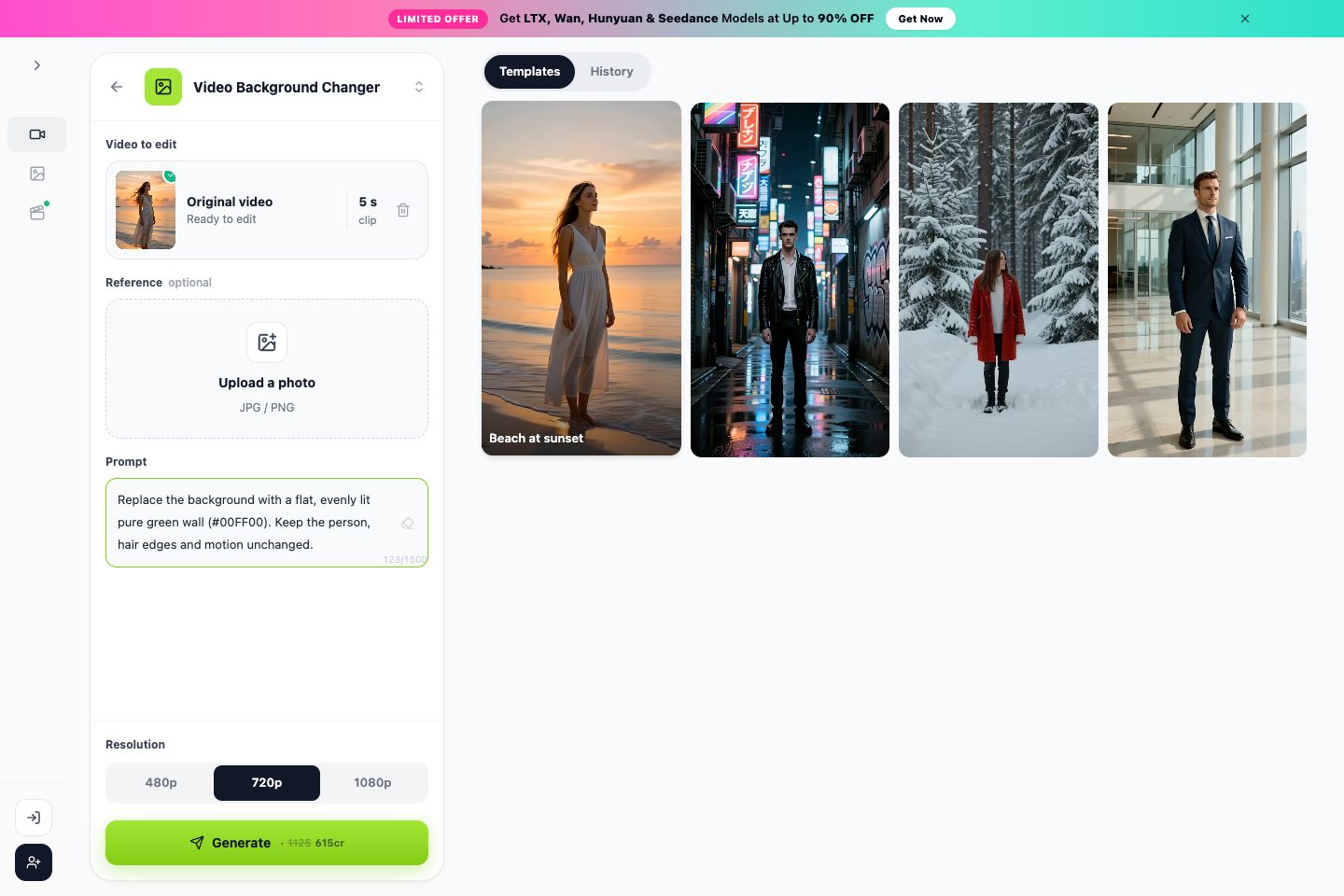
Many people searching for this do not need a transparent file at all; they want themselves in a cleaner room. That is a different job, and it is the one LazyKiwi's video background changer does.
- **What it does:** you upload a clip and describe the backdrop you want ("plain grey studio wall", "bright office with windows"). The AI generates a new MP4 with that backdrop behind the subject.
- **What it does not do:** it does not export a transparent or alpha-channel video, and it does not cut your original file. Because the clip is regenerated, compare the result with your original for small changes in movement, faces or hands, and check its length and aspect ratio before you use it.
- **Cost:** the credit price is shown before you generate; the Free plan lists 40 credits a month on the pricing page.
Workaround: get a keyable green backdrop, then cut it out in CapCut
If you need a cut-out but your footage has a messy background, you can combine the two approaches:
- 1
Generate on flat green
In the video background changer, describe the backdrop as "flat, evenly lit chroma-key green wall, no shadows, no texture".
- 2
Check the edges
Make sure no green spills onto hair or clothing and the subject still matches your original.
- 3
Key it in CapCut
Import the result, open Remove BG and choose Chroma key on the green. Export as a format with alpha, or put your own background underneath.
For removing a single object or a passer-by rather than the whole background, see how to remove objects from video. Other generation work, such as making a new clip from scratch with Seedance 2.0, starts in the video generator.
Key takeaways
- Green screen footage: use chroma key (CapCut, Premiere Ultra Key, iMovie). Ordinary footage: use AI removal (CapCut Auto removal, Canva, Premiere object masking, Roto Brush).
- CapCut desktop is the free default; Canva's remover is paid-only and limited to clips under 10 minutes.
- Export ProRes 4444, WebM or MOV with alpha to keep transparency; an MP4 always fills the background.
- DaVinci Resolve's Magic Mask needs the $295 Studio version.
- LazyKiwi's video background changer replaces the background in a regenerated MP4; it does not export transparency. Generate on flat green and key it if you need a cut-out.
Video Workflows Editor
Daniel Okafor
I run the same clip through every video model we ship and write down what actually changes: motion, timing, cost, and where each one falls apart.
FAQ
Common questions
Can I remove background from video without green screen?
Yes. CapCut's Auto removal, Canva's BG Remover, Premiere's object masking, After Effects Roto Brush and browser tools such as Pixelcut detect the subject with AI. Results are best with even light, a plain wall behind you and a subject that contrasts with the room.
How do I remove a video background for free without a watermark?
CapCut desktop says its exports carry no watermark after background removal. Pixelcut's free plan also says no watermark, but limits you to clips up to 5 seconds, 3 downloads and 720p. VEED lets you try once before asking you to upgrade.
Why does my video background turn black after I remove it?
Because you exported an MP4. Standard H.264 MP4 has no alpha channel, so the transparent area is filled with black or white. Export Apple ProRes 4444, WebM or another format with alpha, or add the new background before exporting.
Is Canva's video background remover free?
No. Canva's help center says the Background Remover is included with paid plans, and it only works on videos whose original length is under 10 minutes. Clips trimmed inside Canva need to be downloaded and re-uploaded first.
Can LazyKiwi make a video background transparent?
No. The video background changer generates a new MP4 with the background you describe; it has no transparent export. For a cut-out, ask for a flat chroma-key green backdrop, then key that green out in CapCut or Premiere and export with alpha.
Put yourself in a cleaner room
Upload a clip, describe the backdrop, and get a new MP4. Need a cut-out? Ask for a flat green wall and key it in your editor. The credit cost is shown before you generate.
Keep reading

How to Remove Objects From Video Without Smears
How to remove objects from video: which shots are possible, the prompt that stops collateral edits, editor routes, and the free options worth using.
8 min read
Change Background of Photo: 3 Methods Compared
Change background of photo files three ways: white for IDs and listings, a real room for portraits, an invented scene for social. Edge and light rules.
9 min read
Best AI Video Editor in 2026: 7 Picks, Free and Paid
Seven of the best AI video editors compared on prices checked today, free tiers, captions, text-based cuts and generative tools, plus where LazyKiwi fits.
10 min read
How to Make AI Videos in 2026: Idea to Export, Step by Step
How to make AI videos in 2026: pick a generation mode, choose Kling v3 Omni or Seedance 2.5, prompt for clean motion, and export without wasting credits.
11 min read