
Teach Me How to Dougie: Make an AI Dance Video
Learn how to create an AI Dougie dance video with a clear prompt, a strong reference image, and a simple editing workflow.
 Daniel Okafor 6 min read
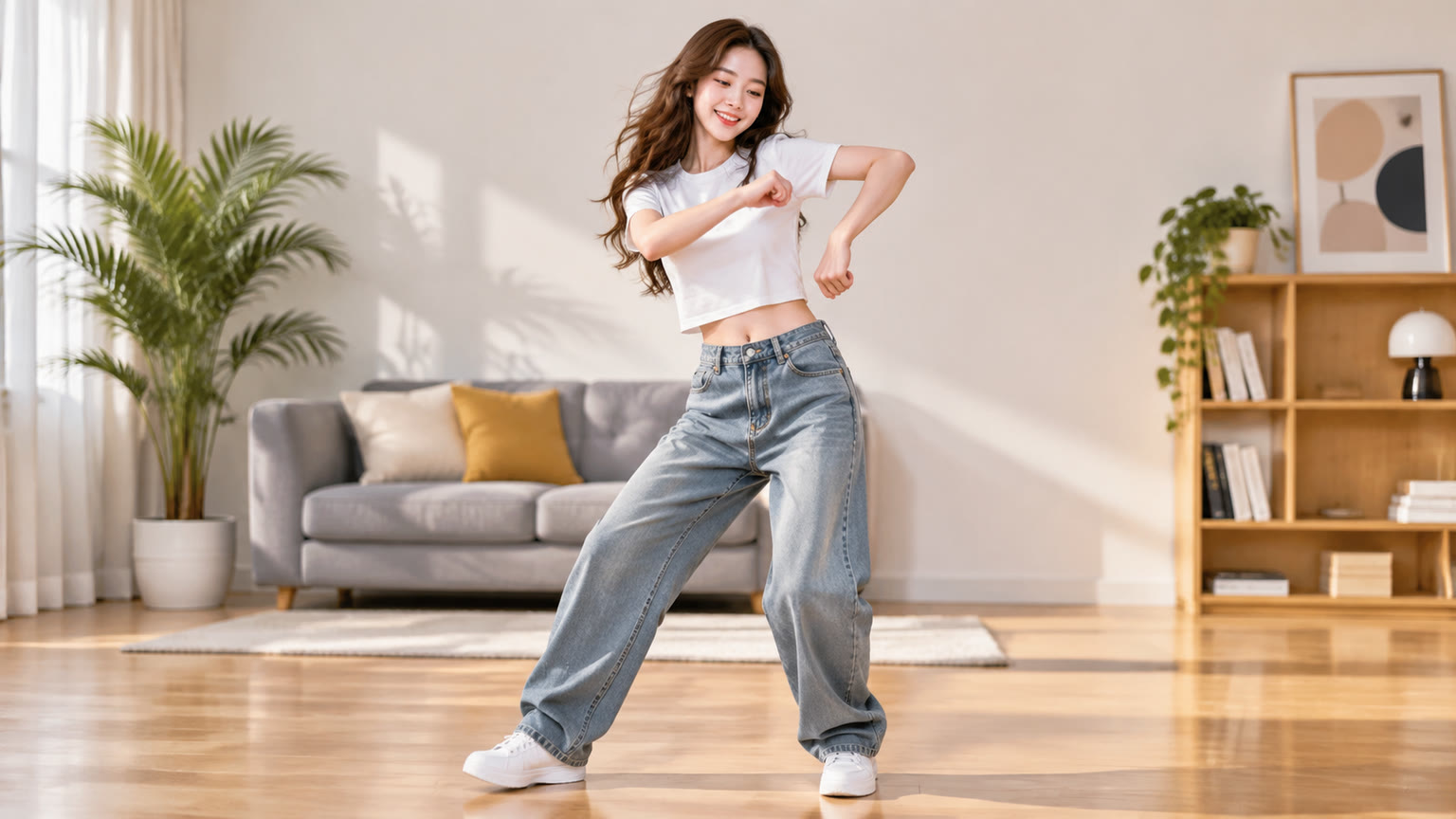
To make an AI video for “Teach Me How to Dougie,” start with a clear description of the dancer, the recognizable shoulder-and-arm movement, the camera, and the setting. Generate a short clip, review how the movement looks, then adjust the prompt or starting image if the result needs work. This guide walks through the process and shows how to shape a version that feels personal rather than generic.
What Does “Teach Me How to Dougie” Mean as an AI Video Trend?
“Teach Me How to Dougie” is being used as a prompt for AI dance videos: creators depict a person or character performing the Dougie, often with a playful or personalized twist. The trend radar notes recent social interest in AI versions of the dance, but that signal is a snapshot, not a promise that a particular format will keep trending. The practical goal is to make the dance readable at a glance and give the clip a distinctive subject or setting.
A good version does not need a complicated story. One dancer, a clear full-body view, a simple background, and a short sequence of movements give the generator fewer competing details to interpret. You can build the video from a text description in an AI video generator, or create a visual starting point first with the AI image generator.
- Keep the dance as the main action, not one detail among several unrelated events.
- Describe what the arms, shoulders, and upper body are doing instead of relying only on the dance name.
- Choose a mood and setting that support the subject without crowding the frame.
How Do You Write a Prompt for an AI Dougie Dance?
Write the prompt in layers: subject, movement, framing, setting, and visual style. This makes it easier to see which instruction to change if the output misses the idea. The dance name can provide context, but describe the motion directly too, since a model may interpret a named dance differently from what you picture.
- 1
Name the dancer
Describe one clear subject, such as a person in a bright jacket or a stylized animated character. Include details that matter to the look, and leave out details that do not help the clip.
- 2
Describe the movement
Ask for a relaxed hip-hop dance with a side-to-side groove, shoulder rolls, and one arm moving across the body. If you want a specific variation, describe it plainly rather than stacking several dance names.
- 3
Set the camera and scene
Specify a full-body shot, a steady camera, and a simple background such as a street corner or studio. This helps keep the dancer visible as the movement unfolds.
- 4
Choose a visual direction
Add a concise style cue, such as candid phone video, polished music-video lighting, or colorful animation. Avoid mixing styles that would make the result feel visually inconsistent.
Prompt example: “A confident dancer performs a relaxed Dougie-inspired groove, moving side to side with loose shoulder rolls and one arm sweeping across the body. Full-body framing, steady camera, simple city sidewalk in daylight, casual candid-video look.” Treat this as a starting point and revise one detail at a time.
If the dance is hard to recognize, first make the movement instructions more concrete. If the scene feels cluttered, simplify the background before adding more stylistic detail. The video templates can also help you explore a starting format when you do not want to begin with a blank prompt.
Should You Start With Text or an Image?
Start with text when you want the generator to invent the dancer and scene together; start with an image when you already have a specific character, outfit, or visual composition in mind. Neither route guarantees that the final dance will match your exact mental picture, so choose based on what you most want to control.
| Text-first | Image-first |
|---|---|
| Best for exploring different subjects, settings, and visual styles. | Best for carrying a chosen appearance or composition into a video attempt. |
| Describe the dancer and movement together in the prompt. | Create or select a clear image with the dancer visible and enough room around them. |
| Useful when you are still deciding what the clip should look like. | Useful when the subject's look matters more than discovering a new scene. |
For an image-first workflow, make the source image easy to animate: show the whole dancer, keep the pose readable, and avoid a background full of tiny details. You can use the image generator to explore a starting visual, then bring your preferred concept into a video workflow. A template such as Palm Mini Me is another option if a miniature-person treatment fits your idea; it is a distinct creative direction, not a requirement for making a dance clip.
How Can You Make the Dance Look More Readable?
Make the dancer easy to see before asking for more elaborate choreography. AI-generated motion can vary between attempts, so clear framing and a small number of described actions give you a more useful basis for judging the result. For a short social clip, a single recognizable groove may work better than a long list of moves.
- Ask for a full-body shot if you want viewers to see footwork as well as upper-body movement.
- Use a stable camera instruction when the dancer should remain the focus.
- Keep the clothing and background visually distinct enough that the subject does not blend into the scene.
- Describe one continuous dance phrase rather than several unrelated actions.
- If the arms look awkward, reduce the number of movements in the prompt and try a simpler pose or starting image.
Review the clip in motion, not only from a still frame. A pose can look convincing as an image while transitions between poses feel uneven. If the movement is unclear, simplify the action and try another generation before adding extra visual effects.
The Hey Boo Come Slide With Me template offers a related dance-oriented creative reference. Use it for inspiration if its style suits the clip, while describing the Dougie-inspired movement you actually want rather than assuming a template will automatically reproduce a particular dance.
How Do You Add a Personal Twist Without Losing the Trend?
Keep one familiar element of the dance and personalize the subject, setting, or visual treatment. That balance makes the reference legible while giving the video a reason to feel like your own. You might choose a character with a distinctive outfit, place the dancer in an unexpected everyday setting, or make the scene look like a playful behind-the-scenes moment.
- Change the setting while keeping the movement description simple.
- Use a recognizable character design or a consistent outfit as the clip's visual anchor.
- Choose a tone, such as deadpan, celebratory, or deliberately over-the-top, and carry it through the scene.
- Keep text and other visual additions brief so they do not compete with the dance.
If you are deciding between a faithful-looking dance clip and a more stylized interpretation, consider what the audience should notice first. A realistic setting can make the action feel casual, while animation or an unusual character can make the joke or concept clearer. The models page lists the models available across LazyKiwi; check the current options there rather than assuming a particular model or capability is included in a given workflow.
What Should You Avoid When Making the Clip?
Avoid overloading the prompt with too many people, locations, camera moves, and actions. Each extra instruction gives the generator more to interpret, and the central dance can become less clear. Begin with a simple version, then add a visual detail only when it makes the result more recognizable or more entertaining.
- Do not rely only on the dance name; spell out the movement you want to see.
- Do not request elaborate choreography if a short, readable groove is the goal.
- Do not judge the whole concept from one still frame; inspect the motion across the clip.
- Do not assume a named template or model will produce a specific result without checking its current description and options.
When a result is close, preserve the parts that work. Make a focused adjustment to the prompt rather than rewriting it from scratch, so you can tell whether the change improved the dance, framing, or overall style.
Key takeaways
- Describe the Dougie-inspired movement directly, even when the prompt includes the dance name.
- Use a simple scene and readable framing to keep attention on the dancer.
- Choose text-first for exploration and image-first when the subject's look is important.
- Review motion across the clip and revise one issue at a time.
- Personalize the subject, setting, or style while keeping the dance recognizable.
Video Workflows Editor
Daniel Okafor
I run the same clip through every video and motion tool we ship and write down what actually changes: timing, length, export, and where each one falls apart.
FAQ
Common questions
How do I make an AI video for “Teach Me How to Dougie”?
Describe the dancer, the side-to-side groove, shoulder movement, camera framing, and setting in a concise prompt. Generate a short clip, review whether the motion reads clearly, and revise the part that needs improvement.
What should I include in a Dougie AI video prompt?
Include a subject, specific movement cues, a camera view, and a visual style or setting. A full-body shot and a simple background can help keep the dance in focus.
Can I use a photo as the starting point?
An image-first workflow can help when you already have a subject or composition in mind. Choose a clear image where the dancer is visible, then describe the motion you want the video to show.
Why does my AI dance video look unclear?
The prompt may describe too many actions, the dancer may be difficult to see, or the camera and background may compete with the movement. Simplify the scene and specify the dance motion more directly, then try another generation.
Can I make the video look like an animation or a candid clip?
You can describe a visual direction such as animation or a casual phone-video look in your prompt. Keep the style instruction consistent with the setting and subject you have chosen.
Does a template automatically make the Dougie?
A template can provide a creative starting point, but you should check its description and direct the movement you want in your workflow. Do not assume a related dance template reproduces a specific dance automatically.
Make Your Dougie-Inspired Video
Start with a subject, a clear movement prompt, and a visual style. Generate a clip and refine the details until the dance reads the way you intend.
Keep reading

AI Video Tools Over One Minute: What Works
Learn how to plan videos longer than one minute with AI, what to check in a generator, and how to assemble a coherent final edit.
7 min read
How to Film Character Motion Reference
Learn how to film clear, usable motion reference for character animation, from planning and camera setup to selecting takes.
7 min read
AI Video Models Compared: How to Choose
Compare AI video models by motion, prompt control, image animation, consistency, and workflow to find the right fit for your project.
6 min read