
Free AI Santa Video Generator: A Practical Guide
Plan a Santa video, write a stronger prompt, and check free-use terms before you generate.
 Daniel Okafor 9 min read
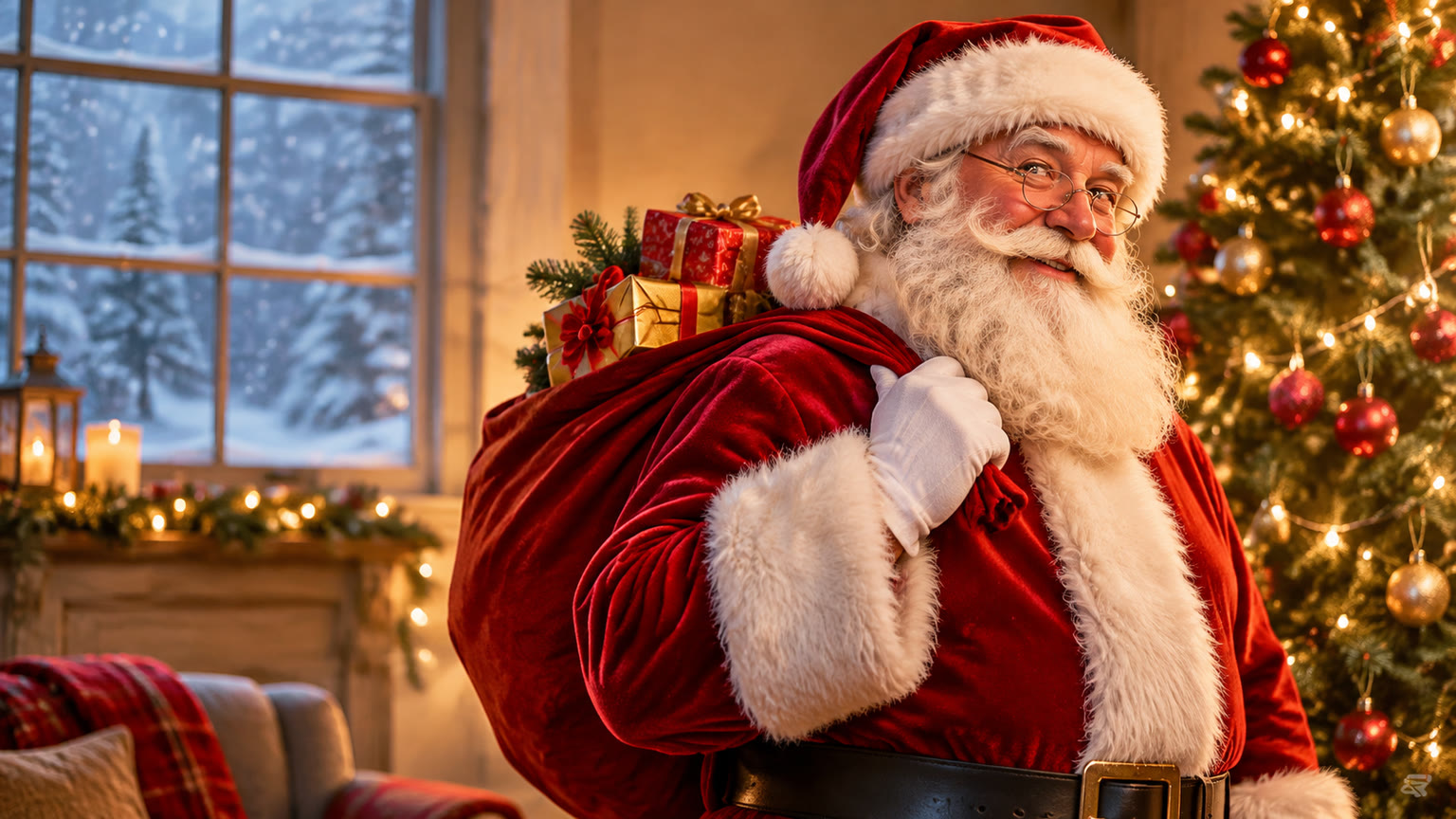
Looking for a free AI Santa video generator? Start with a short Santa scene, write a prompt that describes both the setting and the motion, and check the tool's current free-use terms before generating. This guide gives you a step-by-step workflow, copy-ready prompts, and a checklist for turning an idea or Santa-themed image into a usable holiday clip.
How to Make an AI Santa Video
The simplest way to make an AI Santa video is to choose one moment, describe what Santa does, and generate a short clip. A single clear action, such as Santa waving from a sleigh, is easier to direct than an entire journey through the North Pole. You can begin in the AI video generator and treat your first result as a draft to evaluate, not a finished holiday message.
- 1
Pick the video's purpose
Decide whether the clip is a personal greeting, a festive invitation, a social post, or a visual for a larger project. That choice tells you what Santa should do and how much space to leave for any message you plan to add.
- 2
Describe one visible scene
Specify Santa's appearance, location, action, camera framing, and mood. For example, place him beside a decorated tree, have him look toward the camera, and ask for a gentle wave.
- 3
Generate and inspect
Watch the whole clip for awkward movement, drifting details, and an unclear ending. Change one or two instructions at a time so you can tell which revision helped.
- 4
Finish the message
If you need a name, date, or invitation text, plan where that text will go. Keep the generated scene visually simple enough that your message stays readable.
Start with a close or medium shot when Santa is the focus. It gives the prompt fewer moving elements to coordinate and makes a greeting feel more direct.
What “Free” Means Before You Generate
A free AI Santa video is only free under the specific terms shown by the tool you use. LazyKiwi's current free-use allowance, generation limits, and export terms are not provided here, so this guide does not assume that every Santa video can be generated or downloaded at no cost. Check the information displayed in the workbench before you start, especially if you expect to make several versions.
- Check whether you can generate a clip without paying and whether that applies to the option you selected.
- Check whether a generation or retry uses a limited allowance. A prompt that needs several attempts may have a different practical cost than one successful attempt.
- Check the available clip length, aspect ratio, resolution, and export options before you plan a final post.
- Check whether the output has a watermark or other visible branding if you need a clean-looking greeting.
- Check the terms that apply to your intended use, particularly if the video is for a business rather than a personal holiday message.
This quick check helps you keep the project small and predictable. Draft the wording and choose your scene before generating, then make your first attempt with the simplest prompt that could meet the goal. If a setting or option changes the terms shown on screen, decide whether you need it before making another clip.
| Need | What to check |
|---|---|
| One personal greeting | Whether a short generation and its export fit the current free-use terms |
| Several custom versions | Whether each new generation or retry counts separately |
| A polished final post | Whether the available format, resolution, and branding meet your needs |
Choose a Santa Scene That Fits Your Goal
The best Santa scene depends on what viewers should notice first: Santa's greeting, a person's reaction, or a recognizable Christmas setting. Choose that focal point before adding decorations. A crowded scene can look festive in a still image, but it may distract from the main action once everything starts moving.
- For a direct greeting, put Santa near the camera with a warm expression and one small gesture. Leave a calm area in the frame if you plan to add text later.
- For a family keepsake, use a photo-style starting idea. The Santa lap photo template offers a relevant direction for a posed holiday image, which you can use as inspiration when planning a separate video scene.
- For a playful reveal, make the nice-list theme the center of the story. The Santa nice list template can help you explore that visual concept without requiring a long sequence of events.
- For a cinematic holiday opener, focus on Santa and the sleigh against a readable night sky. Keep the requested motion gentle so the sleigh remains recognizable.
Treat a photo template as a starting point for the look, not a promise that it automatically produces a video. Decide what should change between the still concept and the moving clip: a wave, a head turn, drifting snow, or a slow camera move. If you cannot describe the intended movement in one sentence, simplify the idea before generating.
Write your scene choice as a single sentence: “Santa waves beside the tree while the camera slowly moves closer.” Use that sentence to keep every later prompt revision focused.
Copy-Ready Prompts for Santa Videos
A useful Santa video prompt names the subject, setting, action, framing, and visual style in that order. It also tells the generator what should remain steady. Copy one of the prompts below and replace only the details that matter to your project. Short, concrete instructions usually make it easier to spot what needs revision.
- 1
Warm greeting
“Santa Claus stands beside a softly lit Christmas tree in a cozy living room. He looks toward the camera, smiles, and gives one gentle wave. Medium shot, warm holiday lighting, steady camera, clear view of Santa's face.” Use this for a message that will be added after the clip.
- 2
Nice-list reveal
“Santa sits at a wooden desk in a festive workshop and opens a large book. He looks down at the page, then smiles toward the camera. Medium shot, warm lamp light, subtle movement, steady framing.” Keep any specific name or wording out of the generated book and add it separately if needed.
- 3
Sleigh arrival
“Santa rides a red sleigh across a snowy night sky above a small town. The sleigh moves smoothly from left to right as the camera follows at a distance. Wide shot, crisp silhouettes, soft moonlight, gentle snowfall.” The Santa's sleigh template offers another way to explore the same holiday visual.
- 4
Festive selfie moment
“Santa and one smiling person pose together beside a decorated tree. Santa turns slightly toward the camera and gives a small wave while both remain in frame. Close shot, cheerful holiday lighting, natural movement.” For a still-image version of this idea, explore the selfie with Santa template.
These prompts describe visual actions, not a spoken script. If your final greeting needs exact words, names, or dates, plan those as text or audio you will add during finishing rather than relying on incidental details in the generated scene.
Use an Image as a Starting Point
A starting image can help you settle Santa's appearance and the composition before you work on motion. This is useful when a text-only prompt keeps changing the coat, background, or camera angle between attempts. You can explore a still concept in the AI image generator, then check the video workbench for the input options currently available.
- 1
Make a clear still
Place Santa where you want him in the final frame. Give his hands room to move if the action is a wave, and avoid filling every corner with decorations.
- 2
Write a motion-only instruction
Describe what changes after the first frame: “Santa raises one hand and waves once; the camera stays steady.” Do not repeat a long description of objects that are already visible.
- 3
Keep the motion modest
Choose one primary action and, if needed, one background effect such as slow snowfall. Review whether Santa's face, clothing, and pose remain recognizable through the clip.
An image-first workflow is a planning method, not a guarantee that every generator accepts image input or animates a template directly. If the available video option takes text only, use the still as a visual reference while you write a matching prompt. If it accepts an image, follow the input requirements shown there and describe motion separately.
Fix Common Santa Video Problems
Most weak Santa clips improve when you remove competing actions and make the camera direction clearer. Watch your draft once for the overall story, then again for specific details. Revise the prompt based on the most noticeable issue instead of rewriting everything at once.
| Problem | Prompt adjustment |
|---|---|
| Santa is too small in frame | Ask for a medium shot or close shot and remove distant background action. |
| The movement feels busy | Keep one gesture and specify a steady camera. |
| The scene changes unexpectedly | Describe one location and one continuous shot. |
| The greeting has no clear ending | Ask Santa to finish the wave and hold a relaxed pose. |
If a face or hand changes noticeably, try a simpler gesture or a different framing. A slight nod may serve the same greeting purpose as a large wave. If the scene looks flat, adjust the lighting description before adding more objects: warm light from a tree, for instance, gives the room a clearer holiday feel without introducing another moving subject.
Keep the prompt from your best draft. Change only one variable for the next attempt, such as camera distance, gesture, or snowfall, so you can judge whether the new version actually improves the clip.
Key takeaways
- Start with one Santa scene and one clear action, such as a wave or a sleigh pass.
- Check current free-use and export terms before generating; they are not specified here.
- Use prompts that describe subject, setting, motion, framing, and lighting.
- Treat Santa photo templates as visual inspiration, not automatic video outputs.
- Review the whole clip and revise one prompt detail at a time.
Video Workflows Editor
Daniel Okafor
I run the same clip through every video and motion tool we ship and write down what actually changes: timing, length, export, and where each one falls apart.
FAQ
Common questions
Is LazyKiwi a free AI Santa video generator?
LazyKiwi has an AI video generator you can use to explore a Santa video concept. Its current free-use allowance, generation limits, and export terms are not specified here, so check the details shown in the workbench before generating.
What should I put in an AI Santa video prompt?
Describe where Santa is, what he does, how the camera frames him, and what the lighting feels like. Start with one action and one continuous scene, then add detail only if the first draft needs it.
Can I make a Santa video from a photo?
A photo can help you plan a consistent look for Santa and the setting. Check the AI video generator for its current input options; if the option you use accepts an image, describe the motion you want separately.
How do I put someone's name in a Santa greeting?
Make a clean Santa clip with room for the name, then add the exact wording during your finishing step. This keeps the visual prompt focused and lets you check that the name is spelled and displayed as intended.
Why does my Santa video look inconsistent?
A prompt with several actions, camera changes, or locations gives the generator more to interpret. Try one location, a steady camera, and a small gesture; then revise whichever detail matters most.
Are Santa photo templates the same as video templates?
No. A Santa-themed photo template can help establish an image or visual concept, while a moving clip requires a video workflow. Check each template page for what it offers before planning the final result.
Make Your Santa Video
Start with one scene, one gesture, and a clear prompt. Check the current options in the video workbench before you generate.
Keep reading
Free Video Upscaler: A Practical Step-by-Step Guide
Learn how to upscale video for free, choose useful settings, and check whether the result actually looks better.
7 min read
Free AI Animation Tools for Short Scenes: A Guide
Choose an AI animation workflow for a short scene, write a focused prompt, and check free-use limits before you create.
6 min read
AI Dance Video Generator Free: A Practical Guide
Learn how to make an AI dance video, choose a template, write a useful prompt, and check free access before you generate.
8 min read