
AI Stop Motion Video Tools: Compare Your Options
Compare AI stop motion video tools by workflow, visual control, consistency, and effort to choose the right approach for your next animation.
 Daniel Okafor 6 min read
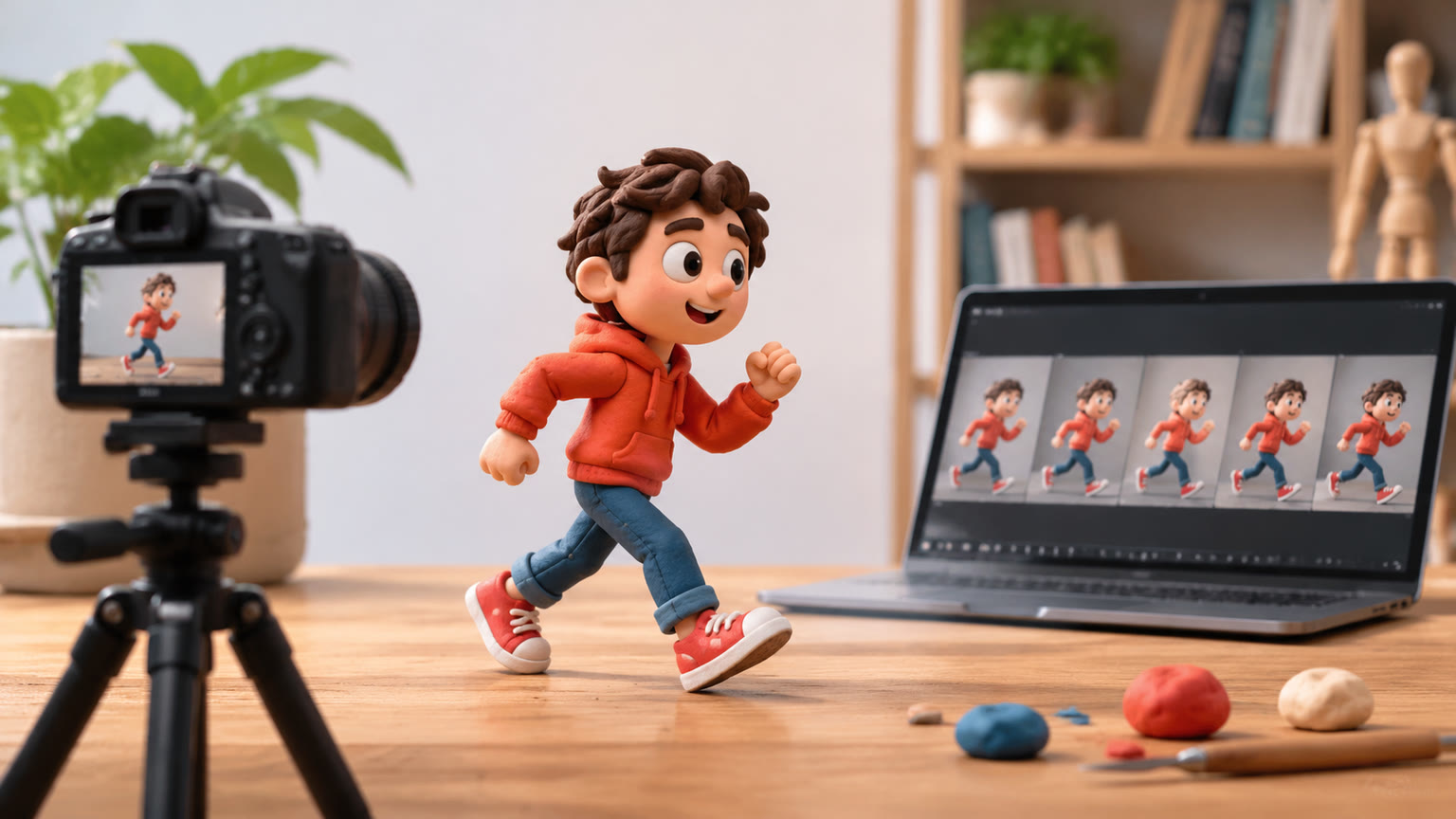
The best AI stop motion video tools depend on whether you want a handmade animation look, movement from an existing image, or precise control over individual frames. Compare text-to-video generators, image-to-video tools, AI image generators, and traditional frame capture tools by how much control each gives you. AI can help create a stop motion aesthetic, while frame capture remains the most direct route to deliberately staged, frame-by-frame movement.
Compare the Four Main Types of Stop Motion Tools
Start by choosing a tool category that matches your production method. A generator that creates an entire moving scene solves a different problem from software that assembles photographs you have captured yourself. Both can contribute to a stop motion project, but they offer different kinds of control.
| Tool category | Best fit and main tradeoff |
|---|---|
| Text-to-video generator | Explore a scene from a written description; exact poses and timing may be difficult to direct. |
| Image-to-video tool | Animate an established visual starting point; the subject can still change as movement develops. |
| AI image generator | Develop characters, sets, and individual images; maintaining continuity across separate generations takes work. |
| Frame capture tool and editor | Build intentional movement from staged frames; requires more manual production. |
For a short visual experiment, begin with a video generator. For a character whose appearance matters, investigate an image-led workflow. For exact object positions, pauses, and contact with props, prioritize frame capture or frame assembly.
Before comparing brands or models, write down your nonnegotiable requirement: fast exploration, recognizable character design, exact choreography, or editable frames. That requirement will eliminate more unsuitable options than a long feature list.
Separate a Stop Motion Look From Frame-by-Frame Control
A stop motion look imitates handmade animation, while frame-by-frame control lets you determine the actual sequence of poses. Generative video can suggest clay, paper, felt, miniature sets, and stepped movement without producing an editable collection of individually staged photographs.
This distinction matters when evaluating results. A clip may have convincing clay textures yet move with smooth, continuous motion. Another may have uneven timing but unstable faces or shifting scenery. Material appearance, motion cadence, and visual continuity need separate inspection.
- Material appearance: Do surfaces resemble clay, cut paper, fabric, or another chosen medium?
- Motion cadence: Are there readable poses and intentional pauses, or only continuous movement?
- Visual continuity: Do the subject, props, lighting, and background remain recognizable?
- Interaction: Do feet meet the floor and hands connect convincingly with objects?
Changing playback frame rate alone does not create convincing stop motion. It can make motion choppier, but the illusion also depends on posing, spacing, physical texture, and a scene that feels deliberately constructed. Judge those qualities together before deciding that a tool fits your project.
Use Video Generation for Fast Concept Exploration
Video generation is a practical starting point when your priority is testing a visual idea quickly. It is especially useful for exploring whether a miniature scene, handmade character, or simple action communicates the mood you want before you commit to a longer production.
You can begin exploring through LazyKiwi’s AI video generator. Treat your first result as a test of the scene and motion direction. Check the selected workflow’s controls before assuming it supports reference images, camera settings, or a particular export option.
- 1
Describe a physical set
Specify one subject, a clear material, a simple background, and lighting that helps reveal texture.
- 2
Choose one readable action
Start with a head turn, a small hop, or a single object sliding across a tabletop.
- 3
Evaluate the result before expanding
Look for stable shapes and believable contact. Add complexity only after the basic action works.
A prompt such as “handmade clay bird on a miniature wooden stage, one small hop, fixed camera, distinct poses with brief holds” gives a clear direction. It expresses a goal; it does not guarantee precise timing or movement.
Choose an Image-Led Workflow When Appearance Matters
An image-led workflow is worth considering when character design, composition, or material detail matters more than rapid scene invention. Establishing a strong still image gives you a concrete visual target to assess before introducing movement.
Use an AI image generator to explore the subject’s silhouette, surface texture, colors, and set design. Select a frame with clear separation between the subject and background. Overlapping limbs, crowded props, and ambiguous shapes can make later motion harder to evaluate.
If your chosen video workflow supports an input image, test a restrained action first. A reference image can establish the starting appearance, but it does not guarantee that every detail will remain fixed throughout the clip. Inspect the ending as closely as the opening.
- Keep a written design description covering proportions, materials, wardrobe, and recurring props.
- Choose a composition that makes the intended action easy to read.
- Compare the first, middle, and last frames for changes in shape or identity.
- For multiple shots, reuse the same visual references wherever the selected tool supports them.
Generating many separate still images is not automatically an efficient animation workflow. Small differences between images can produce distracting flicker when played in sequence.
Use Frame Capture When Timing Must Be Exact
Choose frame capture or deliberate frame assembly when you need precise choreography, repeatable poses, or exact pauses. These workflows let you decide what appears in each frame, making them a strong fit for carefully timed object interactions.
A physical setup involves moving a subject slightly, capturing an image, and repeating the process. A digital version assembles intentionally prepared images. AI can assist with visual development, but you still need to check that the sequence preserves the intended shapes and movement.
- Look for onion skinning, which overlays a previous frame to help judge the next position.
- Check whether you can adjust frame holds and reorder individual images.
- Confirm that image-sequence import and export match your intended workflow.
- For physical capture, prioritize stable camera placement and consistent lighting.
Timing becomes a concrete design decision in this approach. At 12 frames per second, 24 displayed frames occupy two seconds. Holding selected poses longer can create anticipation or emphasis without requiring a new position for every displayed frame. That control is valuable when a character must reach, hesitate, and pick something up at specific moments.
Compare Tools With the Same Small Test Scene
The most useful comparison is a controlled test using the same simple scene across your shortlisted tools. Promotional examples may involve very different subjects and production effort, so they cannot tell you how a tool will handle your specific idea.
Use a scene such as a clay bird turning toward a wooden block on a plain tabletop. Keep the requested camera position, action, and visual style consistent. If different workflows require different inputs, record those differences alongside the results.
| What to evaluate | What to record |
|---|---|
| Visual quality | Material texture, silhouette stability, background consistency, and unwanted changes. |
| Movement | Readable poses, intentional pauses, stable contact, and completion of the requested action. |
| Control | Available reference inputs, timing adjustments, camera controls, and revision options. |
| Practical effort | Attempts required, editing time, export suitability, and the cost shown for your selected setup. |
When comparing options on LazyKiwi, check the model directory for the models currently listed and inspect the relevant settings. Evaluate the model and workflow you actually select; a feature associated with one option should not be assumed to apply to every other option.
Choose Templates for a Starting Structure
Templates are worth exploring when you want a starting structure and can adapt your concept to it. Their usefulness depends on how closely the template’s example and available inputs match your intended composition, subject, and movement.
Browse LazyKiwi’s video and photo templates to compare starting points. Review each template before using it for a stop motion project. A motion-related name alone does not establish that the result will have handmade textures, stepped poses, or editable frames.
The Frozen in Motion template is one option to inspect while exploring visual approaches. Assess its preview and requirements against your brief. Choose it only if the demonstrated effect supports the scene you want to make.
- 1
Write a one-sentence brief
Name the subject, material, action, and intended use so every option faces the same requirements.
- 2
Select the matching workflow
Use generation for exploration, image-led tools for an established design, or frame capture for exact staging.
- 3
Finish one short test
Review motion, continuity, export quality, and revision effort before committing to a longer sequence.
Key takeaways
- Choose AI stop motion video tools by workflow: text-to-video, image-to-video, image generation, or frame capture.
- Evaluate handmade texture, movement cadence, and visual continuity separately.
- Use a clear reference image when appearance matters, while checking for changes throughout the generated clip.
- Choose frame capture or deliberate frame assembly when exact poses and timing are essential.
- Compare shortlisted tools with the same small scene and record both output quality and revision effort.
Video Workflows Editor
Daniel Okafor
I run the same clip through every video and motion tool we ship and write down what actually changes: timing, length, export, and where each one falls apart.
FAQ
Common questions
What are the best AI stop motion video tools?
The best choice depends on whether you need fast concept generation, a recognizable visual starting point, or exact frame control. Compare video generators for exploration, image-led workflows for design continuity, and frame capture tools for deliberate staging.
Can AI create real stop motion animation?
AI can generate video that resembles stop motion, including handmade materials and stepped movement. Traditional stop motion is created by repositioning subjects between captured frames, so a generated imitation does not necessarily provide the same production process or editing control.
Should I use text-to-video or image-to-video?
Use text-to-video when you are still exploring the scene and character design. Consider image-to-video when you already have a visual starting point and the selected tool supports image input. In either case, check whether the subject stays consistent during movement.
Does lowering the frame rate create a stop motion effect?
Lowering the playback frame rate can make motion appear less smooth, but it does not create deliberate poses or handmade textures. Convincing stop motion also depends on spacing, holds, physical detail, and stable interactions between subjects and props.
How can I reduce flicker in AI stop motion clips?
Start with a simple scene, a fixed camera, restrained movement, and a clear material description. Where supported, use consistent visual references and compare the opening, middle, and ending frames. If individual images differ substantially, reducing the number of visual changes is more useful than adjusting playback speed.
Can I make stop motion-style videos with LazyKiwi?
LazyKiwi offers AI video and image generation entry points where you can explore a stop motion visual direction. Check the selected model or workflow for its available inputs and controls. A prompt can request handmade materials and distinct poses, but the result needs visual review.
Test Your Stop Motion Idea
Start with one subject, one handmade material, and one simple action, then review the movement and consistency.
Keep reading
AI Video Tools Over One Minute: What Works
Learn how to plan videos longer than one minute with AI, what to check in a generator, and how to assemble a coherent final edit.
7 min read
How to Film Character Motion Reference
Learn how to film clear, usable motion reference for character animation, from planning and camera setup to selecting takes.
7 min read
AI Video Models Compared: How to Choose
Compare AI video models by motion, prompt control, image animation, consistency, and workflow to find the right fit for your project.
6 min read