
AI Dance Video Generator Free: A Practical Guide
Learn how to make an AI dance video, choose a template, write a useful prompt, and check free access before you generate.
 Daniel Okafor 9 min read
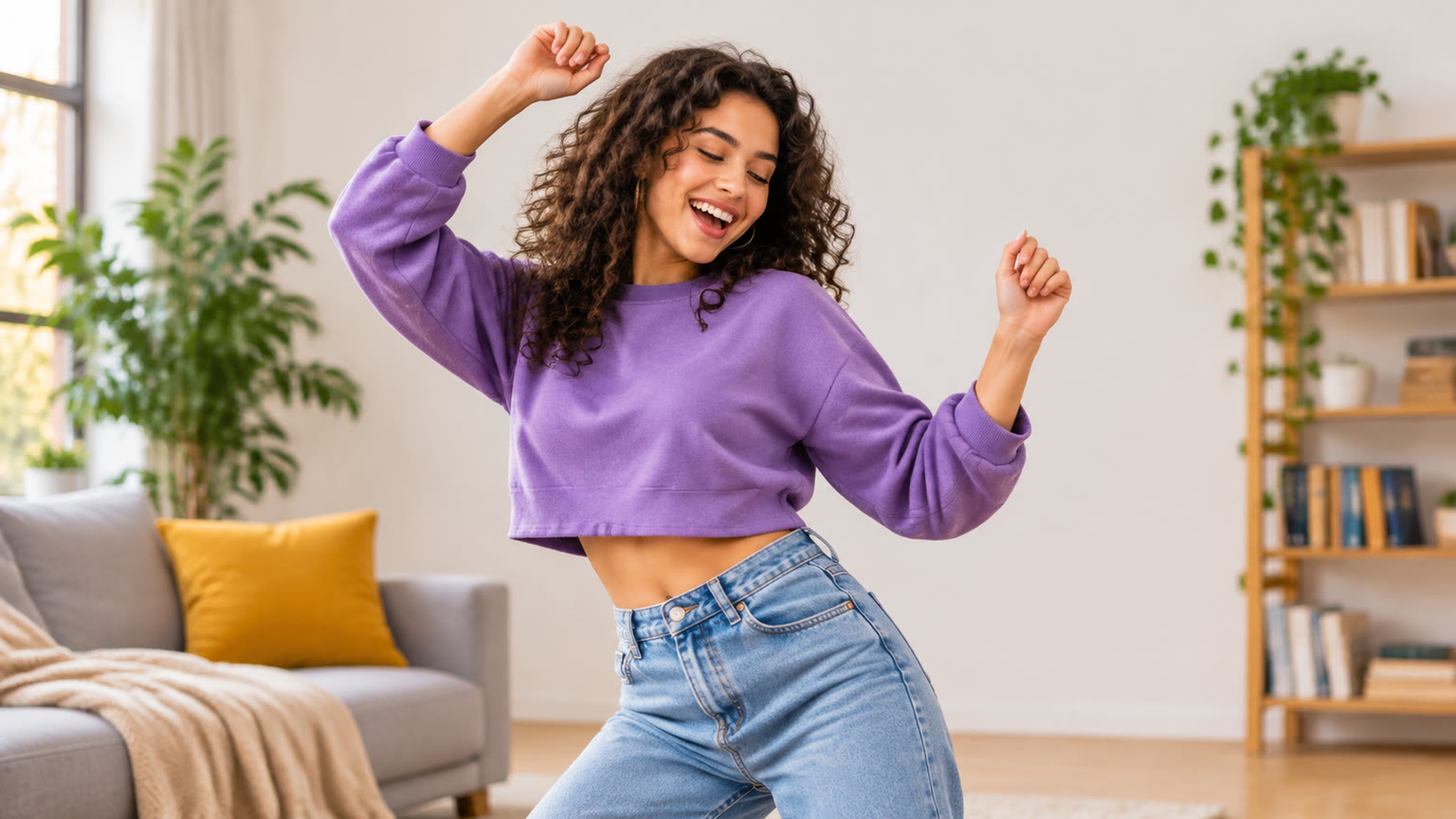
Looking for an AI dance video generator free to try? Start with a dance template or video tool, prepare a clear photo or visual concept, and make a short test clip before refining it. LazyKiwi has dance templates and an AI dance generator, but current free access and usage limits are not public in the information provided here, so check the options shown in the tool before generating.
Start With the Simplest Dance Video Workflow
The simplest way to make an AI dance video is to choose a dance style, provide the input requested by the tool, and review a short result before making another version. Open the AI dance generator to see the available controls, or browse dance and video templates when you want a starting concept. Follow the input instructions shown on the page you choose; available settings and requirements can differ between tools and templates.
- 1
Choose one clear goal
Decide whether the clip is meant to show a specific dance move, a playful character performance, or a stylized visual transformation. One goal gives you a useful standard for judging the result.
- 2
Prepare the visual input
If your chosen workflow asks for an image, pick one with a visible subject, a readable pose, and room around the body. If it asks for text, describe the dancer and scene plainly.
- 3
Select a dance direction
Use a template for a recognizable look or describe the movement yourself when the tool offers a prompt field. Keep the first attempt focused on one type of motion.
- 4
Generate and inspect
Watch the full clip, especially the hands, feet, framing, and transition between poses. Change one input at a time so you can tell what improved the next version.
Before starting, check any access, generation, or download details displayed in the tool. A search for a free generator does not establish which features are currently free.
Choose a Template That Matches the Movement
Choose a dance template by the motion and visual style you want, not just by its name. A gentle side-to-side performance calls for a different starting point than a bold, challenge-style routine. On LazyKiwi, the AI sway dance template is a relevant place to explore a swaying concept, while the AI love kill dance challenge template points toward a more specific dance-challenge idea. Open the template page to confirm its current input requirements and options.
| What you want | Where to start |
|---|---|
| A particular dance concept | Open a dance template and check whether its example matches your intended result. |
| More control over the overall scene | Explore the video generator and use the controls available in that workflow. |
| An illustrated or stylized appearance | Start with a suitable visual concept, then evaluate a style-focused dance template. |
| A quick first experiment | Pick one template and change only the inputs it requests. |
For an animation-inspired direction, review the anime overlay dance template. For a playful named movement, consider the AI bun shake dance template. These are different creative starting points, not guarantees that every input will produce the same choreography. A template may guide the look or motion, but your source material still matters: unclear poses, crowded scenes, and tightly cropped figures make it harder to judge whether the resulting dance reads well.
Choose one template for your first pass. Comparing several concepts is more useful after you have a baseline clip made from the same subject or idea.
Prepare an Image That Can Support Dance Motion
A good starting image makes the dancer easy to identify and leaves enough visible space for movement. If the workflow accepts a photo, favor an unobstructed subject, consistent lighting, and a pose that does not hide both arms or legs. A full-body image is useful when footwork matters; a wider upper-body image may be sufficient when the movement centers on shoulders and hands. Check the chosen tool's actual input instructions before preparing files.
- Keep the subject visually distinct from the background. Similar colors across clothing and scenery can make the outline harder to read.
- Leave space above the head and beside the arms so the composition has room for larger gestures.
- Use a source image that matches the intended tone. A formal portrait and an energetic dance prompt can pull the result in different directions.
- Avoid a starting pose that conceals the action you care about. If shoes and feet are outside the frame, footwork will be difficult to assess.
- For a group concept, decide which person should lead the movement before choosing an image.
When you need to create a visual starting point rather than use an existing photo, the AI image generator offers a place to develop an image concept. Describe the subject, clothing, camera distance, and background with the eventual dance clip in mind. You can then check whether your chosen video workflow accepts the image you made. Do not spend all your effort polishing tiny background details; a readable subject and useful framing matter more for this task.
Keep a copy of the original input while testing. Reusing the same source image makes it easier to compare a different template or prompt.
Write a Dance Prompt the Video Tool Can Use
A useful dance prompt names the subject, one coherent movement, the setting, and the camera behavior. Use it only where your chosen workflow provides a text prompt field. Start with a short sentence rather than stacking unrelated dances, rapid camera moves, costume changes, and scene transitions into one request. A focused prompt gives you a clear target when you review the clip.
A reusable prompt structure
Try this structure: “A [subject] performs [one dance movement] in [setting], with [camera framing] and [visual mood].” For example: “A dancer performs a relaxed side-to-side sway in a bright studio, shown in a steady full-body shot with an upbeat mood.” This is a writing example, not a promise that a tool will follow every detail exactly. Adjust the wording to fit the controls and input format you actually see.
- Movement: Name an observable action, such as swaying, stepping, turning, or raising the arms.
- Tempo: Use plain terms such as slow, relaxed, lively, or energetic rather than assuming a precise beat can be specified.
- Framing: Request a full-body view when the legs matter, or a medium view when the gesture is mainly in the upper body.
- Background: Pick one setting that will not compete with the dancer.
- Style: Choose one visual direction, such as realistic, illustrated, or cinematic, if that matches the available controls.
If the result feels chaotic, remove details before adding more. Keep the subject and movement, then test whether simpler framing produces a clearer dance.
Test and Improve the Clip With a Short Checklist
Improve an AI dance video by reviewing a short draft against specific visual checks, then changing the input that most likely caused the biggest issue. You do not need to judge whether every frame is perfect. First decide whether a viewer can recognize the intended dancer and movement without reading your prompt.
- 1
Check the opening frame
Is the subject visible and positioned where the movement has room to happen? If not, revise the source framing or camera description.
- 2
Check the motion
Does the clip show the action you asked for? If the motion is vague, use a simpler movement verb or try a template closer to your idea.
- 3
Check body continuity
Watch hands, feet, and clothing across the clip. Note the moment a pose becomes confusing so you can adjust the next attempt.
- 4
Check the background
Make sure the setting remains easy to read and does not distract from the dancer. Simplify the scene description if needed.
- 5
Change one variable
Try a different image, movement description, or template, but avoid changing all three at once.
You can also explore the AI video generator when your project needs a broader video starting point. Check the controls available there before assuming that a setting from a dance template will carry over. Keep a brief note of the prompt, image, and template used for each attempt. That record helps you identify what made a version clearer instead of relying on memory.
Check Free Access Before Planning Multiple Videos
To answer the “free” part of this search accurately, check the current options on the LazyKiwi page you plan to use. The information provided for this guide does not state whether the dance tool offers free generations, how many attempts might be available, or what download options apply. Those details should be confirmed in the live workflow before you plan a batch of videos.
- Look for the access details shown before you start a generation.
- Check whether the specific template or tool you chose displays different requirements from another workflow.
- Review any stated generation and download options before committing to a project format.
- Prepare your image and prompt in advance so your first test answers a useful question.
- If you are comparing concepts, start with one subject and one short movement idea.
A practical first test is more valuable than a large queue of nearly identical prompts. Decide what would make the result usable: recognizable movement, clear framing, or a particular visual style. Then evaluate the first output against that criterion. If it misses the mark, make a targeted change. If it succeeds, you have a stronger basis for trying another dance or preparing additional clips.
Treat “free” as a current access question, not a permanent feature claim. The page shown when you generate is the place to confirm what is available for your chosen workflow.
Pick a Dance Idea for Your First Video
For a first AI dance video, choose an idea with one subject, one readable movement, and an uncomplicated background. That combination gives you fewer variables to troubleshoot and a clearer way to compare outputs. You can expand the scene once the basic motion works.
- Easygoing sway: Use a centered subject, a steady camera, and a gentle side-to-side movement. This is a useful choice when you want the dance itself to remain the focus.
- Playful character dance: Start with a distinctive subject and describe one repeated gesture. Keep the background simple enough that the character stays prominent.
- Stylized performance: Choose an illustrated visual direction and focus on a clear silhouette. Check the result for consistent framing as the subject moves.
- Walk-to-dance transition: Describe the walking and dancing portions plainly, then review whether the change between them reads clearly.
- Group routine: Begin with a simple shared movement and a wider composition. Add more individualized actions only after the main group motion is understandable.
The best idea is the one you can describe in a sentence and recognize immediately when you watch the output. If your first concept requires several scene changes or precise timing, reduce it to its strongest moment. Once you have a usable draft, try a second version with a different background, camera distance, or dance style. That sequence turns a broad creative idea into a practical test.
Key takeaways
- Start with one dance template or tool and follow the input requirements shown there.
- Use a clearly framed subject and a prompt centered on one recognizable movement.
- Review short drafts for motion, body continuity, and framing before changing one variable.
- Check current access and download details in the workflow; free usage limits are not public in the information provided.
Video Workflows Editor
Daniel Okafor
I run the same clip through every video and motion tool we ship and write down what actually changes: timing, length, export, and where each one falls apart.
FAQ
Common questions
Can I make an AI dance video for free on LazyKiwi?
LazyKiwi has an AI dance generator and dance templates, but current free access details were not provided for this guide. Check the options displayed in the tool before generating.
Do I need a photo to make an AI dance video?
That depends on the workflow you choose. Open the tool or template and follow its current input instructions; if it requests an image, choose one with a clearly visible subject and enough room for movement.
What makes a good AI dance prompt?
A good prompt identifies the dancer, one observable movement, a setting, and camera framing. Start simple so you can tell whether the result matches your intended action.
Should I use a dance template or a general video generator?
Use a dance template when its concept closely matches the look or movement you want. Explore a general video generator when you want to start with a broader video idea, and check which controls are available in that workflow.
Why does my dance clip look unclear?
The subject may be tightly cropped, the movement description may be too broad, or the scene may contain too many competing details. Try a clearer input image and one simple movement, then review the next result.
Can I make an animated-looking dance video?
You can explore a style-focused dance template or prepare an illustrated visual concept as a starting point. Check the selected workflow's inputs and review a test clip to see how well it matches your intended look.
Make Your First AI Dance Clip
Start with a clear subject and one dance idea, then check the available video options before generating.
Keep reading
Free Video Upscaler: A Practical Step-by-Step Guide
Learn how to upscale video for free, choose useful settings, and check whether the result actually looks better.
7 min read
Free AI Animation Tools for Short Scenes: A Guide
Choose an AI animation workflow for a short scene, write a focused prompt, and check free-use limits before you create.
6 min read
Free AI Lip Sync Tools by Input: A Practical Guide
Choose a lip sync workflow based on whether you have text, audio, a photo, or video, then check what the free tier actually includes.
8 min read